Restricted Mode Operations
Setup for Restricted Mode
Setup Steps to Prepare for Restricted Mode
-
Enable the SMASAV user profile using the following command:
CHGUSRPRF USRPRF(SMASAV) STATUS(*ENABLED)tipThe default password for user profile SMASAV is SMASAV. The site should consider changing this password.
-
In the command line, enter SMASGPL/STRSMA. For information on STRSMA command parameters, refer to the STRSMA Command.
-
Enter 5 to choose the Restricted mode menu in the SMA Main Menu.
-
Enter 1 to choose Maintain scripts in the Restricted Mode Menu.
-
To add a new script, press <F6> = Add.
-
Type the New script name (no spaces in name!) in the pop-up window, press <Enter>.
-
The screen displays the Restricted mode options display, where script steps may be added and changed.
-
Press <F6> to add new script options (an option is the same as a script step) on the Restricted mode options screen.
-
To change existing option lines, under the Op column:
a. <Tab> to the desired option.
b. Enter 2 on the line next to the selection.
-
Verify and/or change the available parameters on the options detail screen. For information on the Restricted Mode parameters, refer to Restricted Mode Screens and Windows.
-
Press <Enter> to commit the changes to the options details.
-
Returning to the list of options, if necessary, type 6 next to all the options to be performed and press <Enter> to set them to RDY (ready) status.
a. Alternately, enter 3=Hold next to any options that should not be performed to set them to HLD status. (Holding options is useful for temporary changes to a script, making it easy to restore them to RDY *ready status later.)
-
Return to the Restricted Mode menu using <F12> (Cancel) or <F3> (Exit).
-
Enter 2 to choose Setup environment in the Restricted Mode Menu.
a. Upon the first display, a window will appear showing the jog logging parameters that will be used for Restricted Mode jobs, based on the IBM i Job Description that is assigned by this IBM i Agent to these jobs (SMADTA/SAVRSTJ00). Use this window to update the logging to a desired level, where (4 00 *SECLVL) creates the most verbose logging. Then press Enter to update the Job Description. When not updating the Job Description, just press F3 or F12 to close the window and continue with the following steps. The function key F16 can be used to access the Job Description update window at any time.
-
Position the cursor into the Environment field and press <F4> to view a prompting list.
-
Type 1 to select the environment that was created for use with Restricted Mode operations.
a. If no environment has been created for use with Restricted Mode, press <F12> to return to the main setup screen, and then press <F6> (Add/maint env) to create and environment and build a library list. Refer to LSAM Environment Management. Then repeat steps 15 and 16.
-
Enter the number of seconds that are required by the system to fully restore the TCP servers after IBM i first starts all subsystems.
a. View the System Operator message queue and examine the times on the messages after the last IPL to learn how long this takes on the system.
-
Press <Enter> to update the Restricted Mode Environment information.
a. The maintenance program displays the message: Job description SMASAVJ00 in library <SMADTA> changed. The value for SMADTA may be different, depending on the LSAM environment where this maintenanceis performed.
-
Press <F15> (Update SMASAV) to proceed to the user profile and restricted mode environment update display.
-
Press <Enter> to perform an update to the restricted mode user profile and data area. The display will return to the environment library list and should display the following message text on the bottom line of the display: Updates to SMASAV user profile and RSTENVIRON data area completed normally
-
Press <F12> (Cancel) or <F3> (Exit) to return to the menu.
-
Complete the configuration of a Job Definition for a Restricted Mode Job in the OpCon User Interface (EM, SM), as described below.
Special Instructions for Restricted Mode Scripts
Restricted Mode operations require that certain steps be included in a Script to enable the automatic restoration of a normal system state and the automatic recovery of LSAM communications with OpCon. In addition to the required steps, there is also an optional reserved Script Action code that may be used for user-defined actions to be performed should a Script fail during its execution. This section also explains what the system will do in case a Script should fail to execute normally.
Steps Required in a Restricted Mode Script
There are reserved Action code names that must be used, and a recommended guideline for including these in Script steps. Using Action codes to label the required steps leaves them open to a user-supplied definition of the command to execute. This creates maximum flexibility for coping with unique user requirements. However, in most cases some combination of these reserved Action codes must be included in Script steps in order for normal system operations to be suspended and then restored.
In summary, every Restricted Mode Script is required to include a pair of reserved Action codes in order to control the automatic process of stopping system functions and then restarting them. There are two possible pairs of required Action codes, used as follows:
-
When the IBM i operating system will not be re-initialized, but may return immediately to unrestricted operations:
a. Use the ENDSYS (or NOENDSYS) Action code somewhere near the beginning of the script sequence, and the STRSYS Action code somewhere near the end of the script sequence. (Additional script options, that is, steps, may follow the STRSYS Action code step.)
-
When the Restricted Mode script will perform a PWRDWNSYS operation in order to IPL IBM i (and then, typically, to automatically restart it):
a. Use the ENDSYS (or NOENDSYS) Action code somewhere near the beginning of the script sequence, and then the PWRDWN Action code as the very last step of the script sequence.
How Reserved Action Codes Work
-
ENDSYS is required to put IBM i into its restricted mode.
The Action code name ENDSYS must be used for the Script step that puts the IBM i operating system into restricted mode. It is possible to specify custom commands to accomplish this procedure, but onetypical form of IBM i command to accomplish this is:
ENDSBS SBS(*ALL) DELAY(120)tipWhen OpCon starts the Restricted Mode job, a signal program is used to tell the waiting console program where SMASAV is signed on so it can start processing the named Restricted Mode Script. This signal program performs the process of ending all the LSAM service programs, including suspending communications with OpCon. However, the console program that runs the Restricted Mode Script (named by the OpCon job) does not automatically put the IBM i system into its restricted mode. The Script is allowed to perform as many additional steps as desired before specifying that the system should be put into restricted mode. It is the Action code ENDSYS applied to one of the Script steps that marks where the restricted mode begins.
-
In place of the ENDSYS action code, the alternate value of NOENDSYS may be used. This code will satisfy the script driver program action code edits, but it will not actually put the IBM i system into a true restricted state. Instead, the responsibility is entirely on the user to specify an appropriate script step command for the step that uses the NOENDSYS Action code. This Action code value can be useful for test purposes.
-
Paired with the ENDSYS (or NOENDSYS) Action code, there must be either a STRSYS Action code or a PWRDWN Action code.
-
If the PWRDWN Action code is used, it must be the last step of a Script sequence because it marks the command used to power down the IBM i operating system for an IPL.
Here is a typical example of the command line text that would be assigned to the PWRDWN Action code:
PWRDWNSYS DELAY(30) RESTART(*YES)Be sure to refer to the note below about the CONFIRM keyword that is supported by the PWRDWNSYS command beginning with the IBM i 6.1 version of the operating system.
The purpose of the PWRDWN Action code is to signal the Restricted Mode driver program that it should normally complete its final tasks just before executing the actual PWRDWNSYS command. These final tasks include setting up the LSAM environment so that when it is restarted after an IPL completes, the Restricted Mode job will be reported to OpCon as completed normally.
tipIn order to fully automate the recovery of the LSAM servers after a system IPL, the LSAM command that restarts the LSAM servers must be included in the system startup program. Use the IBM i command DSPSYSVAL to find the name of the system startup program in the system value QSTRUPPGM. This program, or a user replacement for it, must include the LSAM command SMAGPL/STRSMASYS ENV(environment_name), where the default value for the environment name can be (*DEFAULT). The ENV parameter of the STRSMASYS command must specify the name of the LSAM environment where the Restricted Mode job was executed, if this was not the default LSAM environment.
-
STRSYS can be used instead of PWRDWN to restore the IBM i normal operations mode. The Action code name STRSYS can be used to mark the Script step that restores normal mode operations. It is typical for IBM i to have a startup program stored in the QGPL library. During normal system startup after an IPL, the QCTL (or other named) controlling subsystem would execute the program that is named in the system value QSTRUPPGM. View this program name using the DSPSYSVAL command. It may be desired to specify this same program as the command line for the STRSYS Action code in the Restricted Mode Script. The purpose of the STRSYS action is to restart all of the IBM i subsystems and certain services such as TCP server programs that are required for LSAM communications with OpCon. If the Script step does not call the IBM i startup program that will also resume the IBM i LSAM server jobs, then another Script step must be used to perform the LSAM command SMAGPL/STRSMASYS, but only after using the DLYJOB Action code, as described next.
-
DLYJOB must be specified in a separate step after STRSYS to allow time for the TCP server to restart.
Specify any Action code name for the next step to be performed after STRSYS. However, before specifying the Action code (below) that restarts LSAM communications, allow sufficient time for IBM i to restart TCP/IP communications services. The typical syntax for the delay job command is:
DLYJOB DLY(180]If sufficient wait time is not provided, then the LSAM communications program will not have an active IP address and it will fail to start. In this case, manually restart the LSAM communications. The amount of time the system requires to start up TCP communications can be determined by examining the time stamps on messages in the operator message queue for the period of time just after an IPL.
-
Command SMAGPL/SMASETLIBL may be used to restore the LSAM environment library list.
SMASETLIBL is required in order to execute many LSAM software commands, except for certain command such as SMAGPL/STRSMASYS (refer to next step) that manage the library list themselves.
Specify the same name of the LSAM environment that was designated to control Restricted Mode operations for this command. The name of the controlling LSAM environment was specified during the Restricted Mode Setup maintenance procedure. In a default environment where there is only one LSAM subsystem, the value of *DEFAULT may be specified with this command. The default LSAM environment name that is distributed with the software is SMADEFAULT. Specify any Action code name desired, but the command for this action must be in one of these formats:
SMASETLIBL ENV(*DEFAULT)or
SMASETLIBL ENV(SMADEFAULT)or
SMASETLIBL ENV(<my_LSAM_environment>)<my_LSAM_environment> is a different LSAM environment name than the one being used. Refer to Installing Multiple Environments and LSAM Environment Management for more information on this option.
Do not use the command SMASETLIBL without an ENV parameter because the default value for the environment name is *SELECT, and there will not be an operator present to select the environment name during automated control of Restricted Mode operations.
Command SMAGPL/SMASTRSYS must be used to restart LSAM communication with OpCon.
If the IBM i system startup program was not called at the STRSYS step, or if the IBM i system startup program does not include this STRSMASYS command, then the last required step in a Restricted Mode Script restarts all the LSAM server programs, including restoring communication with OpCon.
Be sure to specify the name of the LSAM environment that will be started. The STRSMASYS command executes the SMASETLIBL command to establish a correct library list for the LSAM environment named. The value of *DEFAULT or a specific LSAM environment name may be used for the environment, but the values of *CURRENT or *SELECT may not be used with this command in the Operator Replay scripts. The format for this command is:
SMAGPL/STRSMASYS ENV(*DEFAULT)
Optionally include other steps to be performed before the Restricted Mode Script is ended, after restarting the LSAM server jobs and communication with OpCon.
For IBM i 6.1 (formerly known as IBM i V6R1) or a newer version of the operating system, the PWRDWNSYS command supports a new function where F16=Confirm must be pressed at the console display device in order to allow the system to power down. This feature must be suppressed in order for the Restricted Mode script to use the PWRDWN Action code, otherwise an operator must be present to respond to the console display. The F16=Confirm function may be suppressed by using the keyword and value CONFIRM(*NO) with the PWRDWNSYS command, or it may also be suppressed by setting the environment variable QIBM_PWRDWNSYS_CONFIRM to '*NO'.
IBM documentation about the PWRDWNSYS CONFIRM option
For convenience, this documentation copied from IBM explains the keyword CONFIRM( ) that was not part of the Power Down System (PWRDWNSYS) before IBM i6.1.
Confirm (CONFIRM)
Specifies whether the power-down request should be confirmed before the system is powered down.
*ENVVAR
The value in environment variable QIBM_PWRDWNSYS_CONFIRM is used to determine whether the request should be confirmed. If the value is set to *INTERACT, *YES, or *NO, the action described below for that value is taken. If the environment variable is not defined or not set to one of these values, then a confirmation panel is displayed when the PWRDWNSYS command is issued in an interactive job. System initiated power downs do not use the environment variable.
*INTERACT
A confirmation panel is displayed when the PWRDWNSYS command is issued in an interactive job. There is no confirmation when the PWRDWNSYS command is issued in a non-interactive job.
*YES
A confirmation panel is displayed when the PWRDWNSYS command is issued in an interactive job. An inquiry message is sent to QSYSOPR when the PWRDWNSYS command is issued in a non-interactive job.
*NO
There is no confirmation when the PWRDWNSYS command is issued.
Optional ON_ERROR Script Action Code
There is a special Action code name ON_ERROR that is reserved as an optional step that may be added anywhere in the sequence of Script steps. Each time ON_ERROR is listed in a Script, the Restricted Mode operations program will register the command that has been assigned to this Action code as the current operation to be performed in case any subsequent step in the Script might fail.
If the ON_ERROR command is executed after a failed step, it will be executed after the Restricted Mode operations program has performed most of the AutoRecovr steps. This takes place after normal system operations have been restored and the LSAM service programs have been restarted. Refer to below for an exact definition of how the Restricted Mode program will recover from a failed Script.
One type of command that could be assigned to an ON_ERROR Action is an OpCon Event. For more information about the available OpCon Event commands that may be specified, refer to Events and Utilities Menu and Commands and Utilities . As with all Restricted Mode Action commands, the OpCon Event commands may also be prompted using <F4> from the Restricted Mode Options Detail screen (refer to Restricted Mode Screens and Windows for more information).
ON_ERROR Action codes are ignored if the entire Restricted Mode Script executes normally, or if the only steps that have failed are steps that were flagged (N) to not stop on error.
Automatic Recovery from Script Failure
The Script history log shows a special code AutoRecovr among the other logged Action codes. Unlike the other Action codes, this code does not come from the Script. Instead, this is a special code reserved for use by the system to log its attempt to automatically restore normal LSAM communications whenever there has been a failure of a Script step.
Control whether the system will attempt to automatically restore system operations by the value specified for the Stop Execution On Error flag that is assigned to each Action code in a Script (refer to Restricted Mode Screens and Windows for more information). A value of N tells the Restricted Mode program to ignore a failure and continue with the next step in the Script. A value of Y tells the program to respond to an error by ending the Script process.
Whenever the Script process is ended due to an error, the Restricted Mode program checks the current status of the system. Then it attempts the following steps so that normal LSAM communications can be restored and the error reported to OpCon:
- Finds and uses the STRSYS step in order to restore the normal state of IBM i operations. (This step will be skipped if IBM i is still in, or has already restored, its normal state of operations.)
- Delays the program for the number of seconds specified in the Restricted Mode Setup maintenance program, giving IBM i sufficient time to restore the TCP communications services.
- Sets the Restricted Mode program's library list to the list of the controlling LSAM environment using the SMASETLIBL utility command. The name of the environment used to control Restricted Mode operations is set using the Setup Environment function from the Restricted Mode menu. Then the name of that environment is stored in the data area QGPL/RSTENVIRON.
- Restarts LSAM communications using the STRSMASYS utility command.
- Registers a failed job transaction for the Restricted Mode job that will be sent via normal LSAM communications.
- (Optional) Also runs whatever is the latest ON_ERROR Script command that might have been included in the Script. If there is no ON_ERROR Action code in the Script, then no additional commands or actions are performed by Restricted Mode operations.
- Stores the job logs of the failing Restricted Mode process and of the job that signaled Restricted Mode to start (the name of the job being tracked in OpCon for Restricted Mode operations control). These job logs can be viewed from the LSAM environment's command entry line using the LSADSPLOG utility command.
- Ends the Restricted Mode program and forces the console interactive job to end by producing a job log and signing off the SMASAV user profile.
Caution: Restricted Mode Process Failures
IBM i Save Operations Messages
Despite all the efforts that SMA has made to support full automation of Restricted Mode operations and restarting LSAM operations, there remains a potential that IBM i Save operations might require operator intervention if an error occurs.
IBM has programmed the IBM i Save operations so that an attempt to save objects to a save file that is not empty will cause a Program Message with message ID CPA4067 to be issued, rather than a typical error message as might be sent to the system operator message queue. Program Messages are unique because they are displayed on a specially formatted interactive message display screen for interactive jobs and there is no way to program the IBM i to automatically detect or respond to Program Messages in this format. This same error might occur if an attempt is made to save objects to a tape media that has not been properly formatted (when the Save command does not include a parameter that specifies to overwrite any existing tape content).
It is the responsibility of the system operations or administration staff to take all necessary measures to prevent this unique circumstance from occurring in order to depend on OpCon to fully automate restricted mode operations. SMA suggests the possibility of including an extra step in a Restricted Mode Script that will intentionally clear an existing save file before a separate Script Action is used to actually perform a Save operation to that save file.
Running a Restricted Mode Process
IBM i now supports executing restricted mode operations from other sources besides just the DSP01 console device. It's possible to use a different interactive display device, and it's also possible to run in batch mode without any display device. The LSAM setup for Restricted Mode script processing supports choosing any of these three methods.
For the Batch Job method, it is important to consider engaging the Agent's Job Tracking feature in order to add the Script Driver job to the same OpCon Schedule that had launched the Restricted Mode Initiator Job. Adding Job Tracking enables more obvious ways to manage any potential failure of the Script Driver job, as defined below.
Run a Restricted Mode Process in Batch Mode
- Ensure that the LSAM is communicating with SAM and supporting services (SAM-SS).
- It is NOT necessary to log in to the IBM i console or an alternate display device as SMASAV in order to use the batch mode.
- Add an IBM i job master to an OpCon schedule and choose the IBM i job sub-type as Restricted Mode. Specify the name of the Restricted Mode Script to use for this job.
- When the script completes execution, the procedures used to restore normal system operations are the same as when a display device is used. The steps performed by the Restricted Mode Script and any error information can be viewed using the LSAM sub-menu option to display "Restricted mode history" (previously called "History of the last use").
Using Job Tracking to Reveal the Script Driver Batch Job on an OpCon Schedule
Restricted Mode Automation Process Analysis
The OpCon Agent for IBM i automates the process of putting the IBM i operating into its restricted state, where it can then perform the following typical system maintenance functions:
- Stopping as many system functions as possible so that a complete “Full System Save” can be performed, without being obstructed by IBM i object locks that would prevent those objects from being saved in a clean form.
- Conducting a full system save operation.
- Purging and reconstructing operating system control tables, plus various logs and aged journals and journal receivers.
- Recovering disk space by removing damaged objects that can no longer be controlled by the normal operating system’s programmed functions.
- Optionally, perform an IBM i IPL (Initial Program Load = re-booting the operating system).
- One of the sub-procedures during an IPL would be performing functions required by the IBM i PTF (OS software patches) that might have previously been loaded, but were not finally applied to the operating system until the system IPL process is performed.
To accomplish automation of this process, two IBM i jobs are required:
-
The first job (Initiator Job) is started from an OpCon Schedule, and its purpose is to audit the Agent and the system for all the requirements that Restricted Mode automation needs to succeed.
-
Then it submits a separate, second job (Script Driver) that will run in the operating system’s designated subsystem that will remain as the only active subsystem during restricted mode operations.
That subsystem’s description is designated by an IBM i System Value (QCTLSBSD), and by default it is QCTL in library QSYS. So the second OpCon/IBM i Agent job that actually executes the Restricted Mode Script Steps will typically be executing in the QCTL subsystem.
Once the Script Driver job confirms that it is running and all controls are in order, it sends a message back to the Initiator Job, via a data queue allocated to this Agent process, and the first job then stops the IBM i Agent Server Jobs subsystem (by default, named SMASBS).
Finally, the Initiator Job logs its completion status and ends normally…but, the actual completion status of the Initiator Job is not reported immediately to the OpCon server because the Agent’s Server jobs subsystem is already suspended by this time.
Instead, the overall status of the Automated Restricted Mode process will depend on the results of the Script Driver that is executing the Agent’s Script Steps. It will send either a Job Failed or a Job Completed message to the data queue (CMNOUTT00) that is holding any messages that will be forwarded to the OpCon Server to report job status and other information, whenever the IBM i Agent Server jobs are restarted by one of the methods documented in the IBM i Agent’s User Help.
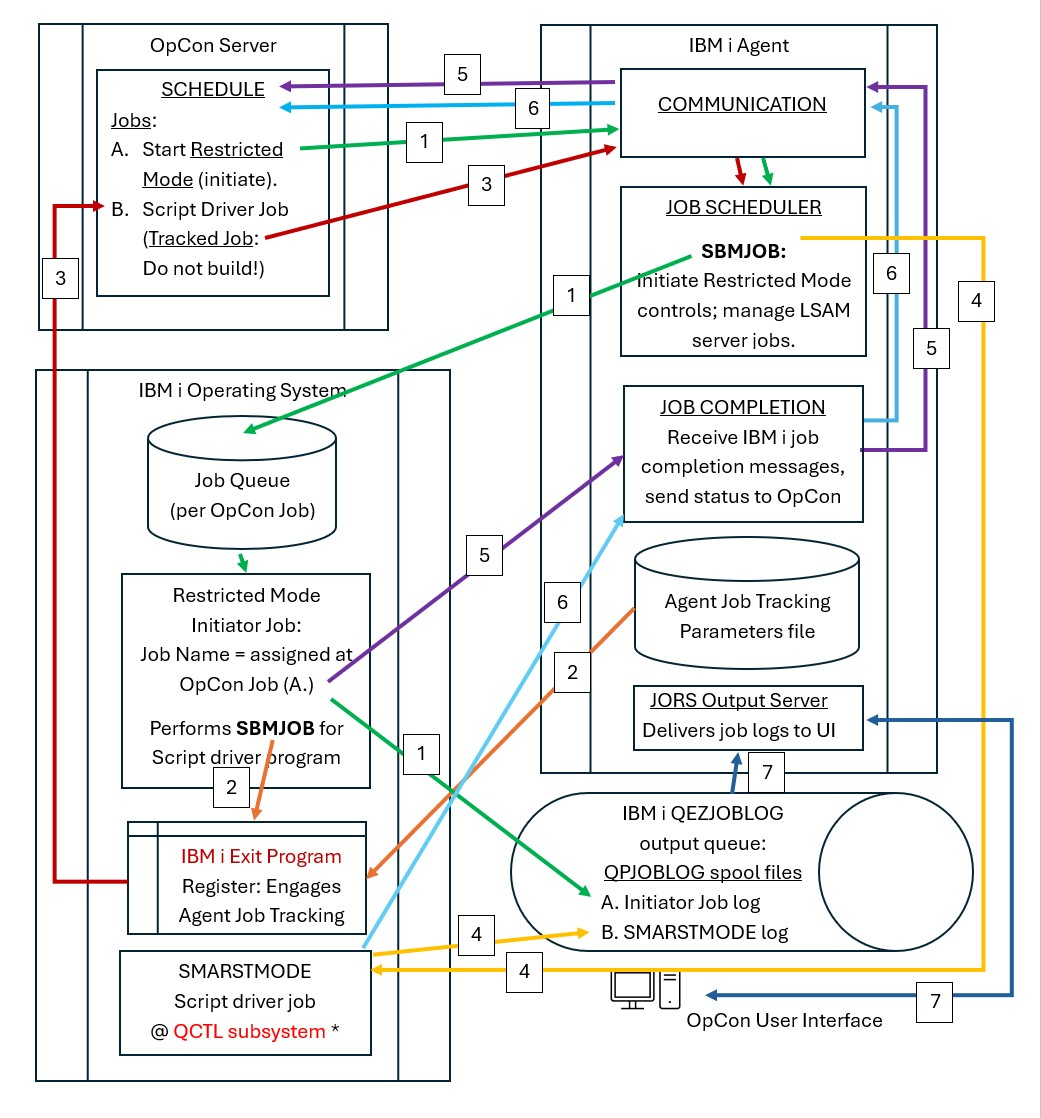
Flow Chart of Using Job Tracking for the Script Driver
This flow chart illustrates the components involved with managing the two IBM i jobs required to automate Restricted Mode operations in the IBM i operating system. Below the flow chart image there is a legend with colored and numbered [1] labels corresponding to the arrows in this flow chart.
Legend of Flow Chart for Using Job Tracking to Reveal the Script Driver Job
The flow chart provides a picture diagram that might help to understand decisions that can be made about how to get the most reliable results from the IBM i Agent’s Restricted Mode automation. This legend identifies step-by-step (by the numbers) each part of the process that the IBM i Agent’s automation strategy can execute, when a decision is made to engage Job Tracking.
The goal of engaging Job Tracking with the Restricted Mode automation is to produce two different job records on the OpCon Schedule. When this is accomplished, it becomes possible, for example, to configure the Notification Manager to report separately only any failures that occurred in either job. And, as a failure notification is reported, then the appropriate IBM i job log report can be delivered with the Notification.
This solution overcomes the objection that the Notification Manager is only able to deliver the first IBM i job log report from the primary Initiator Job, while meanwhile there is a greater potential for errors as the Script Steps are being executed by the separate Script Driver job that runs during the operating system’s restricted mode.
1 OpCon Schedule starts the Restricted Mode Initiator Job.
The Restricted Mode Initiator Job is started from an OpCon Schedule. This job may sometimes referred to as the “primary job” in this document. This is an “IBM i” job in an OpCon Schedule, with the IBM i sub-type of “Restricted Mode.” The Job Name may be any valid name for the IBM i operating system. The Agent’s Restricted Mode Script name is entered into that box, up to 20 characters.
2 The Agent’s Job Scheduler processes the TX1 Job Start request.
The SBMJOB command executed by the Initiator Job, to submit the SMARSTMODE Script Driver jopb, is intercepted by the Agent’s Job Tracking exit program. This exit program gets registered in the system’s exit program registry when the Agent’s menu 1 option 3: Start Job Track, has previously been selected.
3 The Agent’s Job Tracking Parameters table is consulted.
The Exit Program determines if the Job being submitted (always named SMARSTMODE) was registered for Tracking. If there is a match, then the Exit Program sends a $JOB:TRACK “external event” transaction to this Agent’s communications program (implied by red arrow # 3, but not shown in the flow chart) for transmission to the OpCon “Message-In” processor for externally submitted Event requests. If the OpCon Server’s SAM recognizes the Schedule Name and Job Name provided from the Agent’s Job Tracking Parameters, then it returns a “Job Start Request” transaction (TX1) to the Agent. (See the Agent’s User Help about Job Tracking for more information.)
4 The Agent’s Job Scheduler processes the TX1 Job Start request.
By recovering the definition of the secondary Restricted Mode Script Driver program that had been intercepted and stored by Job Tracking, the Agent's Job Scheduler is able to reconstruct the original SBMJOB command. It then uses the reconstructed SBMJOB command to submit this job to the QCTL subsystem’s job queue. (The actual name of the IBM i subsystem designated for restricted mode processing is stored in the IBM i system value QCTLSBSD.) Once the Script Driver job starts processing, it is able to:
(a) Store progress entries into the Agent’s Restricted Mode History log
(b) Send entries to the IBM i job log for this Script Driver job (SMARSTMODE)
(c) Execute the SMAJOBMSG Agent’s utility command that stores Detailed Job Messages into the data queue (CMNOUTT00) so that these (TC 61) job status messages can be forwarded to the OpCon Server whenever the IBM i Agent’s Server jobs are restarted, following the end (normal or failed) of this Script Driver job.
(d) Register either a successful completion or a failed job status transaction in the CMNOUTT00 data queue that will be processed as the Agent’s Server jobs are restarted. (See flow chart turquoise arrow # 6.) This job’s status will be reported separately from the status of the primary Restricted Mode Initiator Job. (See following NOTE.) The flow chart shows the yellow arrow # 4 series generating an IBM i job log report at job end time, separately from the primary Restricted Mode Initiator Job (managed as the green arrow # 1 series connects to the IBM i job log processing and queueing in the system output queue named QEZJOBLOG).
(e) Be responsible for restarting the IBM i Agent’s Server job, by one of three methods: >>(1) Using the PWRDWNSYS command to initiate an IPL (initial program load = re-booting the IBM i partition), which relies on the system startup program registered in the IBM i system value QSTRUPPGM to execute the SMAGPL/SMASTRSYS ENV(SMADEFAULT) command for the Agent. >> >>(2) Using a script step to execute the command SMAGPL/SMASTRSYS ENV(SMADEFAULT), where the library name for SMAGPL and the LSAM Environment Name of SMADEFAULT could be different, if the default LSAM values were overridden, or if a second instance of the LSAM is installed within the same IBM i partition (e.g., for testing). >> >>(3) After a fatal script step error condition is encountered, and the Step record flag indicates “Y” = do fail the job, then a program-defined ACTION(AutoRecovr) will be executed that includes restarting the LSAM server jobs.
See the “Restricted Mode Job Completion Reporting Methods” topic, below, to understand the options for using the original single Restricted Mode Initiator Job in the OpCon Schedule for reporting the job completion status. If Job Tracking creates a separate job for the script execution job SMARSTMODE, then the primary job could show a successful completion, while the script execution job might show a failed status. When there are two jobs, care should be taken when assigning job completion dependencies and Notification Manager reactions, in order to produce the desired activity following failure of either job.
When there is only the one primary Initiator Job appearing in the OpCon Schedule, then a failure of the SMARSTMODE Script Driver job will force the Initiator Job to show a “Marked Failed” status, regardless of an IBM i normal job completion status.
Whether the job finishes normally, or is Marked Failed, the View Job Output function of the OpCon UI will (eventually) show two different job log reports for the Initiator Job, but the second job log report from the SMARSTMODE Script Driver job will be delayed until it finally finishes its processing. This original, default behavior of gathering two QPJOBLOG reports under the single Initiator Job “view output” display unfortunately prevents a failed job Notification action from delivering the second job log report, which most often would contain details about the Script Driver job’s failure. This limitation can be overcome by adopting the Job Tracking strategy defined in this document.
Remember that if the Initiator Job itself has failed, then in many cases it will not have submitted the Script Driver job (SMARSTMODE), and there will be only one job log report associated with the Initiator Job. In this case, it is expected that the job log report distributed by a Notification event would contain details about the failure of the Initiator.
5 Management of job completion messages.
The Agent’s primary Restricted Mode Initiator Job, using a Job Name specified in the OpCon Job Master record, will always have its IBM i job completion status reported to the Agent’s reserved message queue at SMADTA/SMAMSGQ, implied by the Agent Job Completion Message server job (named MSGMNG in the LSAM subsystem). Remember, though, that when there is only one Restricted Mode job in the OpCon Schedule, then this Initiator Job’s final status will be affected by the completion status of the SMARSTMODE script driver job.
The flow chart shows that the Job Completion server program forwards the job status transaction to the Communications program, and that is how the status information gets posted in the OpCon User Interface.
6 Reporting of job completion status of both jobs.
When the Agent’s Restricted Mode Script Driver program finishes, if it was not a separate job on the OpCon Schedule, then it’s completion status will be communicated to the OpCon server by using the IBM i Job ID of the primary Intiator Job, so that single Initiator Job on the OpCon schedule will reflect the ultimate status of both jobs. (See the NOTE above, under flow chart yellow # 4.)
Similar to purple arrows # 5, the turquoise arrows # 6 show that the Job Completion server program forward the job status transaction to the Communications program, and that is how the status information gets posted in the OpCon User Interface.
7 Viewing Job Output.
The blue arrows # 7 represent that the OpCon User Interface may request to “View Job Output.” The Agent server programs dedicated to JORS (Job Output Retrieval Services) can pull an IBM i job log report from the IBM i QEZJOBLOG output queue, or if a job is still active, the Agent server can extract the job log messages from a live job’s own message queue and then construct a job log report format of the data. Either way, a separate job log is available for each of the primary and secondary Agent Restricted Mode jobs. See the “Restricted Mode Job Completion Reporting Methods” topic, below, for details about where each job log report might appear for viewing, and how each could be retrieved by the OpCon Notification Manager.
Restricted Mode Job Completion Reporting Methods
Information in this section took effect with the installation of the IBM i Agent’s PTF211208 (with PTF211207 for message IDs that were added), followed by improvements in PTF211210 and PTF211211. These PTFs elevated the LSAM PTF Level to 21.1.209.
There are three different ways that The Agent’s Restricted Mode automation procedures could report a final status, whether it is successful or if a failure has occurred.
- ONE OPCON JOB – LIMITED ERROR REPORTING:
Prior to PTF211208 (21.1.205), the normal behavior of the IBM i Agent’s automation of Restricted Mode operations was to list only one IBM i Job in an OpCon Schedule. This single job was intended to report either normal job completion (message ID SMA0036), or else to report a job failure status (message ID SMA0037).
In practice, there was a potential that certain unexpected errors could have been ignored, causing the OpCon Job’s status to remain as normal completion.
Even worse was that the Initiator Job would report its normal completion even when the separate Script Driver job could have failed due to errors in Step command processing. The Script Driver errors were logged in the Agent’s database, but the overall process of the Restricted Mode automation could actually have failed without triggering any notice that could be processed by the OpCon server.
In addition, the IBM i job logs associated with the two Restricted Mode jobs were not reporting most error conditions, though they reported attributes of the jobs that had been attempted. This made error diagnosis difficult to complete.
- ONE OPCON JOB – EXTENSIVE ERROR REPORTING:
PTFs # 211208 and # 211211 introduced an array of LSAM-standard error detection and reporting methods. Without adding the Job Tracking support that is explained in this document, there would still be a single Job on an OpCon Schedule, representing both of the IBM i jobs that had been executed. The PTF improvements added the following support for error detection and reporting.
The primary Restricted Mode Initiator Job will now report one of the following job completion statuses:
If both the primary and secondary jobs complete normally, the original Initiator Job will show a normal completion status.
If the primary Initiator Job has detected an error that would prevent successful process completion, such as an invalid Script name, the original Initiator Job will show a failed status.
If the primary Initiator Job is successful, but the secondary Script Driver job encounters an error, the OpCon Schedule will report a failed status via the single Initiator Job registered to the OpCon Schedule. This is managed by the Script Driver job generating a $JOB:BAD external event, sent to the OpCon server, which in turn forces the Initiator Job to end up with the status of “Marked Failed.” There will still be indications in the Initiator Job and also the IBM i Agent’s job master log, that the Initiator job itself completed without error, and this should serve as valuable evidence during diagnosis of any Restricted Mode failure.
Almost all types of errors detected in either the Initiator Job or the Script Driver job will report the error code and some explanatory text by the following methods:
Detailed Job Messages will be sent to the OpCon registered job (or jobs). These are viewed by selecting from the UI the “Configuration” job data, within which there is an option to view Detailed Job Messages.
The same type of information reported via Detailed Job Message should, in most cases, now be registered in the Agent’s Restricted Mode menu (# 5) option 3: View Job History log. However, some types of potential errors might occur at a point in program logic where they cannot be supported by adding them to the Agent’s job history log. In those cases, the IBM i job logs will now usually provide critical information that identifies the failure.
The IBM i job logs are now receiving as much detail as the Agent programs can capture in case of any failure. This places added emphasis on how the IBM i job logs can be accessed, and that convenience has been augmented, as described next.
- TWO OPCON JOBS – EXTENSIVE ERROR REPORTING:
PTF211208 introduced an array of LSAM-standard error detection and reporting methods, further augmented by PTF211211. After adding the Job Tracking support that is explained in this document, there will be two Jobs on an OpCon Schedule, although the second Script Driver job will not appear until the Job Tracking process has been successfully processed and validated against the “do not build” pre-definition of an IBM i Tracked Job. The PTF improvements added the following support for error detection and reporting.
The primary Restricted Mode Initiator Job will now report one of the following job completion statuses:
If both the Initiator Job and the Script Driver job complete normally, the original Initiator Job will show a normal completion status.
Each job will show only its own QPJOBLOG spool file, containing that job’s IBM i job logging information. Thus, an OpCon Notification rule can be configured in the Script Driver (Tracked Job) definition in the OpCon Schedule, and optionally deliver the QPJOBLOG report along with the Notice.
Notice that the Initiator Job can, and should also be configured to deliver a notice of failure, accompanied by its own job log report. But when Job Tracking is used to add the Script Driver to the OpCon Schedule, then the job log from this critical job where the Script Steps might fail can be attached to its own Notification delivery (as opposed to the absence of delivery for this Script Driver when only the original Initiator Job had appeared in the UI view of the OpCon Schedule).
If the Initiator Job completes normally, but the Script Driver job fails, then the Initiator Job might show a normal completion status temporarily, until the Script Driver job is able to send a $JOB:BAD External Event through a restored LSAM Server job subsystem, after which the OpCon server will force the Initiator Job to change its displayed status to “Marked Failed.”
In this case, the Detailed Job messages should include at least one message that reports a simple form of the error message generated by the Script Driver program as it detected the fatal error.
If the Initiator Job fails, then in almost all cases, it will not have succeeded in submitting the SMARSTMODE Script Driver job. So there will be no Detailed Job messages nor any IBM i job log for the Script Driver job. Without this SBMJOB action, there will be no Job Tracking action initiated to cause the Script Driver job to appear in the OpCon active Job Schedule.
Configuring Job Tracking for the SMARSTMODE Script Driver Job
This documentation about the Restricted Mode jobs management options does not duplicate information about how to set up the Tracked Job that would add the SMARSTMODE job to the OpCon user interface view of jobs in the Restricted Mode Schedule.
The only constraint for this application of Job Tracking to the Restricted Mode process is that the Script Driver job will always be named “SMARSTMODE”. Therefore, the Job Tracking record must use this exact name for that sedcondary IBM i Job Name of the Script Driver.
At the same time, that Job Tracking Parameters master record should register the same OpCon Schedule name as was used to start the Initiator Job. This is not required, but it certainly is more obvious if the OpCon Schedule shows both of these IBM i jobs next to each other within the same OpCon Schedule.
Run a Restricted Mode Process Using the Console or an Alternate Display Device
- Ensure that the LSAM is communicating with SAM and supporting services (SAM-SS).
- Log in to the IBM i console or an alternate display device as SMASAV.
SYSTEMNAME RESTRICTED MODE OPERATION 00/00/00SMASAV 00:00:00||========================================================|||| |||| W A I T I N G F O R |||| |||| O P E R A T I O N S T A R T S I G N A L |||| |||| F R O M O p C o n / X p s |||| |||| |||| D O N'T S W I T C H O F F T H I S S C R E E N |||| ||||========================================================||Restricted mode operation ready to start ....tip
The restricted mode user SMASAV may log on to the IBM i console (device DSP01), or the Restricted Mode Setup menu function can be used to designate an alternate interactive console device (or batch mode). But when the setup designates *CONS as the device, then operations cannot be performed from any other workstation device. If another workstation is logged onto by user SMASAV, the following message will be displayed: "This program must be started on the console"
- Wait for a message on the display device stating, "Restricted mode operation ready to start ..."
- Start the OpCon job through the OpCon User Interface.
tip
Steps 4 and 5 (above) state the order in which the two actions must occur. However, there are many strategies that may be adopted when using the Restricted Mode utility. For example, the SMASAV user may sign on to the console before leaving the office at 5 PM one day. Meanwhile, the OpCon Schedule set up for that day might have the Restricted Mode job definition scheduled to start at 11:30 PM the same day. This means that the site does not need to have a night shift computer operator just to perform restricted mode operations during off hours. Instead, the Restricted Mode Script and OpCon can be configured so that if the Restricted Mode operation should fail, either the operator or a supervisor can be notified immediately of the event. Otherwise, when there is no failure the LSAM and OpCon will automatically resume normal operations as soon as the Restricted Mode script has been completed.
- Regardless of the steps that will run, the following screen will be displayed after the restricted mode operation is started. The status log on the right side of the screen will be updated as each restricted mode step is started and completed. From this step, the Restricted Mode program will complete automatically and normal LSAM operations will be restored.
SYSTEMNAME Restricted mode operation monitor 00/00/00SMASAV 00:00:00.............................. ................................................: : : Application Date Time Sts Msg :: R E S T R I C T E D : : AutoRecovr 2006-06-16 10.45.05 B :: : : TESTSAVE 2006-06-16 10.45.04 E CPF3794 :: M O D E S C R I P T : : TESTSAVE 2006-06-16 10.44.53 B *NONE :: : : ENDSYS 2006-06-16 10.44.52 E *NONE :: TESTSAVE : : ENDSYS 2006-06-16 10.43.46 B *NONE :: : : ON_ERROR 2006-06-16 10.43.45 E *NONE :: R U N N I N G : : ON_ERROR 2006-06-16 10.43.44 B *NONE :: : : :: D O N O T : : :: : : :: S W I T C H O F F : : :: : : :: T H I S : : :: : : :: S C R E E N : : :: : : :: : : Bottom ::............................: :..............................................:Copyright (C) Continuous 1995, 2005, 2006 ARR
System AutoRecovr upon failure: The illustration above shows a Restricted Mode Script named TESTSAVE. The Script started its operation by registering an ON_ERROR method and then proceeded immediately to put the system into restricted mode (the step using the ENDSYS reserved action code). During the action code that was called TESTSAVE, an error occurred. In response to the error the LSAM's Restricted Mode program began automatic recovery of the system state. The AutoRecovr step restarted LSAM operations so that a report of this failure could be communicated back to OpCon for a responsive action. More detail about Script action codes and how the Restricted Mode program works can be found in the IBM i LSAM documentation section on Restricted Mode Screens and Windows, below.
OpCon Job Details Definition for a Restricted Mode Job
The fields that define an OpCon job that will be executed in IBM i restricted mode must be set up according to stricter rules than most jobs. Instructions for defining a restricted mode job can be found in the Call Information section under IBM i Job Details in the Concepts documentation.
EDITOR's NOTE: Resolve the link to the OpCon Concepts documenation, just above.