Enterprise Manager operation
What is it?
The Enterprise Manager operation page describes how to define Azure Storage jobs using the AzureStorage job subtype in Enterprise Manager and how to use the command-line arguments directly.
- Use the job subtype when configuring Azure Storage jobs through the Enterprise Manager graphical interface
- Use the command-line arguments when building jobs without the subtype or when scripting connector calls directly
- The job subtype and command-line arguments provide access to the same set of tasks
AzureStorage job subtype
The AzureStorage connector provides a job subtype that simplifies job definitions in Enterprise Manager.
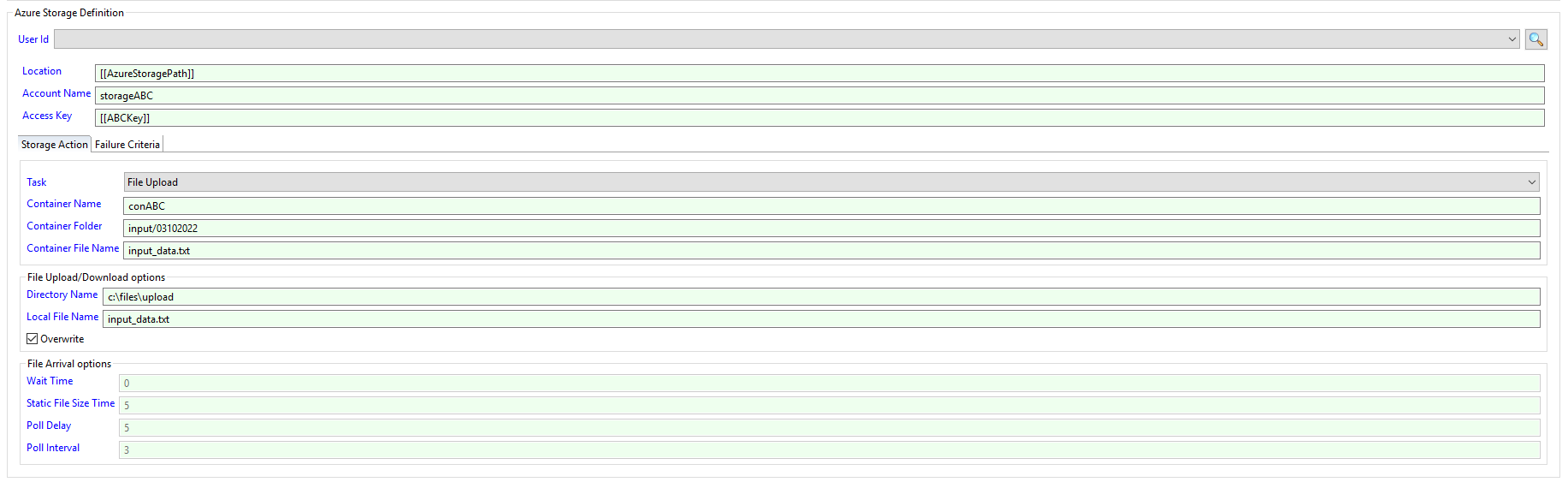
To configure an Azure Storage job using the job subtype, complete the following steps:
- In the Account Name field, enter the name of the Azure Storage account.
- In the Access Key field, enter the connection string for the storage account. Use an encrypted global property (for example,
[[azure_access_key]]) to avoid storing the key in plain text. - Select the task from the Task list. Only fields associated with the selected task are enabled.
- Enter the required values for the selected task.
- Select the Save button.
Once a task has been saved, the task type cannot be changed. Create a new job definition to use a different task.
When uploading or downloading files with specific source and target filenames, wildcards are not supported. When using list commands, enter * in the container name field to display all containers and blobs.
AzureStorage arguments
The AzureStorage connector accepts command-line arguments when not using the job subtype. Each task is specified using the -t argument.
Global arguments
These arguments apply to all tasks:
| Argument | Description |
|---|---|
| -sa | (Required) The name of the Azure Storage account |
| -t | (Required) The task to perform |
| -k | (Required) The connection string for the storage account. The key value is the connection string found in the Access keys section of the storage account in the Azure portal |
containercreate
Creates a new container in the storage account.
| Argument | Description |
|---|---|
| -t | Value is containercreate |
| -cn | (Required) The name of the container to create |
AzureStorage.exe -sa MY_ACCOUNT -k [[azure_access_key]] -t containercreate -cn MY_CONTAINER
containerdelete
Deletes containers from the storage account. Supports wildcards.
| Argument | Description |
|---|---|
| -t | Value is containerdelete |
| -cn | (Required) The name of the container to delete. Supports wildcards (? and *) |
AzureStorage.exe -sa MY_ACCOUNT -k [[azure_access_key]] -t containerdelete -cn MY_CONT????ER
containerlist
Lists containers in the storage account. Supports wildcards.
| Argument | Description |
|---|---|
| -t | Value is containerlist |
| -cn | (Required) The name of the container to list. Supports wildcards (? and *). Enter * to list all containers |
AzureStorage.exe -sa MY_ACCOUNT -k [[azure_access_key]] -t containerlist -cn *
filearrival
Monitors a container for the arrival of a specified file. Remove any existing versions of the file from the container before starting this task. A wildcard is supported in the file name (-cf) but not in the container name (-cn).
| Argument | Description |
|---|---|
| -t | Value is filearrival |
| -cn | (Required) The name of the container where the file will arrive |
| -cp | (Optional) The folder path within the container where the file will be placed |
| -cf | (Required) The name of the file to monitor for |
| -wt | (Optional) Maximum time in minutes to wait for the file. Enter 0, or omit the argument, to wait indefinitely |
| -fs | (Optional) Time in seconds the file size must remain static before the arrival is considered complete. Default: 5 |
| -pd | (Optional) Time in seconds to wait before the initial check. Default: 5 |
| -pi | (Optional) Time in seconds between checks. Default: 3 |
AzureStorage.exe -sa MY_ACCOUNT -k [[azure_access_key]] -t filearrival -cn MY_CONTAINER -cp test/new -cf MY_FILE -wt 15 -fs 5 -pd 3 -pi 2
filedelete
Deletes files from containers in the storage account. Supports wildcards.
| Argument | Description |
|---|---|
| -t | Value is filedelete |
| -cn | (Required) The name of the container from which to delete files. Supports wildcards (? and *) |
| -cp | (Optional) The folder path within the container where the file resides |
| -cf | (Required) The name of the file to delete. Supports wildcards (? and *) |
AzureStorage.exe -sa MY_ACCOUNT -k [[azure_access_key]] -t filedelete -cp test/files -cn * -cf MY_FILE???
filedownload
Downloads files from a container to a local directory. Files are downloaded relative to the connector installation directory. The target files must not exist in the target directory before downloading. Wildcards are not supported when specific source and target filenames are provided.
| Argument | Description |
|---|---|
| -t | Value is filedownload |
| -cn | (Required) The name of the container from which to download files |
| -cp | (Optional) The folder path within the container where the files reside |
| -fn | (Required) The name of the files to download. Supports wildcards (? and *) |
| -di | (Required) The full path of the local directory to download files to |
| -lf | (Optional) The target filename. When specified, wildcards are not supported |
AzureStorage.exe -sa MY_ACCOUNT -k [[azure_access_key]] -t filedownload -cn MY_CONTAINER -fn MY_FILE??? -di c:\DOWNLOAD\MY_DIRECTORY
AzureStorage.exe -sa MY_ACCOUNT -k [[azure_access_key]] -t filedownload -cn MY_CONTAINER -cp test -cf MY_FILE??? -di c:\DOWNLOAD\MY_DIRECTORY
AzureStorage.exe -sa MY_ACCOUNT -k [[azure_access_key]] -t filedownload -cn MY_CONTAINER -cp test -cf MY_FILE.dat -di c:\DOWNLOAD\MY_DIRECTORY -lf MYFILE.dat
filelist
Lists files within containers in the storage account. Supports wildcards.
| Argument | Description |
|---|---|
| -t | Value is filelist |
| -cn | (Required) The name of the container from which to list files. Supports wildcards (? and *) |
| -cp | (Optional) The folder path within the container to check for files |
| -fn | (Required) The name of the files to list. Supports wildcards (? and *) |
AzureStorage.exe -sa MY_ACCOUNT -k [[azure_access_key]] -t filelist -cn * -fn *
AzureStorage.exe -sa MY_ACCOUNT -k [[azure_access_key]] -t filelist -cn MY_CONTAINER -cp test\new -fn *
fileupload
Uploads files from a local directory to a container. Files are uploaded from locations relative to the connector installation directory. The target files must not exist in the container before uploading unless the overwrite option is specified. Wildcards are not supported when specific source and target filenames are provided.
| Argument | Description |
|---|---|
| -t | Value is fileupload |
| -cn | (Required) The name of the container to upload files to |
| -cp | (Optional) The folder path within the container where the files will be placed |
| -cf | (Optional) The target filename. When specified, wildcards are not supported |
| -di | (Required) The full path of the local directory to upload files from |
| -lf | (Required) The name of the files to upload |
| -ov | (Optional) When specified, existing files in the container are overwritten |
AzureStorage.exe -sa MY_ACCOUNT -k [[azure_access_key]] -t fileupload -k [[access_key]] -cn MY_CONTAINER -cp test -lf MY_FILE??? -di c:\UPLOAD\MY_DIRECTORY -ov
AzureStorage.exe -sa MY_ACCOUNT -k [[azure_access_key]] -t fileupload -k [[access_key]] -cn MY_CONTAINER -lf MY_FILE??? -di c:\UPLOAD\MY_DIRECTORY -cp test/new -ov
Exit codes
| Exit code | Meaning |
|---|---|
0 | The task completed successfully |
1 | The task failed |
FAQs
Can I change the task type of an existing job?
No. Once a job is saved with a task type, the task type cannot be changed. Create a new job definition if a different task is required.
Why does my list command return no results?
Verify that the container name or wildcard pattern matches the containers in the storage account. Enter * to return all containers. Also verify that the storage account name and access key are correct.
What format is the access key?
The access key is the full connection string value from the Access keys section of the storage account in the Azure portal. It includes the account name, account key, and endpoint information in a single string starting with DefaultEndpointsProtocol=.
Can I use global property tokens for the account name and access key?
Yes. Reference global properties using the [[property_name]] syntax in the Account Name and Access Key fields. Use an encrypted global property for the access key.
Glossary
Job subtype — A graphical plugin for Enterprise Manager that provides a form-based interface for configuring connector job arguments. The AzureStorage job subtype replaces the need to enter command-line arguments manually.
Access key — The connection string for an Azure Storage account. Contains the account name, key, and endpoint information. Obtained from the Access keys section of the storage account in the Azure portal.
Wildcard — A pattern character used to match multiple items. ? matches any single character; * matches any sequence of characters. Supported by container delete, container list, file delete, file download, file list, and file upload tasks.
Container path (-cp) — An optional folder path within an Azure Storage container. Used to organize blobs into virtual directory structures within a container.