Managing Calendars
Theme: Configure
Who Is It For? System Administrator, Automation Engineer
What Is It?
A calendar is a named list of dates that schedules, jobs, and frequencies use to determine when automation runs or is excluded. In Solution Manager, you manage calendars from Administration > Calendars, where you can add, edit, clone, and delete calendar records.
For background on how OpCon uses calendars in scheduling, see Calendar Concepts.
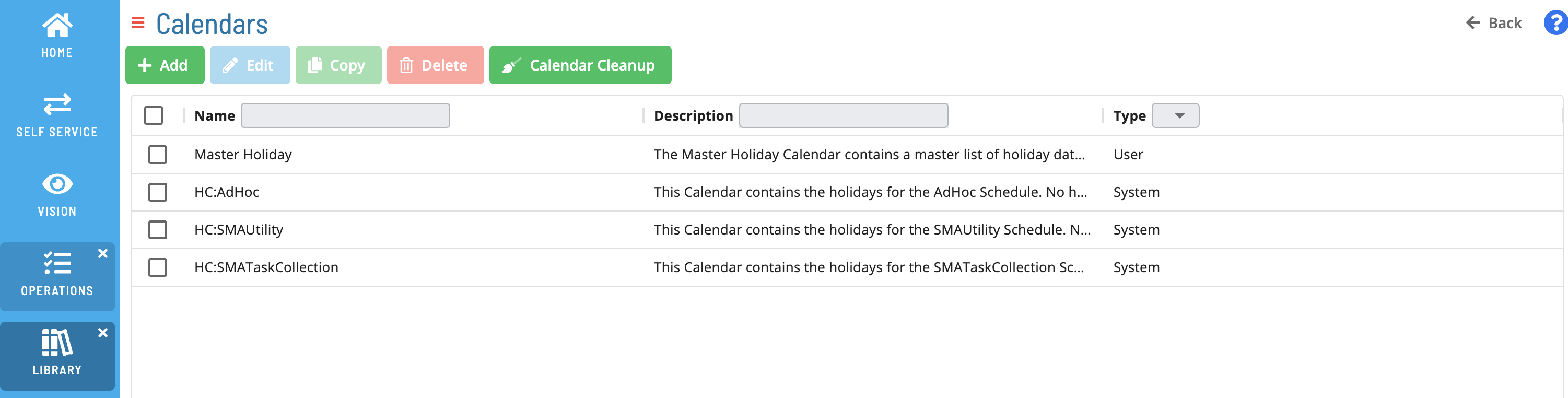
The Calendars view lists each calendar by Name and Description. Each calendar record has the following fields:
| Field | What It Does |
|---|---|
| Name | The name of the calendar. Required. |
| Description | Notes describing the calendar. |
| Year | The year shown in the date selector. Changing the year displays that year's months so you can set dates for it. |
| Dates | The dates defined for the calendar, selected from the per-month date selector. Required. |
Required Privileges
To manage calendars, your role must include the Maintain Calendars function privilege. If you do not have access, contact your OpCon system administrator.
Add a Calendar
To add a calendar, complete the following steps:
- Go to Administration > Calendars.
- Select Add.
- In Name, enter a name for the calendar.
- In Description, enter notes describing the calendar.
- In Year, select the year you want to define dates for.
- In the Dates selector, select each date to include in the calendar.
- Save the calendar.
Result: The new calendar appears in the Calendars list and is available to schedules, jobs, and frequencies.
Edit a Calendar
To edit a calendar, complete the following steps:
- Go to Administration > Calendars.
- Select the calendar you want to change.
- Select Edit.
- Update the Name, Description, Year, or Dates as needed.
- Save the calendar.
Result: The calendar reflects your changes.
Clone a Calendar
Cloning creates a copy of an existing calendar that you can modify independently.
To clone a calendar, complete the following steps:
- Go to Administration > Calendars.
- Select the calendar you want to copy.
- Select Clone.
Result: A copy of the calendar appears in the Calendars list.
Delete a Calendar
To delete a calendar, complete the following steps:
- Go to Administration > Calendars.
- Select the calendar you want to remove.
- Select Delete.
Result: The calendar is removed from the Calendars list.
FAQs
Q: Where do I manage calendars in Solution Manager?
Go to Administration > Calendars. From there you can add, edit, clone, and delete calendars.
Q: Who can manage calendars?
Users whose role includes the Maintain Calendars function privilege. Contact your OpCon system administrator if you do not have access.
Q: Can I copy an existing calendar?
Yes. Select the calendar and select Clone to create an independent copy.
Related Topics
Glossary
Calendar: A named collection of dates in OpCon used by schedules and frequencies to determine when automation runs or is excluded. Calendars can represent holidays, working days, or any custom date set.
Frequency: A set of rules that defines when a job or schedule is eligible to run, based on calendar rules, day-of-week settings, period offsets, and other timing criteria.
Role: A named security profile in OpCon that groups privileges together. Roles are assigned to user accounts to control which features, schedules, jobs, machines, and administrative functions a user can access.
Privilege: A specific permission granted through an OpCon role that controls access to a feature, function, or object type. Privileges are organized into categories such as Function Privileges, Machine Privileges, Schedule Privileges, and Access Codes.