Enterprise Manager job definition
What is it?
The VMWare Connector adds a VMWare Windows job sub-type to Enterprise Manager. The sub-type provides a job definition screen with fields that build the command line for each supported VMWare operation, so you do not assemble the command line by hand.
This page is the field-by-field reference for that screen.
Who this is for: Automation Engineers defining VMWare jobs in the Enterprise Manager desktop interface.
If your team defines jobs in Solution Manager rather than Enterprise Manager, refer to Solution Manager job definition.
Before you start
- The VMWare Connector is installed on the target Windows machine. Refer to Installation.
- The Enterprise Manager sub-type is installed on every Enterprise Manager machine where you define VMWare jobs. Refer to Install the Enterprise Manager sub-type.
- The VMWarePath global property is configured. Refer to Configure the VMWarePath global property.
Connector.configis configured for the target VMWare host. Refer to Configuration.
Pick the job type
To open the VMWare sub-type, complete the following steps:
- In the Job Type list, select Windows.
- In the Job Sub-Type list, select VMWare.
For more information about adding jobs in general, refer to Adding Jobs in the Enterprise Manager online help.
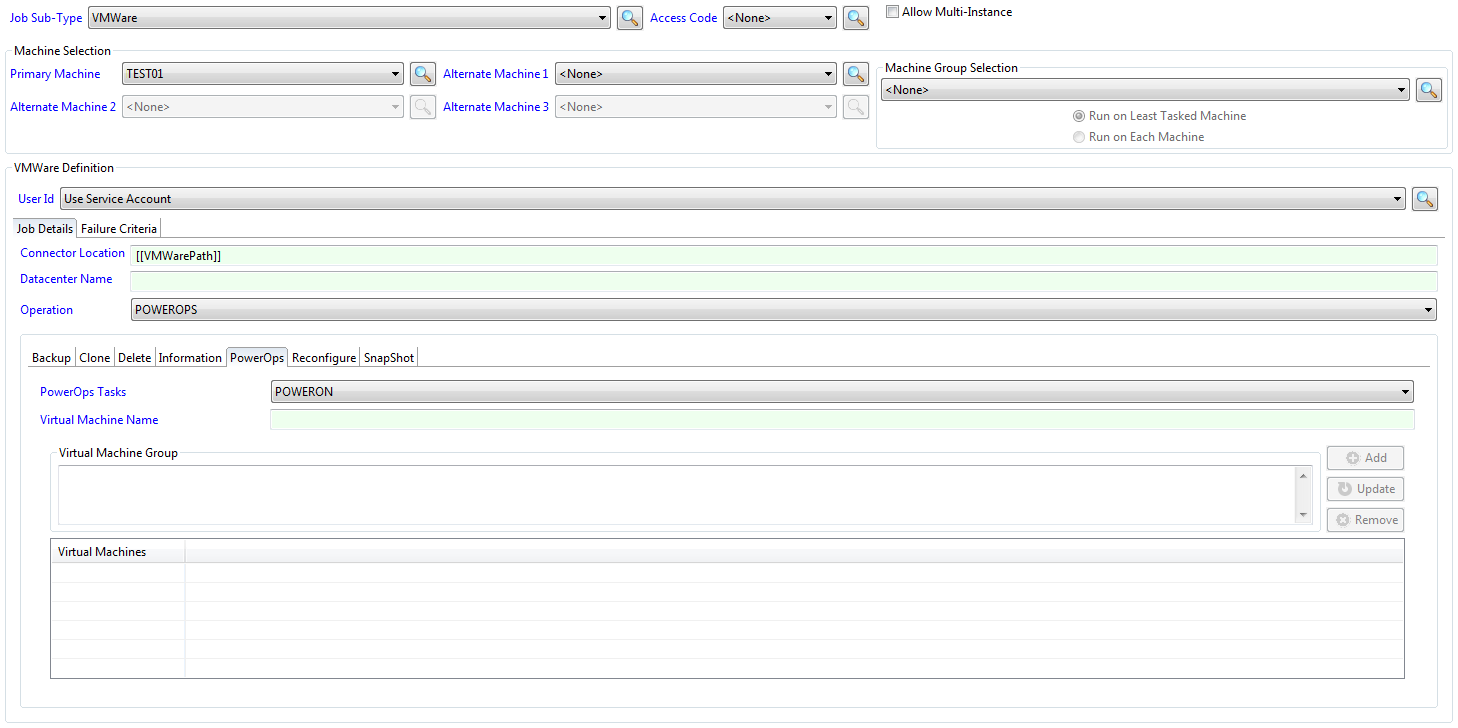
VMWare sub-type fields
The VMWare sub-type provides the following fields:
Primary Machine: Defines the Windows machine where the connector is installed.
User ID: Defines the User ID assigned to the job for Windows security authentication.
- Defines Use Service Account if the Windows Agent is running as a Domain User. For additional information about running the Windows Agent as a Domain User, refer to Service Configuration Options in the Windows Agent online help.
- Defines a specific Domain User if the Windows Agent is running as the Local System. For additional information about running the Windows Agent as the Local System, refer to Service Configuration Options in the Windows Agent online help.
- If the User ID does not list the Domain User, register the Domain User in Enterprise Manager. For information about registering a Domain User, refer to Managing Batch Users in the Enterprise Manager online help.
Job Details tab
The Job Details tab is where you select the operation and provide the connector location.
Connector Location: Defines where the VMWare Connector software is installed on the target Windows system. The path should be defined within the VMWarePath global property in OpCon. For more information, refer to Configure the VMWarePath global property. This is a required field.
If you have the VMWare Connector installed on multiple machines, define a unique global property to associate with each connector.
Datacenter Name: Defines the name of the vSphere Datacenter when using the CLONE operation.
Operation: Defines the operation to perform. Selecting an operation reveals the matching tab where you provide its specific fields.
| Operation | What it does | Section |
|---|---|---|
| BACKUP | Creates an offline backup of a VMWare instance. | BACKUP |
| CLONE | Creates a virtual machine from an existing machine or template. | CLONE |
| DELETE | Deletes a virtual machine from the VMWare environment. | DELETE |
| INFORMATION | Produces a report from the VMWare environment. | INFORMATION |
| POWEROPS | Performs a power action on a VMWare instance or guest OS. | POWEROPS |
| RECONFIGURE | Changes the number of CPUs or the memory size of a virtual machine. | RECONFIGURE |
| SNAPSHOT | Creates, removes, or reverts a snapshot. | SNAPSHOT |
BACKUP
Use a BACKUP job to create an offline backup of a VMWare instance. During the backup, the VMWare instance is shut down, the backup is performed, and the VMWare instance is restarted after the backup completes.

The BACKUP operation contains the following fields:
- Backup Tasks: Defines the type of BACKUP task to perform: BACKUPVM.
- Virtual Machine Name: Defines the name of a virtual machine in the target host system to perform the operation on.
- Executable or Script: Defines the backup software executable or script.
- Software Directory: Defines the directory where the backup executable or script is located.
- Parameters: Defines parameters that the backup software or script requires.
- Return Code: Defines the return code that the backup software uses to indicate that the backup finished OK.
CLONE
Use a CLONE job to create a virtual machine from an existing VMWare machine or a clone. When you create a machine from an existing machine, the existing machine must be in a powered-off state.

For CLONE, you must specify a valid value in the Datacenter Name field on the Job Details tab.
The CLONE operation contains the following fields:
- Clone Tasks: Defines the type of CLONE task to perform: CLONEVM.
- Clone From Virtual Machine Name: Defines the name of the virtual machine to clone from. The virtual machine must be in a powered-off state.
- Cloned Virtual Machine Name: Defines the name to be given to the new virtual machine.
- Virtual Machine is a Template: If the virtual machine to clone from is a template, select this option.
- VMWare Host Name: If the virtual machine is a template, specifies the host name on which the virtual machine must be created.
DELETE
Use a DELETE job to delete a virtual machine from the VMWare environment.
Once the delete command runs, the virtual machine is not recoverable, because the virtual machine storage is removed from the datastore. This operation requires the VMWARE_DELETE_VIRTUAL_MACHINE_ENABLED configuration value to be set to True. Refer to Configuration.

The DELETE operation contains the following fields:
- Delete Tasks: Defines the type of DELETE task to perform: DELETEVM.
- Virtual Machine Name: Defines the name of the virtual machine to delete.
INFORMATION
Use an INFORMATION job to produce a report from the VMWare environment.

You can produce a report that lists virtual machines that have been in a powered-off state for a defined number of days.
The actual powered-off date is not always available from the virtual machine information. The connector sets the initial powered-off date when it first detects the machine in a powered-off state. As a result, the first time the task runs, no virtual machines appear in the list — the powered-off date is set to the current date and the powered-off threshold has not yet been exceeded. If a virtual machine on the list is later powered up, it is removed from the list.
The powered-off dates are kept in powered_down_list.xml in the connector's log directory. Deleting that directory resets the tracking, and the next run behaves like a first run.
The INFORMATION operation contains the following fields:
- Information Tasks: Defines the type of INFORMATION task to perform:
- GETPOWEREDOFFLIST: Retrieves a list of machines that have been powered off for a time equal to or greater than the number of Powered Off Days.
- GETSUMMARY: Retrieves a summary of the Datacenter or Datacenters. The summary includes:
- Datastores — remaining free space, hosts associated with the datastore, and virtual machines associated with the datastore.
- Hosts — virtual machines associated with the host, including operating system, status, and VMWare Tools status.
- Powered Off Days: Used with GETPOWEREDOFFLIST. Defines how many days the virtual machine must be powered off before it appears in the report.
POWEROPS
Use a POWEROPS job to perform a power action on the VMWare server or the guest operating system.

On the POWEROPS Operation tab, select the task from the list, then either enter a single virtual machine in Virtual Machine Name or add multiple virtual machines to Virtual Machine Group.
The group capability is supported only for POWEROFF, POWERON, SHUTDOWN, and SUSPEND. The Virtual Machine Group field is disabled for tasks that do not support it.
The POWEROPS operation contains the following fields:
- PowerOps Tasks: Defines the type of POWEROPS task to perform: POWEROFF, POWERON, REBOOT, RESET, SHUTDOWN, STANDBY, or SUSPEND.
- Virtual Machine Name: Defines the name of a virtual machine in the target host system to perform the operation on. Virtual Machine Name is mutually exclusive with Virtual Machine Group.
- Virtual Machine Group: Defines a list of virtual machines in the target host to perform the operation on.
- To add a virtual machine to the list, enter the name of the virtual machine in the Virtual Machine Group field and select the Add button.
- To update the name of a virtual machine, select the name in the Virtual Machines list, modify the name, and select the Update button.
- To remove a virtual machine from the list, select the name in the Virtual Machines list and select the Remove button.
RECONFIGURE
Use a RECONFIGURE job to change the number of CPUs or the memory size of a virtual machine.
For dynamic CPU and memory changes, hot-plug must be enabled in VMWare Settings > Options > Memory/CPU hotplug, and the guest operating system must support dynamic reconfiguration. If the guest OS does not support it, the virtual machine must be restarted to apply the change. Some operating systems support adding CPUs and memory dynamically but not removing them.

The RECONFIGURE operation contains the following fields:
- Reconfiguration Tasks: Defines the type of RECONFIGURE task to perform: CHANGEVM.
- Virtual Machine Name: Defines the name of a virtual machine in the target host system to perform the operation on.
- Required No of CPUs: Defines the number of CPUs to set in the configuration.
- Required Memory Size (MB): Defines the memory size to set in the configuration. The memory size is defined in MB (for example,
4096,8192). - Restart Server: If the virtual machine operating system does not support dynamic configuration, selecting this option results in the operating system being shut down, the configuration update being applied, and the virtual machine being restarted.
SNAPSHOT
Use a SNAPSHOT job to create, remove, or revert a snapshot of a virtual machine.

The SNAPSHOT operation contains any of the following fields:
- SnapShot Tasks: Defines the type of SNAPSHOT task to perform: CREATE, REMOVE, or REVERT.
- Virtual Machine Name: Defines the name of a virtual machine in the target host system to perform the operation on.
- Name: Defines the snapshot name. Its meaning depends on the task:
- CREATE — the name of the snapshot to create for the virtual machine in Virtual Machine Name.
- REMOVE — the name of an existing snapshot to remove for the virtual machine in Virtual Machine Name.
- REVERT — the name of the snapshot to revert to for the virtual machine in Virtual Machine Name.
- Description: Defines a description to store with the snapshot. Applies to the CREATE task and annotates the snapshot named in Name.
- Remove Child SnapShots: For REMOVE only — also removes any child snapshots associated with the snapshot.
Failure Criteria tab
The Failure Criteria tab determines whether the job is treated as successful based on its exit code.
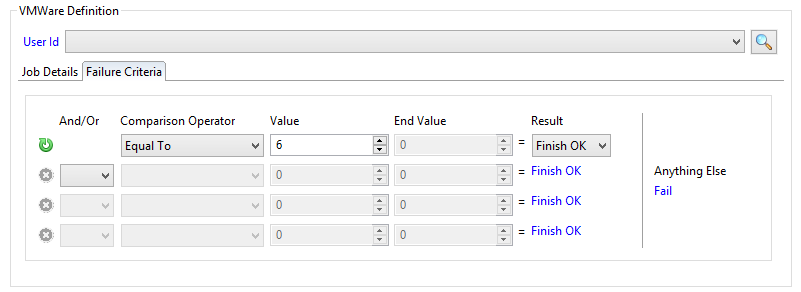
A VMWare scheduled task can return any of the following codes:
| Code | Name | Meaning |
|---|---|---|
1 | INITIATION_ERROR | An exception occurred during job initiation. |
6 | FINISHED_OK | The job completed processing. |
7 | ERRORED | An exception occurred during job processing. |
401 | — | VMWARE_USER_PASSWORD is present in Connector.config but empty. The job never reaches VMWare. |
401 is returned before the operation starts, so it never means the VMWare task failed. Refer to Configuration.
The Failure Criteria tab contains the following fields:
- And/Or: When defining multiple failure criteria, this field defines the way the strings are evaluated together.
- Valid values are
AndorOr.
- Valid values are
Define all "And" comparisons before any "Or" comparisons. Additionally, if the comparison operator on the previous group is "Equal To," the And/Or value must be set to "Or."
- Comparison Operator: Defines the comparison operator for the "if statement" when comparing the actual value of the job's exit code to the failure criteria rules.
- Valid Values: Range, Equal To, Not Equal To, Less Than, Less or Equal, Greater Than, Greater and Equal.
- Value: Defines the value used for comparison to the job's actual exit code with the comparison operator.
- Valid values range from
-2147483648to2147483647.
- Valid values range from
- End Value: Defines the end value for comparison when the comparison operator is "Range."
- Valid values range from
-2147483648to2147483647.
- Valid values range from
- Result: Defines the desired resulting job status when the criteria for the line is true. You can specify the Result only on the first group of criteria; this sets the result for all the remaining groups.
- Valid values are
Finish OKorFail.
- Valid values are
- Anything Else: Contains the other possible result if the exit code falls outside the criteria comparisons.
- If Result is
Finish OK, Anything Else isFail. - If Result is
Fail, Anything Else isFinish OK.
- If Result is
FAQs
What job type and sub-type do I select?
Select Windows in the Job Type list and VMWare in the Job Sub-Type list.
Why doesn't my DELETE job work?
A DELETE operation requires VMWARE_DELETE_VIRTUAL_MACHINE_ENABLED=True in Connector.config, and the VMWare user must have the VirtualMachine.Inventory.Delete privilege. Refer to Configuration.
Can I run a power operation on multiple virtual machines at once?
Yes, but only for POWEROFF, POWERON, SHUTDOWN, and SUSPEND. Use the Virtual Machine Group field to add multiple virtual machine names. The Virtual Machine Group option is disabled for tasks that do not support it.
What return codes does a VMWare job emit?
A VMWare scheduled task can return 1 (INITIATION_ERROR), 6 (FINISHED_OK), or 7 (ERRORED). Use these values on the Failure Criteria tab. It also returns 401 when VMWARE_USER_PASSWORD is present but empty, which happens before the operation starts.
My INFORMATION/GETPOWEREDOFFLIST report is empty on first run — why?
The connector sets the initial powered-off date the first time it detects a machine in a powered-off state. On the first run, no machine has yet been recorded long enough to exceed your threshold, so the list is empty. Subsequent runs populate the list once the threshold is reached.
Glossary
| Term | Definition |
|---|---|
| VMWare Connector | An OpCon connector that submits job requests to VMWare web services from an OpCon schedule. |
| Enterprise Manager | The legacy Windows desktop interface for OpCon. Hosts the VMWare job sub-type. |
| Windows Agent | The OpCon agent installed on a Windows machine. The connector requires a supported Windows Agent on the host machine. |
| virtual machine | A VMWare instance managed through vCenter or ESXi. The connector performs operations against virtual machines. |
| datacenter | The vSphere datacenter that contains the virtual machines. Required for the CLONE operation. |
| snapshot | A point-in-time capture of a virtual machine's state. The SNAPSHOT operation can create, remove, or revert snapshots. |