Best Practices
Click on any of the following How-To quick links:
- Add Documentation to Thresholds and Properties
- Automate the Daily Failed Jobs Report
- Automate the SMAUtility Schedule to maintain the OpCon Server
- Avoid updating all Jobs with a new path to a file or program
- Check Job Dependencies that cannot be resolved
- Receive an alert when Machines stop working
- Receive an alert when SAM is not running
- Run a Windows Job under a different User Account
- Set Up Notification for SubSchedules
- Shut Down a Machine with an LSAM
- Use Threshold Dependencies for Late to Start Notifications on a Job-dependent External Event
Add Documentation to Thresholds and Properties
Use Case
I am starting to notice that we are using a bunch of Thresholds and Global Properties in OpCon, and I am concerned that we will forget what they are used for. What should we do?
Answer
In the definition for each Threshold and Global Property, enter the purpose for that item in the Documentation field. This documentation will help you keep track of what they are used for.
Automate the Daily Failed Jobs Report
Use Case
Are there ways to automate generating a report on failed jobs for a specific schedule on a daily, weekly, monthly, etc., basis? Are there any types of failed jobs reports that can be generated and made available to me for review whenever I need them?
Answer
SMA Technologies provides a database file called SMAReports.mdb that can be imported into OpCon. The file includes a Report Generator schedule with all of the reports that can be found under Report Functions. Each job represents a report that can be automated.
Procedure
Launch Schedule Import Export from the Start menu: Start > Programs > OpConxps Utilities > Schedule Import Export.
For more information, refer to Schedule Import/Export in the Utilities online help.
Log into your OpCon database with your credentials.
Create a DSN for an Access Database to SMAReports.mdb. Located at \\Program Files\OpConxps\Utilities\SMAReports.mdb.
Click the Import from Transport Database button on the toolbar.
Click the Machine or User tab.
Go to the left-hand frame and click a machine or user account.
Go to the right-hand frame and click a machine or user name.
Click the Import button.
Click OK on the warning message.
Select one of the following options in the Conflict Resolution dialog:
- Yes to clear (not delete) the existing object in order to receive the new information (jobs for schedules and dates for calendars).
- No to allow the new information to be merged into the existing object.
- Cancel to terminate the transfer and roll back all the changes made up to that point.
Click OK on the termination message.
Log into the Enterprise Manager.
Go to: Job Master > Report Generator Schedule > Failed Jobs by date.
By default, all of these jobs are disabled.
This job has been configured to run a report against OpCon's today's date ([[$SCHEDULE DATEMS]]) and generates a report against a schedule it resides in ([[$SCHEDULE ID]]).
Copy the Failed Jobs by Date job to any desired schedule where this report is desired.
Add a frequency to this job (e.g., Daily).
Ensure that this job is included in built schedules already existing for the future.
By default, the reports are configured to be saved in: <Output Directory>\SAM\Log\Reports. This directory can be modified within the FailedJobsbyDate.cmd file.
Ensure that this job has write access to the new directory.
The Output Directory was configured during installation. For more information, refer to the File Locations section in this online help.
Automate the SMAUtility Schedule to maintain the OpCon Server
Use Case
The history records are building up on my OpCon server and database. What should I do?
Answer
SMA Technologies recommends using the SMAUtility schedule for most jobs involved in the maintenance of OpCon, including managing history records. Configure as many of the SMAUtility Schedule jobs as you can. The SMAUtility Schedule is imported during installation. For information on the jobs in the SMAUtility Schedule, refer to SMAUtility Schedule.
Avoid updating all Jobs with a new path to a file or program
Use Case
Occasionally, my company reorganizes the file structure on a server where I run OpCon jobs. This causes the programs OpCon automates to move to a different directory. How do I define the jobs to easily modify the location of my programs?
Answer
Use OpCon Properties to store the path to your programs. On the jobs, you can use a token as a variable to replace the path to the programs at run time. For additional information, refer to Properties.
Use the following steps to implement Global Properties for the path to your programs:
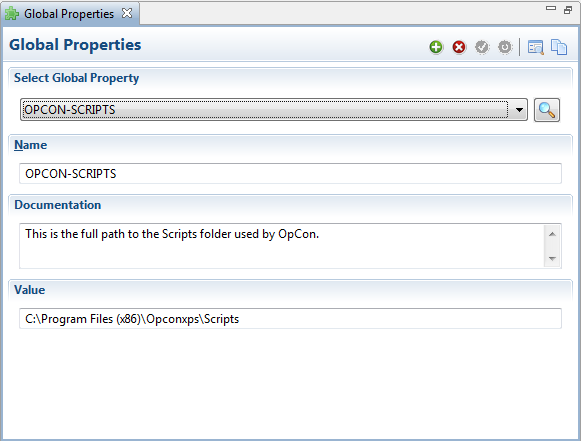
- Create a Global Property for the full path to your programs on the server. For more information, refer to Adding Global Properties in the Enterprise Manager online help.
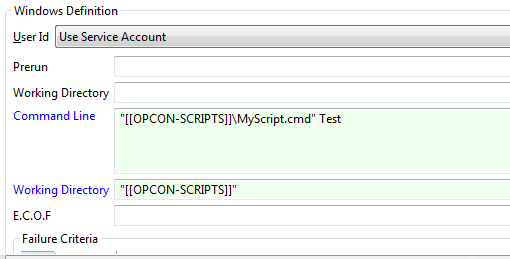
- Use a token to access the Global Property anytime you are defining a job to run a program within this directory. For more information, refer to Using Properties for Automation . In the screen below, the [[OPCON-SCRIPTS]] token is in the place of the path to the FileRename.cmd file.
Global Properties
OpCon Job Master (Details)
Result
When the job qualifies to run, SAM resolves the [[OPCON-SCRIPTS]] token to the value defined for the Global Property, resulting in the following command line:
"C:\Program Files (x86)\OpConxps\Scripts\MyScript.cmd"
When your company decides to reorganize the file structure again, simply update the value for the Global Property to change the path to your programs.
Check Job Dependencies that cannot be resolved
Use Case
Sometimes there are circular dependencies set up, or jobs that are required are missing. How do I find out which jobs are involved in these types of dependencies?
Answer
Run the DoBatch function to check for these dependency types, but limit the number of schedules to check to 5 per job at any one time. Refer to DoBatch in the Utilities online help then go to DoBatch Checking to create a command file containing the DoBatch program and the CHECK parameter.
Receive an alert when Machines stop working
Use Case
How will I know when my machines are no longer working?
Answer
The Event Notification system in OpCon is a process in which Machine status change events can generate (e.g., trigger) notifications. Refer to Monitored Events.
Receive an alert when SAM is not running
Use Case
How will I know when SAM is not running?
Answer
Configure the "Hung" scripts in the SAM folder. For more information, refer to Hung Script Configuration in the Server Programs online help.
Run a Windows Job under a different User Account
Use Case
How do I run a job under a different Windows User account when Use Service Account is the only item in the drop-down list?
Answer
First, you must define a Batch User Account for the Windows User Account. The new Batch User will appear in the drop-down list in the job definition screen. Refer to the procedures listed under the Adding Batch Users in the Enterprise Manager online help.
Set Up Notification for SubSchedules
Use Case
How do I make sure the subschedule started on time?
Answer
Job's within a subschedule do not qualify until after the Container job running the subschedule starts. A "Flag As Late to Start" notification must be set up on the Container job to make sure the subschedule is started on time. Once that is verified, all of the nested job notifications should work as intended.
Procedure
- Set a Late to Start value for the Container job. For more information, refer to the Late to Start value under Job Automation Components.
- Set up ENS to include the Container job in a group that sends notifications for jobs that are Late to Start. For more information, refer to Event Notification.
- Set a Late to Start value for the jobs in the subschedule. For more information, refer to the Late to Start value under Job Automation Components.
- Set up ENS to include the jobs in the subschedule in a group that sends notifications for jobs that are Late to Start. For more information, refer to Event Notification.
Shut Down a Machine with an LSAM
Use Case
We will need to shut down a UNIX machine that has an LSAM on it sometime in the near future to replace a battery pack. We will shut down the machine, replace the battery, and bring the machine back up. Is there anything we need to do in OpCon?
Answer
Plan to shut down the machine during a time of low processing.
In OpCon, select the option to Disable Job Starts for that machine. You can select this option from any place in the graphical interfaces that allows you to control the Machine Status.
From an Operations Machine view, look at the count of running jobs for the machine. The display will show a ratio of running jobs to maximum jobs allowed on that machine (e.g., 3/10). Wait until there are zero jobs running (e.g., 0/10).
On the LSAM machine, check for running jobs using the references or commands provided:
a. For IBM i, refer to IBM i Procedures to shut down a Machine. b. For MCP, the machine count in the Enterprise Manager ought to be correct. To confirm this from the LSAM's perspective, refer to the Interactive LSAM Window in the MCP LSAM online help. c. For MSLSAM, refer to Check for Running Jobs in the Microsoft LSAM online help. d. For OpenVMS, use the method described in Step 3. e. For OS 2200 and BIS, use the method described in Step 3. f. For SAP BW, refer to Check for Running Jobs in the SAP BW LSAM online help. g. For SAP R3 and CRM, refer to Check for Running Jobs in the SAP LSAM online help. h. For UNIX, use the method described in Step 3. i. For zOS, enter the following command: F lsamname,DISP=JOBQ.
On the LSAM machine, shut down the LSAM and perform the desired maintenance using the references or commands provided:
a. For IBM i, refer to IBM i Procedures to shut down a Machine. b. For MCP, refer to Stop the LSAM and Resource Monitor in the MCP LSAM online help. c. For MSLSAM, refer to Stop the Service in the Microsoft LSAM online help. d. For OpenVMS, refer to Stopping the LSAM in the OpenVMS LSAM online help. e. For OS 2200 and BIS, refer to Stopping the LSAM/LMAM in the OS 2200 LSAM online help. f. For SAP BW, refer to Stop the Service in the SAP BW LSAM online help. g. For SAP R3 and CRM, refer to Stop the Service in the SAP LSAM online help. h. For UNIX, refer to Stop the LSAM in the UNIX LSAM online help. i. For zOS, enter the following command: F lsamname,SHUTDOWN.
Turn the LSAM machine back on, and check the LSAM status using the references or commands provided:
a. For IBM i, refer to IBM i Procedures to shut down a Machine. b. For MCP, from the MARC Main Menu action line, enter the following command: AA NAME=SMA= and transmit. For information on the results to look for, refer to Check LSAM Status in the MCP LSAM online help. c. For MSLSAM, refer to Procedures to Check LSAM Status on Windows . d. For OpenVMS, refer to Checking LSAM Status in the OpenVMS LSAM online help. e. For OS 2200 and BIS, refer to Checking LSAM/LMAM Status in the OS 2200 LSAM online help. f. For SAP BW, refer toProcedures to Check LSAM Status on Windows . g. For SAP R3 and CRM, refer to Procedures to Check LSAM Status on Windows . h. For UNIX, refer to Check the LSAM Status in the UNIX LSAM online help. i. For zOS, enter D A,job (job is the LSAM job name, not the lsamname identifier. There is a comma between D A and job).
In OpCon, select the option to Enable Job Starts for that machine. You can select this option from any place in the graphical interfaces that allow you to control the Machine Status.
IBM i Procedures to shut down a Machine
On the IBM i LSAM machine, check for running jobs using the commands provided:
Using an OpCon job, specify the following command in the CALL field:
SMAGPL/CHKIBMLSAM ENV(env_name) STATUS(*ACTIVE) - or -
SMAGPL/CHKIBMLSAM ENV(env_name) STATUS(*INACTIVE)
The OpCon job will report a failure if the LSAM server status does not match the STATUS parameter value, or the job will end normally if the LSAM server status does match the STATUS parameter value. The LSAM environment name must be provided for the ENV keyword.
From an IBM i workstation, enter the LSAM main menu:
i. Select option 6: LSAM Management menu. ii. Select option 3: Check LSAM subsystem status. iii. The display that follows may show one or more active jobs, or it may show that no jobs are active.
On the IBM i LSAM machine, shut down the LSAM and perform the desired maintenance using the commands provided:
From an IBM i command entry line or from IBM System i Navigator command entry, the LSAM server jobs can be stopped by specifying the LSAM environment name with this command: SMAGPL/ENDSMASYS ENV(env_name)
From an IBM i workstation, enter the LSAM main menu:
i. Select option 6: LSAM Management menu ii. Select option 2: End LSAM.
Restart the IBM i LSAM machine using the commands provided:
From an IBM i command entry line, or from IBM System i Navigator command entry, the LSAM server jobs can be started by specifying the LSAM environment name with this command: SMAGPL/STRSMASYS ENV(env_name)
From an IBM i workstation, enter the LSAM main menu:
i. Select option 6: LSAM Management menu. ii. Select option 1: Start LSAM.
Check the IBM i LSAM status by following the same procedures as Steps 1a and 1b.
Procedures to Check LSAM Status on Windows
Use the following procedure to check the status for the SAP BW, SAP R/3 and CRM, and Windows LSAMs:
- Use menu path: Start > Control Panel.
- Double-click the Administrative Tools icon.
- Double-click the Server Manager icon.
- Expand (+) the Configuration option.
- Double-click the Services icon.
- Scroll down to the SMA LSAM service in the Services list.
- Confirm the LSAM's Status is Started.
Use Threshold Dependencies for Late to Start Notifications on a Job-dependent External Event
Use Case
We have a job which is dependent on a file arriving. The job is built 'On Hold' and SMA Resource Monitor sends a $JOB:RELEASE when the file arrives. The problem is we are not notified if the file is late arriving. How can we set this up to receive a Late to Start notification?
Answer
If a job is 'On Hold', it is not in a "Qualifying" status and the "Flag Job As Late" setting is ignored. Instead of building the job "On Hold", use a threshold dependency to release the job once the file arrives.
Procedure Explanation
A threshold will be created to use as an "On" and "Off" switch for the job. SMA Resource Monitor will watch for the arrival of the file and send a $THRESHOLD:SET event to update the threshold to the determined value. The job will have a threshold dependency equal to the value SMA Resource Monitor will set once the file arrives. This leaves the job in a "Waiting Threshold Dependency" status until the files arrives.
The job will also have a "Flag Job As Late to Start" value set up. This will flag the job as Late to Start if the file has not arrived by the determined time. ENS will send an notification if the job is Late to Start. The job will update the threshold value once it is complete, closing the loop for the next day's processing.
Procedure
Create a threshold with any name you like and a default value of zero (0). For more information, refer to Adding Thresholds in the Enterprise Manager online help.
Create the File Monitor and action group which will update the threshold. For more information, refer to Summary Information in the Utilities online help.
a. In the File Monitor, set up the parameters to watch for the desired file. b. In the associated action group, use the $THRESHOLD:SET event to change the value of your threshold to one (1).
Create a threshold dependency for the job to require your threshold to have a value equal to one (1). For more information, refer to Adding Threshold/Resource Dependencies in the Enterprise Manager online help.
Set a Late to Start value for the job. For more information, refer to the Late to Start value under Late to Start/Late to Finish.
Either set up a notification event on the job using the Late to Start status trigger, or configure a group in ENS with a trigger to send notification(s) from a job event trigger on a status of Late to Start. For more information, refer to Job Automation Components in this online help or Using Notification Manager in the Enterprise Manager online help.
Configure a threshold update for the job to set your threshold back to zero (0) once it finishes. For more information, refer to Adding Threshold/Resource Updates in the Enterprise Manager online help. :::