Best Practices
OpCon best practices are proven patterns for building reliable, maintainable automation — from documenting thresholds and properties to setting up automated maintenance schedules, configuring alerts, and structuring job dependencies effectively.
- Add Documentation to Thresholds and Properties
- Automate the Daily Failed Jobs Report
- Automate the SMAUtility Schedule to Maintain the OpCon Server
- Avoid Updating All Jobs with a New Path to a File or Program
- Check Job Dependencies That Cannot Be Resolved
- Receive an Alert When Machines Stop Working
- Receive an Alert When SAM Is Not Running
- Run a Windows Job Under a Different User Account
- Set Up Notification for SubSchedules
- Shut Down a Machine with an Agent
- Use Threshold Dependencies for Late to Start Notifications on a Job-dependent External Event
Add Documentation to Thresholds and Properties
As Thresholds and Global Properties accumulate in OpCon, there is a risk of forgetting their purpose. In the definition for each Threshold and Global Property, enter the purpose in the Documentation field to track usage.
Automate the Daily Failed Jobs Report
Continuous provides SMAReports.mdb, a database file you can import into OpCon. It includes a Report Generator schedule with all reports found under Report Functions. Each job in that schedule represents a report that you can automate.
To automate the daily failed jobs report, complete the following steps:
- Open Schedule Import Export: Start > Programs > OpConxps Utilities > Schedule Import Export. For more information, refer to Schedule Import/Export.
- Log in to your OpCon database.
- Create a DSN for an Access Database pointing to SMAReports.mdb at
\\Program Files\\OpConxps\\Utilities\\SMAReports.mdb. - Select the Import from Transport Database button on the toolbar.
- Select the Machine or User tab.
- In the left frame, select a machine or user account.
- In the right frame, select a machine or user name.
- Select Import.
- Select OK on the warning message.
- Select one of the following options in the Conflict Resolution dialog:
- Yes to clear the existing object and receive new information.
- No to merge new information into the existing object.
- Cancel to terminate the transfer and roll back all changes.
- Select OK on the termination message.
- In Enterprise Manager, go to Job Master > Report Generator Schedule > Failed Jobs by Date.
By default, all of these jobs are disabled.
- Review the job configuration. The job runs a report against today's schedule date (
[[$SCHEDULE DATEMS]]) for the schedule it resides in ([[$SCHEDULE ID]]). - Copy the Failed Jobs by Date job to any schedule where the report is needed.
- Add a frequency to the job (for example, Daily).
Ensure the job is included in built schedules already existing for the future.
By default, reports are saved in <Output Directory>\SAM\Log\Reports. You can change this directory in the FailedJobsbyDate.cmd file.
Ensure the job has write access to the target directory. The Output Directory was configured during installation. For more information, refer to File Locations.
Automate the SMAUtility Schedule to Maintain the OpCon Server
As history records build up on the OpCon server and database, use the SMAUtility Schedule for maintenance jobs, including managing history records. Configure as many SMAUtility Schedule jobs as possible. The schedule is imported during installation. For more information, refer to SMAUtility Schedule.
Avoid Updating All Jobs with a New Path to a File or Program
When your organization reorganizes its file structure, programs move to different directories. Use OpCon Properties to store program paths and reference them via tokens as variables to replace the path at run time. For more information, refer to Properties.
To define jobs so that path updates require only one change, complete the following steps:
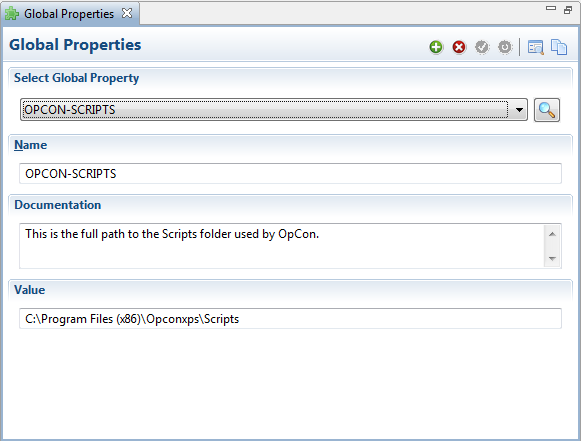
- Create a Global Property for the full path to your programs. For more information, refer to Adding Global Properties.
- Use a token to access the Global Property in job definitions. For more information, refer to Using Properties for Automation. In the following example,
[[OPCON-SCRIPTS]]replaces the path to theFileRename.cmdfile.
Global Properties
OpCon Job Master (Details)
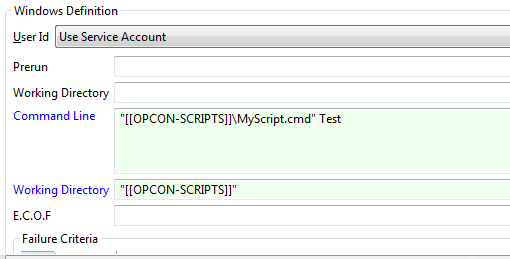
Result: When the job runs, SAM resolves [[OPCON-SCRIPTS]] to the Global Property value — for example, "C:\Program Files (x86)\OpConxps\Scripts\MyScript.cmd". To update all jobs when the file structure changes, update the Global Property value once.
Check Job Dependencies That Cannot Be Resolved
Circular dependencies or missing required jobs can cause resolution failures. Run the DoBatch function with the CHECK parameter to identify these dependency types, limiting checks to 5 schedules per job at a time. Refer to DoBatch and Checking in the Utilities online help.
Receive an Alert When Machines Stop Working
Use the Event Notification system in OpCon to receive alerts when machines stop working. Machine status change events can trigger notifications. Refer to Monitored Events.
Receive an Alert When SAM Is Not Running
Configure the hung scripts in the SAM folder via the ApplicationHungScript setting in SMAServMan.ini. When SAM stops responding, the Service Manager runs the configured script to send an alert. For more information, refer to Hung Script Configuration.
Run a Windows Job Under a Different User Account
When Use Service Account is the only option in the user account list on a Windows job definition, define a Batch User Account for the Windows user account. The new Batch User will appear in the list on the job definition screen. Refer to Adding Batch Users.
Set Up Notification for SubSchedules
Jobs within a subschedule do not qualify for the Late to Start check until the Container job starts. Set up a "Flag As Late to Start" notification on the Container job to confirm the subschedule starts on time.
To set up Late to Start notifications for a subschedule, complete the following steps:
- Set a Late to Start value for the Container job. Refer to the Late to Start value under Job Automation Components.
- Set up ENS to include the Container job in a group that sends Late to Start notifications. Refer to Event Notification.
- Set a Late to Start value for jobs in the subschedule. Refer to the Late to Start value under Job Automation Components.
- Set up ENS to include subschedule jobs in a group that sends Late to Start notifications. Refer to Event Notification.
Shut Down a Machine with an Agent
When a machine with an Agent needs to be shut down for maintenance, plan the shutdown during a period of low processing.
To safely shut down a machine with an Agent, complete the following steps:
- In OpCon, select Disable Job Starts for the machine from any interface that controls machine status.
- In an Operations machine view, monitor the running job count (for example, 3/10). Wait until the count reaches zero (for example, 0/10).
- On the Agent machine, confirm no jobs are running using the method for your platform:
- IBM i: Refer to IBM i Procedures to Shut Down a Machine.
- MCP: The Enterprise Manager count is authoritative. To confirm from the Agent, refer to Interactive agent Window.
- Windows (MSLSAM): Refer to Check for Running Jobs.
- OpenVMS: Use the method in step 2.
- OS 2200 and BIS: Use the method in step 2.
- SAP BW: Refer to Check for Running Jobs.
- SAP R/3 and CRM: Refer to Check for Running Jobs.
- UNIX: Use the method in step 2.
- z/OS: Enter
F lsamname,DISP=JOBQ.
- Shut down the Agent and perform maintenance:
- IBM i: Refer to IBM i Procedures to Shut Down a Machine.
- MCP: Refer to Stop the Agent and Resource Monitor.
- Windows (MSLSAM): Refer to Stop the Service.
- OpenVMS: Refer to Stopping the Agent.
- OS 2200 and BIS: Refer to Stopping the Agent/LMAM.
- SAP BW: Refer to Stop the Service.
- SAP R/3 and CRM: Refer to Stop the Service.
- UNIX: Refer to Stop the Agent.
- z/OS: Enter
F lsamname,SHUTDOWN.
- Restart the machine and verify Agent status:
- IBM i: Refer to IBM i Procedures to Shut Down a Machine.
- MCP: From the MARC Main Menu action line, enter
AA NAME=SMA=and transmit. Refer to Check Agent Status. - Windows (MSLSAM): Refer to Procedures to Check Agent Status on Windows.
- OpenVMS: Refer to Checking Agent Status.
- OS 2200 and BIS: Refer to Checking Agent/LMAM Status.
- SAP BW: Refer to Procedures to Check Agent Status on Windows.
- SAP R/3 and CRM: Refer to Procedures to Check Agent Status on Windows.
- UNIX: Refer to Check the Agent Status.
- z/OS: Enter
D A,job(wherejobis the Agent job name; include a comma betweenD Aandjob).
- In OpCon, select Enable Job Starts for the machine from any interface that controls machine status.
Result: The machine is returned to active service with job scheduling re-enabled.
IBM i Procedures to Shut Down a Machine
Check for running jobs using one of these methods:
Using an OpCon job, specify one of the following commands in the CALL field:
SMAGPL/CHKIBMLSAM ENV(env_name) STATUS(*ACTIVE)— Reports failure if the Agent server is not active.SMAGPL/CHKIBMLSAM ENV(env_name) STATUS(*INACTIVE)— Reports failure if the Agent server is not inactive.
The job ends normally if the Agent status matches the STATUS parameter. The Agent environment name is required for the ENV keyword.
From an IBM i workstation, enter the Agent main menu:
- Select option 6: Agent Management menu.
- Select option 3: Check Agent subsystem status.
- Confirm the display shows active jobs or that no jobs are active.
Shut down the Agent and perform maintenance using one of these methods:
From an IBM i command entry line or IBM System i Navigator:
SMAGPL/ENDSMASYS ENV(env_name)
From an IBM i workstation, enter the Agent main menu:
- Select option 6: Agent Management menu.
- Select option 2: End Agent.
Restart the IBM i machine using one of these methods:
From an IBM i command entry line or IBM System i Navigator:
SMAGPL/STRSMASYS ENV(env_name)
From an IBM i workstation, enter the Agent main menu:
- Select option 6: Agent Management menu.
- Select option 1: Start Agent.
Use the same check procedures above to confirm the Agent status after restart.
Procedures to Check Agent Status on Windows
Use this procedure for SAP BW, SAP R/3 and CRM, and Windows Agents:
-
Go to Start > Control Panel.
-
Select Administrative Tools.
-
Select Server Manager.
-
Expand Configuration.
-
Select Services.
-
Scroll to the Agent service in the Services list.
-
Confirm the Agent service status is Started.
Use Threshold Dependencies for Late to Start Notifications on a Job-dependent External Event
A job that depends on a file arriving is typically built On Hold, with SMA Resource Monitor sending a $JOB:RELEASE event when the file arrives. A job set to On Hold is not in a Qualifying status, so the Flag Job As Late setting is ignored. Use a threshold dependency instead to release the job when the file arrives.
A threshold acts as an on/off switch for the job. SMA Resource Monitor watches for the file and sends a $THRESHOLD:SET event to update the threshold. The job has a threshold dependency equal to the value set when the file arrives, keeping the job in Waiting Threshold Dependency status until then.
A Flag Job As Late to Start value causes ENS to send a notification if the file has not arrived by the configured time. Once the job completes, it resets the threshold to zero for the next day.
To configure a Late to Start notification using a threshold dependency, complete the following steps:
- Create a threshold with a default value of zero (
0). Refer to Adding Thresholds. - Create the File Monitor and action group to update the threshold. Refer to Summary Information.
- In the File Monitor, configure parameters to watch for the target file.
- In the action group, use the
$THRESHOLD:SETevent to set the threshold value to one (1).
- Create a threshold dependency requiring the threshold to equal one (
1). Refer to Adding Threshold/Resource Dependencies. - Set a Late to Start value for the job. Refer to Late to Start/Late to Finish.
- Set up a notification event on the job for the Late to Start status trigger, or configure an ENS group to send notifications for the Late to Start status. Refer to Job Automation Components or Using Notification Manager.
- Configure a threshold update to reset the threshold to zero (
0) when the job finishes. Refer to Adding Threshold/Resource Updates.
Result: The job waits in Waiting Threshold Dependency status. If the file does not arrive by the Late to Start time, ENS sends a notification. When the job completes, the threshold resets to zero for the next run.
Glossary
DSN (Data Source Name): An ODBC connection identifier that stores database connection parameters. OpCon utilities use system DSNs to connect to the OpCon SQL Server database.
SMA Resource Monitor (SMARM): A Windows service that monitors files, counters, services, and processes on Windows machines. When a monitored condition is met, it sends OpCon events to trigger automation actions.
SMAUtility Schedule: A pre-built OpCon schedule installed during setup that contains standard maintenance jobs for audit history cleanup, job history cleanup, and BIRT report generation.
SAM (Schedule Activity Monitor): The logical processor for OpCon workflow automation. SAM monitors schedule and job start times, dependencies, and user commands to determine job run timing, and processes OpCon events.
Agent: An application installed on a target platform that runs jobs in the native language of that platform and reports results back to OpCon. Agents are defined as Machines in OpCon.
Enterprise Manager (EM): The OpCon rich-client graphical user interface for Windows and Linux, used to define schedules and jobs, manage automation data, and perform operational tasks.
Subschedule: A schedule that runs as a child process within a Container job, allowing hierarchical, nested workflow automation where a parent schedule can trigger and monitor an entire child schedule.
Container Job: A job type that runs a subschedule. Container jobs enable hierarchical schedule structures and support properties and events just like standard jobs.