Creating Categories
You can group the Service Requests into defined categories. For example, a specific department or user group can be defined as a category and all the Service Requests for which that department or user group must perform can be associated with that category.
To create and associate a category:
-
Click the + Create button, as shown in the example graphic.
-
Enter a unique name for the new category. As a best practice, when naming the category, choose a naming convention that helps refine the Service Request filtering query. For example, you could name the category: Important/Saturday. In doing so, "Saturday" could be used as the Category filter.
-
Select a background color for the new category. There are no restrictions on the multi-use of background colors. As a visual indicator, any color swatch reduced in size simply indicates that that particular color is currently in use for an existing category.
-
(Optional) Select the Service Request(s) that you wish to assign to the new category. Keep in mind that any Service Request can only be assigned to one category at a time.
-
Click Save. The new category should now display.
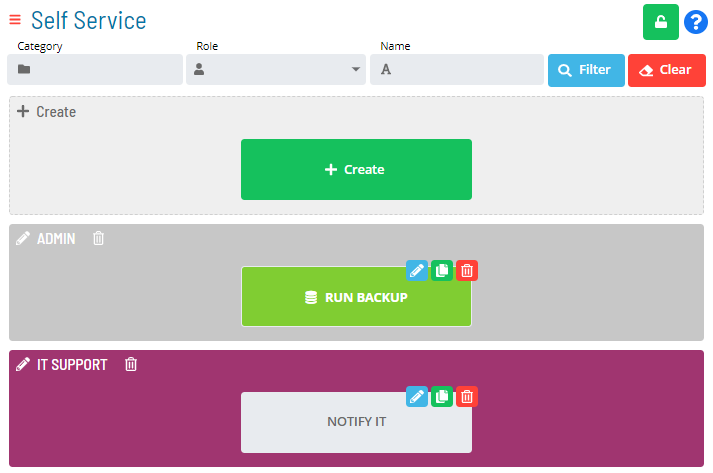
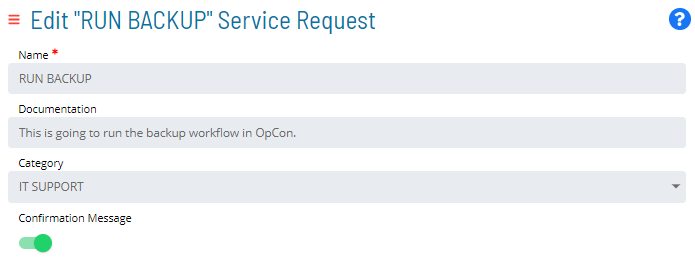
Besides modifying the settings of the category directly, you can also edit a Service Request to change or set the category to which it belongs, as such:
 :::
:::