Adding Vision Actions
Theme: Configure
Who Is It For? System Administrator, Automation Engineer
What Is It?
Use this procedure to add Vision Actions in Solution Manager.
To add a Vision Action, complete the following steps:
-
Select the Actions button on the Vision Live page or the Vision Settings page

-
Select the Add button on the Vision Actions page

-
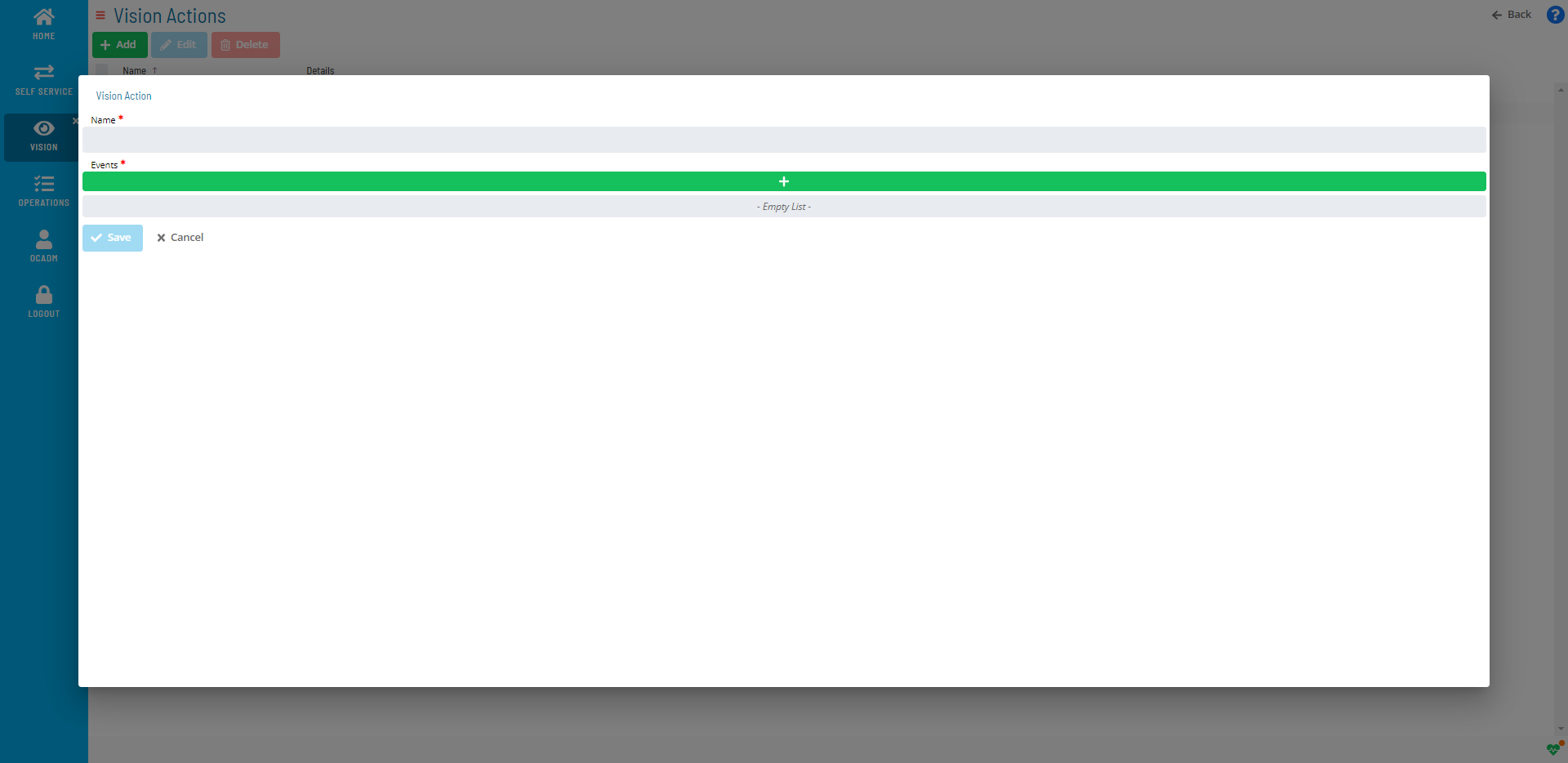
In the Vision Action window, enter a Name for the action
-
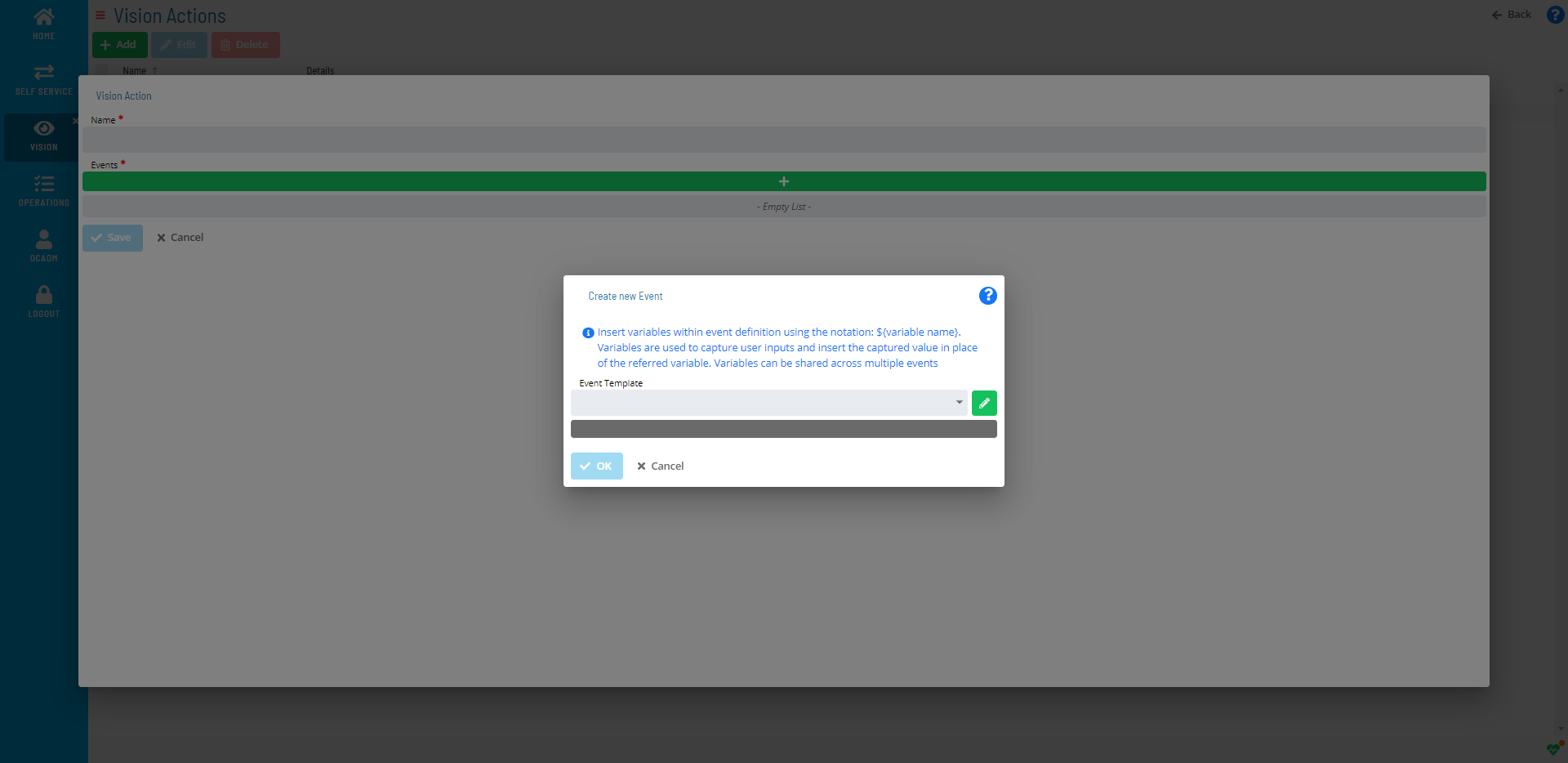
Select the + button to add Events. The Create new Event window displays
-
Select an OpCon Event Template. The screen updates dynamically to provide UI assistance for filling out the event details
noteThe Event Template list contains several Administrative Events for advanced operations. For more information, refer to Administrative Events in the OpCon Events online help.
-
Fill out the fields to define the event
noteDo not include user variables
${variable}in Vision actions — there is no place to enter user input when the action triggers. You may use the following system variables for Vision cards:- [[CI.$CARD NAME]] — Resolves to the card name
- [[CI.$CARD FREQUENCY NAME]] — Resolves to the frequency name defined for the card
- [[CI.$CARD STATUS]] — Resolves to the status that triggered the Vision action
- [[CI.$CARD START TIME]] — Resolves to the estimated or actual start time for the card
- [[CI.$CARD END TIME]] — Resolves to the estimated or actual end time for the card
- [[CI.$REMOTE INSTANCE NAME]] — Resolves to the remote instance name defined for the card
- [[CI.$SCHEDULE DATE]] — Resolves to the schedule date defined for the card
You can use the same variable multiple times within the same event or across events for the same action. Variables are resolved before the event is sent to OpCon.
-
Select the Save button
(Optional) Repeat steps 2–7 to add additional events.
FAQs
Q: How do you save a new vision actions record?
After completing the required fields, select the Save button on the toolbar to save the vision actions record.
Q: Is documentation required when adding vision actions?
No. The Documentation field is optional. You can enter notes about the vision actions to track its purpose, but it is not required to save the record.
Glossary
Frequency: A set of rules that defines when a job or schedule is eligible to run, based on calendar rules, day-of-week settings, period offsets, and other timing criteria.
OpCon Event: A command sent to OpCon that triggers an automated action, such as adding a job to a schedule, updating a property value, sending a notification, or changing a job or schedule status.
Resource: A numeric variable in OpCon representing a finite pool. Jobs can be configured to require a set number of resource units to run, limiting concurrent executions and preventing resource contention.
Schedule: A named container for jobs in OpCon, built for a specific date to create that day's automation. Schedules define build settings, frequencies, and the jobs that run within them.
OpCon: Continuous' workflow automation platform. The OpCon server includes the database, SAM and Supporting Services (SAM-SS), and graphical user interfaces. agents installed on target platforms run jobs and report results.