Managing Script Versions
Theme: Configure
Who Is It For? System Administrator, Automation Engineer
What Is It?
The Script Versions module allows you to add, edit, delete, deploy, and check cross-references for script versions.
Creating Script Versions
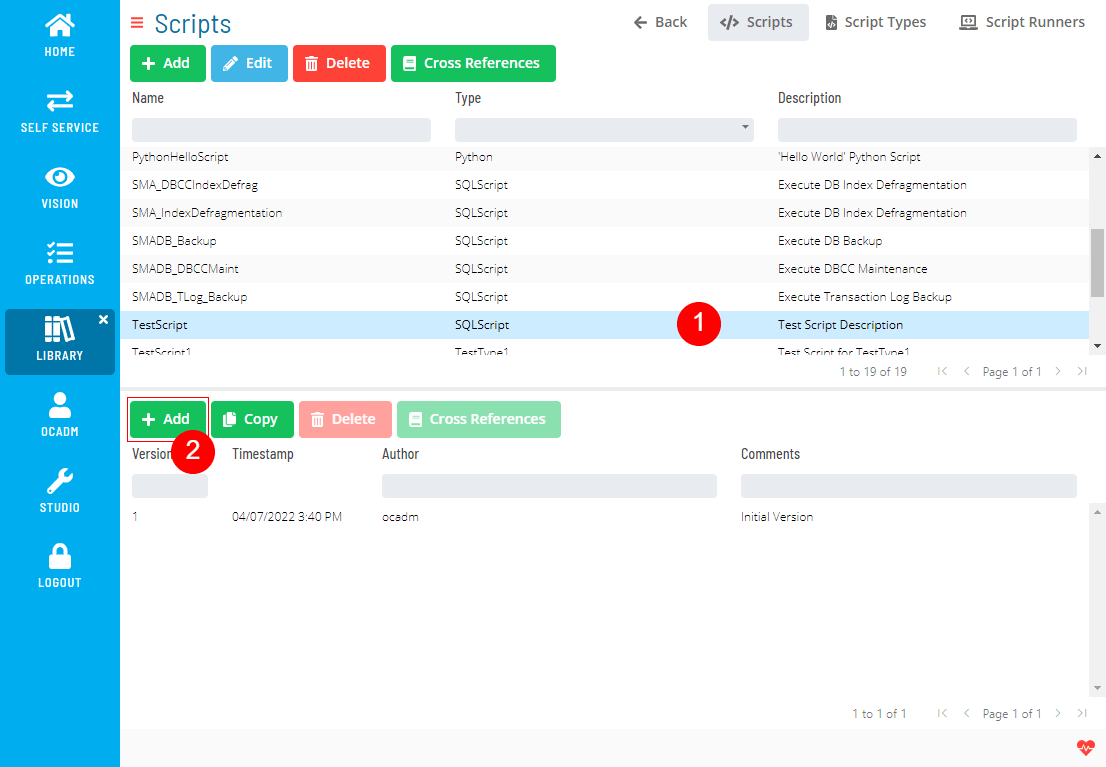
To create Script Versions, complete the following steps:
- Select a Script and select the Add button above the Script Version list
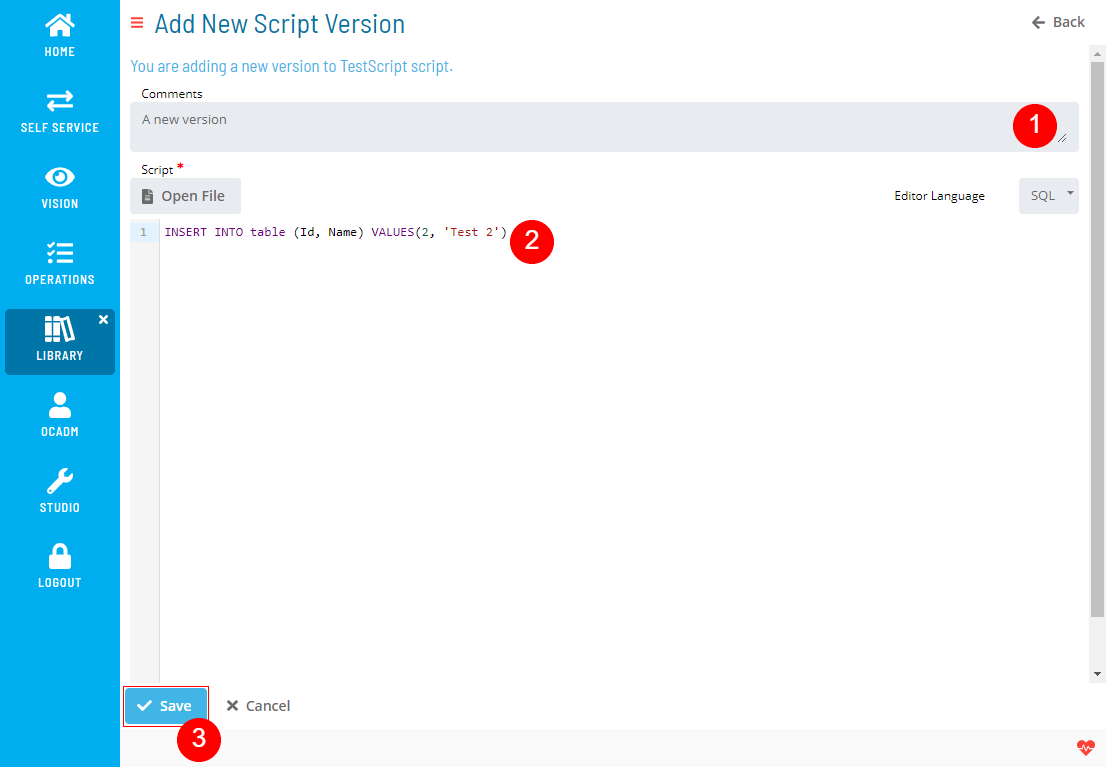
- Fill out the Script Version form
 note
noteEditor Language is only for formatting the syntax highlighter. It won't have any effect on the Script itself.
Copying Script Versions
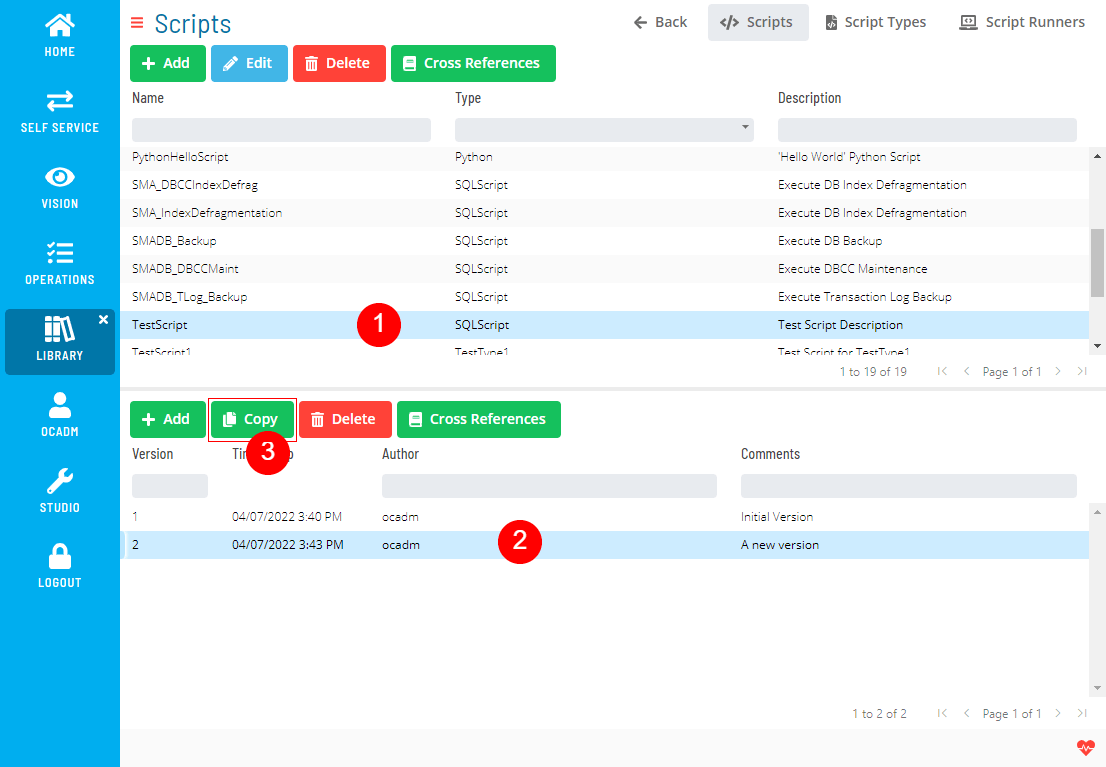
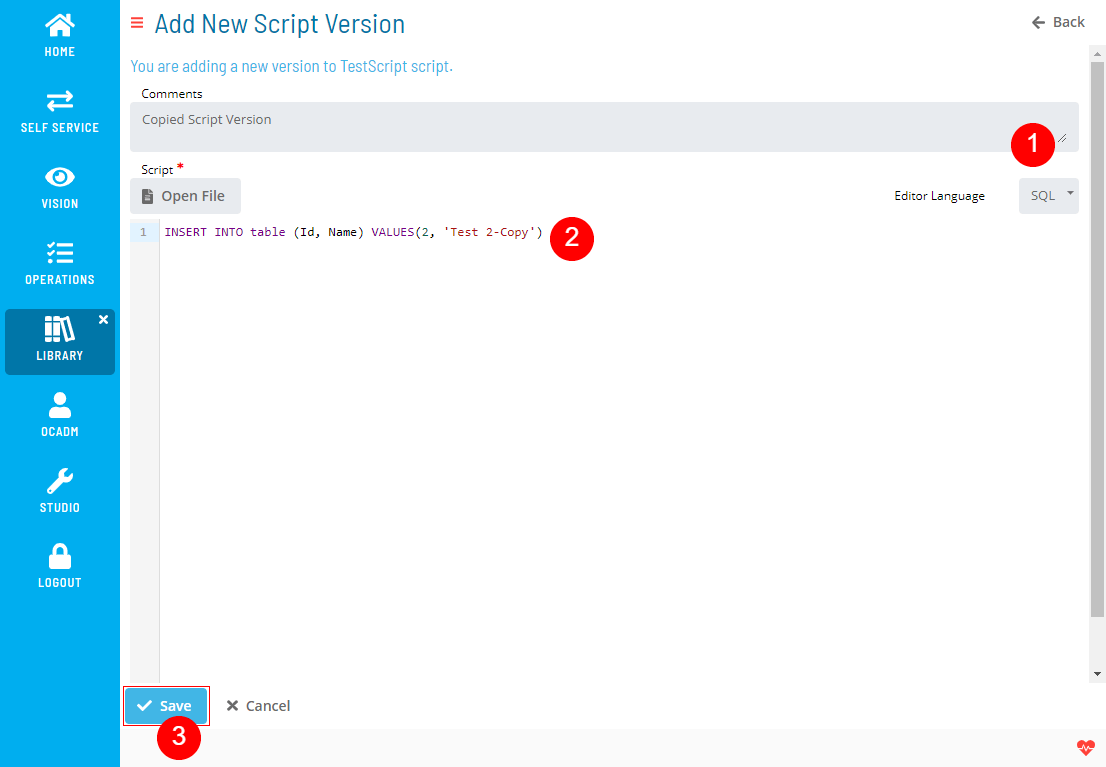
Create a new script version based on an existing version.
- Select a Script, select a Script Version and select the Copy button above the Script Version list
- Fill out the Script Version form
Deleting Script Versions
To delete Script Versions, complete the following steps:
-
Select a Script, select a Script Version and select the Delete button above the Script Version list
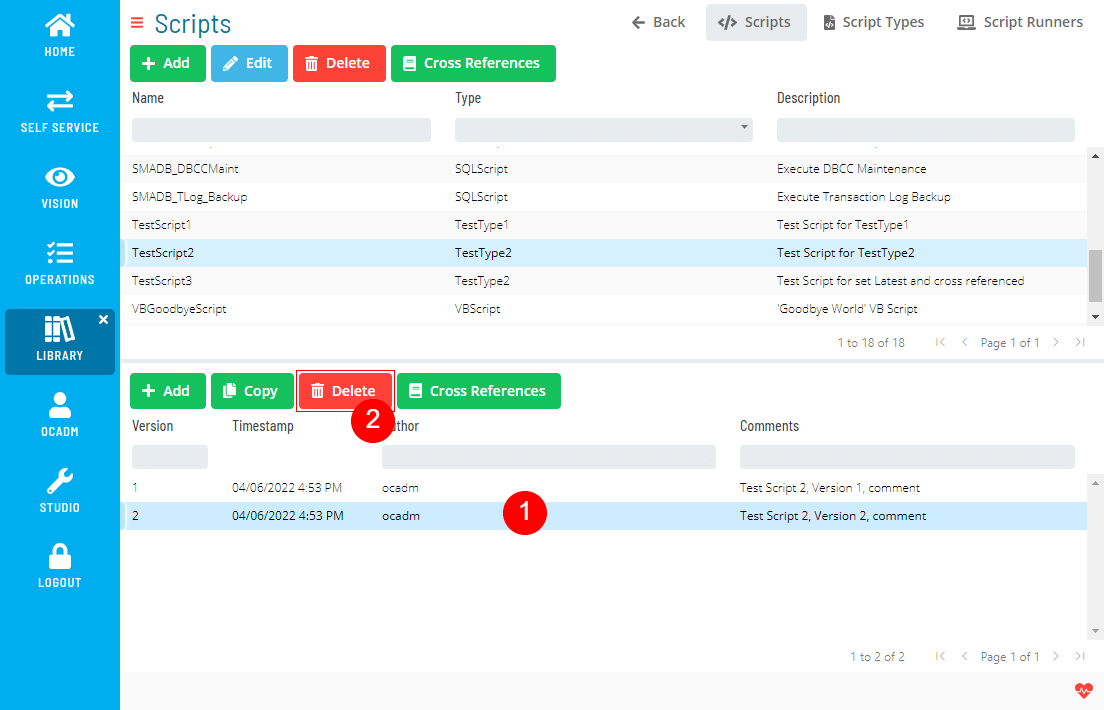
-
Select Yes to confirm the delete operation
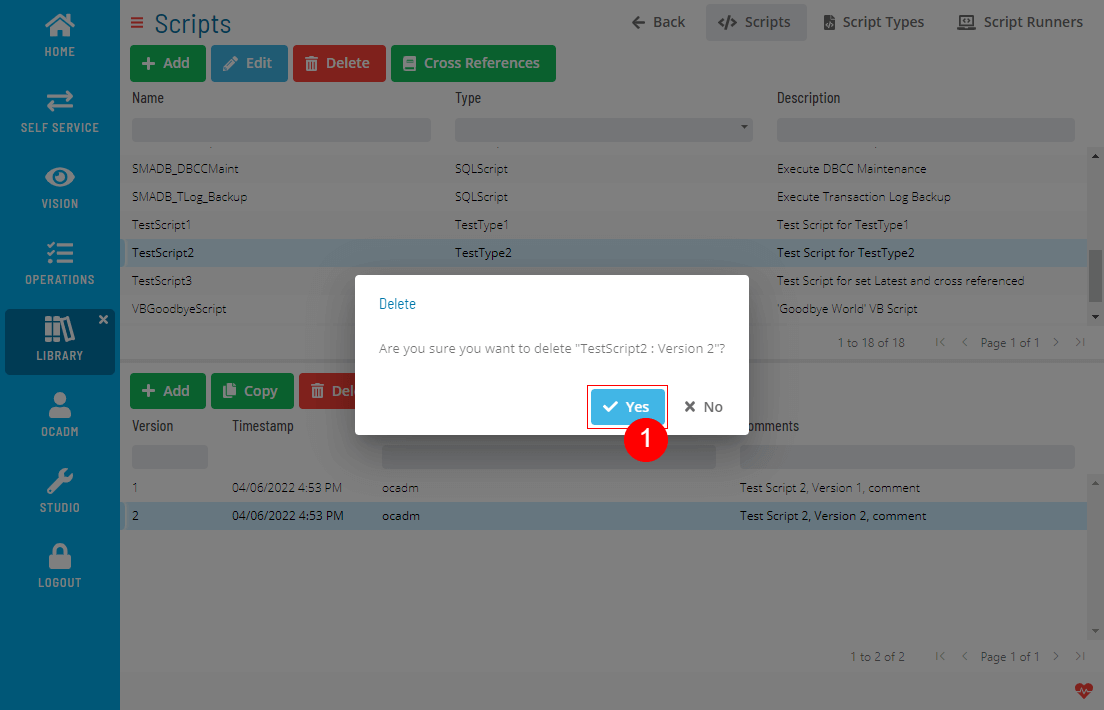 note
noteThe delete operation is not allowed:
- If the script version has cross-references
- If the script version is the only version for the script
noteIf you are deleting the Latest Version of a deployed Script, the previous version becomes the new Latest version.
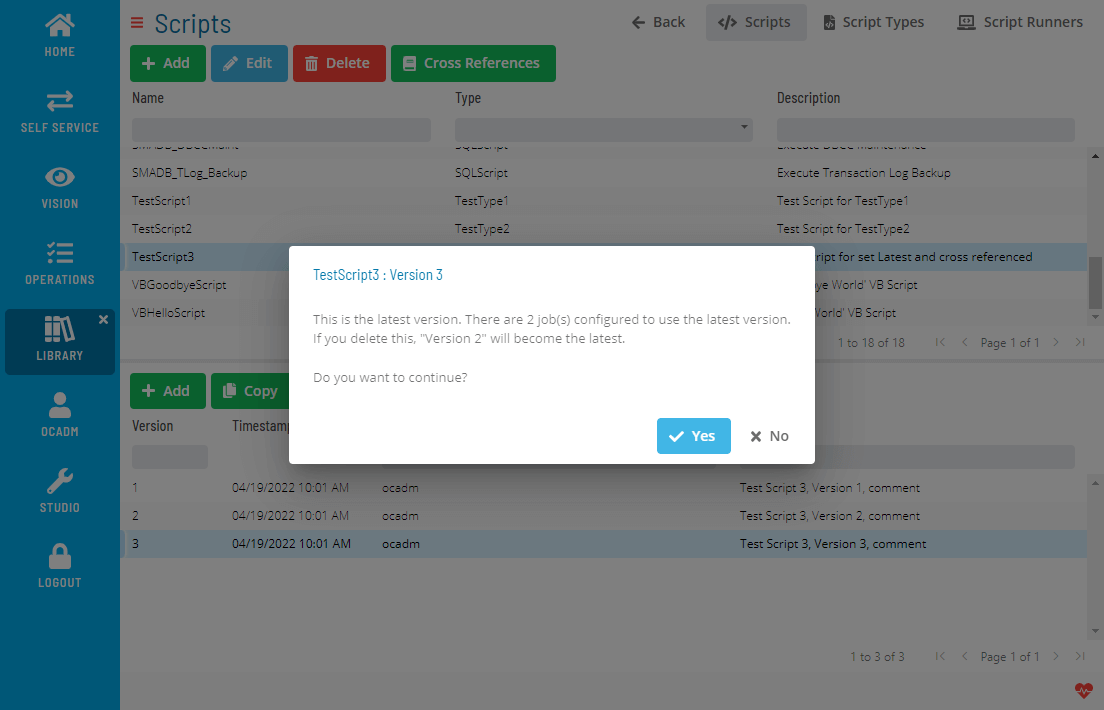
Deploying Script Versions
To deploy Script Versions, complete the following steps:
- Select a Script, select a Script Version and select the Deploy button above the Script Version list
- Repeat the 2nd step in Deploying a Script
Checking Cross References
To check Cross References, complete the following steps:
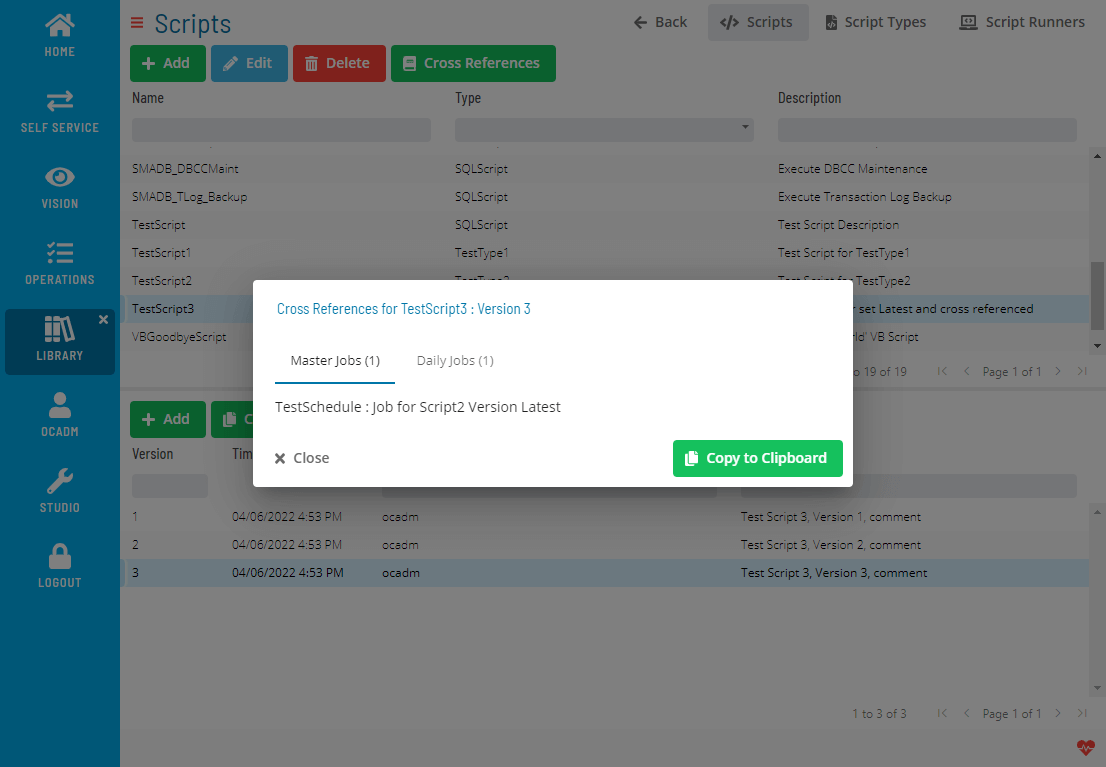
- Select a Script, select a Script Version and select the Cross References button above the Script Version list
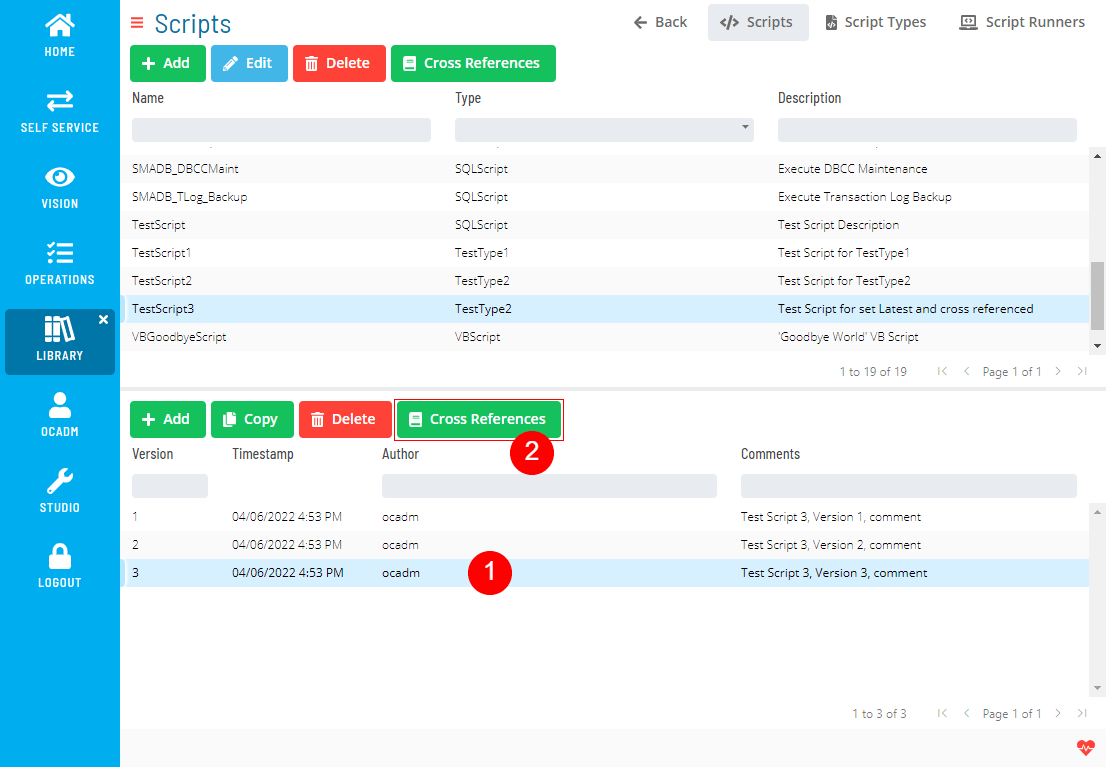
- A dialog will show the Cross References
 Related Topics
FAQs
Q: What does managing script versions involve?
Managing script versions includes adding, editing, and deleting records. Access script versions through the Enterprise Manager navigation pane.
Q: Who can manage script versions in OpCon?
Users with the appropriate privileges assigned through their role can manage script versions. Contact your OpCon system administrator if you do not have access.
Glossary
Enterprise Manager (EM): OpCon's rich client graphical user interface for Windows and Linux, used to define schedules and jobs, manage automation data, and perform operational tasks.
Resource: A numeric variable in OpCon representing a finite pool. Jobs can be configured to require a set number of resource units to run, limiting concurrent executions and preventing resource contention.
Role: A named security profile in OpCon that groups privileges together. Roles are assigned to user accounts to control which features, schedules, jobs, machines, and administrative functions a user can access.
Privilege: A specific permission granted through an OpCon role that controls access to a feature, function, or object type. Privileges are organized into categories such as Function Privileges, Machine Privileges, Schedule Privileges, and Access Codes.
OpCon: Continuous' workflow automation platform. The OpCon server includes the database, SAM and Supporting Services (SAM-SS), and graphical user interfaces. agents installed on target platforms run jobs and report results.