Setting up OpCon Events
Theme: Build
Who Is It For? System Administrator, Automation Engineer
What Is It?
To add an OpCon event to the Service Request
To add an OpCon event to the Service Request, complete the following steps:
- Select the green Add button below the Events label on the New Service Request page

- The Create New Event window displays
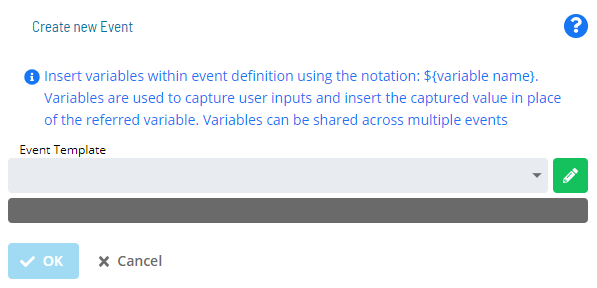
- Select an OpCon Event Template to start defining event details
The Event Template list contains several Administrative Events for advanced operations. For more information, refer to Administrative Events in the OpCon Events online help.
- Once you choose a template, the screen dynamically updates to assist with filling out event details
- A preview of the defined Event displays below the Event Template list in the dark grey box
- Variables are resolved before the Event is sent to OpCon
Use the Manual Edit button (pencil icon) to define or edit an Event manually.
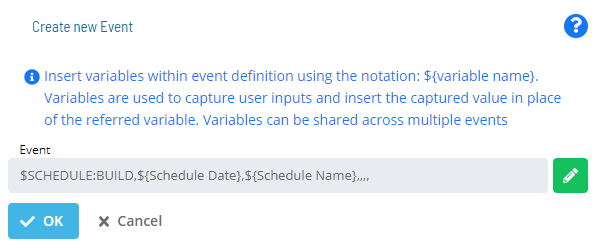
- Complete the Event definition
- Select OK to apply your changes and return to the Service Request definition page, or select Cancel to discard the Event changes
Using Variables
- Specify variables in Events using the syntax
${variable name} - The same variable can be used multiple times in the same Event or across Events for the same Service Request. Each reuse maps to a single User Input, so the value the user supplies applies to every instance
- The following system variables are available in Solution Manager:
- ${SM.USER.LOGIN} - Resolves to the Name defined for the OpCon user who selected the Service Request button
- ${SM.USER.NAME} - Resolves to the Full User Name defined for the OpCon user who selected the Service Request button
- ${SM.USER.EMAIL} - Resolves to the Email Address defined for the OpCon user who selected the Service Request button
- ${SM.USER.COMMENTS} - Resolves to the Comments defined for the OpCon user who selected the Service Request button
FAQs
Q: How many steps does the Setting up OpCon Events procedure involve?
The Setting up OpCon Events procedure involves 5 steps. Complete all steps in order and save your changes.
Glossary
Solution Manager: OpCon's browser-based graphical user interface for managing automation data, performing operational actions, and administering the system.
OpCon Event: A command sent to OpCon that triggers an automated action, such as adding a job to a schedule, updating a property value, sending a notification, or changing a job or schedule status.
Service Request: A Solution Manager feature that lets operators trigger predefined automation workflows using a simple form. Service Requests encapsulate schedule builds, job submissions, or events without requiring direct access to schedule definitions.
Resource: A numeric variable in OpCon representing a finite pool. Jobs can be configured to require a set number of resource units to run, limiting concurrent executions and preventing resource contention.
OpCon: Continuous' workflow automation platform. The OpCon server includes the database, SAM and Supporting Services (SAM-SS), and graphical user interfaces. agents installed on target platforms run jobs and report results.