Update - OpCon RPA
What is it?
This page describes how to update an existing OpCon RPA installation. Updates have five steps:
- Read the update considerations for the version you are moving to.
- Stop the RPA Agent service and the Tray Client.
- Back up your settings and database. Required before updating to 1.2.0.
- Run the RPA Agent installer (and update the ACS plugin, if your version requires it).
- Verify the service and Tray Client are running, then apply any version-specific post-update tasks.
This page assumes the RPA Agent and (for cloud installations) Netcom Relay are already installed. If they are not, follow Installation - OpCon RPA Agent and Netcom Relay instead.
Before you begin
You need:
| Item | Where to get it |
|---|---|
RPAAgent_x.y.z.msi | OpCon Web Installer (OWI) — Agents section |
sma.acs.OpConRPA.dll (only if your version requires an ACS plugin update — see considerations below) | OpCon Web Installer (OWI) — Integrations section |
| Local administrator rights on the Windows host | — |
Update considerations
Read the entry for the version you are updating to before running the installer. Each entry tells you whether the ACS plugin must be updated and whether any post-update work is required.
1.2.0
The database records which Agent version last wrote to it, and 1.2.0 stamps that record the first time it starts. From that point on, 1.1.0 refuses to open the database: the RPA Agent service will not start, and its log reports that the database was written by a newer Agent version. Reinstalling 1.1.0 over a 1.2.0 installation therefore leaves you with an Agent that does not run, and there is no way to convert the database back.
If you have to return to 1.1.0, restore the DataCache folder from a backup taken before the 1.2.0 update. Credentials encrypted by 1.2.0 cannot be decrypted by 1.1.0 either, so re-enter any credential added or changed since the backup. See Back Up and Restore the Database for the backup, restore, and downgrade procedures.
1.2.0 runs Web Macro and Scan Document tasks in their own host process with no interactive session. That host process is never run as Local System, and it never falls back to a connected RPA Tray Client. Because the Agent service always runs as Local System, an existing Web Macro or Scan Document task with no execution user fails. A connected RPA Tray Client does not rescue it. This affects every installation, so an existing task can start failing on a host that has not otherwise changed.
Before you update, open each Web Macro and Scan Document task, set an execution user, and save the task. Saving is what writes the value — a task authored on an earlier version never stored one, so it has to be saved once even if nothing looks like it changed.
| Topic | What to know |
|---|---|
| ACS plugin update | Required. The plugin creates the Windows session for a Robot Task over Remote Desktop and asks the Agent whether a session already exists. Update the ACS Plugin DLL. |
| Downgrade | Not supported. Once 1.2.0 has started, 1.1.0 refuses to open the database and its service will not start. Back up DataCache before updating — a pre-update backup is the only route back. |
| Service account | The RPA Agent service runs as Local System on every installation. The installer configures it on both a clean install and an update — there is nothing to choose and no properties to pass. See Install the RPA Agent. |
| Web Macro and Scan Document tasks | Now run in their own host process with no interactive session. A task with no execution user fails. See the warning above. |
| Wildcards in filters | Wildcard patterns in window titles, element text, and file and folder filters are now matched correctly. A pattern that previously never matched may now match. Review tasks whose fields contain *, ?, or #. See Wildcard Matching. |
1.1.0
| Topic | What to know |
|---|---|
| ACS plugin update | Required. The task schema changed so that tasks are fetched from the OpCon RPA server for querying and running. Update the ACS Plugin DLL. |
| Task storage | Tasks are now stored locally on the RPA Agent instead of in the OpCon Script Repository. Existing tasks remain available in the local database. |
| OpCon user | OpCon RPA no longer requires an OpCon user. The OpCon Settings tab has been removed from the Tray Client. Stop the RPA Agent before removing the OpCon user that was associated with it. |
| Existing master jobs | Existing master jobs continue to run. When you edit one, OpCon displays upgrade instructions. |
1.0.2
| Topic | What to know |
|---|---|
| ACS plugin update | Not required. No update was made to the ACS plugin in this version. |
| Network Credentials | This version fixed a bug where passwords for Network Credentials were not being saved. Update the password on every existing Network Credential before using it with an Execution Context, even if you were not using it before. Passwords are encrypted with the Windows Data Protection API. |
| Robot tasks | This version made an Execution Context required for all Robot tasks. Any existing Robot task must be saved and published again with an Execution Context defined. See Execution Context. |
| Impact on existing tasks | Running existing Robot tasks results in job failures until each task has been saved and published with an Execution Context. |
1.0.1
| Topic | What to know |
|---|---|
| ACS plugin update | Required. This update is needed to receive a bug fix where Agent status showed as available even when the Tray Client was not actually running. |
Step 1 — Stop the RPA Agent service and Tray Client
Do this step every time you update, before running the installer.
To stop the RPA Agent service and Tray Client, complete the following steps:
- Stop the RPA Agent service:
- Press the Windows key.
- Type
services.mscand press Enter. - In the list, find RPA Agent (the service name is
RPA.Agent). - Right-click the service and select Stop.
- Close the Tray Client:
- Exit the RPA Tray Client completely.
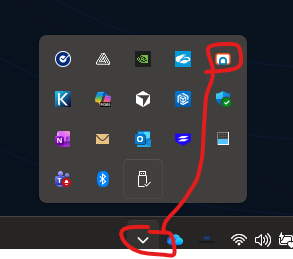
- Confirm it is not just minimized to the system tray (the area near the clock in the bottom-right corner). If you see the RPA Tray Client entry there, right-click it and select Quit Tray Client.
Step 2 — Back up your settings and database
For 1.2.0 this step is not optional. The database records which Agent version last wrote to it, and 1.2.0 stamps that record the first time it starts — after which 1.1.0 will refuse to open it. A backup taken before the update is the only way back. See Back Up and Restore the Database.
To back up your RPA Agent settings and database, complete the following steps:
- Confirm the RPA Agent service is stopped, as in Step 1. Stopping writes to the database is what makes the copy consistent.
- Open File Explorer, type or paste
C:\Program Files\RPAAgentinto the address bar, and press Enter. - Right-click appsettings.json and select Copy. Paste the copy into a safe folder.
- Right-click the DataCache folder and select Send to > Compressed (zipped) folder. Take the whole folder rather than the database file alone — it can hold companion files for a transaction in progress.
- Rename the zip to include the version you are updating from, such as
rpa_backup_1.1.0.zip, and copy it somewhere off the RPA host.
For the full procedure, including how to restore a backup and how to return to an earlier version, see Back Up and Restore the Database.
Step 3 — Update the ACS plugin (only if required)
If the considerations for your version say the ACS plugin update is required, replace the ACS Plugin DLL in your OpCon plugins directory using the same procedure as a new install.
See Step 3 of the installation procedure — copy the new sma.acs.OpConRPA.dll into the plugins directory, overwriting the existing file.
If the considerations say the plugin update is not required, skip this step.
Step 4 — Run the RPA Agent installer
The RPA Agent Installer is named RPAAgent_x.y.z.msi (x.y.z is the version number). After downloading from OWI, the installer is usually in your Downloads folder. Open File Explorer and select Downloads on the left, or check your browser's download list.
To run the update, complete the following steps:
- Run the
.msifile. - When Windows asks "Do you want to allow this app to make changes to your device?", select Yes.
- Wait for the installer to complete. The installer starts the Tray Client again when it finishes.
Step 5 — Verify the service and Tray Client are running
After the installer finishes, confirm that both the RPA Agent service and the Tray Client are running.
5a. Verify and start the RPA Agent service
To verify and start the RPA Agent service, complete the following steps:
- Press the Windows key.
- Type
services.mscand press Enter. - In the list, find RPA Agent (the service name is
RPA.Agent). - Check the Status column. It should say Running.
- If it does not say Running, right-click the service and select Start.
5b. Verify and start the Tray Client
To verify and start the Tray Client, complete the following steps:
- Look for the RPA Tray Client entry in the system tray (near the clock in the bottom-right corner). If you see it, the Tray Client is already running.
- If you do not see the entry:
- Press the Windows key.
- Type RPA Agent Tray Client.
- Select it from the Start menu. You can also look under Start > All Apps > RPA Agent > RPA Agent Tray Client.
- After the Tray Client is open, you can minimize it to the tray. The Agent is then active and ready for use.
The installer also registers the Tray Client to start automatically when a user signs in to the host, so it normally comes back on its own after a restart.
Step 6 — Apply post-update tasks for your version
After the service and Tray Client are running, apply any version-specific tasks listed in the update considerations for the version you just installed.
For example, if you updated to 1.2.0:
- Confirm the service runs as Local System. Run
sc qc RPA.Agentin an elevated command prompt and check thatSERVICE_START_NAMEreadsLocalSystem. - Confirm every Web Macro and Scan Document task has an execution user, and that each one has been saved since the update. Without a stored execution user those tasks fail. See the 1.2.0 considerations.
- Review any task whose window title, element text, or file and folder filters contain
*,?, or#. Those patterns are now matched as wildcards. See Wildcard Matching. - Keep the backup you took in Step 2 until you are satisfied with the update. It is the only way back to 1.1.0.
If you updated to 1.0.2:
- Update the password on every existing Network Credential before using it with an Execution Context.
- Save and publish every existing Robot task with an Execution Context defined. Until you do this, running those tasks results in job failures.
FAQs
Do I need to update the ACS plugin every time I update OpCon RPA? No. Check the update considerations for the version you are installing. Versions 1.0.1, 1.1.0, and 1.2.0 required an ACS plugin update; version 1.0.2 did not.
Can I go back to 1.1.0 after updating to 1.2.0?
Not without restoring a backup. Once 1.2.0 has started, the database is stamped as 1.2.0 and 1.1.0 refuses to open it — its service will not start. Restore the DataCache folder from a backup taken before the update, and re-enter any credential added or changed since.
Why does a Web Macro or Scan Document task fail after updating to 1.2.0? Most likely it has no stored execution user. 1.2.0 runs those tasks in their own host process with no interactive session, that process is never run as Local System, and there is no fallback to a connected RPA Tray Client. Open the task, set an execution user, and save it. See Troubleshooting.
Does updating change the account the RPA Agent service runs as? No. The service runs as Local System before and after the update. The installer configures it every time, and there is nothing to choose.
How do I update the ACS plugin?
Replace sma.acs.OpConRPA.dll in your OpCon plugins directory with the new copy from OWI. The procedure is the same as a new install — see Step 3 of the installation procedure.
Why are my existing Network Credentials not working after updating to 1.0.2? Version 1.0.2 fixed a bug where passwords for Network Credentials were not being saved. After updating, update the password on every Network Credential before using it with an Execution Context.
Why are my existing Robot tasks failing after updating to 1.0.2? Version 1.0.2 made Execution Context required for all Robot tasks. Save and publish each existing Robot task with an Execution Context defined.
Should I back up my settings before updating?
Back up before updating to 1.2.0 — it is the only route back to 1.1.0. For other versions it is optional. To back up settings, copy appsettings.json and the DataCache folder from C:\Program Files\RPAAgent to a safe location.
Where do I download the installer and ACS plugin? Use the OpCon Web Installer (OWI). The RPA Agent Installer is in the Agents section; the ACS Plugin DLL is in the Integrations section.
Glossary
| Term | Definition |
|---|---|
| RPA Agent | The agent that performs robot task automation on a target Windows machine. |
| RPA Tray Client | The local Windows interface that runs alongside the RPA Agent, used to configure the HTTPS URI and API token. |
| ACS Plugin DLL | The OpCon Application Connection Studio plugin file (sma.acs.OpConRPA.dll) that lets the OpCon SAM communicate with the RPA Agent. |
| Network Credential | A stored credential in the RPA Agent used by Robot tasks. Encrypted with the Windows Data Protection API. |
| Execution Context | The configured rules for how a Robot Task interacts with the machine before and after it runs. Required for all Robot tasks starting in 1.0.2. |
| OpCon Web Installer (OWI) | A tool that bundles OpCon installer artifacts, including the ACS Plugin DLL and the RPA Agent Installer. |
| DataCache | The folder under C:\Program Files\RPAAgent holding the local database of tasks, versions, and encrypted credentials. It survives an uninstall. |