Robot Tasks
What is it?
A Robot Task interacts with Microsoft Windows on behalf of a user. Robot Tasks can be created by:
- Recording actions a user performs on the desktop, or
- Dragging and dropping individual activities into the workflow, or
- Combining both.
Three concepts work together to make a Robot Task run safely and predictably:
| Concept | What it controls |
|---|---|
| Robot Task | What the task does — the recorded or dragged activities. |
| Execution Context | When and how the task interacts with the machine — the user identity, what happens before the task runs, and what happens after. |
| Credentials | The encrypted Windows credentials RPA uses to switch into the correct user session at runtime. |
This page explains all three.
Quick reference — pick a behavior
| What you want | On a single user machine | On a multi-user machine |
|---|---|---|
| Run automatically with no popups | Select Lock other session | Select Execute on session without prompt |
| Approve each task before it runs | Select Leave task in queue until user locks session | Select Wait for user confirmation |
| Leave the session unlocked after the task | Select Do nothing under After Execution Behaviors | Select Do nothing under After Execution Behaviors |
| End the session after the task | Select Log off user under After Execution Behaviors | Select Log off user under After Execution Behaviors |
| Run with nobody signed in on the host | Give the task an RDP login user and select Log off user | Give the task an RDP login user and select Log off user |
Machine type quick check
| Machine type | Examples | Key difference |
|---|---|---|
| Single user | Windows workstation editions | Only one user can control the desktop at a time. |
| Multi-user | Windows Server editions | Multiple users can have active desktop sessions simultaneously. |
Execution Context
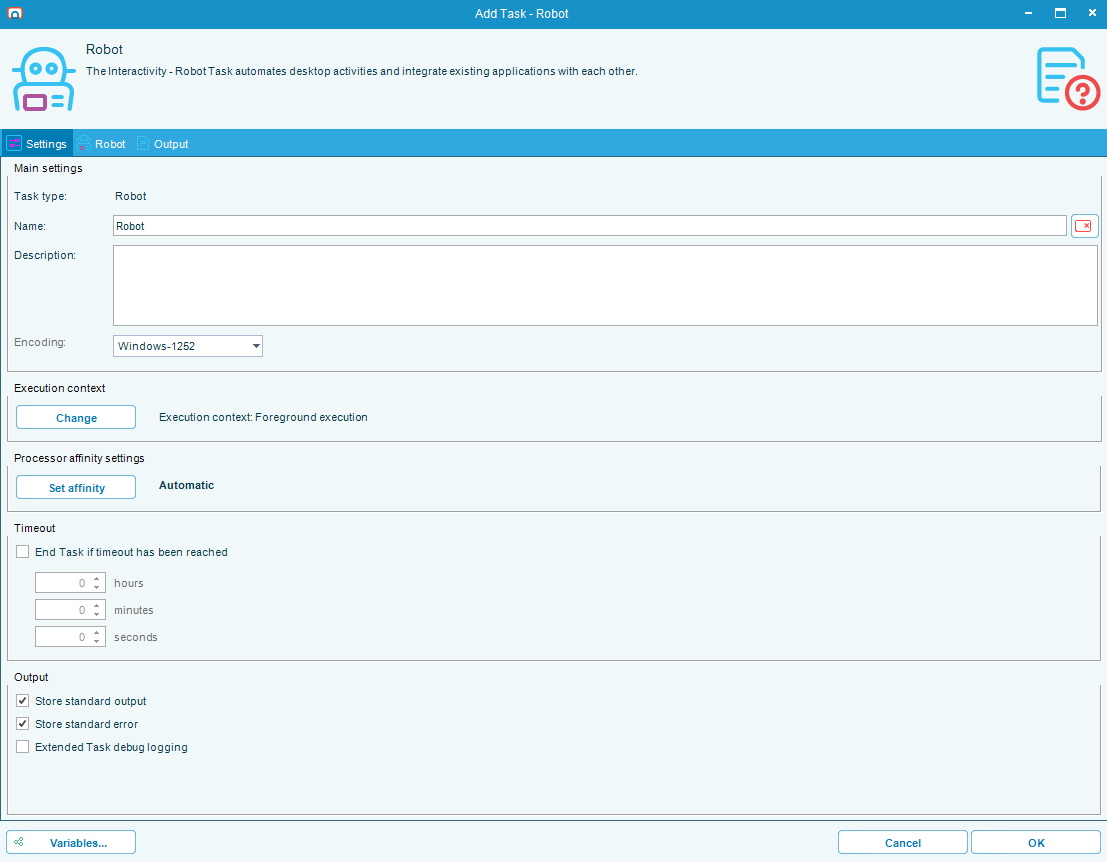
The Execution Context is set on the main form with the Change button under Execution context, which opens the Execution Context Setup window. It controls how the task interacts with the machine before and after the task runs. By default, the Execution Context is set to the user that is currently logged in and editing the task.
The task runs inside the Execution Context user's own Windows session, so it acts with exactly the privileges of that account. That account does not need local administrator rights — grant it only the rights the applications the task drives require. The RPA Agent service's own privileges do not extend what a task can do. See Service Accounts and Permissions.
An Execution Context is required to Publish a Robot Task. Drafts can be saved without one. When another user edits this task, your Execution Context settings remain unchanged unless that user opens the Execution Context menu.
The RPA Agent cannot sign a user in. It can only run a task for an account that already has a Windows session on the host, so give each Robot Task an RDP login user: OpCon then signs the account in for the run. Nothing has to be done after a reboot, and nobody has to be signed in at the machine. To set this up, see Configure RDP login.
The Agent can unlock a session belonging to a user who is already signed in, but it cannot create one. A task with no RDP login user therefore depends on someone having signed in first, which after a reboot means signing in as each user manually:
- After the reboot, sign in as
UserA. - Press Win+L to lock the session.
- Sign in as
UserB. - Press Win+L to lock the session.
- RPA can now run tasks for both users.
Locking each session at the end is part of the procedure because the Agent unlocks it again for the task. Leaving the sessions unlocked works too, but it leaves an open desktop per account.
Before Execution Behaviors
The Before Execution Behavior controls what happens between the moment RPA receives a command to run the task and the moment the task starts.
The available options depend on the machine type.
Single user machines
For single user machines (Windows workstation editions), only one user can control the machine at a time, so RPA may need to switch sessions before running. The options are shown under If other user has an active session:.
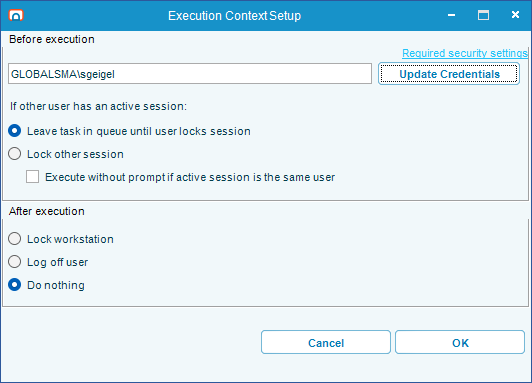
To assign your user to the task, select the Enter Credentials button — it reads Update Credentials once a credential for that user exists.
| Option | What RPA does | Use when |
|---|---|---|
| Leave task in queue until user locks session | Sends a message to the currently logged-in user asking them to lock the session. Selecting OK only dismisses the message: the task waits until the session is actually locked (Win+L), for up to five minutes, after which it proceeds anyway. | Testing, or when combined with Execute without prompt if active session is the same user. |
| Execute without prompt if active session is the same user (modifier — only available with the option above) | Skips the confirmation window when the Execution Context user matches the currently logged-in user, and runs the task immediately. | Same-user automation that should not interrupt the user. |
| Lock other session | Locks the active session if it belongs to a different user than the Execution Context user, then runs the task. If the active session already belongs to the Execution Context user, runs the task directly. | Hands-off, scheduled automation. |
The windows look like this:
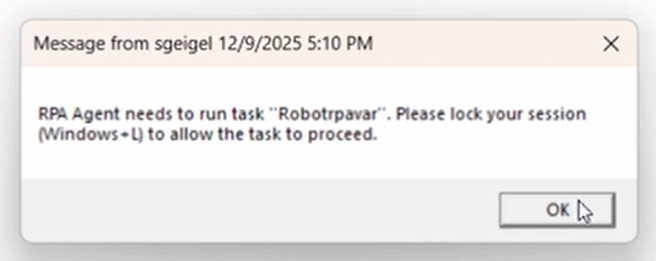
Different user logged in: the user can dismiss the message, but the task waits until the session is locked.
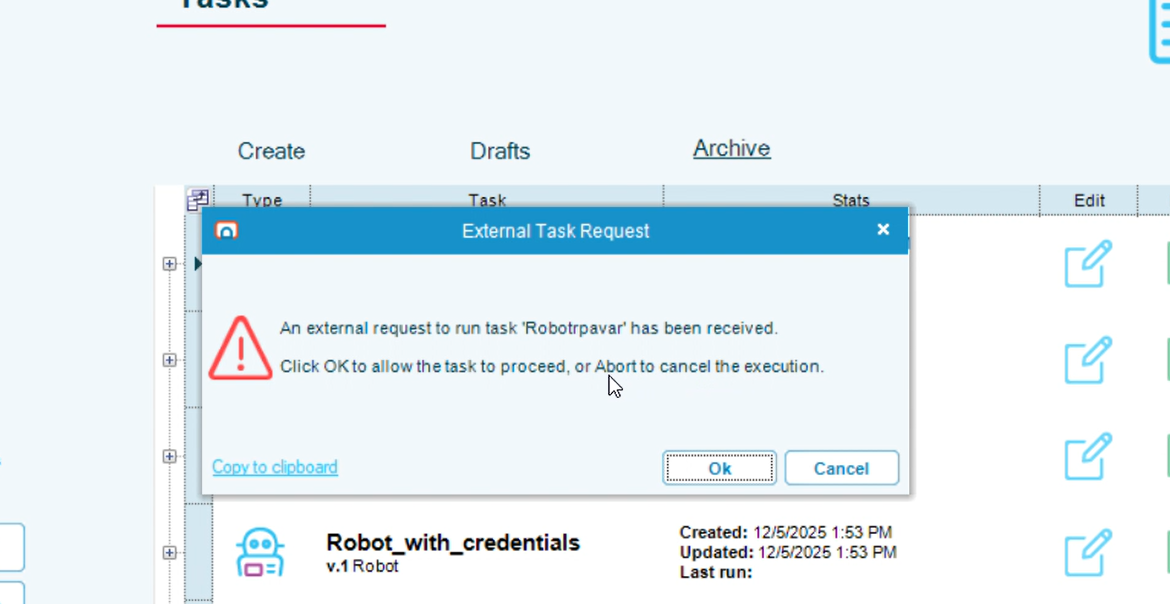
Same user logged in: the External Task Request window. Selecting Yes starts the task; selecting No cancels it, and the run is reported as a task failure.
Multi-user machines
For multi-user machines (Windows Server editions), multiple users can have active desktop sessions at the same time. Session switching is not needed, but locking sessions is still important for security. The options are shown under If target session is active:.
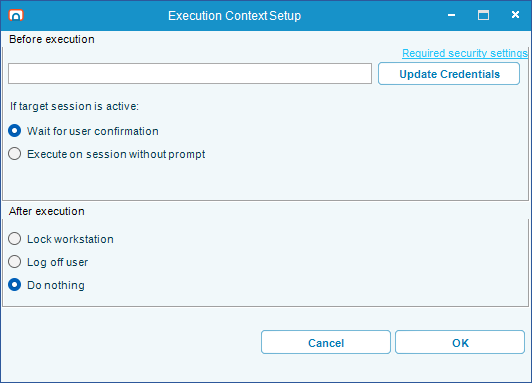
To assign your user to the task, select the Enter Credentials button — it reads Update Credentials once a credential for that user exists.
The target session is unlocked before the task runs, if it was locked.
| Option | What RPA does | Use when |
|---|---|---|
| Wait for user confirmation | Shows the External Task Request window in the target session. The task waits until the user selects Yes. | Testing, or when a human gate is required. |
| Execute on session without prompt | Runs the task on the user's session immediately, with no warnings or prompts. | Hands-off, scheduled automation. |
Wait for user confirmation shows the same External Task Request window as the single-user same-user case, in the target session:
When RPA locks a session, it does not end RDP connections. If the user was logged in through RDP, the connection remains active, but the session shows a lock screen.
After Execution Behaviors
After Execution Behaviors apply to both single user and multi-user machines.
| Option | What RPA does | Use when |
|---|---|---|
| Lock workstation | Locks the current user (equivalent of Win+L) after the task completes. | The session must stay available for the next run, behind a lock screen. |
| Log off user | Signs the Execution Context user out of Windows after the task completes. The session ends and open applications close. | The session must not remain available between runs — for example, to release the resources it holds or to satisfy a policy that limits standing sessions. Pair it with an RDP login user for unattended work. |
| Do nothing | Leaves the running user's session unlocked. | Chaining multiple RPA tasks under the same user, to avoid delays from repeated lock/unlock cycles. |
Log off user needs no configuration, and you do not choose which route it takes. The Agent ends the session itself, and falls back to asking the Tray Client in that session to sign itself out if it cannot — which also covers a session whose Tray Client has stopped responding. Either way it targets exactly the session that ran the task, not another session belonging to the same user. When the Tray Client does the signing out it acknowledges first and waits about five seconds, so its reply reaches the Agent before the session ends.
The RPA Agent cannot sign a user in. Once a session is signed out, the Agent on its own cannot run another task for that user until a person signs in as that user again.
If the task has an RDP login user, this is handled for you: the next run finds no session and signs the account back in. Pairing Log off user with an RDP login user leaves no standing session between runs, which is the recommended setup — see Unattended Session.
Without an RDP login user, choose Lock workstation instead when the same user runs tasks on a schedule — the Agent unlocks the session again for the next run.
Log off user ends the session, so any unsaved work in that session is lost. Use it only when nothing in the session needs to persist between runs.
RPA signs a user out only when it positively identifies the exact session that ran the task. If it cannot, it takes no action and records a warning rather than risk signing out a different user. This differs from Lock workstation, which on a machine with exactly one active session falls back to that session. Log off user never falls back, because signing out the wrong user is destructive.
A sign-out gives running applications the chance to save work, so an application holding an unsaved document can cancel it. When that happens the session keeps running, and about 45 seconds later the Agent's log records that the sign-out was cancelled.
Finding windows and elements at runtime
An activity locates the window and the control it acts on by name. A recording captures those names exactly as they appeared, which makes a task fragile when a caption carries a value that changes between runs — a record number, a customer name, or a timestamp.
Window titles and element text are matched as patterns, so you can replace the part that varies with a wildcard. A window titled Acme Teller — Session 4102 is matched reliably by Acme Teller*. The same wildcards apply to the file and folder filters used by file-handling activities.
For the characters you can use and how matching decides whether a value fits, see Wildcard Matching.
Credentials
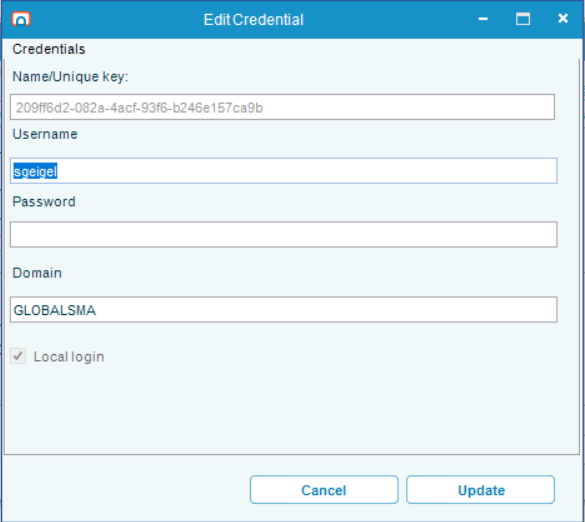
The edit credentials window shows information from your current Windows session. Name/Unique key, Username, and Domain are filled in from your session and cannot be edited, and Local login is always selected. The only field you complete is Password.
How your credentials are protected
Your credentials are secured through several layers:
- Secure transmission: Credentials are sent to the RPA Agent service on the local machine over an encrypted channel that authenticates you with your Windows session. They never leave the host.
- Encryption: Your username and password are encrypted with a randomly generated key created the first time you started RPA. The key itself is protected by Windows so that it can only be used on that machine.
- GUID reference: Internally, RPA references you only by a GUID (unique identifier). Robot tasks and Execution Contexts hold the GUID, not your password.
- One-time entry: After initial setup, you do not need to enter your password again when creating additional Execution Contexts.
First-time setup
If this is the first time setting up your user for RPA, complete the following steps:
- Enter your Windows password.
- Confirm the window.
- RPA verifies the password is correct for this user account.
How credentials are used during execution
When the Agent service receives a command to run a task:
- It looks up the GUID for the task.
- It decrypts the stored credentials.
- It switches to the appropriate user session.
- It holds the decrypted credentials in memory only for the duration of the task.
Credentials are never stored in plain text and are never persisted in decrypted form.
FAQs
Why does my task wait when I select "Leave task in queue until user locks session"? RPA intentionally waits until the user locks the session (Win+L) before running the task, which lets the user finish what they are doing first. Selecting OK on the message only dismisses it; it does not lock the session. If the session is still not locked after five minutes, RPA stops waiting and switches to the task's user anyway.
Why can't RPA run my task after a server reboot? The RPA Agent cannot sign a user in, so it can only run a task for an account that already has a session. Give the task an RDP login user and OpCon signs the account in for each run, which removes the need for anything to happen after a reboot — see Configure RDP login. Without one, somebody has to sign in as each user manually after the reboot and lock each session.
Should I use Lock workstation or Log off user? Log off user leaves no signed-in desktop between runs, which is the better security position and what an unattended session uses. Lock workstation keeps the session available behind a lock screen, which suits the same user running tasks on a schedule — the Agent unlocks it again for the next run.
My task with Lock workstation ran but the session was not locked. RPA locks a session only when it positively identifies the session that ran the task. If it cannot — most often on a multi-user host — the task still succeeds and the lock is skipped, with a warning in the Agent's log naming the user. Check the log, and confirm the account has its own session on that host. See Permissions Troubleshooting.
Will my existing tasks keep working after updating to 1.2.0? Yes. Session unlocking and locking work as they did, and every existing setting is preserved. Moving a task to an unattended session — an RDP login user plus Log off user — is recommended rather than required, because it leaves no signed-in desktop between runs.
Are my Windows credentials stored in plain text? No. Credentials are encrypted with a randomly generated key created the first time you started RPA, and are referenced only by GUID. The Agent service decrypts them in memory when it needs them — when it prepares the session for a task, or when you open a stored credential in RPA — and never writes them to disk in decrypted form.
Can I save a draft task without an Execution Context? Yes. An Execution Context is required only at the Publish stage. Drafts can be saved without one.
Does locking a session end an RDP connection? No. Locking a session leaves the RDP connection active — the session shows a lock screen, but the connection remains.
Can I chain multiple Robot Tasks under the same user without locking and unlocking each time? Yes. Set the After Execution Behavior to Do nothing for the intermediate tasks. The session stays unlocked, which avoids the delays caused by repeated lock/unlock cycles.
What is the difference between "Lock workstation" and "Log off user"? Lock workstation leaves the session running behind a lock screen, and RPA can unlock it for the next task. Log off user ends the session entirely and closes open applications. RPA cannot sign a user back in, so a person must sign in as that user before RPA can run tasks for them again.
My task finished but the user was not signed out. Why? RPA signs a user out only when it positively identifies that user's own session. If it cannot find that session, it takes no action and records a warning instead of signing out a different user. This is most common on multi-user machines. Check the RPA Agent log for a warning naming the user.
Does the Execution Context user need local administrator rights? No. The task runs at the privilege level of that account, so grant it only what the applications it drives require. See Service Accounts and Permissions.
Related topics
Glossary
| Term | Definition |
|---|---|
| Robot Task | An OpCon RPA task that interacts with Windows on behalf of a user. |
| Execution Context | The configured rules for how a Robot Task interacts with the machine before and after it runs, including the user identity. |
| Before Execution Behavior | The action RPA takes between receiving a command to run a task and starting the task — for example, lock another session or wait for confirmation. |
| After Execution Behavior | The action RPA takes after the task completes — lock the workstation, sign the user out, or leave the session unlocked. |
| Single user machine | A Windows workstation edition, where only one user controls the desktop at a time. |
| Multi-user machine | A Windows Server edition, where multiple users can have active desktop sessions simultaneously. |
| Tray Client | The OpCon RPA client that runs in the Windows system tray. |
| RPAAgent service | The local service that the Tray Client communicates with over an authenticated, encrypted channel on localhost to manage tasks and credentials. |
| GUID | A unique identifier RPA uses internally to reference a credential record without exposing the username or password. |