Orchestration with OpCon
What is it?
This page describes how OpCon starts OpCon RPA jobs and how to configure those OpCon jobs.
The page has two halves:
- Concepts: the four ways OpCon can trigger an RPA job — frequency, dependency, variable trigger, or Self Service.
- Procedures: how to configure the OpCon job that starts the RPA job. There are two options, depending on whether you use Enterprise Manager or Solution Manager.
A reference Web Services script used by both options is included at the end of the page.
How OpCon starts RPA jobs
OpCon can start an RPA job in any of the ways listed below. You choose the trigger type when you build the OpCon schedule.
| Trigger type | When the RPA job starts | Typical use |
|---|---|---|
| Frequency (time) | At a calendar date and time. | Recurring schedules — for example, every weekday at 06:00. |
| Job dependency (event) | After a previous job or event in the schedule completes. | Chained workflows — RPA runs after upstream jobs finish. |
| Variable trigger | When the output of a previous job changes a watched variable. | Conditional flows driven by upstream output. |
| Self Service button (on-demand) | When a user selects a Self Service button. | Human-initiated runs. The button can also satisfy a job dependency to start the RPA job indirectly. |
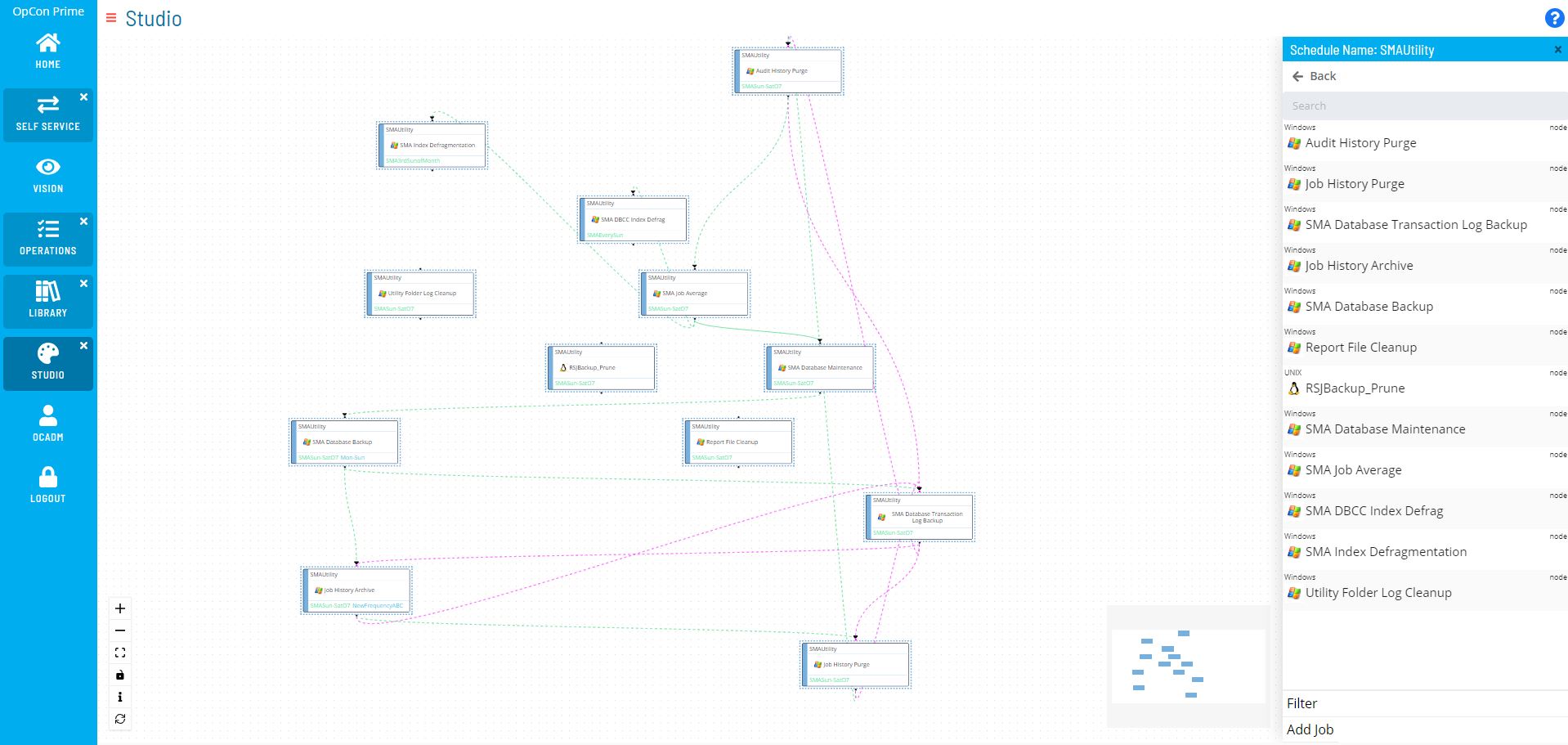
Supplement daily workflows with RPA jobs to reduce manual burden or to extend an existing schedule with new automation.
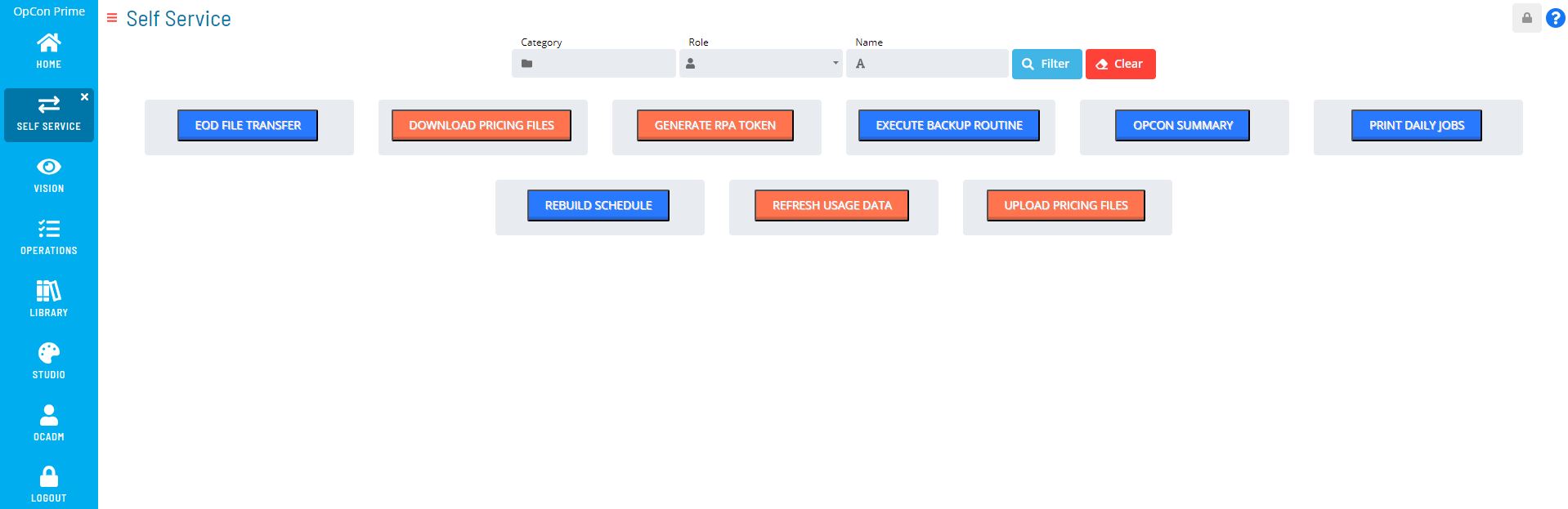
Choose your option
You configure the OpCon job that starts the RPA job in one of two ways. Pick the option that fits your environment.
| Option 1 — Enterprise Manager | Option 2 — Solution Manager | |
|---|---|---|
| OpCon interface | Enterprise Manager | Solution Manager |
| Approach | Web Services Connector + a job template | Web Services Connector + an embedded script |
| Reusability | Job template can be imported into multiple schedules. | Script lives in the OpCon script repository and runs as an embedded script in any Windows job. |
| Use this option if | You configure schedules in Enterprise Manager. | You configure schedules in Solution Manager. |
Both options use the same Web Services script shown at the end of this page.
Option 1 — Enterprise Manager with a job template
To create an OpCon job that initiates the RPA workflow using the Web Services Connector with a job template, complete the following steps:
- Install the Web Services Connector. Download and install with the OpCon Web Installer.
- In Enterprise Manager, create a new schedule or open an existing schedule in workflow designer.
- Add a new master job with the following type:
- Job Type: Windows
- Job Sub-Type: Web Services
- Copy the Web Services script and save it as a
.webtemplate file. Example name:OpConRPAtemplate.web. - Import the
.webtemplate into the master job. - Update the host variable and the job name variable in the template to the name of the RPA job configured in VisualCron.
Option 2 — Solution Manager with an embedded script
In Solution Manager, you set up two pieces once (a script type and a script runner) and then attach the script to a Windows master job.
2a. Create the script type
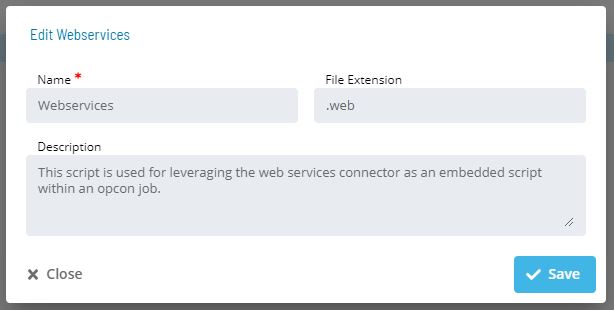
To create the Webservices script type, complete the following steps:
-
In Solution Manager, go to
https://localhost/library/scripts/types. -
Add a new script type with the following values:
- Name:
Webservices - File Extension:
.web
- Name:
2b. Create the script runner
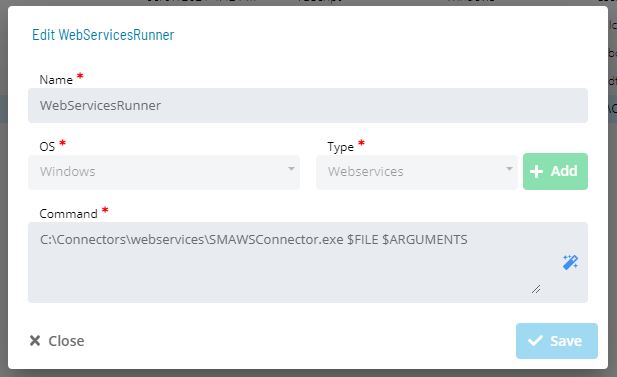
To create the WebServicesRunner script runner, complete the following steps:
-
In Solution Manager, go to
https://localhost/library/scripts/runners. -
Add a new script runner with the following values:
- Name:
WebServicesRunner - OS:
Windows - Script Type:
Webservices - Command Template Parameters:
C:\[Path to Webservices Connector]\SMAWSConnector.exe $FILE $ARGUMENTS
- Name:
2c. Upload the script
To upload the Web Services script to the OpCon script repository, complete the following steps:
-
In Solution Manager, go to
https://localhost/library/scripts. -
Copy the Web Services script and modify it for your environment. The script is parameterized for user codes, password, URL, job name, and variables.
-
Upload the modified script to the repository.
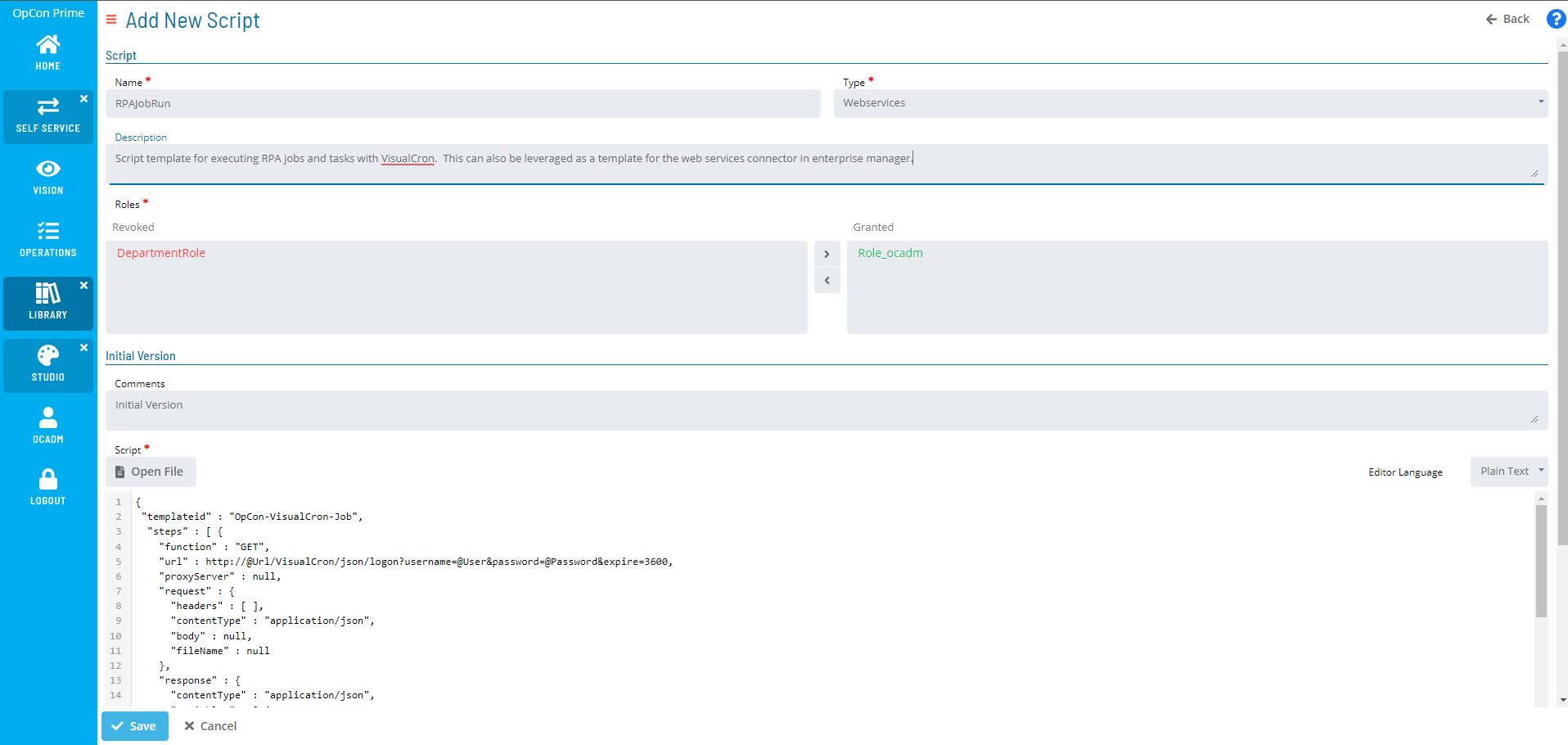
2d. Attach the script to a Windows master job
To create the OpCon job that runs the script, complete the following steps:
-
In Solution Manager, go to
https://localhost/studio. -
Create a new schedule or open an existing schedule in Studio.
-
Add a new Windows master job with the Embedded Script job action.
-
Assign the script runner (
WebServicesRunner) and the embedded script you uploaded. -
Set the values for the environment variables.
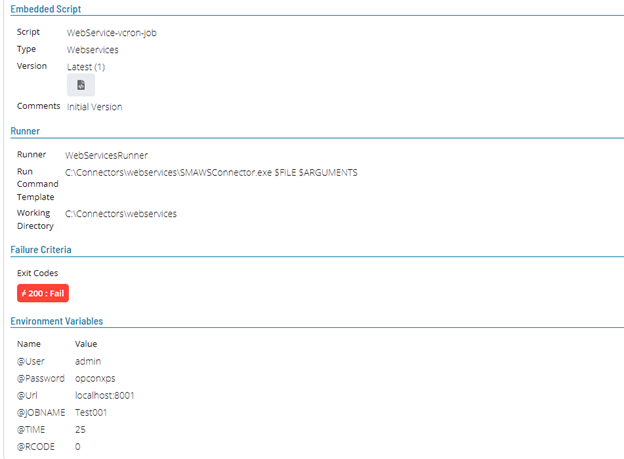
OpCon RPA Web Services script
This .web template is used by both Option 1 and Option 2. It is written in the Web Services Connector format, which uses @VariableName placeholders that OpCon substitutes at runtime.
What the script does
The script performs four sequential steps:
- Retrieves an authentication token and stores it in
@Tokenfor subsequent steps. - Looks up the RPA job ID by name and stores it in
@Jobid. - Starts the RPA task, passing variable values.
- Polls the task to completion and reports success or failure.
Variables you set
| Variable | Description |
|---|---|
@Url | The host where the RPA service is reachable. |
@User | The user name used to authenticate with the RPA service. |
@Password | The password used to authenticate with the RPA service. |
@JOBNAME | The name of the RPA job to start. |
@TIME, @RCODE | Example variables passed into the RPA task (Test001Time, Test001RCode). Replace with the variables your task needs. |
Variables the script populates
| Variable | Populated by |
|---|---|
@Token | Step 1 — from the logon response ($.Token). |
@Jobid | Step 2 — from the GetByName response ($.Id). |
Script
{
 "templateid" : "OpCon-VisualCron-Job",
  "steps" : [ {
    "function" : "GET",
    "url" : http://@Url/VisualCron/json/logon?username=@User&password=@Password&expire=3600,
    "proxyServer" : null,
    "request" : {
      "headers" : [ ],
      "contentType" : "application/json",
      "body" : null,
      "fileName" : null
    },
    "response" : {
      "contentType" : "application/json",
      "variables" : [ {
        "name" : "@Token",
        "value" : "$.Token"
      } ],
      "ignoreResult" : false,
      "stepCompletionCode" : 200,
      "responseDataCheck" : null,
      "fileName" : null
    }
  }, {
    "function" : "GET",
    "url" : http://@Url/VisualCron/json/Job/GetByName?token=@Token&name=@JOBNAME,
    "proxyServer" : null,
    "request" : {
      "headers" : [ ],
      "contentType" : "application/json",
      "body" : null,
      "fileName" : null
    },
    "response" : {
      "contentType" : "application/json",
      "variables" : [ {
        "name" : "@Jobid",
        "value" : "$.Id"
      } ],
      "ignoreResult" : false,
      "stepCompletionCode" : 200,
      "responseDataCheck" : null,
      "fileName" : null
    }
  }, {
    "function" : "GET",
    "url" : http://@Url/VisualCron/json/Job/Run?token=@Token&id=@Jobid&variables=Test001Time=@TIME|Test001RCode=@RCODE,
    "proxyServer" : null,
    "request" : {
      "headers" : [ ],
      "contentType" : "application/json",
      "body" : null,
      "fileName" : null
    },
    "response" : {
      "contentType" : "application/json",
      "variables" : [ ],
      "ignoreResult" : false,
      "stepCompletionCode" : 200,
      "responseDataCheck" : null,
      "fileName" : null
    }
  }, {
    "function" : "GET",
    "url" : http://@Url/VisualCron/json/Job/Get?token=@Token&id=@Jobid,
    "proxyServer" : null,
    "request" : {
      "headers" : [ ],
      "contentType" : "application/json",
      "body" : null,
      "fileName" : null
    },
    "response" : {
      "contentType" : "application/json",
      "variables" : [ ],
      "ignoreResult" : false,
      "stepCompletionCode" : 200,
      "responseDataCheck" : {
        "goodFin" : "Success",
        "badFin" : "Failed",
        "attributeToCheck" : "$.Tasks.[0].Stats.Result",
        "poll" : true,
        "pollDelay" : 3,
        "pollInterval" : 2,
        "pollMaxTime" : null
      },
      "fileName" : null
    }
  } ],
  "variables" : [],
  "environmentVariables" : [ ],
  "properties" : [ ]
}
FAQs
Which trigger types can start an RPA job from OpCon? RPA jobs can be started by frequency (date and time), by job dependency, by variable trigger, or on demand from a Self Service button.
Should I use Enterprise Manager or Solution Manager? Use whichever interface your environment is built around. Enterprise Manager uses the Web Services Connector with a job template; Solution Manager uses the Web Services Connector with an embedded script.
Do I need the Web Services Connector for both options?
Yes. Both options use the OpCon Web Services Connector. Option 1 imports a .web template into a master job; Option 2 runs the script through a script runner you configure in Solution Manager.
What does the example Web Services script do? The script retrieves an authentication token, looks up the job ID, starts the task with variable values, and polls until the task completes.
Why are the URLs in the example script unquoted?
The script is a .web template, which uses the Web Services Connector format with @VariableName placeholders. OpCon substitutes the variables at runtime; the format is not strict JSON.
Can a Self Service button start an RPA job indirectly? Yes. A Self Service button can either start an RPA job directly or satisfy a job dependency that triggers the RPA job.
Glossary
| Term | Definition |
|---|---|
| Frequency | A time-based trigger that starts a job at a specific date and time. |
| Job dependency | A trigger that starts a job after another job or event completes. |
| Variable trigger | A trigger that starts a job when a watched variable changes. |
| Self Service button | An OpCon UI control that lets a user start a job on demand or satisfy a job dependency. |
| Web Services Connector | The OpCon component that calls external HTTP services. Used to start OpCon RPA jobs. |
.web template | A Web Services Connector script file. Uses @VariableName placeholders that OpCon substitutes at runtime. |
| Script runner (OpCon) | A configuration in Solution Manager that ties a script type to an executable command, used by jobs that run embedded scripts. |
| Script type (OpCon) | A configuration in Solution Manager that defines a name and file extension for scripts of a given type. |