Managing Agents
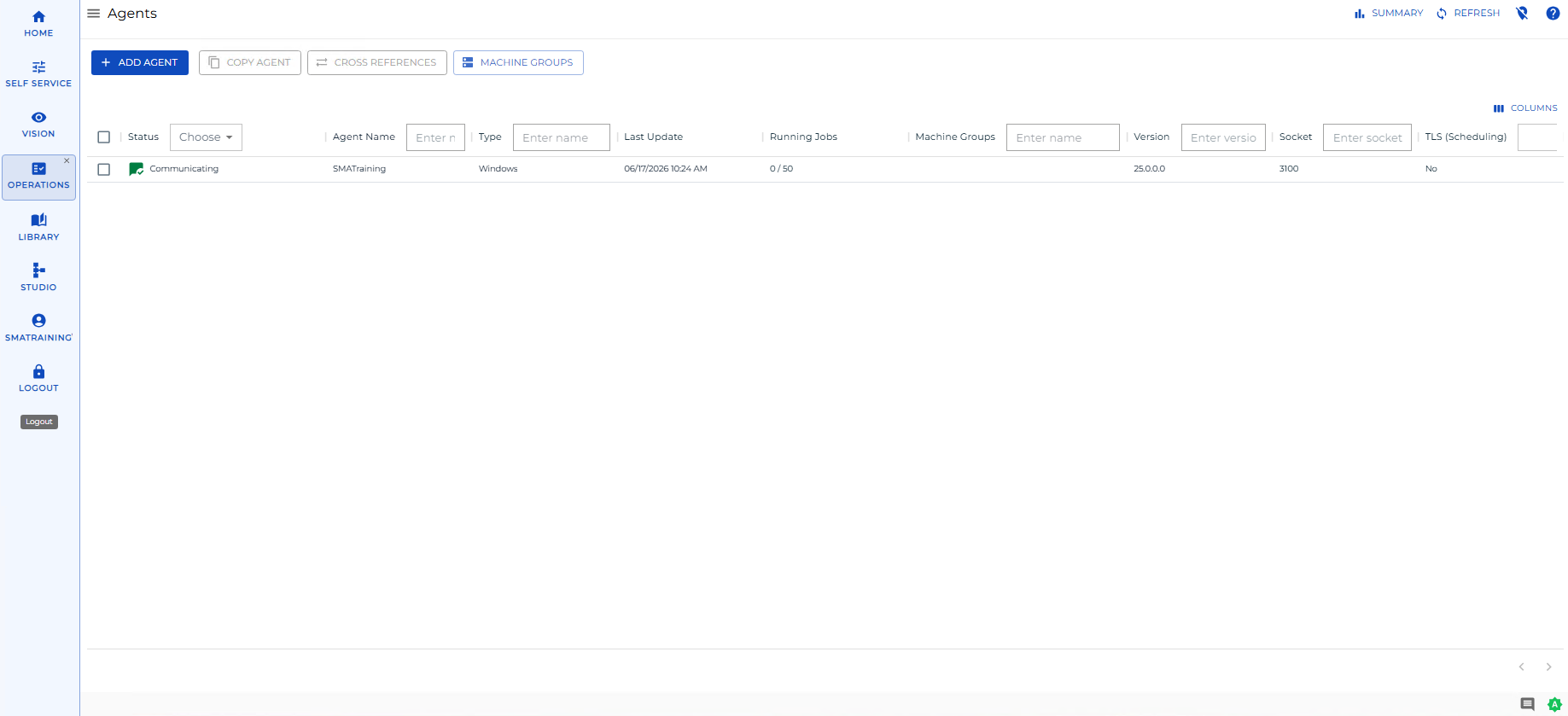
The Agents page in Solution Manager displays all registered agents and their current communication status. From this page you can filter and sort agents and select one or more to perform status updates.
Administration
Required Privileges
To view and manage agents, your role must have one of the following privileges:
- Function Privilege: Maintain Machines
- Function Privilege: All Function Privileges
For more information, refer to Managing Roles and Privileges.
Accessing the Agents page
To open the Agents page from the Operations Summary, complete the following steps:
- In Solution Manager, go to Operations.
- On the Operations Summary page, select one of the five agent status cards (Error, Limited, Stopped, Waiting, or Operational) in the Agents section, or enter a name in the Quick Search field.
Result: The Agents page opens with the list filtered to the selected status or search term.
Agents list
The Agents page displays a grid of all agents that match the current filter. The grid supports multi-select — you can select more than one agent to perform a bulk status update.
The grid contains the following columns:
| Column | Description |
|---|---|
| Status | Current communication state: Communicating, Stopped, Waiting Response, Limited, or Not Responding |
| Name | The agent name as defined in OpCon |
| Platform | The agent platform type |
| Lastupdate | Date and time of the last status update (format: yyyy/MM/dd HH:mm) |
| Running Jobs | Current running jobs versus the configured maximum (format: current / max) |
| Groups | Machine groups the agent belongs to |
| Version | Agent software version |
| Socket | Socket number used for communication |
| TLS (Scheduling) | Whether TLS is enabled for scheduling communication |
Columns are hidable and reorderable. To show or hide a column, use the column visibility menu in the grid header.
Statistics bar
A color-coded statistics bar appears above the grid. Select a status segment in the bar to filter the list to agents in that state. The available states are: Waiting Response, Not Responding, Limited, Stopped, and Communicating.
Column filters
Each column header row contains a filter field. Text columns accept a name pattern; the Status and TLS (Scheduling) columns provide a list to select from. Active filters appear as tags above the grid. To remove a filter, clear the filter field or select the tag.
Selecting agents
To select agents for a status update, complete the following steps:
- On the Agents page, select one or more agents in the grid. Selected agents appear as a breadcrumb in the status bar at the bottom of the page.
- Select the breadcrumb in the status bar to open the Agent Status Update panel. Alternatively, right-click any selected agent to open the panel.
- In the Agent Status Update panel, choose the communication status action to apply.
Result: The selected agents' communication status changes to the chosen state. The grid updates to reflect the new status.
For the full list of available actions and their descriptions, refer to Performing Agent Status Updates.
Toolbar
The Agents page toolbar contains the following controls:
| Button | Description |
|---|---|
| Back | Returns to the previous page |
| Summary | Goes to the Operations Summary page |
| Refresh | Reloads the agent list with current data |