Viewing Cards in Vision Live
The Vision Live page displays cards that represent groups of jobs organized by tag patterns. Use the date filter to view cards for a specific day. Cards refresh automatically at the configured processing interval.
Card Types
Vision Live uses two card types: group cards and tag cards. Group cards have the top-right corner folded; tag cards do not.
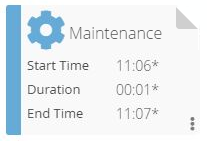
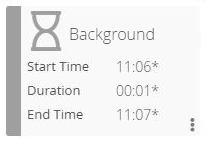
Tag cards defined to a remote instance display a badge on the right side. For more on the badge, see Vision Card Colors.

Card Front and Back Views
Each card has two views: the front shows time information and the back shows job status counts.
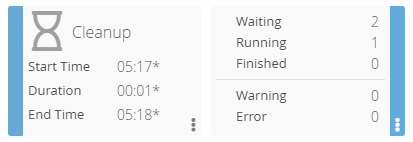
Front of card:
| Field | Description |
|---|---|
| Start Time | The earliest start time for any jobs matching the tag pattern defined for the card or its child cards. A triangular icon appears next to the Start Time when a Frequency SLA is defined. |
| Duration | The total duration of all jobs matching the tag pattern defined for the card or its child cards. |
| End Time | The end time for any jobs matching the tag pattern defined for the card or its child cards. A triangular icon appears next to the End Time when a Frequency SLA is defined. |
Back of card — job status counts:
The back of each card shows the total number of jobs in each status group.
| Status group | Job statuses included |
|---|---|
| Waiting | Job to be Skipped, Late to Start, On Hold, Prerun Failed, Qualifying, Released, Wait Expression Dependency, Wait Job Conflict, Wait Job Dependency, Wait Machine, Wait Start Time, Wait Threshold/Resource Dependency, Wait to Start, Wait to Start; Forced |
| Running | Attempt to Start, Job Running, Job Running; To be Terminated, Prerun Active, Start Attempted, Still Attempting Start |
| Finished | Finished OK, Fixed, Marked Finished OK |
| Warning | Cancelled, Missed Start Time, Skipped |
| Error | Failed, Initialization Error, Marked Failed, Under Review |
Each tag card shows a count of jobs in various statuses. Each group card shows the sum of counts from its child cards.
Example scenario:
- Card1: 7 Waiting, 11 Running, 8 Finished, 2 Error
- Card2: 5 Waiting, 10 Running, 3 Finished, 2 Error
- Card3: 2 Waiting, 1 Running, 5 Finished, 0 Failed
Card2 and Card3 are tag cards. Card1 is a group card whose counts are the sum of its children.
If Card2 has Pattern "tag1" and Card3 has Pattern "tag2", a job tagged with both "tag1" and "tag2" is counted once for Card2 and once for Card3. Card1 counts it twice. So Card1 shows 8 Finished, but only 7 jobs actually finished.
Card Hierarchy
Selecting a group card displays its child cards on a new page. Use the name links in the breadcrumb trail to return to a parent level.
The Edit button appears in the breadcrumb trail only for users with the Maintain Vision Workspaces function privilege.
Selecting Edit next to the breadcrumb trail opens the Vision Settings page and displays the card hierarchy for the current branch. Edits made from a specific branch apply only to that branch. Selecting Edit from the Vision Home page gives a view of the entire hierarchy; edits apply to the entire tree.
You must have the appropriate privileges to view Vision Settings. For more information, refer to Working in Admin Mode.
Card Links
Selecting a tag card defined to the current instance opens the Daily Processes page in the Operations module. For more information, refer to Managing Daily Processes.
Selecting a tag card defined to a remote instance opens a separate Solution Manager page using the URL and settings defined for that remote instance and displays the Daily Processes page for the remote instance. For more on Vision remote instances, refer to Managing Vision Remote Instances.
Vision Card Colors
The Vision module uses icons and colors that change dynamically based on job status.
| Icon | Status | Description |
|---|---|---|
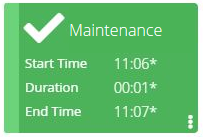 | Finished OK | A white check mark on a green background indicates all jobs completed with a Finished OK or Marked Finished OK status. |
-184d91c495d71a519e34ee888ab2cf3f.png "Vision Card Finished with Error(s)") | Finished with Error(s) | A white X on a red background indicates all jobs completed and at least one has a Failed, Initialization Error, or Marked Failed status. |
-f175eadc6ccfcdeed566f248418e652f.png "Vision Card Finished with Warning(s)") | Finished with Warning(s) | A white exclamation point on an orange background indicates all jobs completed and at least one has a Missed Start Time, Skipped, or Cancelled status. |
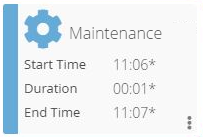 | In Process | A blue gear on a white background indicates at least one job is in Attempt to Start, Job Running, Job Running; To be Terminated, Prerun Active, Start Attempted, or Still Attempting Start status, with no jobs in a failed or warning status. |
-b08517ee32d30df04eed9aff9db7c607.png "Vision Card In Process with Error(s)") | In Process with Error(s) | A red gear on a white background indicates at least one job is in process and another is in Failed, Initialization Error, or Marked Failed status. |
-85fc0f494bba832142e3912b2e454971.png "Vision Card In Process with Warning(s)") | In Process with Warning(s) | An orange gear on a white background indicates at least one job is in process and at least one is in Missed Start Time, Skipped, or Cancelled status. |
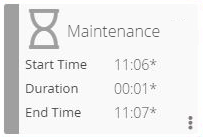 | Waiting | A gray hourglass on a white background indicates all jobs are in waiting states. |
 | None | A purple question mark on a white background indicates no jobs were found for the specified day. |
 | Computing | A spinning purple line on a white background indicates the card status is being calculated. This is a temporary status replaced at the next processing interval. |
 | (Admin only) | A white unlocked padlock on a gray background indicates the card does not match the Vision Frequency. This card appears only in Admin mode. |
| Icon | Name | Description |
|---|---|---|
 | Badge | Indicates the card is defined to a remote instance. For more, refer to Managing Vision Remote Instances. |
 | SLA (gray) | Indicates a problem with a child of the group. |
 | SLA (orange) | Indicates a problem with a group or a tag on a tag card. |
 | Edit | Opens the card for editing. |
 | Delete | Deletes the card. |