Custom Reports
Introduction
This topic is intended to serve as a guide on how to create an environment that allows users to edit the BIRT reports supplied by SMA Technologies or create their own.
Install the Environment
-
Create a BIRT directory to hold the environment. This should be a complete, standalone directory structure containing everything needed for report modification.
-
Create a projects directory under the BIRT directory.
-
Locate the jtds-1.2.5.jar file and copy it to the BIRT directory.
-
Download BIRT for the correct environment from http://archive.eclipse.org/birt/downloads/build.php?build=R-R1-3_7_1-201109131734.
-
Move the downloaded file to the BIRT directory.
-
Extract the zip file to the BIRT directory. The directory structure should look similar to the following:
-
Navigate to the eclipse sub-directory and double-click the eclipse.exe file to run the program.
-
Browse to the projects directory created earlier.
-
Select the Use this as the default and do not ask again checkbox.
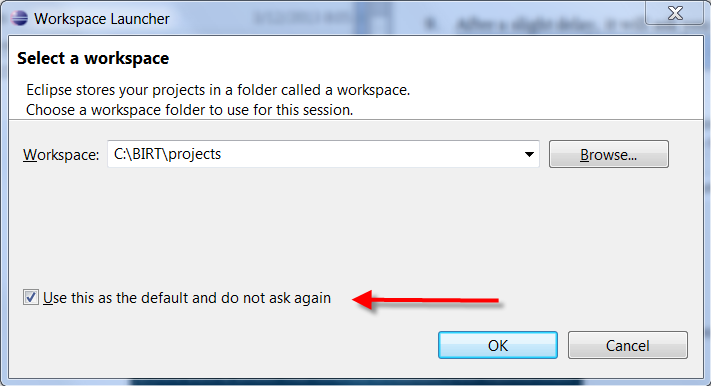
-
Launch after setting the workspace.
-
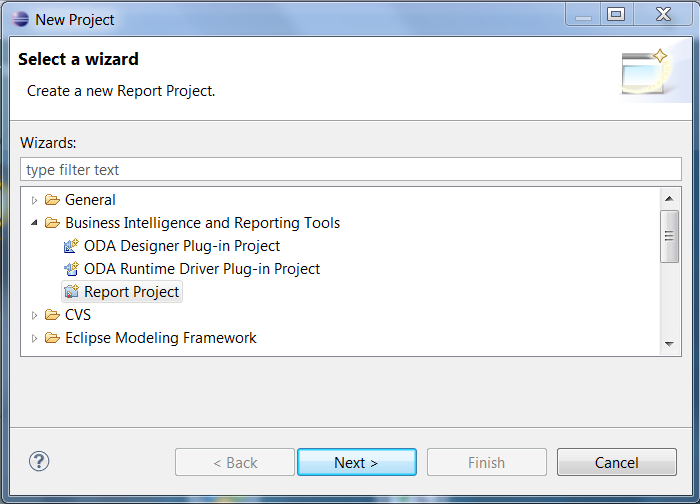
Use menu path File> New > Project to create the OpCon_Reports project. A wizard will display allowing you to select the project type.
-
Expand the Business Intelligence and Reporting Tools folder.
-
Select Report Project.
-
Click Next.
-
Enter OpCon_Reports in the Project name field. Leave Use default location selected.
-
Click Finish.
-
Select Remember my decision when asked if you want to open the Report Designer perspective.
-
Click Yes.
-
Click on the x to the right of the Welcome tab to close the Welcome screen (if displayed).
-
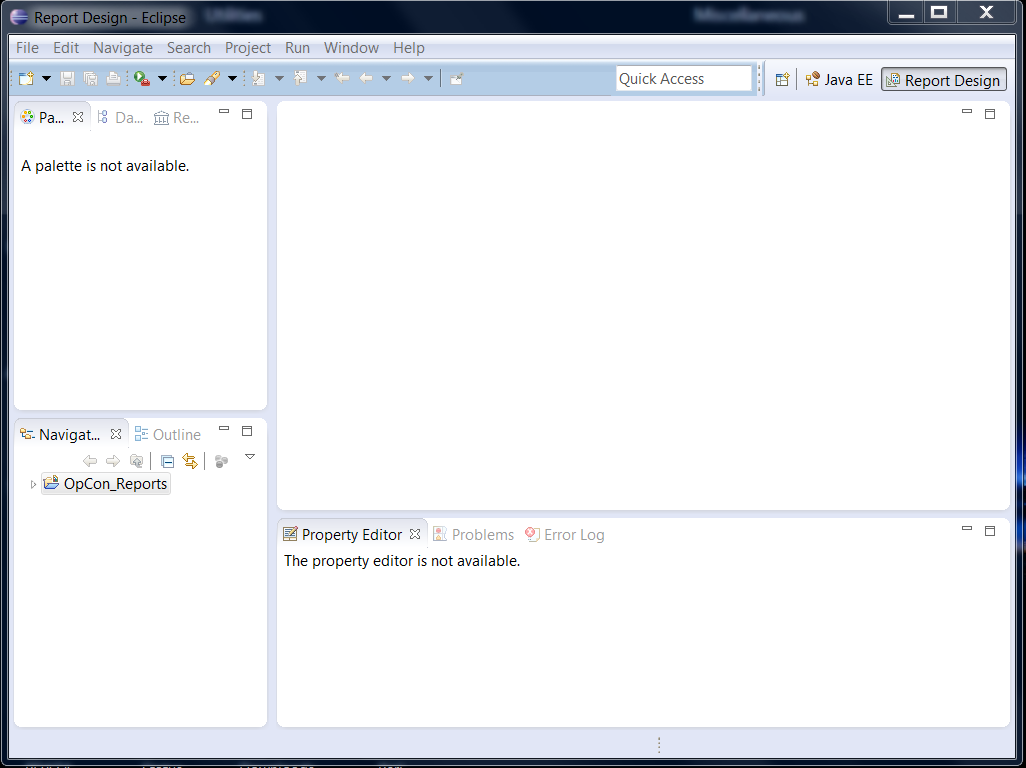
The resulting screen should look similar to the following:
Install the SMA Reports
- Use menu path: File > Import.... The Import wizard will start.
- Expand the General folder.
- Select File System.
- Click Next.
- Browse to the reports sub-directory under the Enterprise Manager directory.
- Select the reports folder to include all of the sub-directories.
- Click OK.
- Select the reports folder checkbox.
- Enter OpCon_Reports in the Into folder field (if empty).
- Click Finish.
Now you can edit SMA Reports or create your own.
Create a New Report
-
Right-click on OpConXPS_Reports.
-
Use menu path: New > Report.
-
Enter a file name.
-
Click Finish.
-
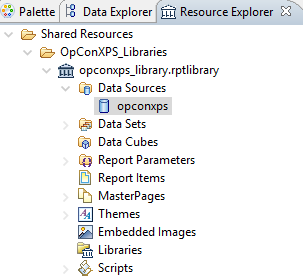
Navigate to the OpConXPS_Libraries folder.
-
Use path: opconxps_library.rptlibrary > data sources > opconxps.
Resource Explorer
-
Right-click on opconxps and add it to the report.
-
Navigate to the Data Explorer tab.
-
Double-click on opconxps under Data Sources.
-
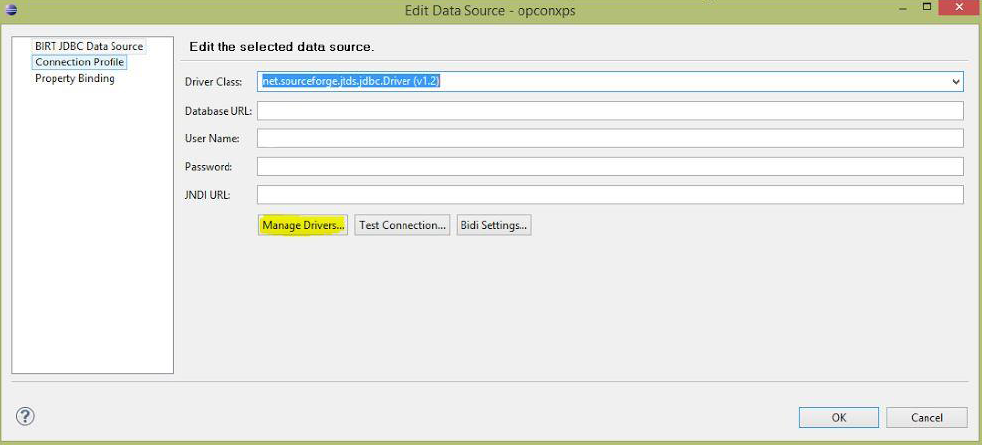
Enter net.sourceforge.jtds.jdbs.Driver(v1.2) in the Driver Class field to connect to BIRT.
Edit Data Source
-
Click Manage Drivers.
-
Click the Add... button.
-
Navigate to the BIRT directory to add the jtds-1.2.5.jar file.
-
Click OK.
Import the Database Connection Parameters
You need to be connected to the database to receive the data. Use the following steps to import the following two parameters:
- Parameter Group -- Data_Source_Connection: This parameter is a database connection.
- User_Id: To add the privileges access to the report, you can grant access with this parameter and filter it in the query.
- Use path: Shared Resources > OpConXPS_Libraries > opconxps_library.rptlibrary > Report Parameters.
- Expand the Report Parameters folder.
- Right-click on Parameter Group - Data_Source_Connection and select Add to report.
- Right-click on User-Id and select Add to report.
In the workplace section, you should see the following:
Report Parameters

You can modify the parameters to connect the report to your own database.
Driver_Class: The default value should always be the following: net.sourceforge.jtds.jdbc.Driver.
Driver_URL: Enter the URL for the database using the format the driver requires.
The format for a MySQL database is the following:
jdbc:mysql://<host>:<port>/<database>
- Enter the database path for you environment in the database URL. From the former example, "jdbc:jtds:sqlserver://" is the connection with the database. Change the server name and the port number to match your environment, e.g., jdbc:jtds:sqlserver://server name/database name
- If you have a SQL instance, please add ";instance=< instance name>" at the end of the database URL.
Database: This parameter defines the database name, which is "opconxps" by default.
User_Name and User_Password: Enter the login for the database for these parameters.
After editing the report, copy the report from the OpConXPS_Reports folder, e.g., C:\BIRT\projects\OpCon_Reports\OpConXPS_Reports, to the reports sub-directory under the Enterprise Manager directory, e.g., C:\Program Files\OpConxps\EnterpriseManager x64\reports\OpConXPS_Reports.
Schedule the New Reports
- Add the report(s) to the path: <OpCon Install Folder>\SAM\BIRT\ReportEngine\OpConXPS_Reports.
- Create or use an existing Schedule in the Enterprise Manager.
- Create a Windows job with the report name as the job name.
- Select the Windows Primary Machine.
- Select Run Program in the Job Action drop-down menu.
- Select Use Service Account in the User Id drop-down menu.
- Enter [[SMAOpConPath]]\Utilities\BIRTRptGen.exe followed by the report name as -rReportName in the Command Line field.
- (Optional) Add parameters after the report name using the following format: -pParameterName=ParameterValue.
- Enter [[SMAOpConPath]]\Utilities\ in the Working Directory field.
- Enter a frequency.
- Build the job.