Adding Vision Frequencies
Theme: Configure
Who Is It For? System Administrator, Automation Engineer
What Is It?
Use this procedure to add Vision Frequencies in Solution Manager.
To add a Vision Frequency, complete the following steps:
-
Complete the prior steps for either Creating Cards or Editing Cards, depending on whether adding a frequency to a new or existing card
-
Select the Add button in the Frequency(ies) frame


-
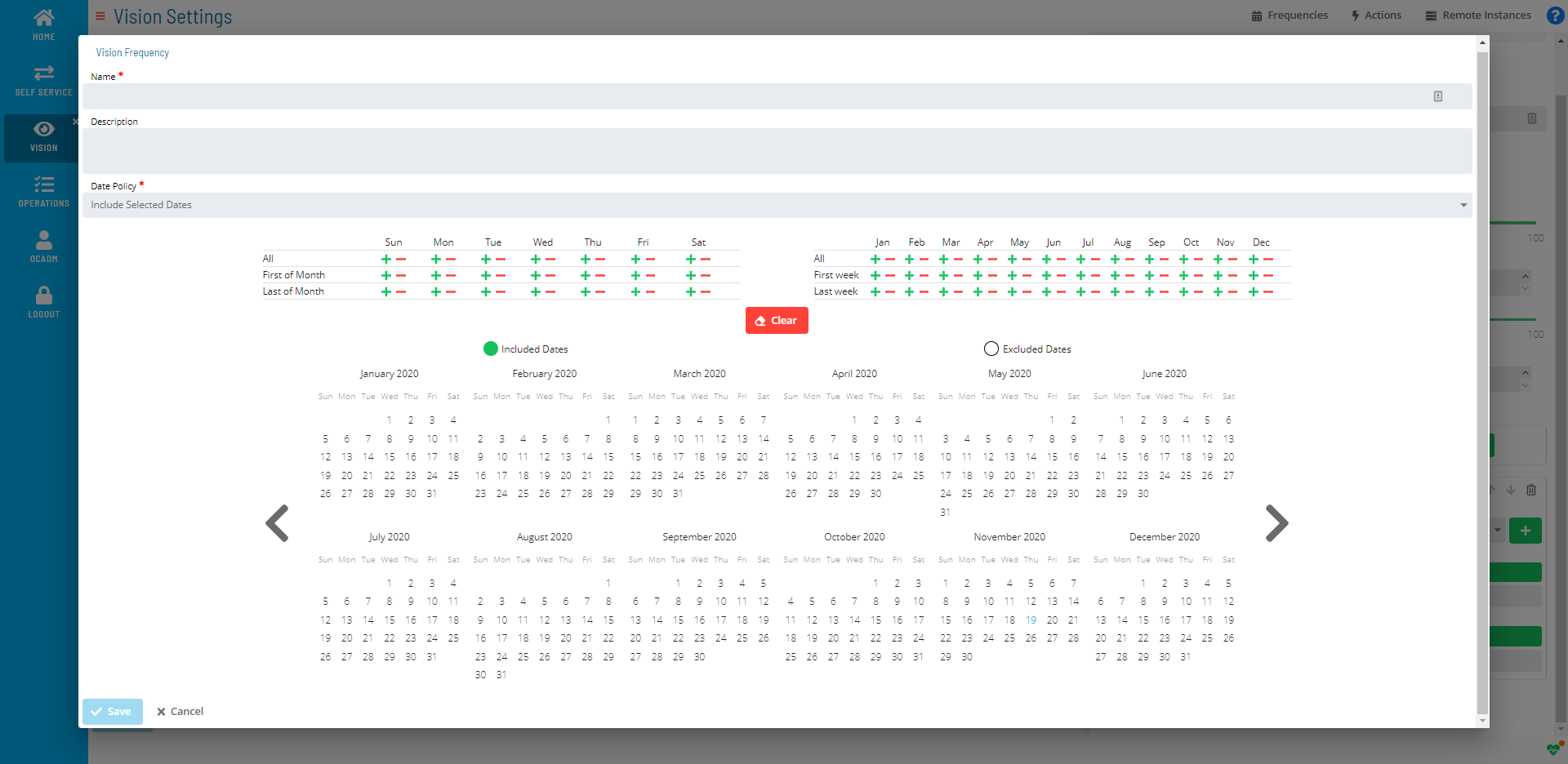
Select the + button next to the Frequency list. The Vision Frequency window will display
-
Enter a Name for the frequency
-
(Optional) Enter a Description
-
Select a dates option from the Date Policy list
-
Select the + or − button to include or exclude dates, or select individual dates directly on the calendars
-
Select the Save button
Defining SLA
A Vision license must define SLA. For more information, refer to License File Request and Storing in the Solution Manager online help.
a. Select the + button under SLA. b. Select an expected time option from the Requirement list. c. Select the Time. d. Select the day offset in the Day list. e. Select OK.
Defining Trigger(s)
A Vision license must define Triggers. For more information, refer to License File Request and Storing in the Solution Manager online help.
a. Select the + button under Trigger(s). b. Select a status from the Status list. c. Select the + button under Runnable(s). d. Select the + button next to Action. e. Follow the procedure for Adding Vision Actions and save changes to return to the Runnable(s) frame. f. (Optional) Select a number of minutes in the Repeat After list. g. (Optional) Select a remote instance in the Instance list. h. Select OK.
On the Vision Settings page, select the Save button.
FAQs
Q: How do you save a new vision frequencies record?
After completing the required fields, select the Save button on the toolbar to save the vision frequencies record.
Q: Can you add vision frequencies for multiple platforms?
Yes. This page covers vision frequencies for multiple platforms or contexts: Defining SLA, Defining Trigger(s).
Glossary
Solution Manager: OpCon's browser-based graphical user interface for managing automation data, performing operational actions, and administering the system.
Frequency: A set of rules that defines when a job or schedule is eligible to run, based on calendar rules, day-of-week settings, period offsets, and other timing criteria.
Calendar: A named collection of dates in OpCon used by schedules and frequencies to determine when automation runs or is excluded. Calendars can represent holidays, working days, or any custom date set.
Resource: A numeric variable in OpCon representing a finite pool. Jobs can be configured to require a set number of resource units to run, limiting concurrent executions and preventing resource contention.