Enabling Admin Mode Editing
Theme: Configure
Who Is It For? System Administrator, Automation Engineer
What Is It?
Use this procedure to enable Admin Mode Editing in Solution Manager.
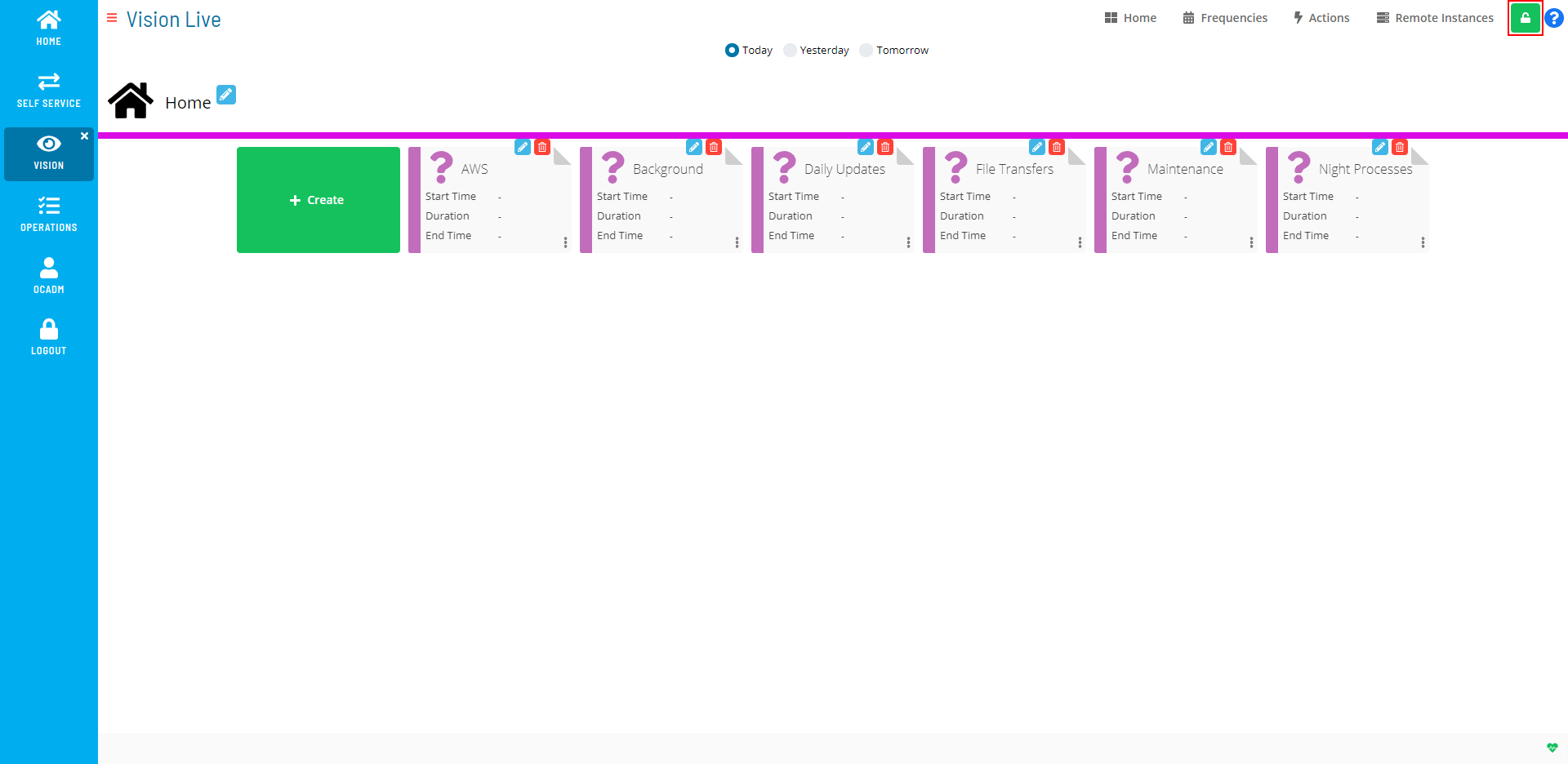
To enable creating or editing Vision cards, frequencies, actions, or remote instances, select the Admin Mode button at the top-right corner:
Admin Mode Editing Toggle Switch

The Lock button switches to unlocked and the Vision Live page displays with editing privileges.
Admin Mode Editing Enabled
The Admin Mode button is only visible to users in the «ocadm» role or a role with the «Maintain Vision Workspaces» privilege.
For more on Function Privileges pertaining to Vision, refer to Function Privileges in the Concepts online help.
FAQs
Q: What is the purpose of enabling admin mode editing?
Enabling Admin Mode Editing changes the state or access level for admin mode editing in OpCon.
Glossary
Frequency: A set of rules that defines when a job or schedule is eligible to run, based on calendar rules, day-of-week settings, period offsets, and other timing criteria.
Resource: A numeric variable in OpCon representing a finite pool. Jobs can be configured to require a set number of resource units to run, limiting concurrent executions and preventing resource contention.
Role: A named security profile in OpCon that groups privileges together. Roles are assigned to user accounts to control which features, schedules, jobs, machines, and administrative functions a user can access.
Privilege: A specific permission granted through an OpCon role that controls access to a feature, function, or object type. Privileges are organized into categories such as Function Privileges, Machine Privileges, Schedule Privileges, and Access Codes.
OpCon: Continuous' workflow automation platform. The OpCon server includes the database, SAM and Supporting Services (SAM-SS), and graphical user interfaces. agents installed on target platforms run jobs and report results.