Copy a Task
What is it?
Copy duplicates an existing task under a new name without changing the original. You start a copy from the Copy button on the Tasks page, on either the Archive grid or the Drafts grid.
How much of the task's history comes along depends on the copy mode you choose.
Copy modes
The Copy Task dialog offers up to three copy modes. The grid you start from determines which modes are available.
| Copy mode | What it does | Where the copy appears |
|---|---|---|
| Copy all versions (including draft) | Copies every published version of the task — and the working draft, if one exists — into the new task. The new task keeps the full version history. | Archive grid |
| Copy specific version as Version 1 | Copies the version you select and makes it Version 1 of the new task. The new task starts a fresh version history from that version. | Archive grid |
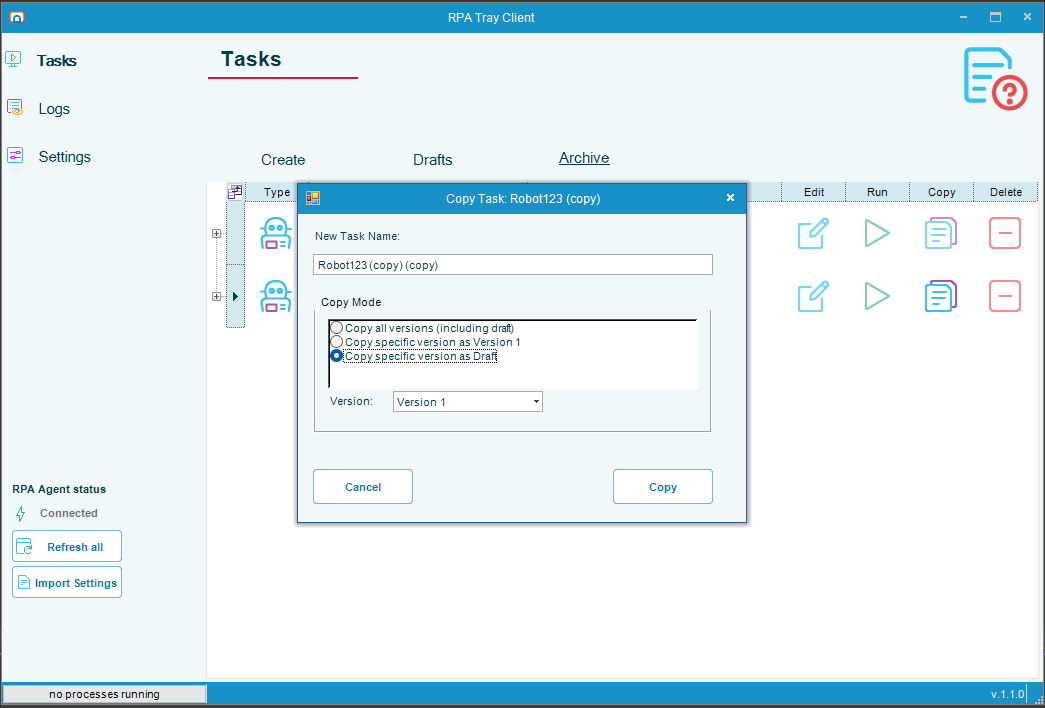
| Copy specific version as Draft | Copies the version you select into the new task as a draft (version 0). You can revise the draft before you publish the first version. | Drafts grid |
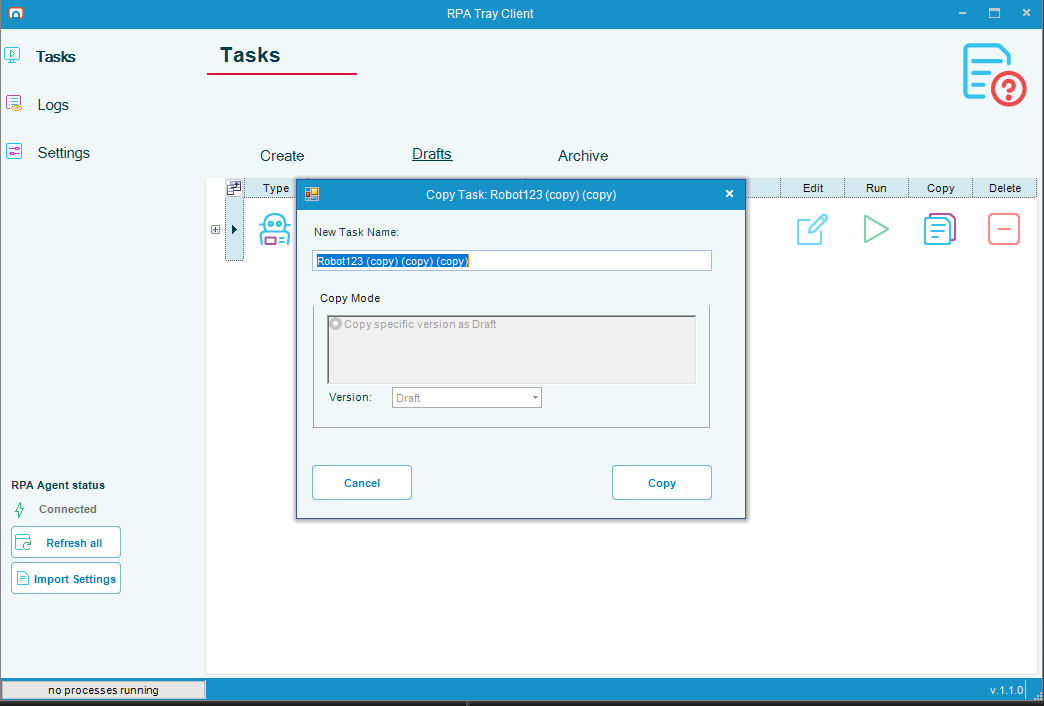
When you start the copy from the Drafts grid, the only available mode is Copy specific version as Draft, and the Version list is fixed to Draft. A draft can only be copied as another draft.
Copy a task from the Archive grid
To copy a task from the Archive grid, complete the following steps:
-
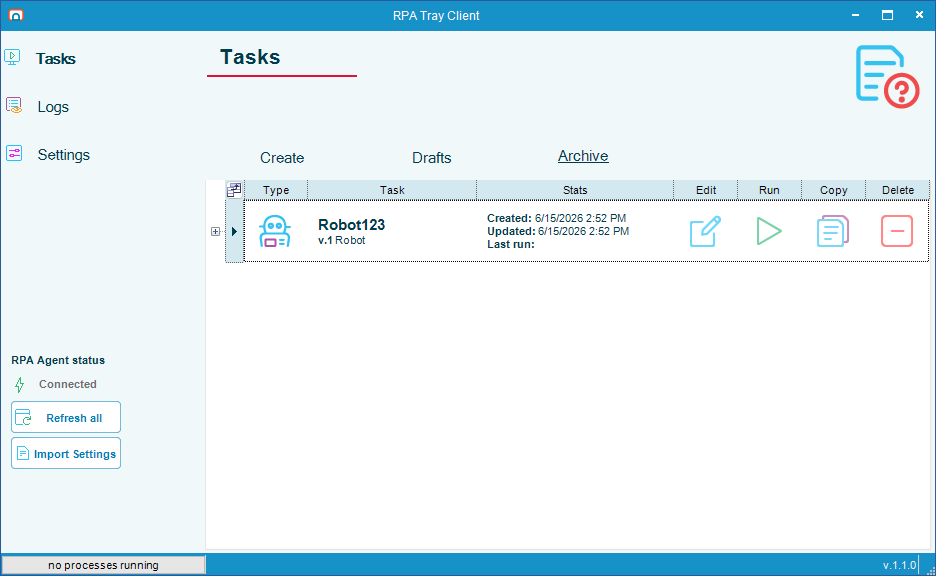
On the Tasks page, select Archive.
-
Find the task you want to copy, then select the Copy button in its row.
-
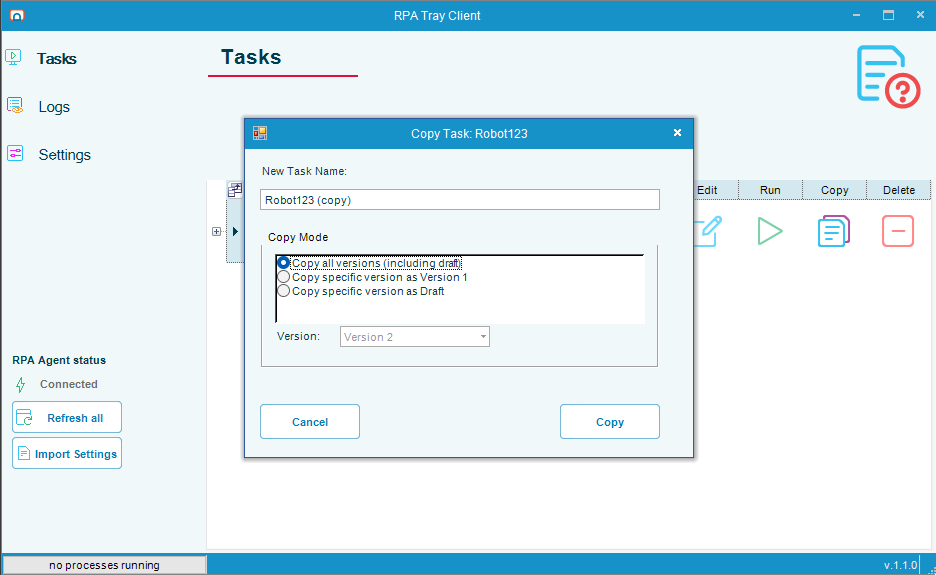
In the Copy Task dialog, enter a name in New Task Name, or keep the suggested name.
-
Under Copy Mode, select the mode you want:
- Copy all versions (including draft)
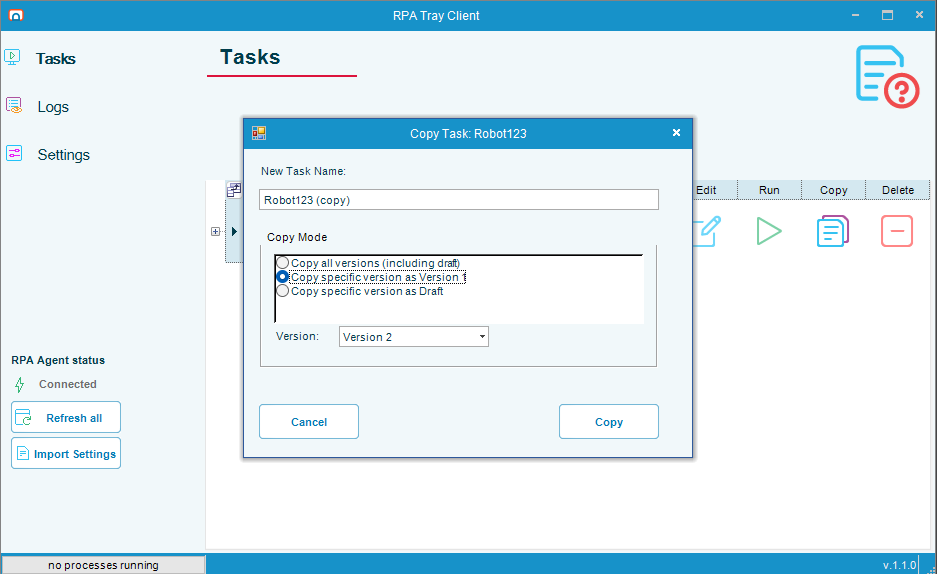
- Copy specific version as Version 1
- Copy specific version as Draft
-
If you selected a specific-version mode, select the version to copy from the Version list.
-
Select Copy.
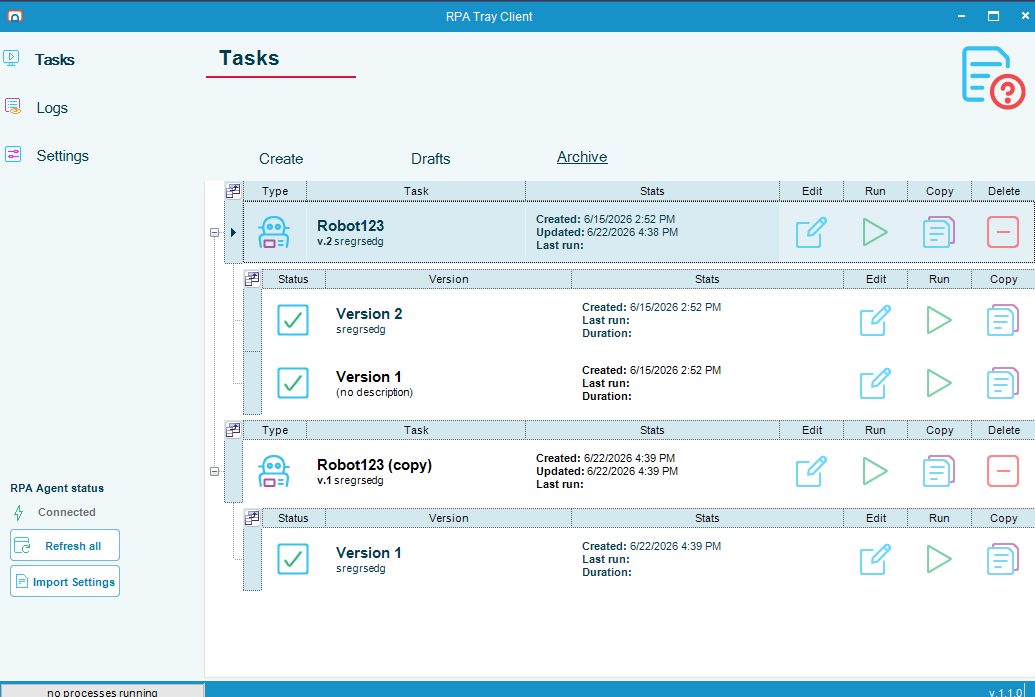
The new task appears under the name you entered. When you copy a specific version as Version 1, the copy's history starts at Version 1.
Copy a version as a draft
Copy a version as a draft when you want to revise it before publishing the first official version of the new task. You can start this from either grid:
-
From the Archive grid, select Copy specific version as Draft in the Copy Task dialog.
-
From the Drafts grid, the dialog opens with Copy specific version as Draft already selected and the Version list set to Draft.
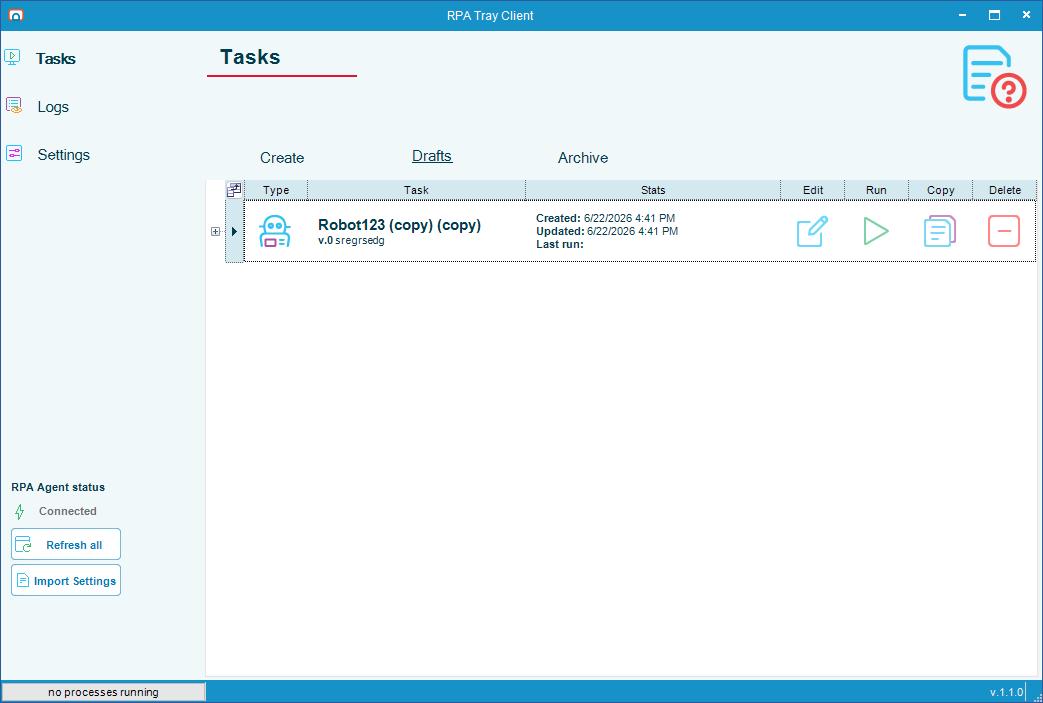
After you select Copy, the new task appears on the Drafts grid as a draft (version 0).
FAQs
What name does a copy get by default?
The New Task Name field is pre-filled with the original name followed by (copy). You can keep this name or enter your own.
Does copying change the original task? No. The original task and its version history are unchanged. Copy creates a separate task.
Why can I only copy a draft as another draft? A draft has no published versions to copy, so the only option is to copy it into a new draft. Start the copy from the Archive grid if you want to copy published versions.
What is the difference between copying all versions and copying a specific version as Version 1? Copying all versions brings the entire version history into the new task. Copying a specific version as Version 1 brings only the version you select and restarts the history at Version 1.
Related topics
Glossary
| Term | Definition |
|---|---|
| Task | An OpCon RPA unit of automation managed on the Tasks page of the RPA Tray Client. |
| Archive grid | The list of published tasks on the Archive tab of the Tasks page. Each published task can have one or more versions. |
| Drafts grid | The list of unpublished tasks on the Drafts tab of the Tasks page. A draft is version 0 until it is published. |
| Version | A published revision of a task. Publishing a draft increments the version number. |
| Draft | An unpublished, editable copy of a task, shown as version 0 until it is published. |