Delete a Task
What is it?
Delete removes a task from the Tasks page. You start a delete from the Delete button on either the Archive grid or the Drafts grid.
What gets removed — and how strongly the Tray Client warns you — depends on the grid you start from:
| You delete from | What is removed | Confirmation |
|---|---|---|
| Archive grid | The published task and all of its versions | Delete Task dialog warns that the action removes every version and cannot be undone |
| Drafts grid | The single draft | Delete Draft dialog asks you to confirm |
Deleting from the Archive grid permanently removes the task and every version it contains. There is no recovery. If you only want to remove unpublished work, delete the draft from the Drafts grid instead.
The per-row Delete and Run buttons are unavailable while a task is running, to prevent accidental changes to a running task. Wait for the task to finish, then delete it.
Delete a task from the Archive grid
To delete a published task and all of its versions, complete the following steps:
-
On the Tasks page, select Archive.
-
Find the task you want to delete, then select the Delete button in its row.
-
In the Delete Task dialog, confirm the task name and version count, then select Yes.
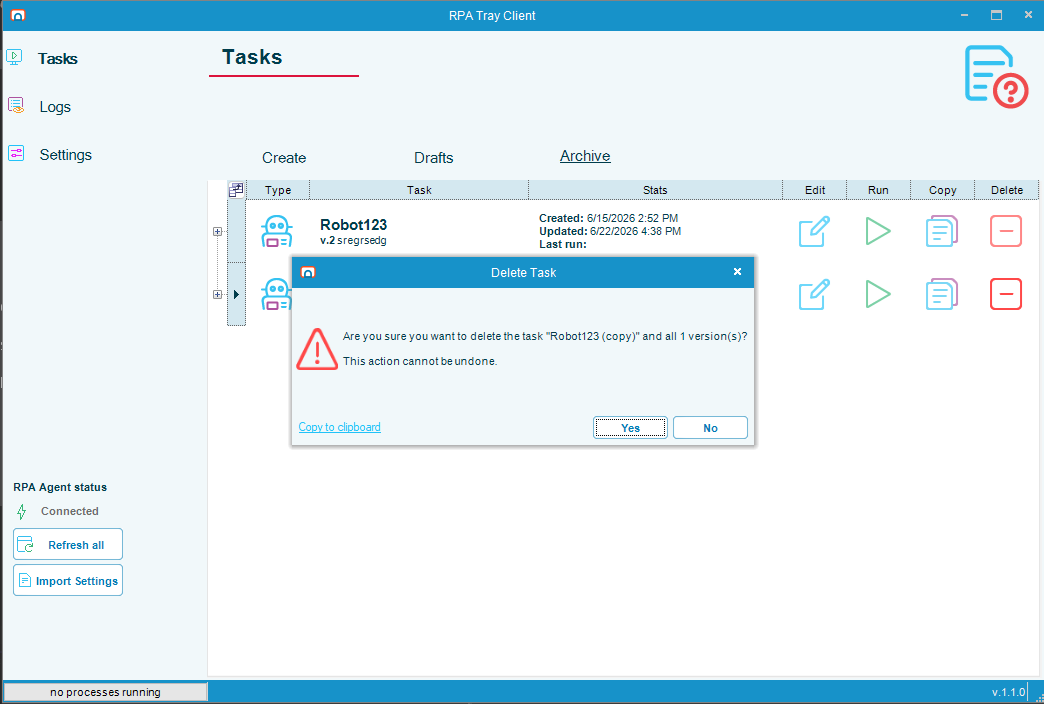
The task and all of its versions are removed from the Archive grid. To keep the task, select No instead.
Delete a draft from the Drafts grid
To delete a draft, complete the following steps:
-
On the Tasks page, select Drafts.
-
Find the draft you want to delete, then select the Delete button in its row.
-
In the Delete Draft dialog, confirm the draft name, then select Yes.
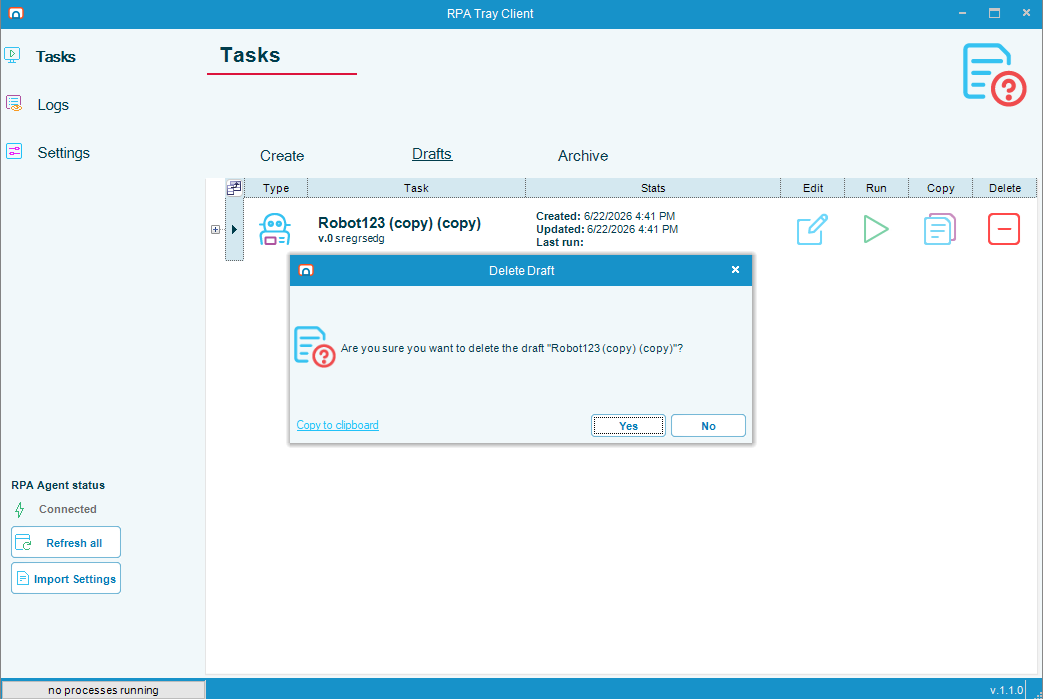
The draft is removed from the Drafts grid. To keep the draft, select No instead.
FAQs
Does deleting a task from the Archive grid remove every version? Yes. Deleting from the Archive grid removes the task and all of its versions, and the action cannot be undone.
Can I delete a single version of a published task? No. Delete on the Archive grid removes the whole task, including every version. There is no option to delete one version.
Can I recover a task after I delete it? No. Deletion is permanent. Before deleting a published task, confirm you no longer need any of its versions.
Why is the Delete button unavailable for one of my tasks? The Delete and Run buttons are disabled while a task is running. Wait for the task to finish, then delete it.
Related topics
Glossary
| Term | Definition |
|---|---|
| Task | An OpCon RPA unit of automation managed on the Tasks page of the RPA Tray Client. |
| Archive grid | The list of published tasks on the Archive tab of the Tasks page. Each published task can have one or more versions. |
| Drafts grid | The list of unpublished tasks on the Drafts tab of the Tasks page. A draft is version 0 until it is published. |
| Version | A published revision of a task. Publishing a draft increments the version number. |
| Draft | An unpublished, editable copy of a task, shown as version 0 until it is published. |