Configuring Account Settings
Theme: Configure
Who Is It For? System Administrator, Automation Engineer
What Is It?
Use this procedure to configure Account Settings in Solution Manager.
To configure account settings, complete the following steps:
-
Log into the Solution Manager
-
Select the user profile button in the Navigation menu
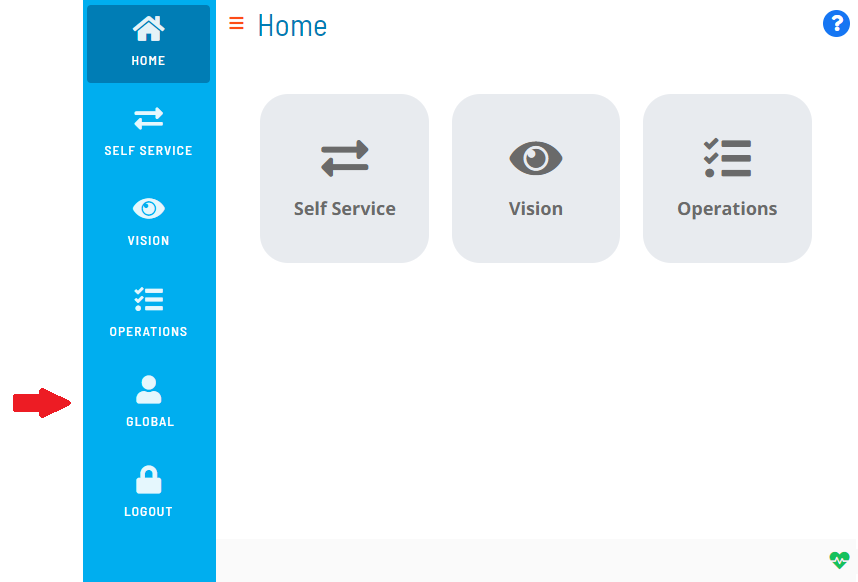
-
The Profile page displays with the Account tab in focus
-
Modify any of the following fields:
- Full User Name (required)
- Notes
- Comments
- User Password
- Confirm User Password
noteThe E-mail field is disabled on this page for security purposes.
noteFor conceptual information about these fields, refer to User Accounts in the Concepts online help.
-
Select Save to save changes to the database
FAQs
Q: What does configuring account settings control?
Configuring account settings defines the settings that determine how OpCon behaves for this feature. Review the available options and set values appropriate for your environment.
Q: How many steps are required to configure account settings?
The configuration procedure involves 5 steps. Complete all steps in order and select Save to apply the changes.
Glossary
Solution Manager: OpCon's browser-based graphical user interface for managing automation data, performing operational actions, and administering the system.
Resource: A numeric variable in OpCon representing a finite pool. Jobs can be configured to require a set number of resource units to run, limiting concurrent executions and preventing resource contention.
OpCon: Continuous' workflow automation platform. The OpCon server includes the database, SAM and Supporting Services (SAM-SS), and graphical user interfaces. agents installed on target platforms run jobs and report results.