Managing Schedules
Theme: Configure
Who Is It For? System Administrator, Automation Engineer
What Is It?
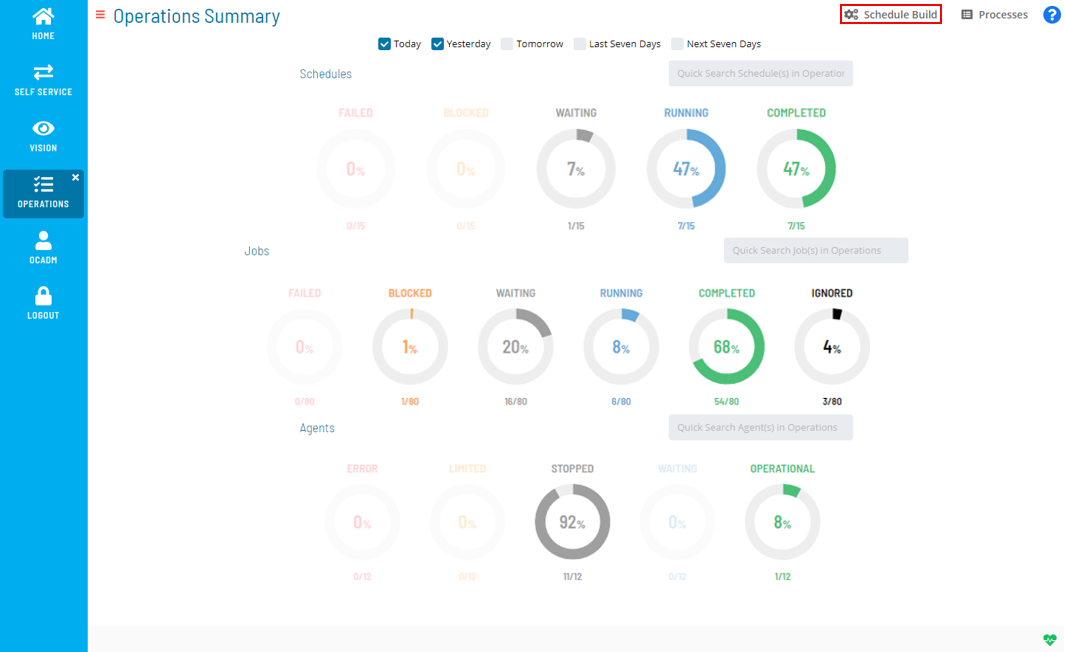
The  button on the main Operations page takes you to the Schedule
Build page where you can manage building schedules.
button on the main Operations page takes you to the Schedule
Build page where you can manage building schedules.
Operations Summary Page
Selection Options
Schedule Build Selection Page
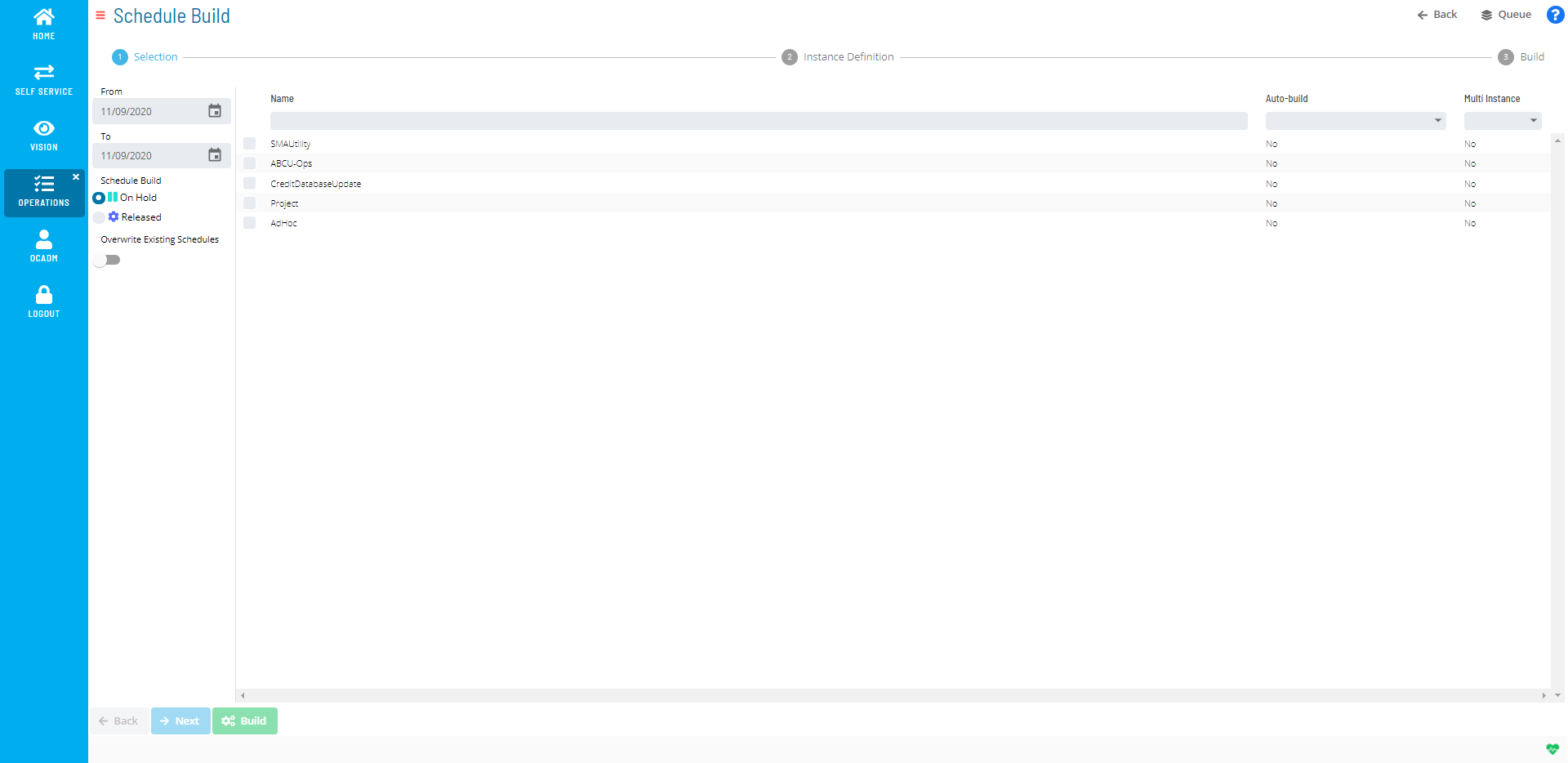
The Selection page has the following options for building a master schedule:
- From: The earliest date from which to build a schedule
- To: The latest date from which to build the schedule
- Schedule Build: Radio buttons to select the build state:
- On Hold: The schedule builds with a status of On Hold. SAM will not process it until released manually or through an OpCon event
- Released: The schedule is released at build time
- Overwrite Existing Schedules: When enabled (toggle appears red
 ), OpCon overwrites a schedule in Completed status on the target date. Schedules In Process are not overwritten
 - Name: The schedule name. Select the option
 next to each schedule to build. Use the Filter Bar above the list to filter by keyword
 - Auto-build: Filters results by auto-build setting (Yes or No). If Yes, shows the days-in-advance value
- Multi Instance: Filters results by multi-instance setting (Yes or No)
- Back (bottom-left): Returns to the previous page. Disabled on the Selection page
- Next: Advances to the next page
- Build: Builds the selected schedule(s)
- Back (top-right): Returns to the Operations Summary page
- Queue: Opens the Schedule Build Queue page
Instance Definition Options
Schedule Build Instance Definition Page
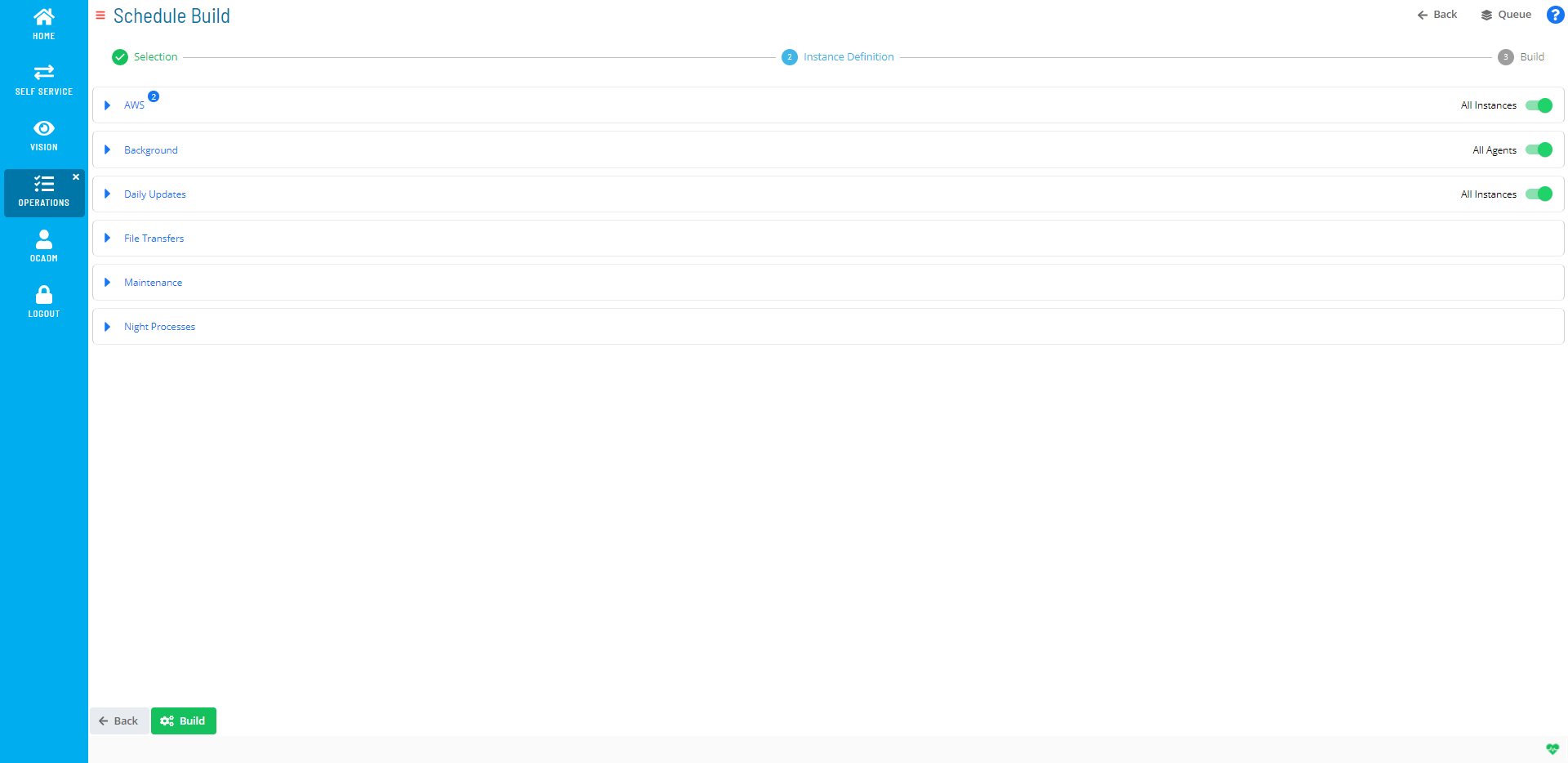
The Instance Definition page has the following options:
- For non-multi-instance schedules:
- Name: The property name for an instance of the schedule. See Instance Definition and Properties
- Value: The property value
- For multi-instance schedules:
- All Instances (Properties/Named Instance): Select or define properties or named instances. When enabled, the All Instances toggle appears green
 . A white number in a blue circle (
 ) appears next to the schedule name when multiple instances are defined
- Name: The instance name or property. See Instance Definition and Properties
- Value: The property value
- All Agents (Machine Group): Select or define a machine group. When enabled, the All Agents toggle appears green
 . A white number in a blue circle appears next to the schedule name when multiple instances are defined
- Machine: Select the machine group
- All Instances (Properties/Named Instance): Select or define properties or named instances. When enabled, the All Instances toggle appears green
- Back (bottom-left): Returns to the previous page
- Build: Builds the selected schedule(s)
- Back (top-right): Returns to the Operations Summary page
- Queue: Opens the Schedule Build Queue page
Build Options
Schedule Build Page
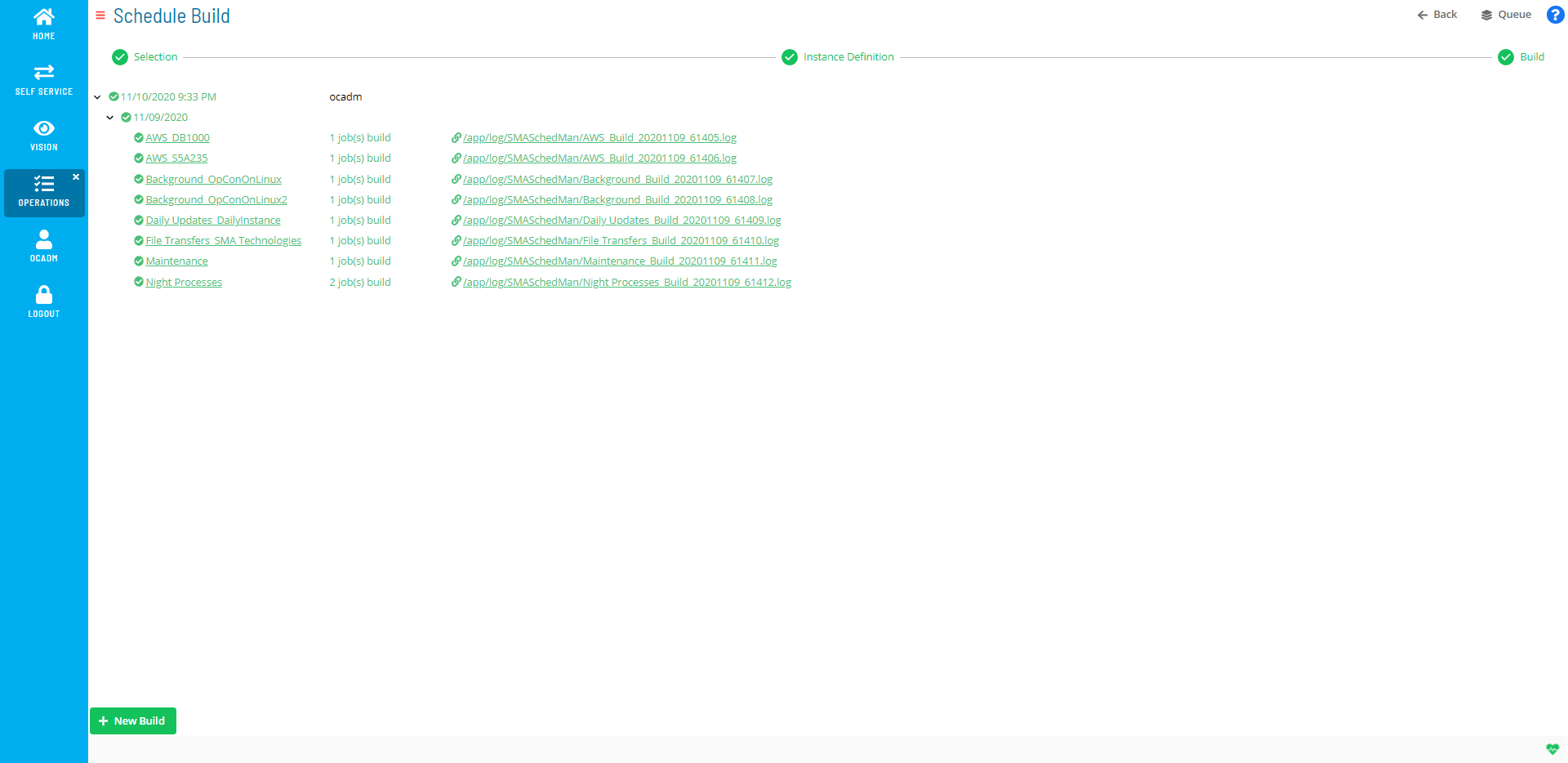
The Build page displays schedules during and after building. Select the schedule name to open the Processes page. Select the .log path following the link icon ( ) to view the build log.
Schedule Build Log
Schedule Build Log
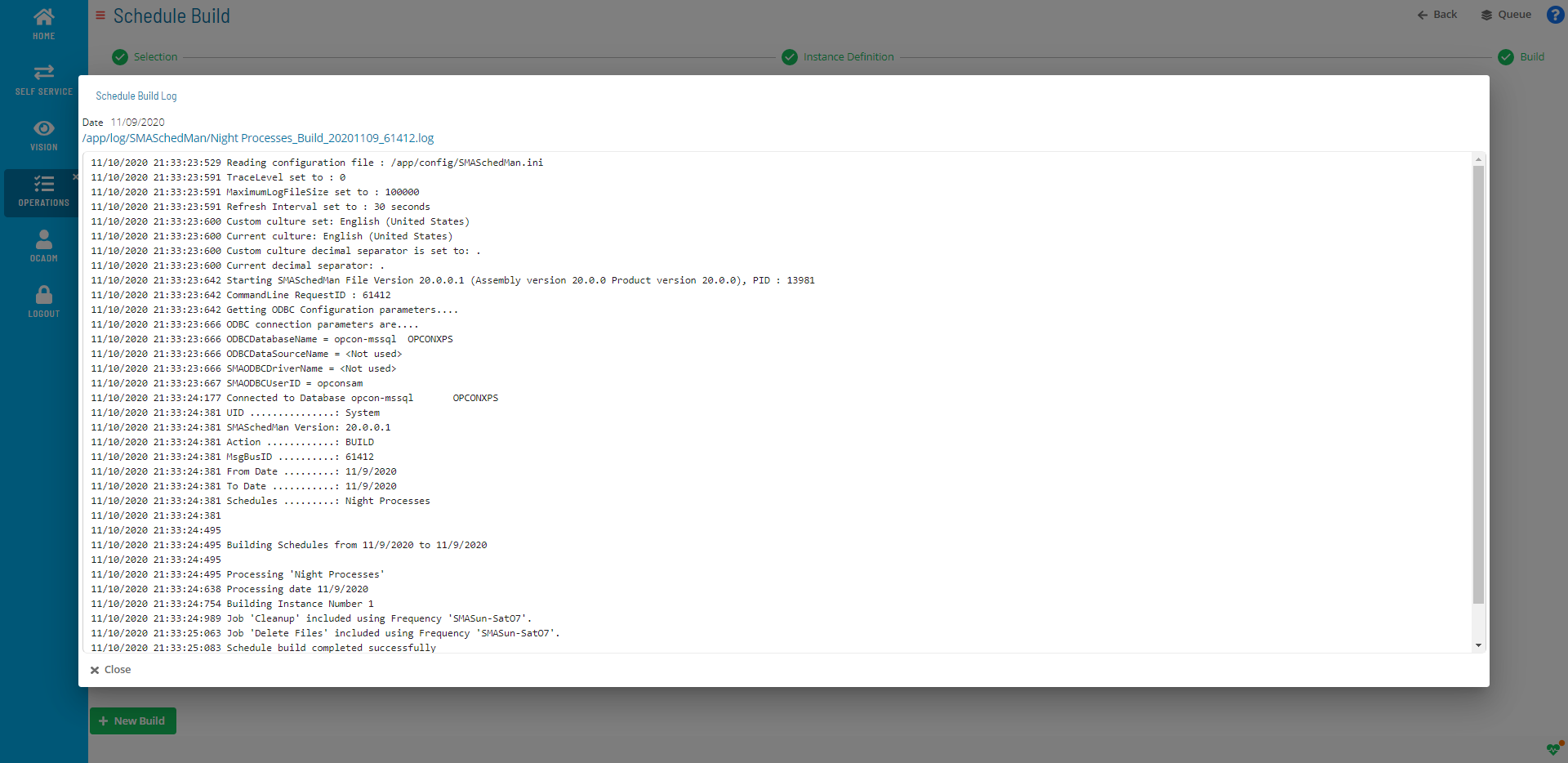
The Schedule Build Log window displays the log file path and build log information.
Building Schedules
To build a schedule, complete the following steps:
- Select the Schedule Build button () on the Operations Summary page
- Enter or select a start date in the From field
- Enter or select an end date in the To field
- Select either the On Hold or Released option to define the build state
- Toggle Overwrite Existing Schedules to define whether to overwrite existing built schedules. Disabled by default
- Select the check box next to all schedules to be built
- Select one of the following: a. (Optional) Select Next to go to the Instance Definition page (then proceed to step 8), - or - b. Select Build to build the schedule(s) (then proceed to step 18).
- Select the green plus (Add) button in the expanded frame to define an instance
- Enter a name and value for the property. Use the following buttons as needed: a. (Optional) Select the blue check mark (OK) button to add the instance property. b. (Optional) Select the reverse arrow (Undo) button to clear the fields. c. (Optional) Select the green plus (Add) button to add an additional instance property. d. (Optional) Select the blue pencil (Edit) button or select in the Name or Value fields to edit an instance property. e. (Optional) Select the red trash can (Delete) button to delete an instance property.
- (Optional) Edit an existing instance definition using the blue pencil (Edit) button or by selecting in the Name or Value fields
- (Optional) Select the green plus (Add) button to define an additional instance property, then repeat sub-steps from step 9
- (Optional) Toggle All Instance to define whether to build all instances of the properties
- (Optional) Edit an existing instance definition using the blue pencil (Edit) button or by selecting in the Name or Value fields
- (Optional) Select the green plus (Add) button to define an additional instance property, then repeat sub-steps from step 9
- (Optional) Toggle All Instance to define whether to build all instances of the properties
- Select a machine in the Machine list
- (Optional) Toggle All Agents to define whether to build all agents
- Select Build to build the schedule(s)
- (Optional) Select the schedule name to view the Processes information
- (Optional) Select the .log file link to view the job log
 Related Topics
Configuration Options
| Setting | What It Does | Default | Notes |
|---|---|---|---|
| Schedule Build | Radio buttons to select the build state: | — | — |
| Overwrite Existing Schedules | When enabled (toggle appears red !Schedule Build Overwrite Existing Schedules), OpCon overwrites a schedule in Completed status on the target date. | — | — |
| Name | The schedule name. | — | — |
| Auto-build | Filters results by auto-build setting (Yes or No). | — | — |
| Multi Instance | Filters results by multi-instance setting (Yes or No) | — | — |
| Back (bottom-left) | Returns to the previous page. | — | — |
| Back (top-right) | Returns to the Operations Summary page | — | — |
| Queue | Opens the Schedule Build Queue page | — | — |
FAQs
Q: What does managing schedules involve?
Managing schedules includes Selection Options, Instance Definition Options, Build Options, Schedule Build Log. Access schedules through the Enterprise Manager navigation pane.
Q: Who can manage schedules in OpCon?
Users with the appropriate privileges assigned through their role can manage schedules. Contact your OpCon system administrator if you do not have access.
Glossary
SAM (Schedule Activity Monitor): The logical processor for OpCon workflow automation. SAM monitors schedule and job start times, dependencies, and user commands to determine job execution timing, and processes OpCon events.
Enterprise Manager (EM): OpCon's rich client graphical user interface for Windows and Linux, used to define schedules and jobs, manage automation data, and perform operational tasks.
Solution Manager: OpCon's browser-based graphical user interface for managing automation data, performing operational actions, and administering the system.
OpCon Event: A command sent to OpCon that triggers an automated action, such as adding a job to a schedule, updating a property value, sending a notification, or changing a job or schedule status.
Resource: A numeric variable in OpCon representing a finite pool. Jobs can be configured to require a set number of resource units to run, limiting concurrent executions and preventing resource contention.
Role: A named security profile in OpCon that groups privileges together. Roles are assigned to user accounts to control which features, schedules, jobs, machines, and administrative functions a user can access.
Privilege: A specific permission granted through an OpCon role that controls access to a feature, function, or object type. Privileges are organized into categories such as Function Privileges, Machine Privileges, Schedule Privileges, and Access Codes.
Machine: A platform defined in the OpCon database that has an agent installed. OpCon routes job execution requests to machines via SMANetCom, and machines report job completion status back to SAM.