Configuring Settings
Theme: Configure
Who Is It For? System Administrator, Automation Engineer
What Is It?
Use this procedure to configure Settings in Solution Manager.
To configure user settings, complete the following steps:
- Log into the Solution Manager
- Select the user profile button in the Navigation menu
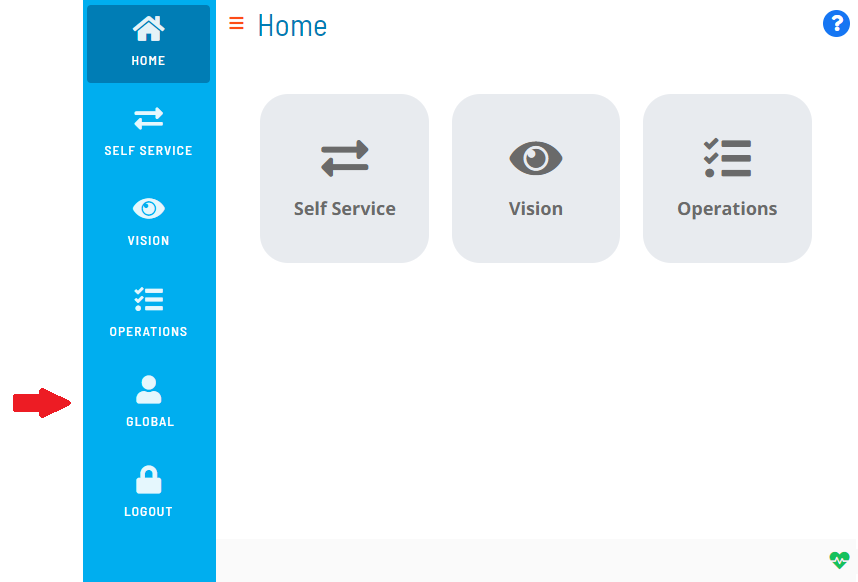
- Select the Settings tab on the Profile page
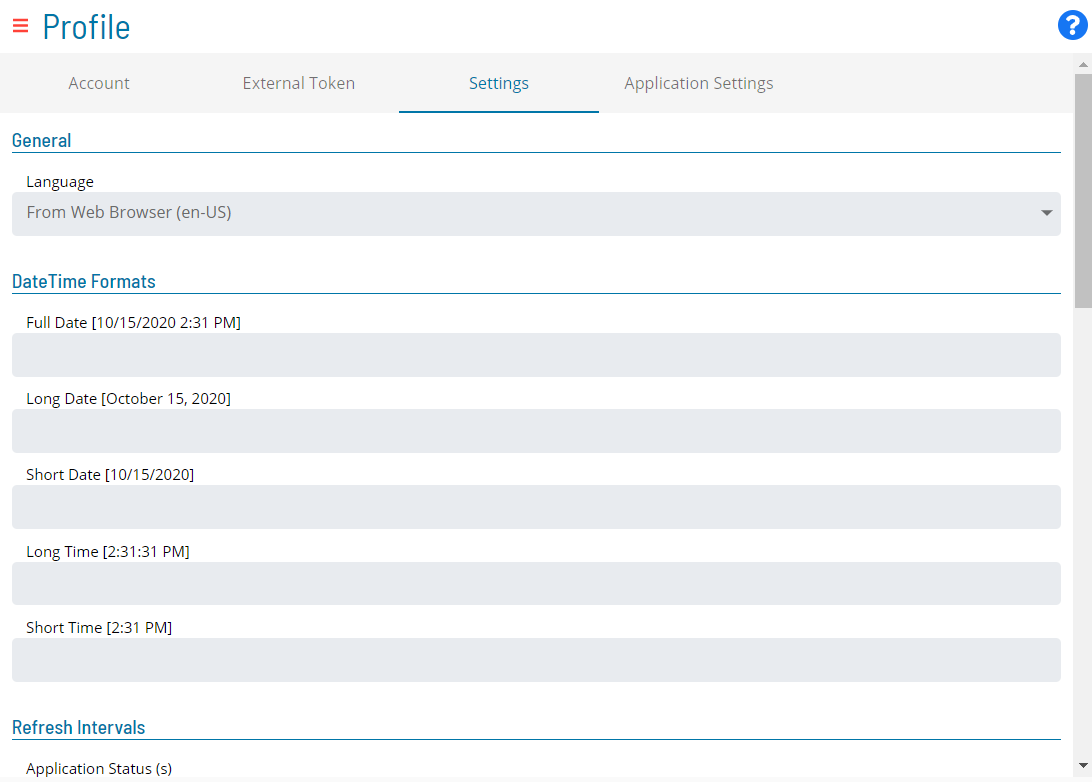
- Configure any of the following settings:
- Select Save to save the changes to the database
General
The General section sets the application language. Available options:
- From Web Browser: Inherits the language settings of your web browser
- EN: Sets the language to English
- FR: Sets the language to French
DateTime Format
The DateTime section configures the date and time formats used throughout Solution Manager. You can select a predefined format for:
- Full Date
- Long Date
- Short Date
- Long Time
- Short Time
Refresh Intervals
The Refresh Intervals section sets the auto-refresh interval (0–600 seconds) for the following services:
- Application Status (s)
- Escalated Notification (s)
- Self Service (s)
- Self Service Execution (s)
- Vision Live (s)
- Operations Summary (s)
- Operations Processes (s)
- Operations Agents (s)
- Operations Graph
- Operations Schedule Build Queue
Debug
The Debug section only appears if a member of the ocadm role has not disabled your ability to configure custom debug settings.
The Debug section configures debugging via the Global Settings switch. When enabled, global debug settings from the ocadm role apply. When disabled, the following options become available:
- Customer Log Level: Writes logs to your web browser console. Logs are local and lost when the browser is closed
- Deep Observe: Enables a Framework event observe
- Send Trigger: Sets the trigger for sending server logs to the API server. Options:
- Disabled: Disables the trigger
- Send on Interval and Max Size: Sets an interval- or size-driven trigger with these settings:
- Log Level: Sets the server log level
- Api: When enabled, logs all communications (requests and responses) between the Customer and Server
- Interval (s): Sends logs at a set time interval (0–600 seconds)
- Max Size (characters): Sends logs when the accumulated character limit is reached (0–5000 characters)
- Send on Event: Sets an event-driven trigger with these settings:
- Log Level: Sets the server log level
- Api: When enabled, logs all communications (requests and responses) between the Customer and Server
- Trigger Log Level: Sends logs when an ERROR or WARN occurs
- Max Size to keep (characters): Sends logs when the max size to keep limit is reached (0–5000 kilobytes)
To reproduce an issue in the application, use the InstantLog Mode feature to generate a temporary log file for the Support team. Refer to InstantLog Mode.
Configuration Options
| Setting | What It Does | Default | Notes |
|---|---|---|---|
| From Web Browser | Inherits the language settings of your web browser | — | — |
| EN | Sets the language to English | — | — |
| FR | Sets the language to French | — | — |
| Customer Log Level | Writes logs to your web browser console. | — | — |
| Deep Observe | Enables a Framework event observe | — | — |
| Send Trigger | Sets the trigger for sending server logs to the API server. | — | — |
FAQs
Q: What does configuring settings control?
Configuring settings defines the settings that determine how OpCon behaves for this feature. Review the available options and set values appropriate for your environment.
Q: How many steps are required to configure settings?
The configuration procedure involves 5 steps. Complete all steps in order and select Save to apply the changes.
Glossary
Solution Manager: OpCon's browser-based graphical user interface for managing automation data, performing operational actions, and administering the system.
Notification: A message sent by the SMA Notify Handler when a Machine, Schedule, or Job changes to a specific status. Notifications can be delivered as emails, text messages, Windows Event Log entries, SNMP traps, or other formats.
Resource: A numeric variable in OpCon representing a finite pool. Jobs can be configured to require a set number of resource units to run, limiting concurrent executions and preventing resource contention.
Role: A named security profile in OpCon that groups privileges together. Roles are assigned to user accounts to control which features, schedules, jobs, machines, and administrative functions a user can access.
Schedule: A named container for jobs in OpCon, built for a specific date to create that day's automation. Schedules define build settings, frequencies, and the jobs that run within them.
OpCon: Continuous' workflow automation platform. The OpCon server includes the database, SAM and Supporting Services (SAM-SS), and graphical user interfaces. agents installed on target platforms run jobs and report results.