Logging In/Out
Theme: Configure
Who Is It For? System Administrator, Automation Engineer
What Is It?
Use this procedure to log in in Solution Manager.
Logging In
Log into the SMA Solution Manager with an OpCon username and password.
The OpCon password field accepts a maximum of 12 characters.
If data migration is required, your login may be rejected. A member of the ocadm role must perform data migration before you can access the application.
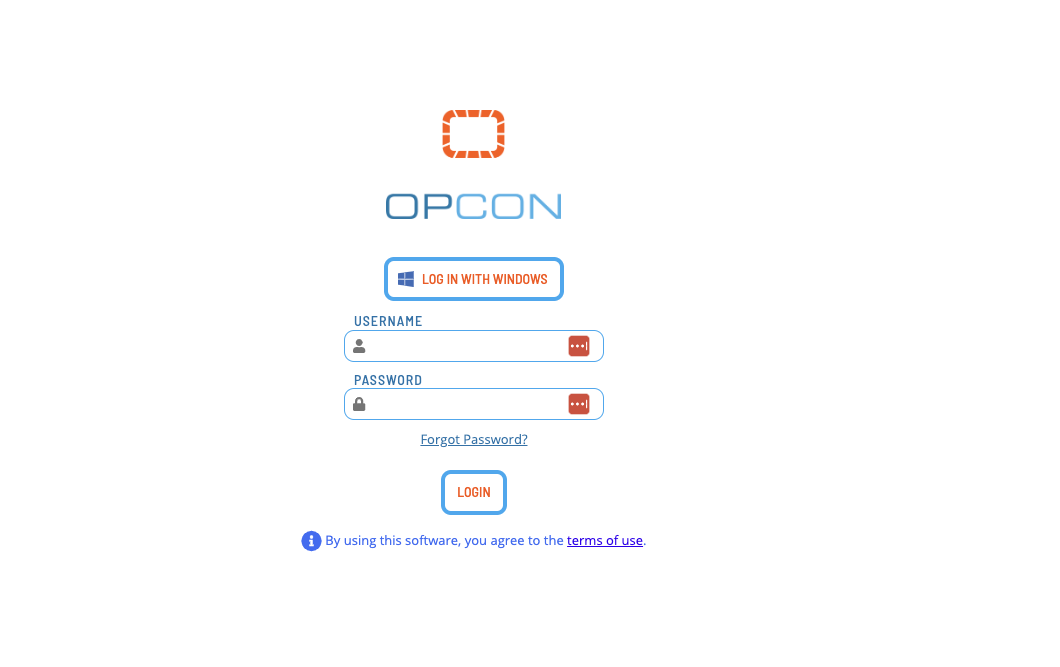
Some users may see a Security message after each manual login or automatic login attempt. Users must Accept or Decline this message. If accepted, the user proceeds normally. If declined, the user is returned to the login screen or shown the security message again.
The Security message is configured under the Generals tab of the Server Options editor in the Enterprise Manager. For more information, refer to the Login Security Message parameter in the Concepts online help.
Automatic Login
Solution Manager supports automatic login when Windows Authentication is enabled.
First, configure users in OpCon for Automatic Login using the Enterprise Manager.
The user in the Enterprise Manager must include the Windows Domain and Username.
Google Chrome uses the security settings in Internet Options. The Prompt for user name and password custom setting should not be selected.
To configure this setting, complete the following steps:
- Right-click Start and select Control Panel from the Windows menu
- Go to Internet Options
- Select the Security tab and select the Local intranet zone
- Select the Custom level... button. The Security Settings dialog displays
- Go to User Authentication > Logon and verify that Prompt for user name and password is not selected
Firefox requires configuration. Continuous recommends keeping only one Firefox window open during configuration.
To configure this setting, complete the following steps:
-
Enter about:config in the search field and press Enter on your keyboard
-
Select Show All
-
Enter network.automatic-ntlm-auth.trusted-uris in the Search preference name search field.
-
Select the Edit button and enter the Solution Manager URL (e.g.,
https://<servername\>:<portnumber\>) in the text field -
Select Save
-
Enter network.negotiate-auth.delegation-uris in the Search preference name search field
-
Select the Edit button and enter the Solution Manager URL
-
Select Save
-
Enter network.negotiate-auth.trusted-uris in the Search preference name search field
-
Select the Edit button and enter the Solution Manager URL
-
Select Save
For more information, refer to https://developer.mozilla.org/en-US/docs/Mozilla/Integrated_authentication.
If automatic logon fails, the login screen displays so you can provide OpCon account credentials.
Windows Authentication Login
The Login with Windows button lets you log in using Windows Authentication, bypassing OpCon login credentials. When activated, your Windows credentials are sent to the server for authentication.
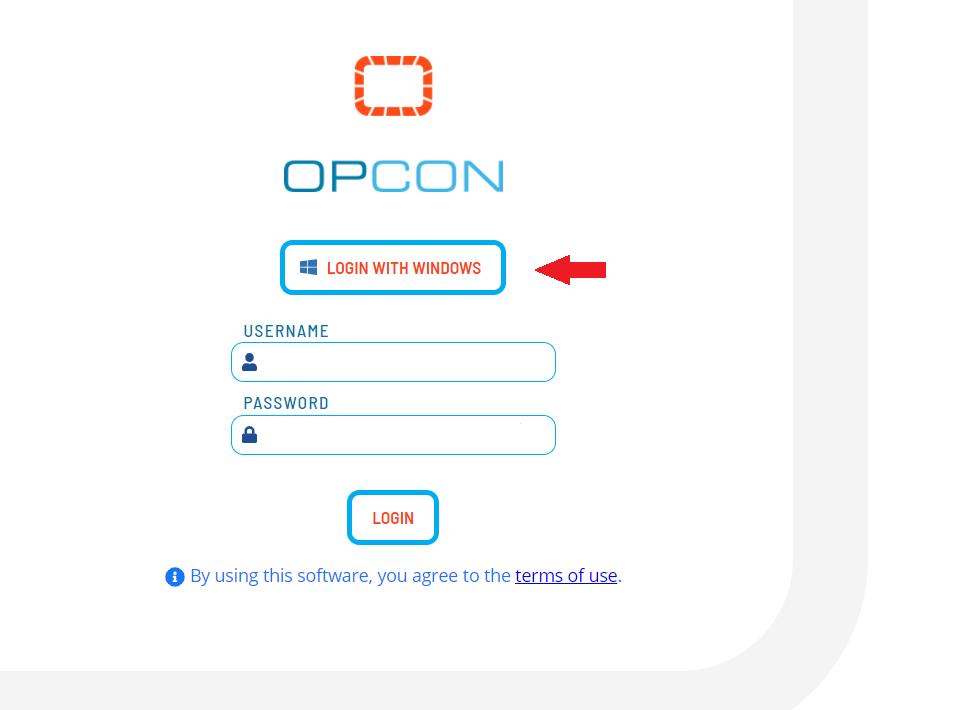
For the button to display on the login screen, ensure the following settings are configured:
- Enable the Enable Windows Authentication option in the Server Options editor in the Enterprise Manager, or via the API
- Enable Windows Pass-Through Authentication in the Application Settings in Solution Manager
Single Sign On Login
The Single Sign On (SSO) button lets you log in using an identity provider (IdP), bypassing OpCon login credentials. The user's IdP credentials are authenticated to grant access to Solution Manager.
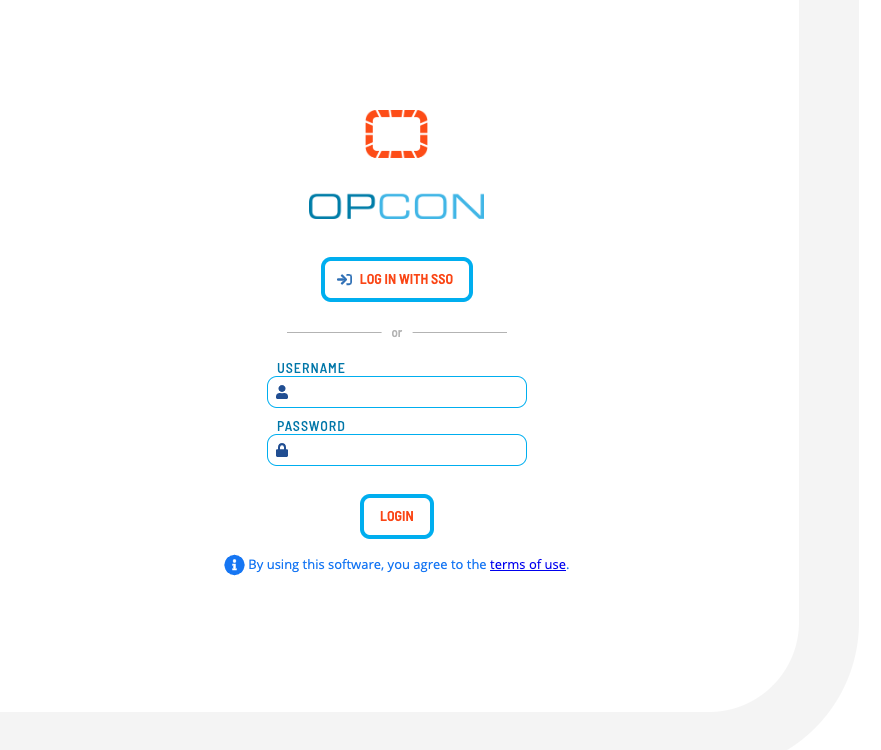
For the button to display on the login screen, configure Enable SSO Authentication and other required values in the Server Options page in Solution Manager.
Okta
When configuring SSO with Okta, users must have purchased both the Single Sign-On and API Access Management features from Okta.
Session Expiration
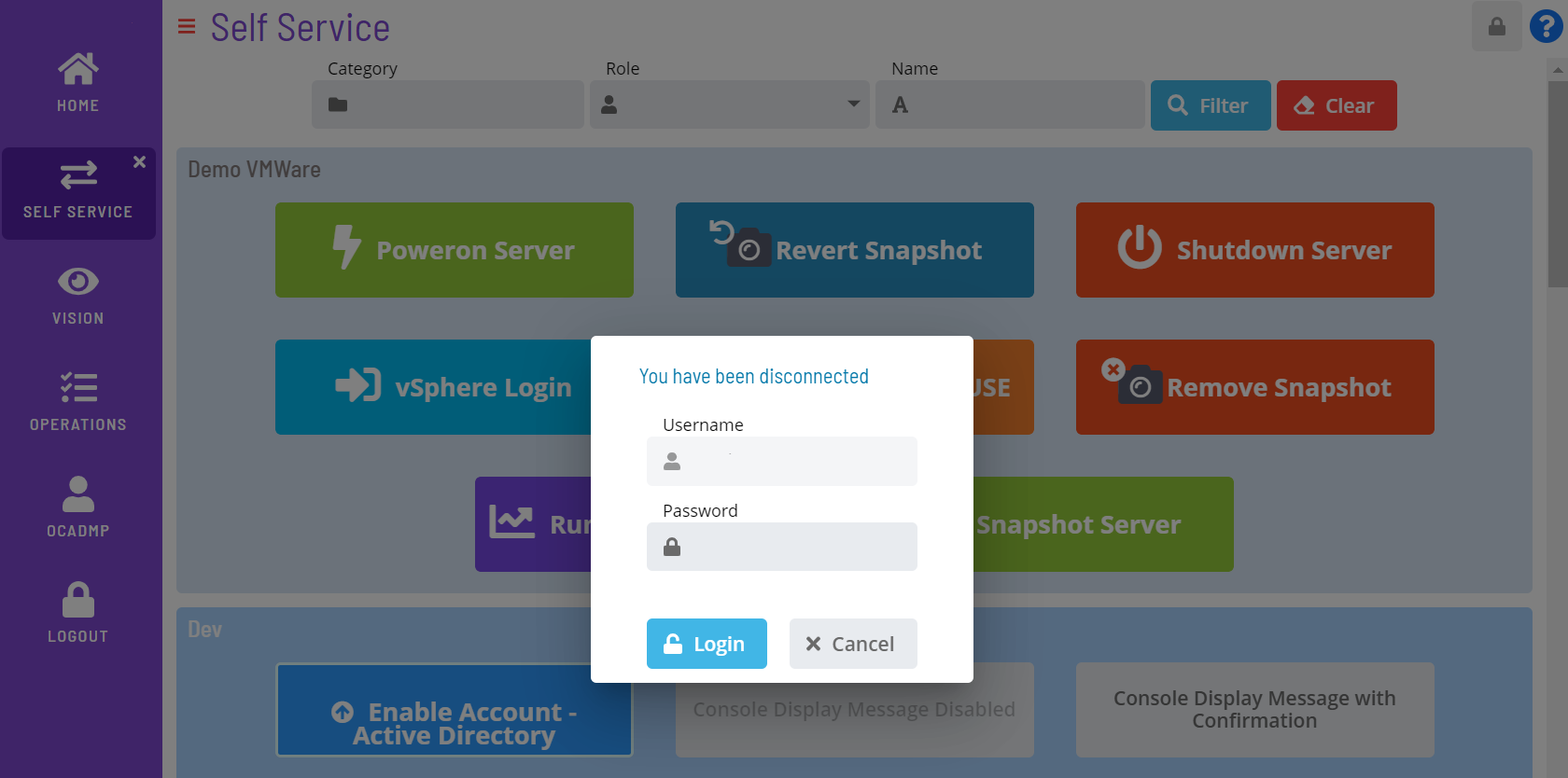
If the browser session expires, a pop-up displays so you can log back in without returning to the login screen. The pop-up prompts for login credentials or displays the Login with Windows button, depending on how you originally logged in.
Logging Out
Select the Logout button in the Navigation menu to log out.
FAQs
Q: How many steps does the Logging In/Out procedure involve?
The Logging In/Out procedure involves 16 steps. Complete all steps in order and save your changes.
Q: What does Logging In/Out cover?
This page covers Logging In, Logging Out.
Glossary
Enterprise Manager (EM): OpCon's rich client graphical user interface for Windows and Linux, used to define schedules and jobs, manage automation data, and perform operational tasks.
Solution Manager: OpCon's browser-based graphical user interface for managing automation data, performing operational actions, and administering the system.
Resource: A numeric variable in OpCon representing a finite pool. Jobs can be configured to require a set number of resource units to run, limiting concurrent executions and preventing resource contention.
Role: A named security profile in OpCon that groups privileges together. Roles are assigned to user accounts to control which features, schedules, jobs, machines, and administrative functions a user can access.
OpCon: Continuous' workflow automation platform. The OpCon server includes the database, SAM and Supporting Services (SAM-SS), and graphical user interfaces. agents installed on target platforms run jobs and report results.