Accessing Job Executions History
Theme: Configure
Who Is It For? System Administrator, Automation Engineer
What Is It?
In the Operations module, you can access all iterations (executions history) of a job and view job output from past executions. A runtime trend for a range of executions is also available at the bottom of the page.
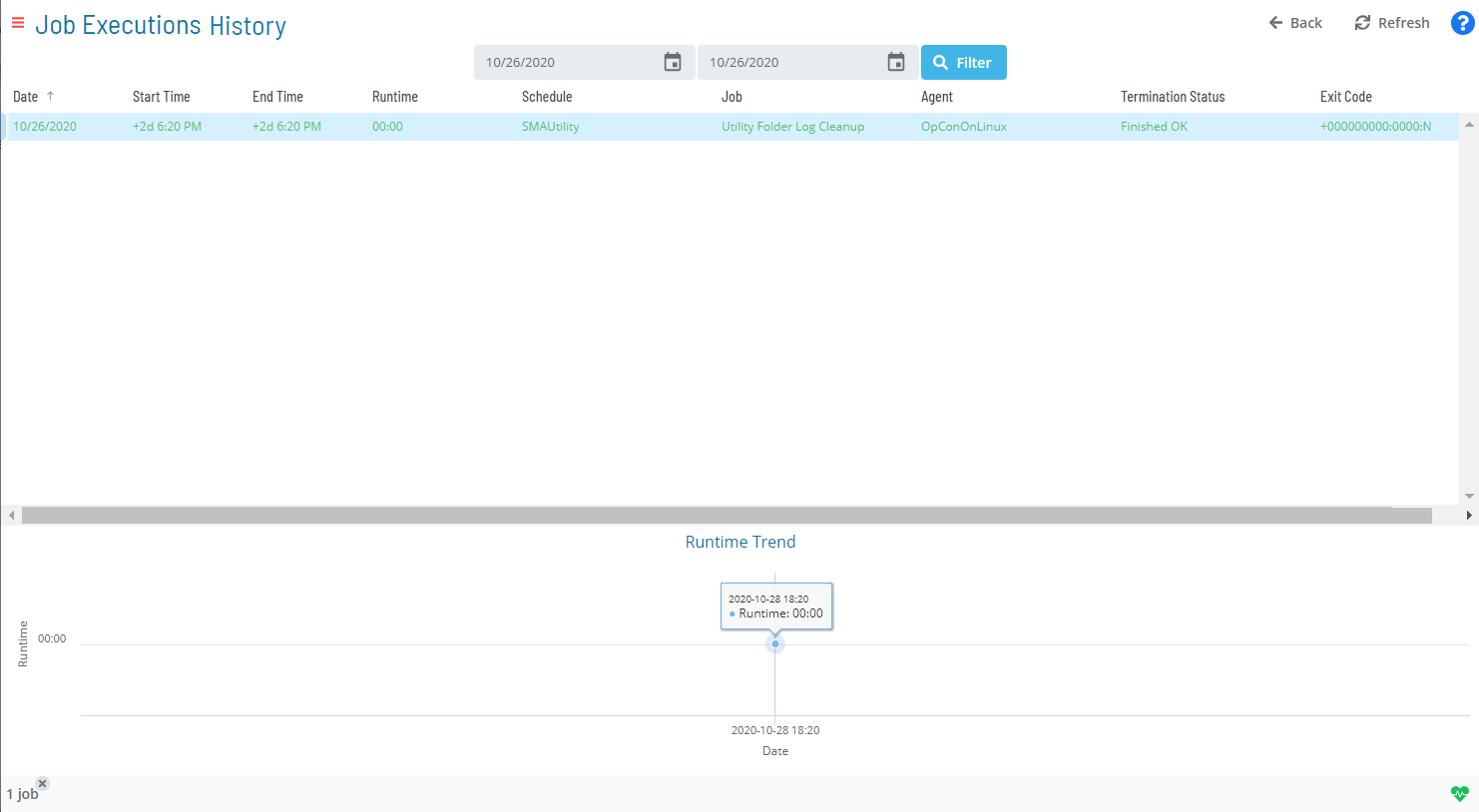
When viewing job executions history, the following information is displayed per execution:
- Date: The date of the Daily schedule for which the job run
- Start Time: The actual date and time the schedule started (24-hour format, 00:00)
- End Time: The date and time the job ended (24-hour format, 00:00)
- Runtime: The amount of time the job ran, in minutes
- Schedule: The name of the schedule containing the selected job
- Job: The name of the selected job
- Agent: The name of the agent machine on which the job run. For jobs that run on each machine in a group, the machine name displays for each copy of the job that ran
- Termination Status: The completion status of the job
- Exit Code: The numeric value returned when the job terminated
Results display in a sortable table. Select a column heading to sort ascending; select it again to sort descending.
To access job execution history, complete the following steps:
- Select the Processes button at the top-right of the Operations Summary page
- Ensure that both the Date and Schedule toggle switches are enabled (green) so you can make your date and schedule selection
- Select the desired date(s) to display the associated schedule(s)
- Select one or more schedule(s) in the list
- Select one job in the list. Your selection displays in the status bar at the bottom of the page as a breadcrumb trail
- Select the job record (e.g., 1 job(s)) in the status bar to display the Selection panel
- Select the Job Executions History button
 at the top-left corner of the panel. By default, the history for the selected date displays
 - Enter a Start Date and End Date in the date fields at the top of the page, or select the calendar icon to pick a date
- Select the Filter button to display results. If multiple executions exist, the runtime trend for the period displays
- Select a job executions history record and right-click it to access available job output in the Selection panel to the right
note
The job output record for the historical instance must still exist on the target platform for this operation to succeed.
- Select the Refresh button to fetch existing or new job output files for the selected job. The button toggles to Cancel, which you can select at any time to stop the refresh
- Select the Close button to close the panel
Job execution history can also be accessed in PERT View. For more information, refer to PERT View Job Executions History Access.
 Related Topics
Configuration Options
| Setting | What It Does | Default | Notes |
|---|---|---|---|
| Date | The date of the Daily schedule for which the job run | — | — |
| Start Time | The actual date and time the schedule started (24-hour format, 00:00) | — | — |
| End Time | The date and time the job ended (24-hour format, 00:00) | — | — |
| Runtime | The amount of time the job ran, in minutes | — | — |
| Agent | The name of the agent machine on which the job run. | — | — |
| Termination Status | The completion status of the job | — | — |
| Exit Code | The numeric value returned when the job terminated | — | — |
FAQs
Q: How many steps does the Accessing Job Executions History procedure involve?
The Accessing Job Executions History procedure involves 12 steps. Complete all steps in order and save your changes.
Glossary
Agent: An agent installed on a target platform that runs jobs in the native language of that platform and communicates results back to SAM via SMANetCom over TCP/IP.
Solution Manager: OpCon's browser-based graphical user interface for managing automation data, performing operational actions, and administering the system.
Calendar: A named collection of dates in OpCon used by schedules and frequencies to determine when automation runs or is excluded. Calendars can represent holidays, working days, or any custom date set.
Resource: A numeric variable in OpCon representing a finite pool. Jobs can be configured to require a set number of resource units to run, limiting concurrent executions and preventing resource contention.
Machine: A platform defined in the OpCon database that has an agent installed. OpCon routes job execution requests to machines via SMANetCom, and machines report job completion status back to SAM.
Schedule: A named container for jobs in OpCon, built for a specific date to create that day's automation. Schedules define build settings, frequencies, and the jobs that run within them.
Job: The fundamental unit of work in OpCon. A job defines what to run, on which machine, when to start, and what conditions must be met. Job results are tracked and can trigger events and notifications.