Accessing Job Executions History
In the Operations module, you can view all past runs of a job, including run times and termination status, for a selected date range. A Run-Time Trend chart at the bottom of the page visualizes runtime across all returned runs.
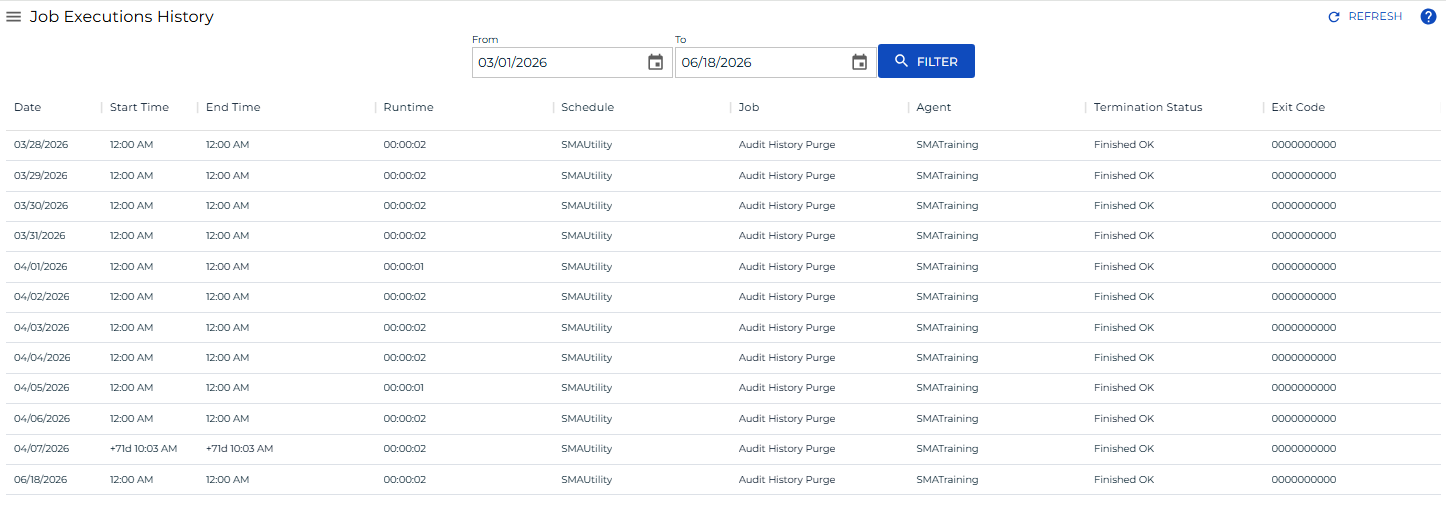
Job Executions History fields
The executions history table displays the following information for each run:
| Field | Description |
|---|---|
| Date | The date of the Daily Schedule for which the job ran |
| Start Time | The actual date and time the job started (24-hour format) |
| End Time | The date and time the job ended (24-hour format) |
| Runtime | The amount of time the job ran, in minutes |
| Schedule | The name of the Schedule containing the job |
| Job | The name of the job |
| Agent | The name of the Agent on which the job ran. For jobs that run on each machine in a group, the machine name displays for each copy of the job that ran |
| Termination Status | The completion status of the job |
| Exit Code | The numeric value returned when the job terminated |
Select a column heading to sort the table ascending; select it again to sort descending.
View job executions history
To view job executions history, complete the following steps:
-
Select the Processes button at the top-right of the Operations Summary page.
-
Ensure that both the Date and Schedule toggle switches are enabled so you can make your date and schedule selection.
-
Select the desired date or dates to display the associated schedules.
-
Select one or more schedules in the list.
-
Select one job in the list. Your selection displays in the status bar at the bottom of the page as a breadcrumb trail.
-
Select the job record (for example, 1 job) in the status bar to display the Selection panel.
-
Select the Job Executions History button
 at the top-left corner of the panel. By default, the history for the selected date displays.
 -
Enter a date in the From and To fields at the top of the page, or select the calendar button to pick a date.
-
Select the Apply button to display results. If multiple runs exist for the date range, the Run-Time Trend chart displays below the table.
-
Select a job executions history record and right-click it to access available job output in the Selection panel to the right.
noteThe job output record for the historical instance must still exist on the target platform for this operation to succeed.
-
Select the Refresh button to fetch existing or new job output files for the selected job. The button toggles to Cancel, which you can select at any time to stop the refresh.
-
Select the Close button to close the panel.
Job execution history can also be accessed in PERT View. For more information, refer to PERT View Job Executions History Access.