Viewing Job Output
Theme: Configure
Who Is It For? System Administrator, Automation Engineer
What Is It?
The Operations module allows you to retrieve the output file(s) for a job if it:
- is completed or has started
- is not a NULL or Container job
- does not have a status of Waiting, On Hold, Cancelled, Missed Start Time, or Skipped
Before attempting to view a job's output file, first refer to Viewing a Job Output File in the Concepts online help.
To view job output:
Select on the Failed, Running, or Completed operation dial or use the Quick Search field (type the keyword and select Enter) in the Jobs section on the Operations Summary page.
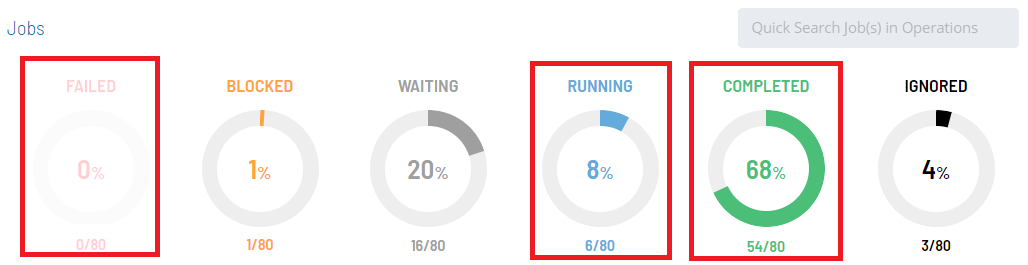
The Processes page will display.
Select one job in the list. A record of your selection will display in the status bar at the bottom of the page in the form of a breadcrumb trail.
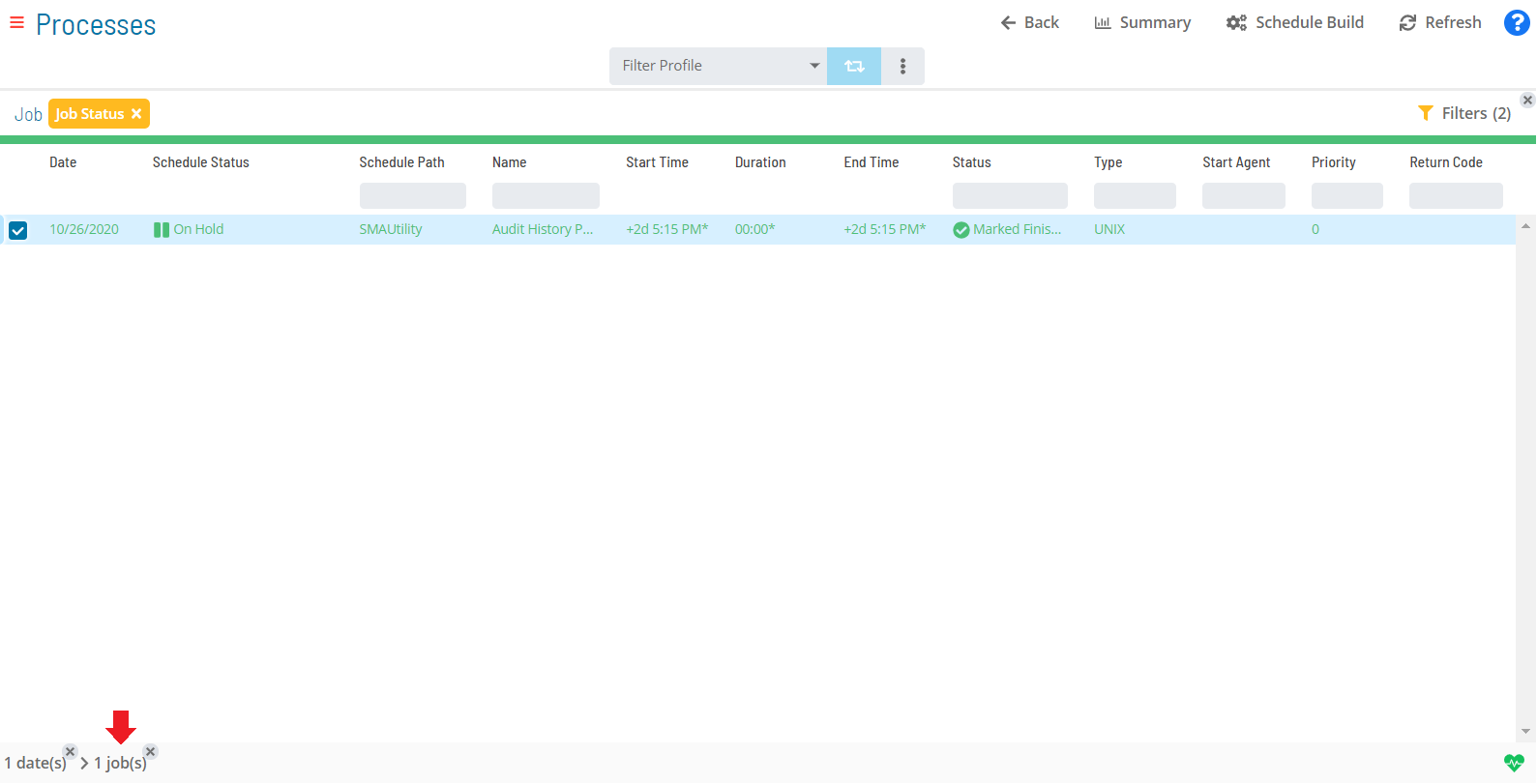
Select on the job record (e.g., 1 job(s)) in the status bar to display the Selection panel.
As an alternative, you can right-click on the job selected in the list to display the Selection panel.
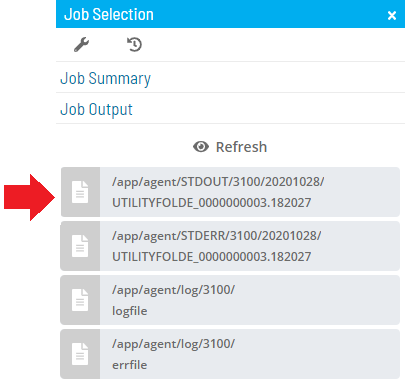
Select the Job Output accordion-style tab in the panel.

Select the Refresh button to fetch a list of existing or new job output files for the selected job. The button toggles to Cancel, which you can select at any time to stop the refresh.
The Refresh button will be disabled if no job output is available for the selected job.
Select any Job Output button that appears after the refresh to view the output file.
The Job Output page displays. Select any of the following options:
- Refresh/Cancel: Refreshes the data in the output file or cancels the refresh
- Export: Saves the job output file locally to your machine
Select the Close button to return to the previous page. Close the Selection panel when done.
 Related Topics
- Performing Job Status Changes
- Performing Schedule Status Changes
- Performing Bulk Status Job Updates (Schedule Level)
- Performing Agent Status Updates
- Using PERT View
- Managing Daily Processes
- Viewing Job Configuration
Configuration Options
| Setting | What It Does | Default | Notes |
|---|---|---|---|
| Refresh/Cancel | Refreshes the data in the output file or cancels the refresh | — | — |
FAQs
Q: What information does the Job Output view display?
The Job Output view displays the current state and details for the selected item. Use this view to monitor status and take action as needed.
Glossary
Container Job: A job type that runs a subschedule. Container jobs enable hierarchical schedule structures and support properties and events just like standard jobs.
Resource: A numeric variable in OpCon representing a finite pool. Jobs can be configured to require a set number of resource units to run, limiting concurrent executions and preventing resource contention.
Machine: A platform defined in the OpCon database that has an agent installed. OpCon routes job execution requests to machines via SMANetCom, and machines report job completion status back to SAM.
Schedule: A named container for jobs in OpCon, built for a specific date to create that day's automation. Schedules define build settings, frequencies, and the jobs that run within them.
Job: The fundamental unit of work in OpCon. A job defines what to run, on which machine, when to start, and what conditions must be met. Job results are tracked and can trigger events and notifications.