Adding Master Schedules
Theme: Configure
Who Is It For? System Administrator, Automation Engineer
What Is It?
Use this procedure to add Master Schedules in Solution Manager.
Administration
Required Privileges
n/a
Adding a Schedule
To add a Master Schedule, go to Studio and select Add. The Create Master Schedule page displays:
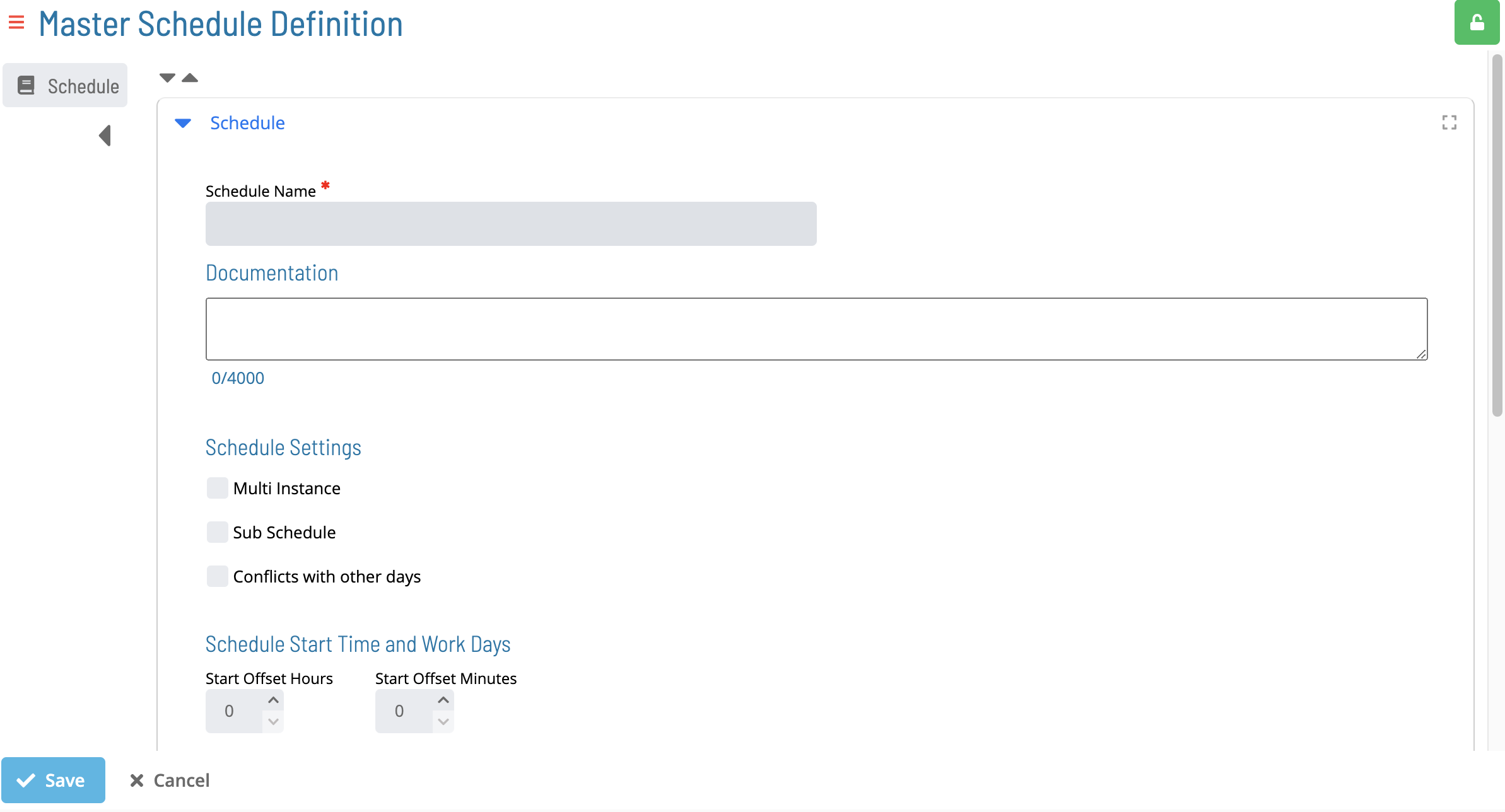
Adding Schedule Name and Documentation
To add Schedule Name and Documentation, complete the following steps:
- Select a Schedule Name. For more information, refer to Schedules in the Concepts online help
- (Optional) Enter the Documentation details. For more information, refer to Schedule Details in the Concepts online help
Adding Schedule Settings
To add Schedule Settings, complete the following steps:
- (Optional) Select the Multi Instance option
- (Optional) Select the Sub Schedule option. Note: Selecting this option resets and disables all autobuild settings (auto build and auto delete).
- (Optional) Select the Conflicts with other days option
Adding Schedule Start Time and Work Days
To add Schedule Start Time and Work Days, complete the following steps:
-
Enter the Start Offset Hour
-
Enter the Start Offset Minutes
-
Select the Workdays
Holiday Calendar Settings
-
(Optional) Select Additional Holidays
-
(Optional) Select the Use Master Holiday option
Schedule Build and Maintenance
For more information, refer to Schedule Maintenance in the Concepts online help.
Note: All autobuild settings reset and become disabled when the Sub Schedule option is selected.
- (Optional) Select the Auto Build option. For more information, refer to Build Settings in the Concepts online help
- Enter the # of Days in Advance
- Enter the # of Days to build for
- Enter the Build Offset Hours
- Enter the Build Offset Minute
- (Optional) Select the Overwrite option
- (Optional) Select the Build on Hold option
- Select Save to create the schedule or Cancel to cancel the operation
FAQs
Q: How do you save a new master schedules record?
After completing the required fields, select the Save button on the toolbar to save the master schedules record.
Q: Can you add master schedules for multiple platforms?
Yes. This page covers master schedules for multiple platforms or contexts: Required Privileges, Adding a Schedule.
Glossary
Calendar: A named collection of dates in OpCon used by schedules and frequencies to determine when automation runs or is excluded. Calendars can represent holidays, working days, or any custom date set.
Resource: A numeric variable in OpCon representing a finite pool. Jobs can be configured to require a set number of resource units to run, limiting concurrent executions and preventing resource contention.
Privilege: A specific permission granted through an OpCon role that controls access to a feature, function, or object type. Privileges are organized into categories such as Function Privileges, Machine Privileges, Schedule Privileges, and Access Codes.
Schedule: A named container for jobs in OpCon, built for a specific date to create that day's automation. Schedules define build settings, frequencies, and the jobs that run within them.