Adding Master Schedules
Required Privileges
n/a
Adding a Schedule
To add a Master Schedule, go to Studio
Select Add. The Create Master Schedule page is displayed:
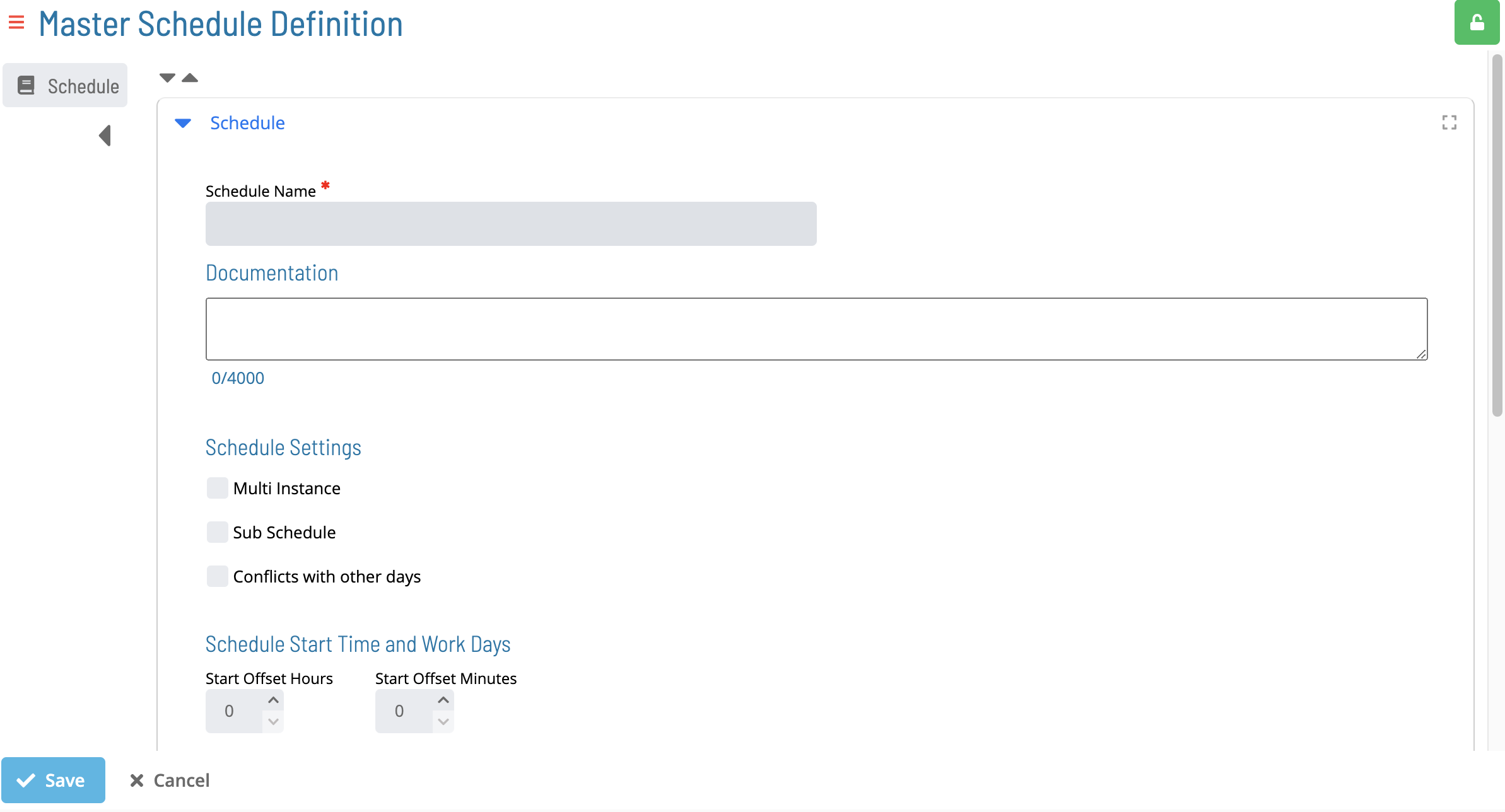
Adding Schedule Name and Documentation
-
Select a Schedule Name. For more information, refer to Schedules in the Concepts online help.
-
(Optional) Enter the Documentation details. For more information, refer to Schedule Details in the Concepts online help.
Adding Schedule Settings
-
(Optional) Select the Multi Instance checkbox.
-
(Optional) Select the Sub Schedule checkbox. Note: Selecting this option will reset and disable all autobuild settings (i.e., auto build and auto delete)
-
(Optional) Select the Conflicts with other days checkbox.
Adding Schedule Start Time and Work Days
-
Enter the Start Offset Hour
-
Enter the Start Offset Minutes
-
Select the Workdays
Holiday Calendar Settings
-
(Optional) Select Additional Holidays.
-
(Optional) Select the Use Master Holiday checkbox.
Schedule Build and Maintenance
For more information, refer to Schedule Maintenance in the Concepts online help. Note: the autobuild checkbox and all autobuild settings (i.e., auto build and auto delete) will reset and become disabled when the sub-schedule checkbox is selected
-
(Optional) Select the Auto Build checkbox. For more information, refer to Build Settings in the Concepts online help.
Note: Selecting this checkbox will un-disable Auto Build settings
-
Enter the # of Days in Advance.
-
Enter the # of Days to build for.
-
Enter the Build Offset Hours.
-
Enter the Build Offset Minute.
-
(Optional) Select the Overwrite checkbox.
-
(Optional) Select the Build on Hold checkbox.
-
Select Save to create the schedule or Cancel to cancel the operation.