Working with Enterprise Support
The Support section of the Enterprise Manager Navigation Panel gives you access to Continuous contact information, a problem-reporting tool, and the application log viewer.
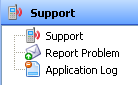
Support items
The Support category contains two navigation items.
Support
Selecting Support opens the OpCon Enterprise Manager dialog. The dialog displays:
- Contact Information — Continuous support email, license email, website links, phone, fax, and toll-free number.
- Product Version tab — Installed versions of OpCon, Enterprise Manager, the database schema, stored procedures, database functions, SMALookup, audit triggers, PDSA Framework, and PDSA Data.
- License Information tab — License details for the current installation. This tab is visible only to users whose role includes the View License Information function privilege.
The dialog also provides two action buttons:
| Button | Description |
|---|---|
| Installation Details | Opens the Eclipse installation details dialog, which lists installed plug-ins and configuration properties. |
| Report Problem | Opens the Report Problem wizard so you can submit diagnostic information to the Continuous support team. |
Report Problem wizard
The Report Problem wizard guides you through submitting diagnostic information. To report a problem, complete the following steps:
- On the Problem Type page, confirm that Enterprise Manager is selected as the product source, then select Next.
- On the Choose Method page, select how you want to deliver the logs:
- Save logs as an archive on my computer — saves an
application_logs.zipfile to a location you choose. Select Finish to save the archive and close the wizard. - Send logs by email with a description of the problem — continues through the email configuration pages. Select Next.
- Save logs as an archive on my computer — saves an
- On the Email settings page, enter the SMTP Server. To require authentication, select Use SMTP Authentication and then enter your User and Password. Select Next.
- On the Description page, describe the problem and the steps to reproduce it. You can also attach screenshots. Select Next.
- On the Send Mail page, confirm the recipient address and select Finish to send the diagnostic email.
Result: Enterprise Manager gathers the log files, packages them, and either saves the archive or sends the email to the Continuous support team.
Application Log
Selecting Application Log opens the Enterprise Manager log viewer, which displays internal application log entries. Use this view to review errors and diagnostic messages generated by Enterprise Manager during the current session.
Access
Access to the Support section is available to all users who can log in to Enterprise Manager. The License Information tab within the dialog requires the View License Information function privilege, which your system administrator assigns through your OpCon role.