Accessing Daily Job Definition
Theme: Configure
Who Is It For? System Administrator, Automation Engineer
What Is It?
As part of the Operations module, users with the appropriate privileges can view the daily job definition and modify job properties. Daily Job Definition has two modes:
- Read-only: Review defined properties for the selected job. Properties cannot be edited in this mode
- Admin: Modify properties, including reconfiguring platform-specific details, for the selected job
Administration
Required Privileges
To view the daily job definition, you must have at least all of the following privileges:
- Schedule Privilege: User must be in a role with access to the job's parent schedule
- Departmental Function Privilege: User must be in a role with View Jobs in Daily Schedules and View Jobs in Schedule Operations privileges for the assigned job's department
- Access Code Privilege: User must be in a role with access to the assigned job access code
To edit the daily job definition, you must be in the ocadm role or have at least all of the following privileges:
- Schedule Privilege: User must be in a role with access to the job's parent schedule
- Departmental Function Privilege: User must be in a role with View Jobs in Daily Schedules, View Jobs in Schedule Operations, and Modify Jobs in Daily Schedules privileges for the assigned job's department
- Access Code Privilege: User must be in a role with access to the assigned job access code with the Allow job updates flag set to true
Daily Job Definition Access
To access the daily job definition, complete the following steps:
- Select the Processes button at the top-right of the Operations Summary page. The Processes page displays
- Ensure both the Date and Schedule toggle switches are enabled. Each switch appears green when enabled
- Select the desired date(s) to display the associated schedule(s)
- Select one or more schedule(s) in the list
- Select one job in the list. Your selection appears in the status bar at the bottom of the page as a breadcrumb trail
- Select the job record (e.g., 1 job(s)) in the status bar to display the Selection panel
- Select the Daily Job Definition button
 at the top-left corner of the panel. By default, the page opens in Read-only mode
 - Select the Cancel button to return to the previous page
- Close the Selection panel when done
Daily Job Definition can also be accessed while in PERT View. For more information, refer to PERT View Daily Job Definition Access.
Daily Job Definition Properties
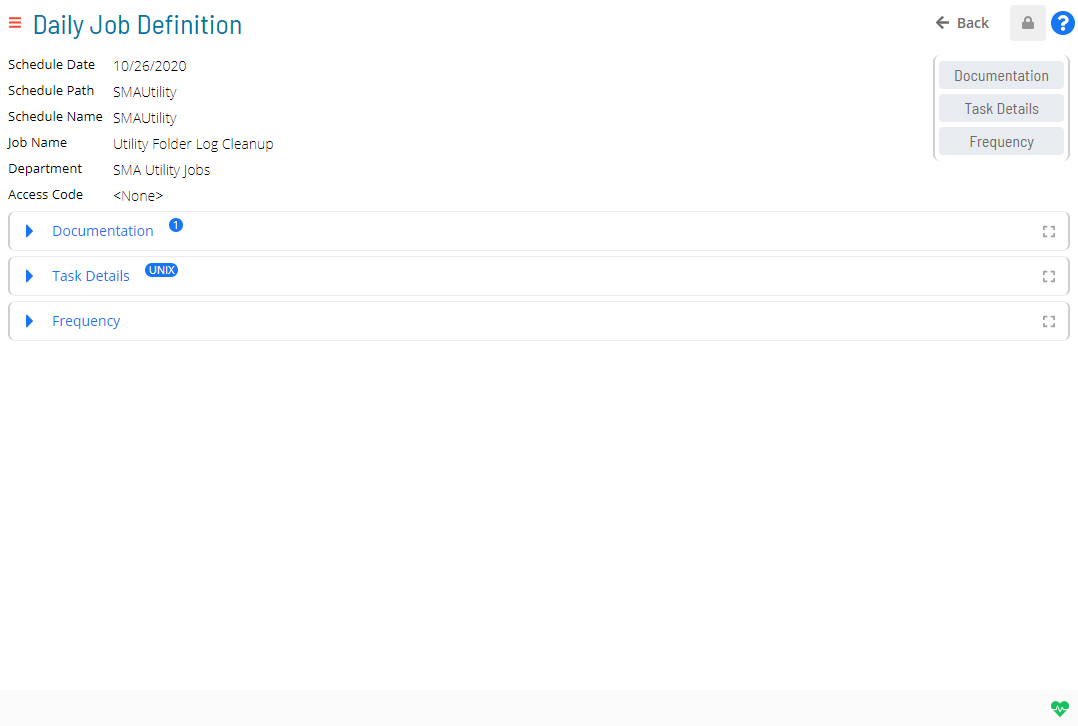
Daily Job Definition contains general job information and expandable panels that expose defined properties. Users with appropriate privileges see a Lock button at the top-right corner to switch between modes. The button appears gray and locked ( ) in Read-only mode and green and unlocked (
 ) in Admin mode. A menu provides quick access to all panels.
Daily Job Definition in Solution Manager
General Info
For information about the General Info section, refer to Viewing and Updating General Info.
Daily Job Definition Panels
Each expandable panel on the Daily Job Definition page represents a job property category.
- In Read-only mode, only panels with defined properties are displayed and cannot be changed
- In Admin mode, all available panels are displayed and properties may be modified
Select any of the following links to learn more about each panel:
- Documentation
- Task Details
- Frequency
- Instance Properties
- Expression Dependency
- Resource Dependency
- Threshold Dependency
- Resource Update
- Threshold Update
Daily Job Definition Menu
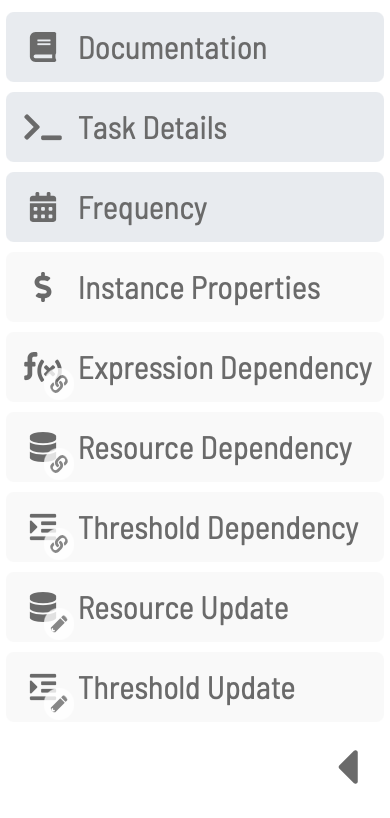
The menu in the left portion of the page provides quick access to any panel. The menu can be collapsed to show icons and tooltips only. Selecting a menu item scrolls to that panel and expands it. right-clicking a menu item toggles Full Screen mode.
 Related Topics
- Accessing Job Summary
- Using PERT View
- Viewing and Updating General Info
- Viewing and Updating Documentation
- Viewing and Updating Instance Properties
- Viewing and Updating Job Task Details
- Viewing and Updating Job Frequencies
- Viewing and Updating Expression Dependencies
- Viewing and Updating Resource Dependencies
- Viewing and Updating Threshold Dependencies
- Viewing and Updating Resource Updates
- Viewing and Updating Threshold Updates
Configuration Options
| Setting | What It Does | Default | Notes |
|---|---|---|---|
| Read-only | Review defined properties for the selected job. | — | must be in a role with access to the job's parent schedule. - **Departmental Function Pr |
| Admin | Modify properties, including reconfiguring platform-specific details, for the selected job | — | must be in a role with access to the job's parent schedule. - **Departmental Function Pr |
| Schedule Privilege | User must be in a role with access to the job's parent schedule | — | must be in a role with access to the job's parent schedule. - **Departmental Function Pr |
| Departmental Function Privilege | User must be in a role with View Jobs in Daily Schedules and View Jobs in Schedule Operations privileges for the assigned job's department | — | must be in a role with View Jobs in Daily Schedules and View Jobs in Schedule Operations |
| Access Code Privilege | User must be in a role with access to the assigned job access code | — | must be in a role with access to the assigned job access code. To edit the daily job de |
FAQs
Q: How many steps does the Accessing Daily Job Definition procedure involve?
The Accessing Daily Job Definition procedure involves 9 steps. Complete all steps in order and save your changes.
Q: What does Accessing Daily Job Definition cover?
This page covers Required Privileges, Daily Job Definition Access, Daily Job Definition Properties.
Glossary
Solution Manager: OpCon's browser-based graphical user interface for managing automation data, performing operational actions, and administering the system.
Frequency: A set of rules that defines when a job or schedule is eligible to run, based on calendar rules, day-of-week settings, period offsets, and other timing criteria.
Threshold: A numeric variable stored in the OpCon database used to control job execution. Jobs can be made dependent on threshold values, and OpCon events can update threshold values at runtime.
Access Code: A security label applied to jobs and schedules in OpCon. Users must have the matching access code privilege to view or manage items with that label.
Department: An organizational grouping in OpCon used to assign jobs to logical divisions. User roles can be scoped to specific departments, controlling which jobs a user can manage.
Resource: A numeric variable in OpCon representing a finite pool. Jobs can be configured to require a set number of resource units to run, limiting concurrent executions and preventing resource contention.
Role: A named security profile in OpCon that groups privileges together. Roles are assigned to user accounts to control which features, schedules, jobs, machines, and administrative functions a user can access.
Privilege: A specific permission granted through an OpCon role that controls access to a feature, function, or object type. Privileges are organized into categories such as Function Privileges, Machine Privileges, Schedule Privileges, and Access Codes.