Viewing and Updating Threshold Updates
Theme: Configure
Who Is It For? System Administrator, Automation Engineer
What Is It?
The Threshold Update panel in Daily Job Definition displays defined threshold updates for the selected job.
- Select the icon (
 ) at the far right of the panel bar to enter or exit Full Screen mode
 - When the panel contains defined properties, a blue circular indicator (
 ) appears to the right of the panel name showing the property count
Adding or Updating Threshold Updates
In Admin mode, threshold updates can be updated. For conceptual information, refer to Threshold/Resource Updates.
Only users with the appropriate permissions can access the Lock button and update job properties. Refer to Required Privileges for details.
Changes made in Daily Job Definition take effect immediately. If the job has already run, changes apply the next time the job runs.
To perform this procedure:
-
Select the Processes button at the top-right of the Operations Summary page
-
Ensure both the Date and Schedule toggle switches are enabled (green)
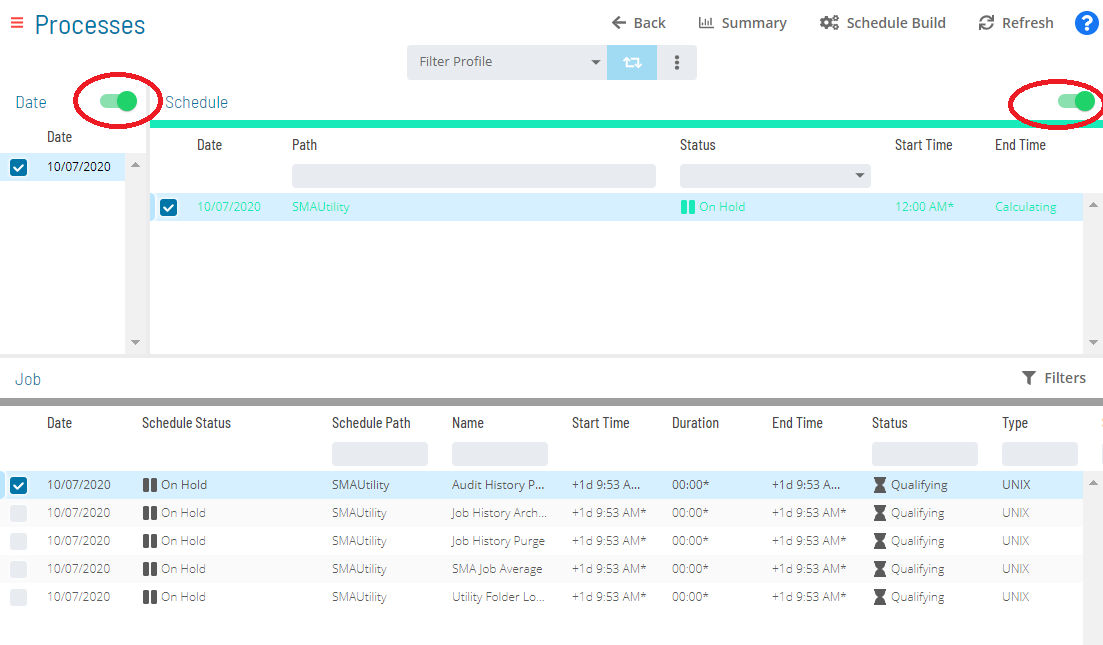
To add or Updating Threshold Updates, complete the following steps:
-
Select the desired date(s) to display associated schedules
-
Select one or more schedule(s) in the list
-
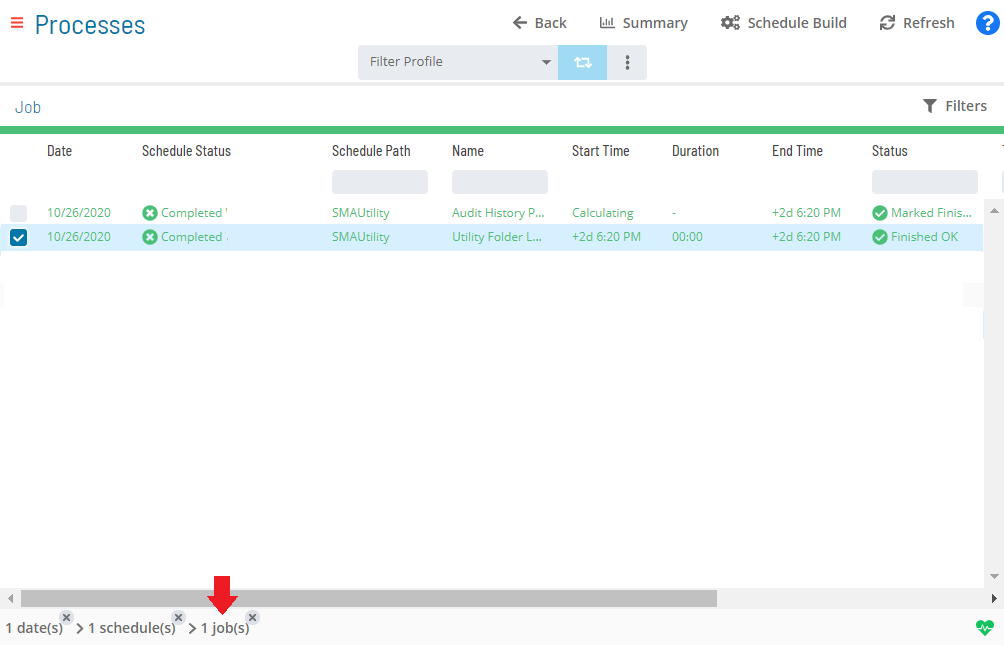
Select one job in the list. Your selection appears in the status bar as a breadcrumb trail
-
Select the job record (e.g., 1 job(s)) in the status bar to open the Selection panel
noteAlternatively, right-click the job in the list to open the Selection panel.
-f5a1a0f534189eaf4359e46f29dacb2e.png "Job Summary Tab in Operations")
-
Select the Daily Job Definition button
 at the top-left of the panel. The page opens in Read-only mode by default
 -
Select the Lock button
 at the top-right to enter Admin mode. The button switches to a white unlocked lock on a green background
  note
noteThe Lock button is not visible to users without the appropriate permissions.
-
Expand the Threshold Update panel
-
Make any of the following updates:
- Edit or delete existing threshold updates as needed
- Select the green Add button (+) to define a new threshold update. In the Threshold Update dialog:
- Select the job status that triggers the update
- Select the threshold name from the list
- Select the value to update the threshold to
- Select Save to save and close the dialog
noteSelect the Undo button to discard changes.
-
Select the Save button
FAQs
Q: How many steps does the Viewing and Updating Threshold Updates procedure involve?
The Viewing and Updating Threshold Updates procedure involves 11 steps. Complete all steps in order and save your changes.
Q: What does Viewing and Updating Threshold Updates cover?
This page covers Adding or Updating Threshold Updates.
Glossary
Threshold: A numeric variable stored in the OpCon database used to control job execution. Jobs can be made dependent on threshold values, and OpCon events can update threshold values at runtime.
Resource: A numeric variable in OpCon representing a finite pool. Jobs can be configured to require a set number of resource units to run, limiting concurrent executions and preventing resource contention.
Privilege: A specific permission granted through an OpCon role that controls access to a feature, function, or object type. Privileges are organized into categories such as Function Privileges, Machine Privileges, Schedule Privileges, and Access Codes.
Schedule: A named container for jobs in OpCon, built for a specific date to create that day's automation. Schedules define build settings, frequencies, and the jobs that run within them.
Job: The fundamental unit of work in OpCon. A job defines what to run, on which machine, when to start, and what conditions must be met. Job results are tracked and can trigger events and notifications.