Performing Bulk Job Status Updates (Date Level)
Theme: Configure
Who Is It For? System Administrator, Automation Engineer
What Is It?
The Operations module allows you to perform mass job status updates at the date level.
To perform bulk job status updates:
Select the Processes button at the top-right of the Operations Summary page.
Ensure the Date toggle switch is enabled (appears green) to allow date selection.
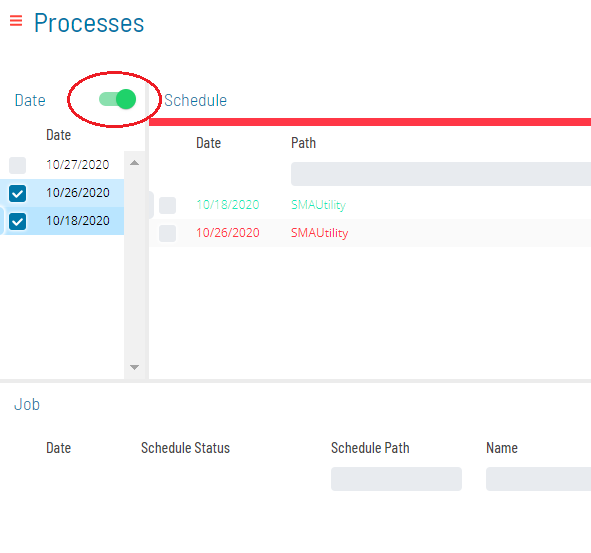
Select the desired date(s) in the list. Your selections display in the status bar at the bottom of the page as a breadcrumb trail.
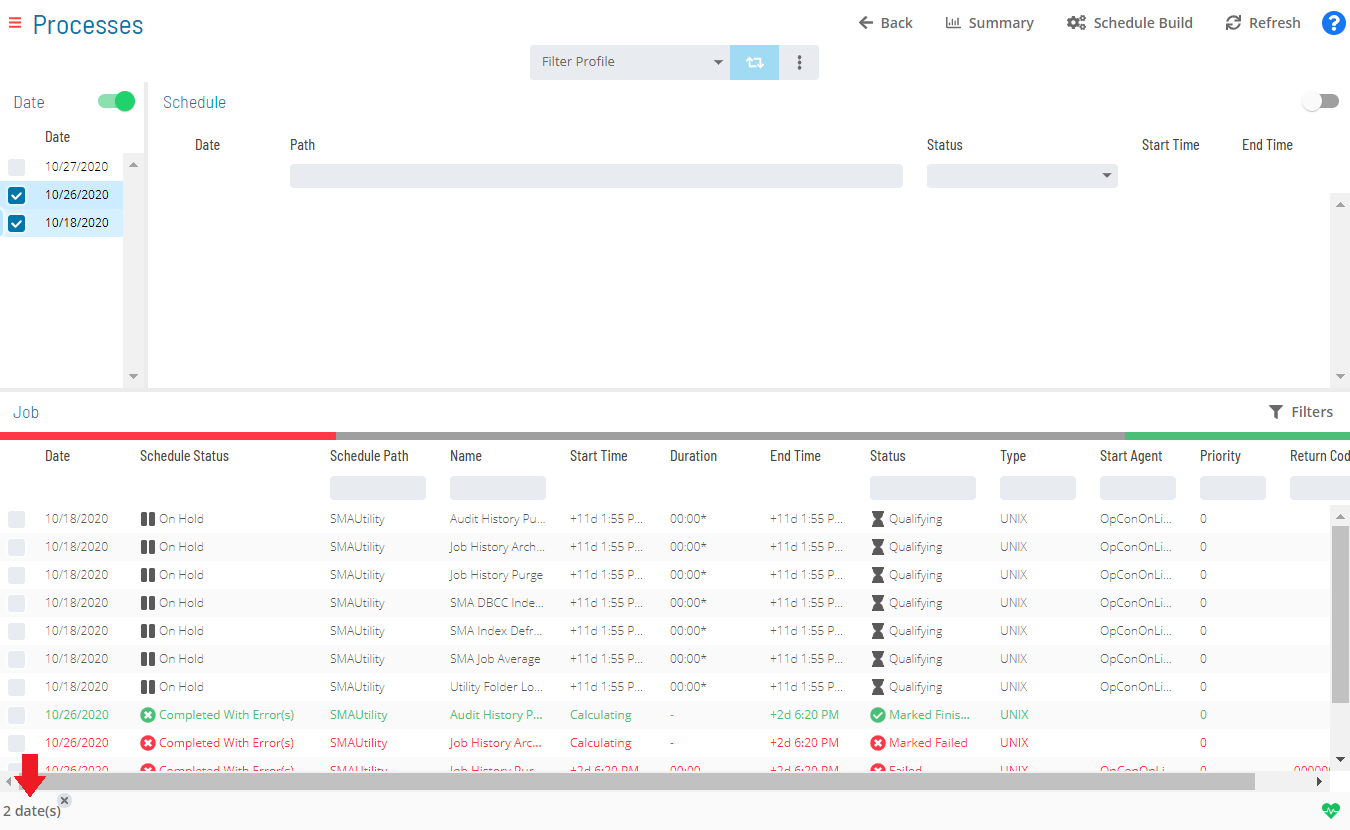
Select the date record in the status bar to display the Selection panel with the Bulk Job Status Update tab in focus.
As an alternative, you can right-click any selected date to display the Selection panel.
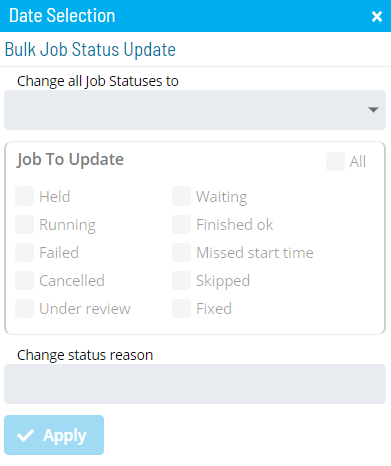
Select one of the following options from the Change all Job Statuses to list:
- Cancel: Cancels all jobs for the selected date(s). Dependent jobs do not have those dependencies met
- Hold: Suspends processing of all jobs for the selected date(s)
- Mark Failed: Marks all jobs for the selected date(s) as Failed
- Mark Finished OK: Marks all jobs for the selected date(s) as Finished OK
- Mark Fixed: Marks all jobs for the selected date(s) as Fixed
- Mark Under Review: Marks all jobs for the selected date(s) as Under Review
- Release: Places all held jobs back into a Qualifying state. Jobs start as soon as all dependencies are met
- Restart: Places all jobs back in a Qualifying state. Jobs start as soon as all dependencies are met
- Restart on Hold: Places all jobs in an On Hold state on restart
- Skip: Places all jobs in a Job to be Skipped state until they qualify to start. When jobs qualify, they are skipped and dependencies of subsequent jobs are met
For Container jobs, Restart offers additional options:
- Restart: Restarts the Container job and its subschedule jobs one level deep. Nested Container jobs are not affected
- Rebuild: Restarts the Container job and deletes the associated subschedule. SAM rebuilds the subschedule and restarts all its jobs
- None: Restarts the Container job only; the subschedule is untouched. The Container job closes immediately
Keep the following scenarios in mind for bulk Restart operations on Container jobs:
Scenario 1: Single date, single Container job — select Restart from the list, then:
a. Select the option(es) in the Job To Update frame for the job status(es) to change. b. Select Restart, Rebuild, or None. c. Enter or select the change status reason and select Apply.
Scenario 2: Single date, multiple Container jobs — select Restart from the list, then select the option(es) in the Job To Update frame and follow either option:

- (Option 1) Select Restart, Rebuild, or None in the Job Containers Action frame to apply that action to all Container jobs for the date
- (Option 2) Select Custom in the Job Containers Action frame to assign an action to each Container job individually
Enter or select the change status reason and select Apply.
Scenario 3: Multiple dates, multiple Container jobs — follow steps a–c of Scenario 2. Selecting Custom displays each date with its associated Container jobs.
To hide Container jobs in the Job Containers Action frame, select any of the other three Job Container Actions (Restart, Rebuild, or None).
For more on job status changes, refer to Schedule and Job Status Change Commands in the Concepts online help.
Select the option(es) for the job status(es) that will undergo the status change. Selections in the Jobs To Update frame serve as a status filter.
For more on job statuses and allowed changes, refer to Schedule and Job Status Descriptions and Allowed Status Changes in the Concepts online help.
(Optional) Enter or select a change status reason.
Depending on application configuration, the Change Status Reason list may store previously entered reasons.
Select Apply to apply the job status change.
Close the Selection panel when done.
 Related Topics
- Performing Schedule Status Changes
- Performing Job Status Changes
- Performing Agent Status Updates
- Viewing Job Output
- Viewing Job Configuration
- Using PERT View
- Managing Daily Processes
Configuration Options
| Setting | What It Does | Default | Notes |
|---|---|---|---|
| Hold | Suspends processing of all jobs for the selected date(s) | — | — |
| Mark Failed | Marks all jobs for the selected date(s) as Failed | — | — |
| Mark Finished OK | Marks all jobs for the selected date(s) as Finished OK | — | — |
| Mark Fixed | Marks all jobs for the selected date(s) as Fixed | — | — |
| Mark Under Review | Marks all jobs for the selected date(s) as Under Review | — | — |
| Release | Places all held jobs back into a Qualifying state. | — | — |
| Restart | Places all jobs back in a Qualifying state. | — | — |
| Restart on Hold | Places all jobs in an On Hold state on restart | — | — |
| None | Restarts the Container job only; the subschedule is untouched. | — | — |
| Scenario 1 | Single date, single Container job — select Restart from the list, then: | — | — |
| Scenario 2 | Single date, multiple Container jobs — select Restart from the list, then select the option(es) in the Job To Update frame and follow ei... | — | — |
| Scenario 3 | Multiple dates, multiple Container jobs — follow steps a–c of Scenario 2. | — | — |
FAQs
Q: What is the difference between Restart and Rebuild for Container jobs in a bulk date-level update?
Restart restarts the Container job and its subschedule jobs one level deep, leaving nested Container jobs unaffected. Rebuild restarts the Container job and deletes the associated subschedule entirely — SAM rebuilds the subschedule and restarts all its jobs from scratch.
Q: What does the Jobs To Update option selection do during a bulk status update?
Selections in the Jobs To Update frame act as a status filter, limiting the bulk action to only jobs currently in the selected status(es). This prevents unintended changes to jobs in other states.
Q: How do you apply different Container job restart actions to individual jobs when multiple Container jobs exist on a single date?
Select Custom in the Job Containers Action frame. This allows you to assign a separate action — Restart, Rebuild, or None — to each Container job individually rather than applying the same action to all.
Glossary
SAM (Schedule Activity Monitor): The logical processor for OpCon workflow automation. SAM monitors schedule and job start times, dependencies, and user commands to determine job execution timing, and processes OpCon events.
Subschedule: A schedule that runs as a child process within a Container job, allowing hierarchical, nested workflow automation where a parent schedule can trigger and monitor an entire child schedule.
Container Job: A job type that runs a subschedule. Container jobs enable hierarchical schedule structures and support properties and events just like standard jobs.
Resource: A numeric variable in OpCon representing a finite pool. Jobs can be configured to require a set number of resource units to run, limiting concurrent executions and preventing resource contention.
Schedule: A named container for jobs in OpCon, built for a specific date to create that day's automation. Schedules define build settings, frequencies, and the jobs that run within them.
Job: The fundamental unit of work in OpCon. A job defines what to run, on which machine, when to start, and what conditions must be met. Job results are tracked and can trigger events and notifications.