Performing Schedule Checks
Theme: Configure
Who Is It For? System Administrator, Automation Engineer
What Is It?
The Operations module allows you to perform schedule checks using a few simple steps.
To perform schedule check, complete the following steps:
-
Right-click on Date or a Schedule record
-
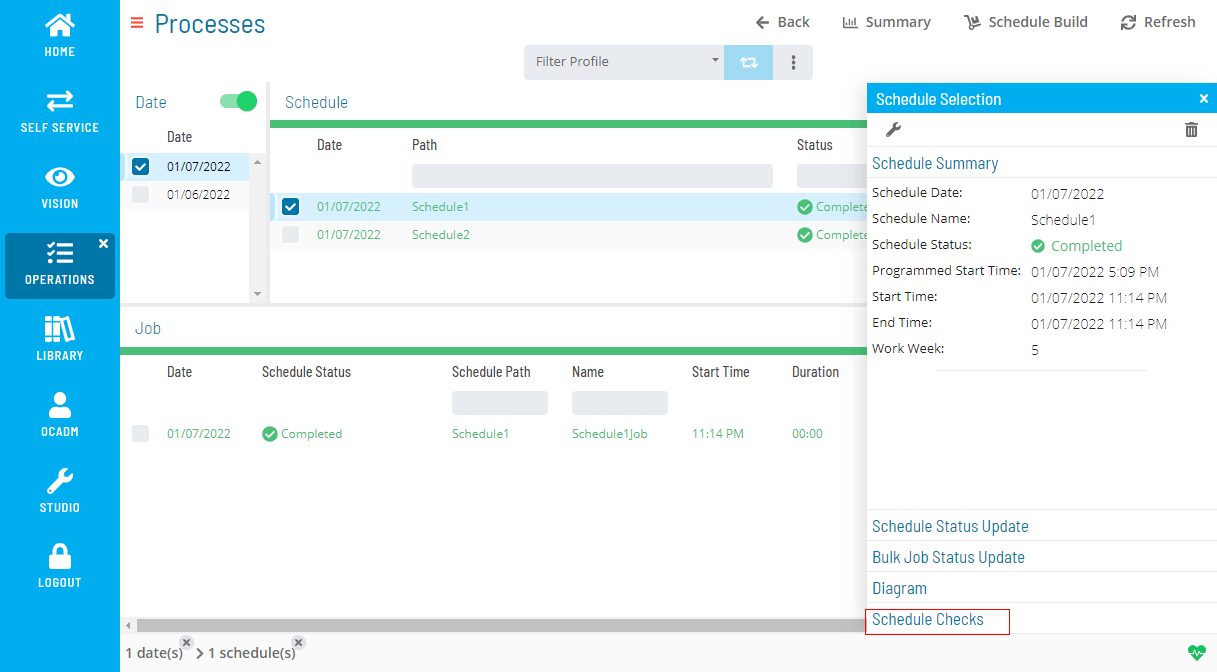
On the right-side panel, select the Schedule Check section
-
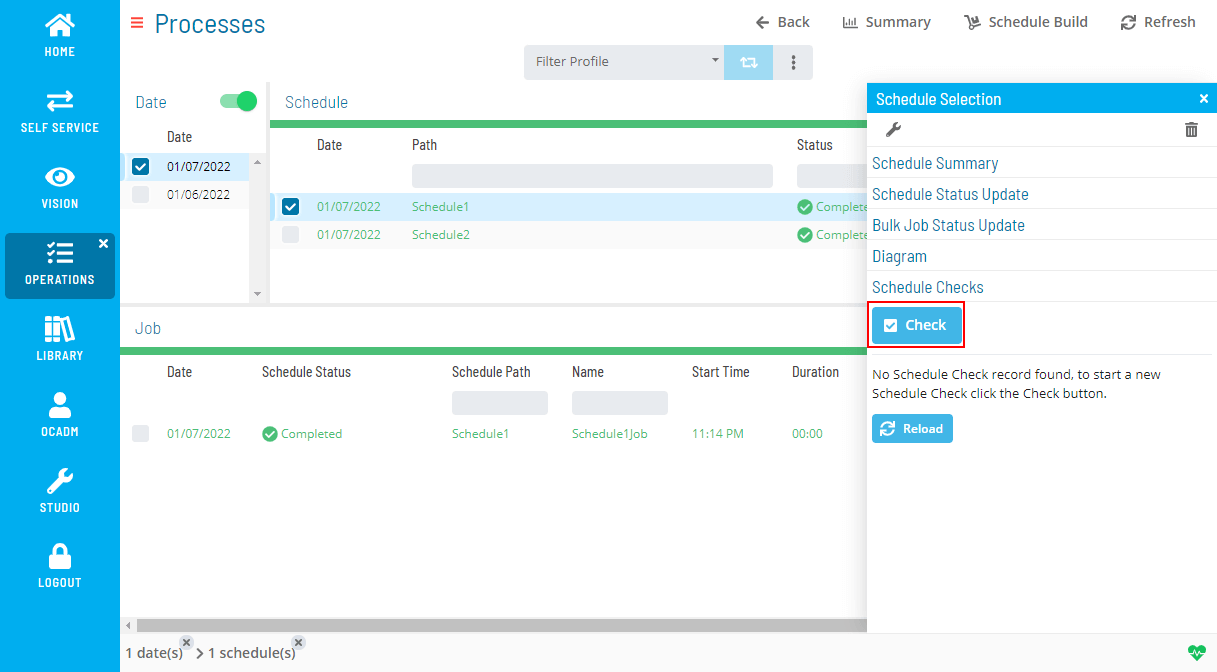
Select the Check button to open a Schedule Check dialog
-
Select a type of check and select OK
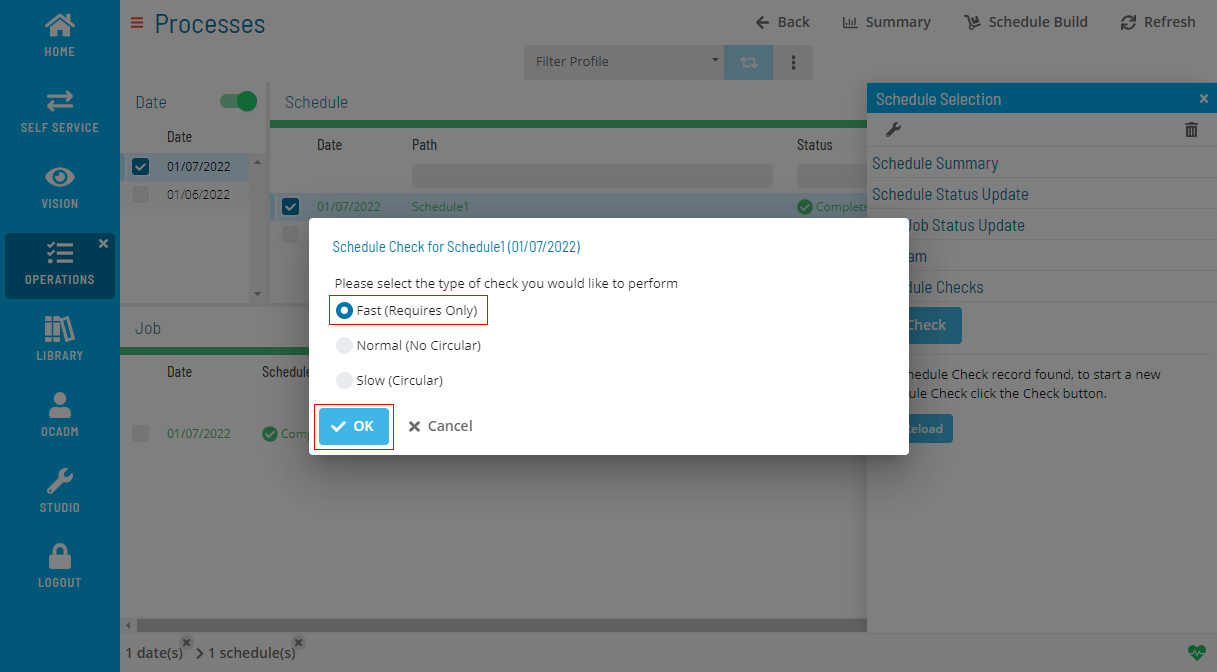
The Slow (Circular) option runs an intensive circular dependency check. Depending on the number of jobs, schedules, and schedule dates, this process may take hours.
-
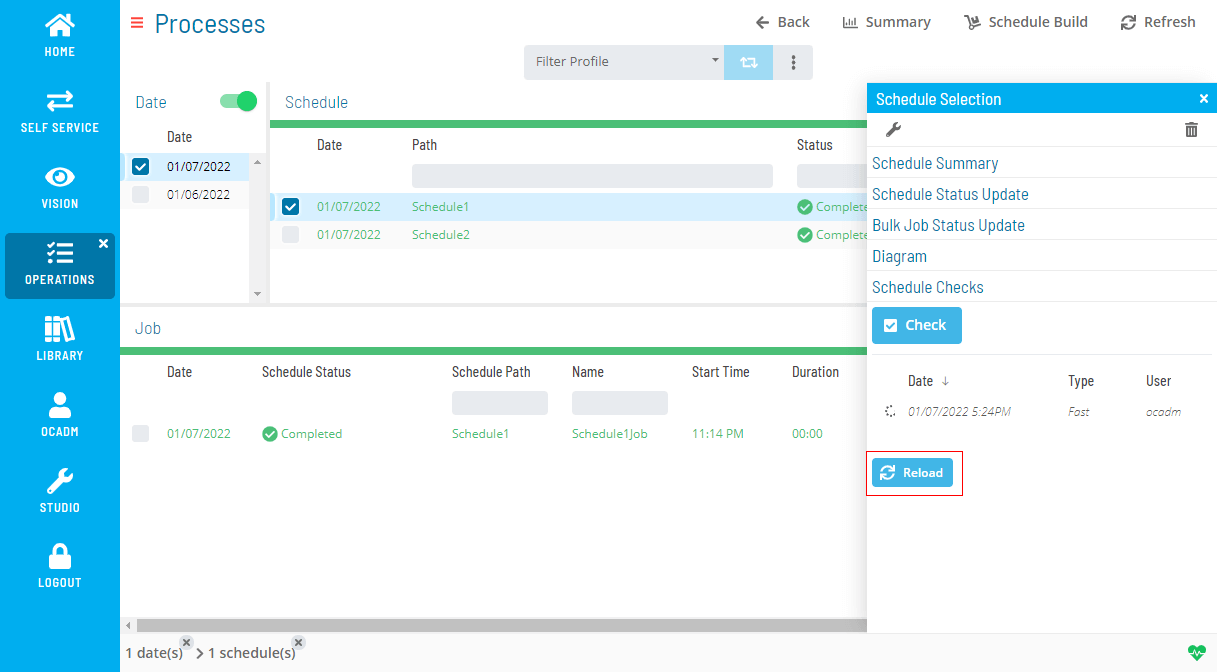
A list of Schedule Checks appears in the Schedule Check section on the right-side panel. Select Reload to refresh the status
-
When the Schedule Check is complete, the processing icon changes to ✓
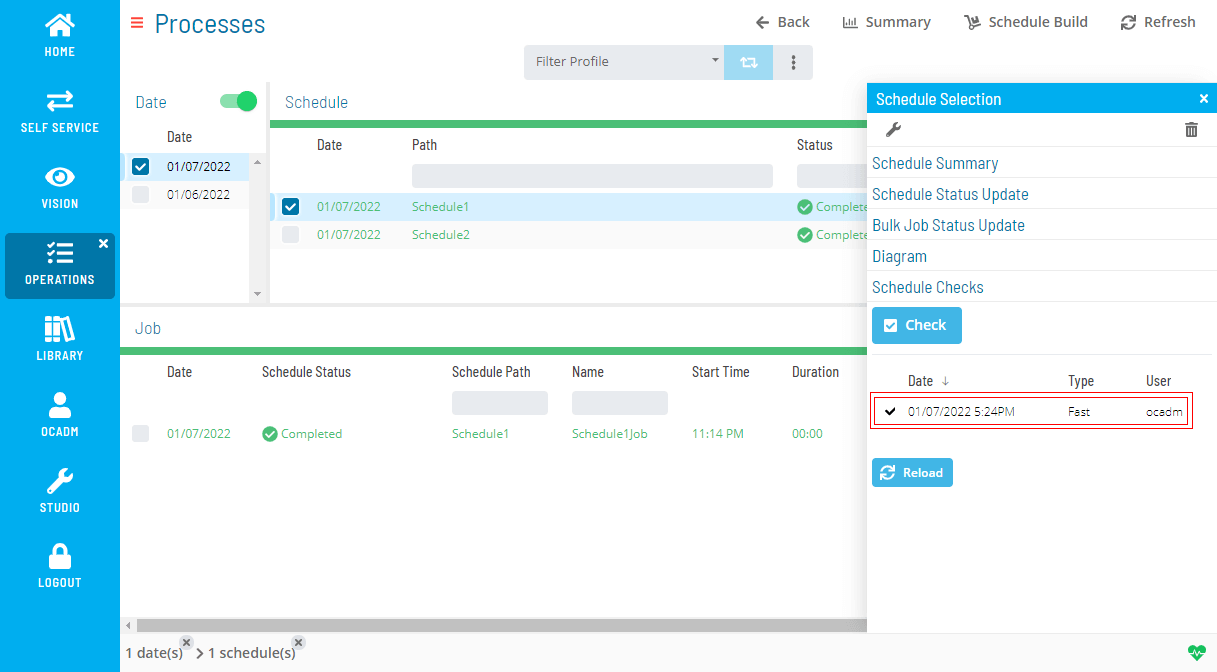
-
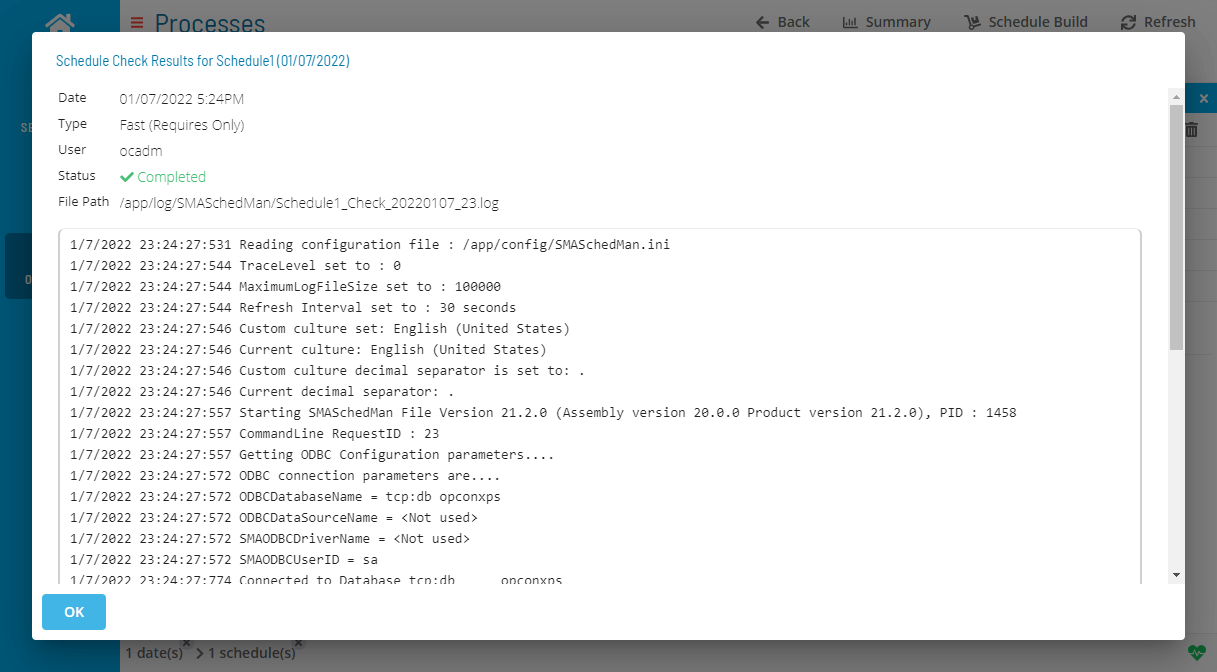
Select the Schedule Check to view its details
 Related Topics
FAQs
Q: How many steps does the Performing Schedule Checks procedure involve?
The Performing Schedule Checks procedure involves 7 steps. Complete all steps in order and save your changes.
Glossary
Resource: A numeric variable in OpCon representing a finite pool. Jobs can be configured to require a set number of resource units to run, limiting concurrent executions and preventing resource contention.
Schedule: A named container for jobs in OpCon, built for a specific date to create that day's automation. Schedules define build settings, frequencies, and the jobs that run within them.
Job: The fundamental unit of work in OpCon. A job defines what to run, on which machine, when to start, and what conditions must be met. Job results are tracked and can trigger events and notifications.