Performing Bulk Job Status Updates (Schedule Level)
Theme: Configure
Who Is It For? System Administrator, Automation Engineer
What Is It?
The Operations module supports mass job status updates at the schedule level.
To perform bulk job status updates:
Select one of the five operation dials (Failed, Blocked, Waiting, Running, or Completed) or use the Quick Search field in the Schedules section on the Operations Summary page.
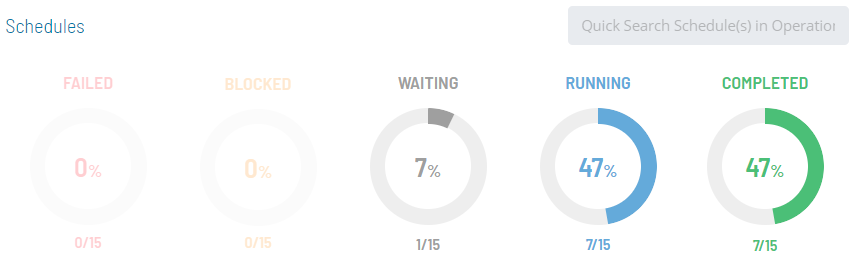
The Processes page will display.
Ensure that both the Date and Schedule toggle switches are enabled so you can make date and schedule selections. Each switch appears green when enabled.
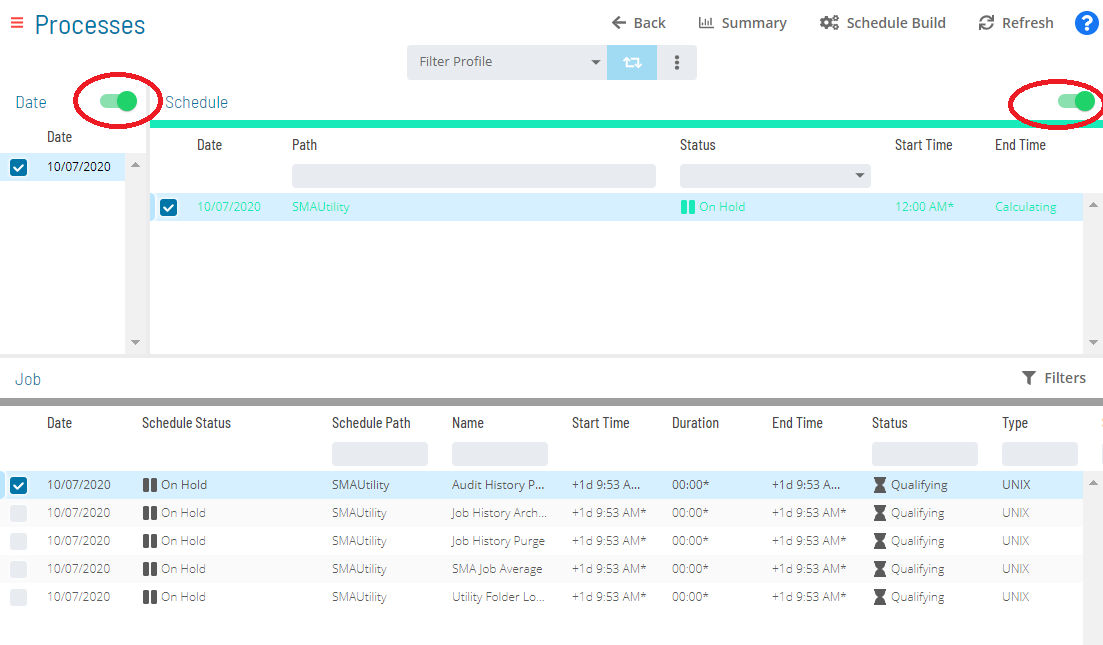
Select the desired date(s) and schedule(s) in each respective list. Your selections appear in the status bar at the bottom of the page as a breadcrumb trail.
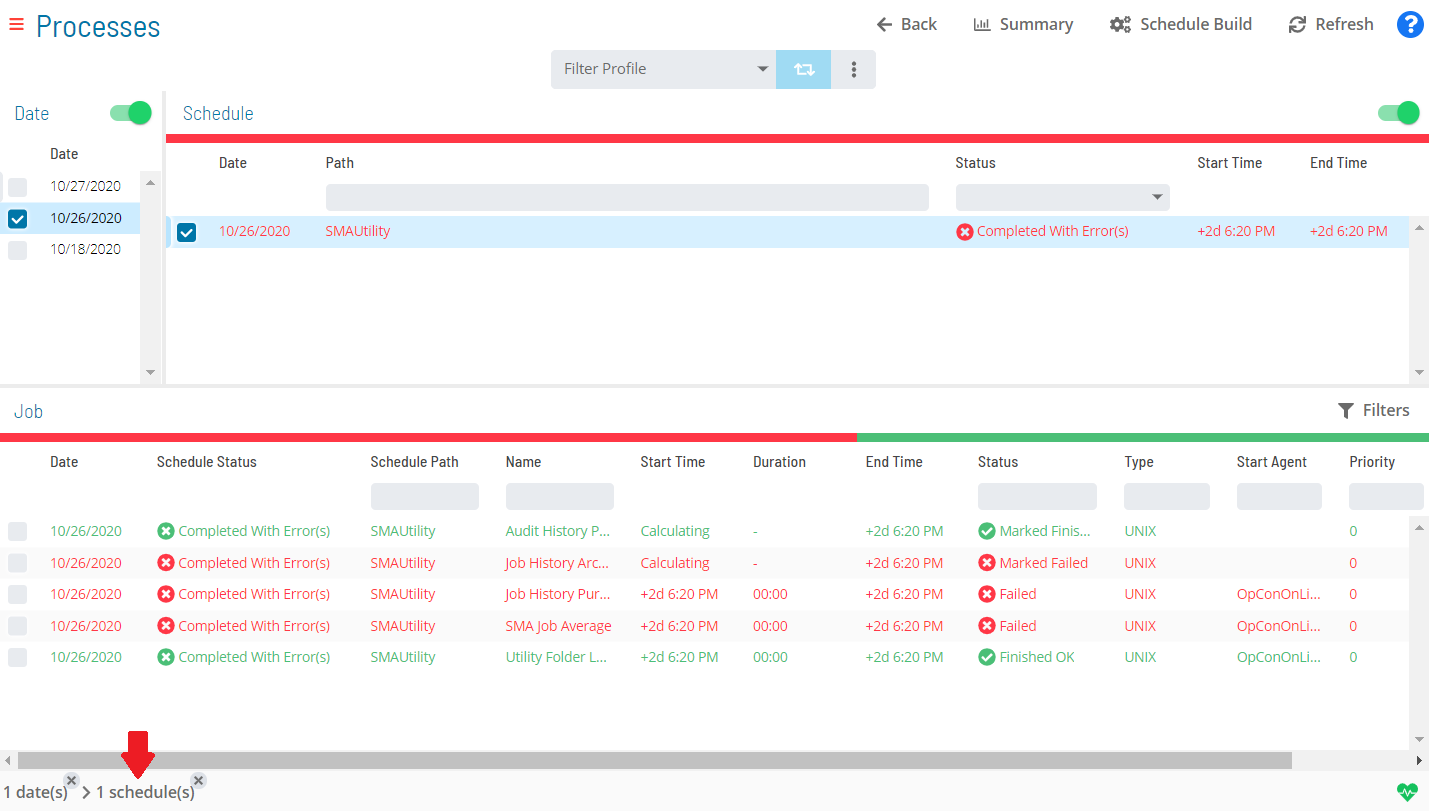
Use the Filter Bar above the schedule list to filter by keyword. Select a column heading to sort ascending; select it again to sort descending.
Select the schedule record (e.g., 3 schedule(s)) in the status bar to display the Selection panel.
As an alternative, right-click any selected schedule to display the Selection panel.
Select the Bulk Job Status Update accordion-style tab in the panel.
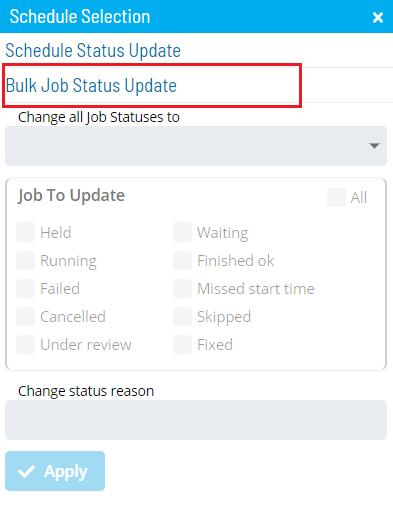
Select one of the following options in the Change all Job Statuses to list:
- Cancel: Cancels all jobs for the selected schedule(s) based on a filter. Dependent jobs do not have those dependencies met
- Hold: Suspends processing of all jobs for the selected schedule(s) based on a filter
- Mark Failed: Marks all jobs on the selected schedule(s) as Failed based on a filter
- Mark Finished OK: Marks all jobs on the selected schedule(s) as Finished OK based on a filter
- Mark Under Review: Marks all jobs on the selected schedule(s) as Under Review based on a filter
- Mark Fixed: Marks all jobs on the selected schedule(s) as Fixed based on a filter
- Release: Places all held jobs on the selected schedule(s) back into a Qualifying state based on a filter. Jobs start as soon as all dependencies are met
- Restart: Places all jobs on the selected schedule(s) back in a Qualifying state based on a filter. Jobs start as soon as all dependencies are met
- Restart on Hold: Places all jobs on the selected schedule(s) in an On Hold state on restart, based on a filter
- Skip: Places all jobs on the selected schedule(s) in a Job to be Skipped state until they qualify to start. When jobs qualify, they are skipped and dependencies of subsequent jobs are met
For more on job status changes, refer to Schedule and Job Status Change Commands in the Concepts online help.
Select the option(es) for the current job status(es) that will undergo the status change. Any selection in the Jobs To Update frame serves as a status filter.
For more on job statuses and allowed changes, refer to Schedule and Job Status Descriptions and Allowed Status Changes in the Concepts online help.
(Optional) Enter or select a change status reason.
Depending on application configuration, the Change Status Reason list may store previous reasons entered for job or schedule status updates.
Select Apply to apply the job status change.
Close the Selection panel when done.
 Related Topics
- Performing Schedule Status Changes
- Performing Job Status Changes
- Performing Agent Status Updates
- Viewing Job Output
- Viewing Job Configuration
- Using PERT View
- Managing Daily Processes
Configuration Options
| Setting | What It Does | Default | Notes |
|---|---|---|---|
| Hold | Suspends processing of all jobs for the selected schedule(s) based on a filter | — | — |
| Mark Failed | Marks all jobs on the selected schedule(s) as Failed based on a filter | — | — |
| Mark Finished OK | Marks all jobs on the selected schedule(s) as Finished OK based on a filter | — | — |
| Mark Under Review | Marks all jobs on the selected schedule(s) as Under Review based on a filter | — | — |
| Mark Fixed | Marks all jobs on the selected schedule(s) as Fixed based on a filter | — | — |
| Release | Places all held jobs on the selected schedule(s) back into a Qualifying state based on a filter. | — | — |
| Restart | Places all jobs on the selected schedule(s) back in a Qualifying state based on a filter. | — | — |
| Restart on Hold | Places all jobs on the selected schedule(s) in an On Hold state on restart, based on a filter | — | — |
FAQs
Q: What does the Jobs To Update selection do in a schedule-level bulk update?
Selections in the Jobs To Update frame act as a status filter, so only jobs currently in the selected status(es) are affected by the bulk action. Jobs in other statuses are left unchanged.
Q: What is the difference between Restart and Restart on Hold in a bulk schedule-level update?
Restart places all matching jobs back in a Qualifying state so they start as soon as dependencies are met. Restart on Hold places those same jobs in an On Hold state on restart, requiring a manual release before they can proceed.
Q: How do you start a bulk job status update at the schedule level?
Enable both the Date and Schedule toggle switches on the Processes page, select the desired date(s) and schedule(s), then select the schedule record in the status bar and open the Bulk Job Status Update tab.
Glossary
Resource: A numeric variable in OpCon representing a finite pool. Jobs can be configured to require a set number of resource units to run, limiting concurrent executions and preventing resource contention.
Schedule: A named container for jobs in OpCon, built for a specific date to create that day's automation. Schedules define build settings, frequencies, and the jobs that run within them.
Job: The fundamental unit of work in OpCon. A job defines what to run, on which machine, when to start, and what conditions must be met. Job results are tracked and can trigger events and notifications.