Custom Reports
Theme: Configure
Who Is It For? Business Analyst, Operations Staff
What Is It?
Custom reports in OpCon are built using the BIRT (Business Intelligence and Reporting Tools) framework. Administrators can edit the Continuous-supplied BIRT reports or create entirely new ones to meet specific reporting requirements.
Introduction
This guide explains how to set up an environment for editing Continuous-supplied BIRT reports or creating custom ones.
Install the Environment
-
Create a BIRT directory to hold the environment. This should be a complete, standalone directory structure containing everything needed for report modification.
-
Create a projects directory under the BIRT directory
-
Locate the jtds-1.2.5.jar file and copy it to the BIRT directory.
-
Download BIRT for the correct environment from http://archive.eclipse.org/birt/downloads/build.php?build=R-R1-3_7_1-201109131734.
-
Move the downloaded file to the BIRT directory
-
Extract the zip file to the BIRT directory. The directory structure should look similar to the following:
-
Go to the eclipse sub-directory and select the eclipse.exe file to run the program.
-
Browse to the projects directory created earlier
-
Select the Use this as the default and do not ask again option.
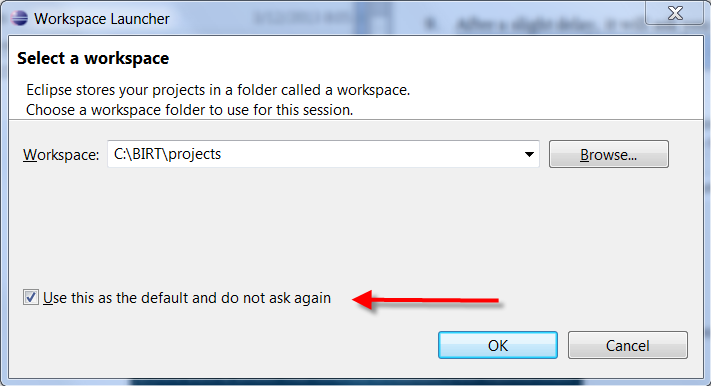
To install the Environment, complete the following steps:
-
Open after setting the workspace
-
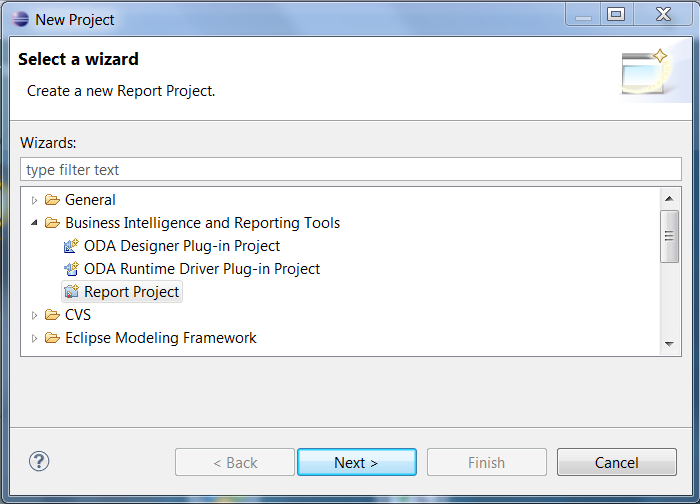
Use menu path File> New > Project to create the OpCon_Reports project. A wizard will display allowing you to select the project type.
-
Expand the Business Intelligence and Reporting Tools folder
-
Select Report Project
-
Select Next
-
Enter OpCon_Reports in the Project name field. Leave Use default location selected.
-
Select Finish
-
Select Remember my decision when asked if you want to open the Report Designer perspective.
-
Select Yes
-
Select on the x to the right of the Welcome tab to close the Welcome screen (if displayed).
-
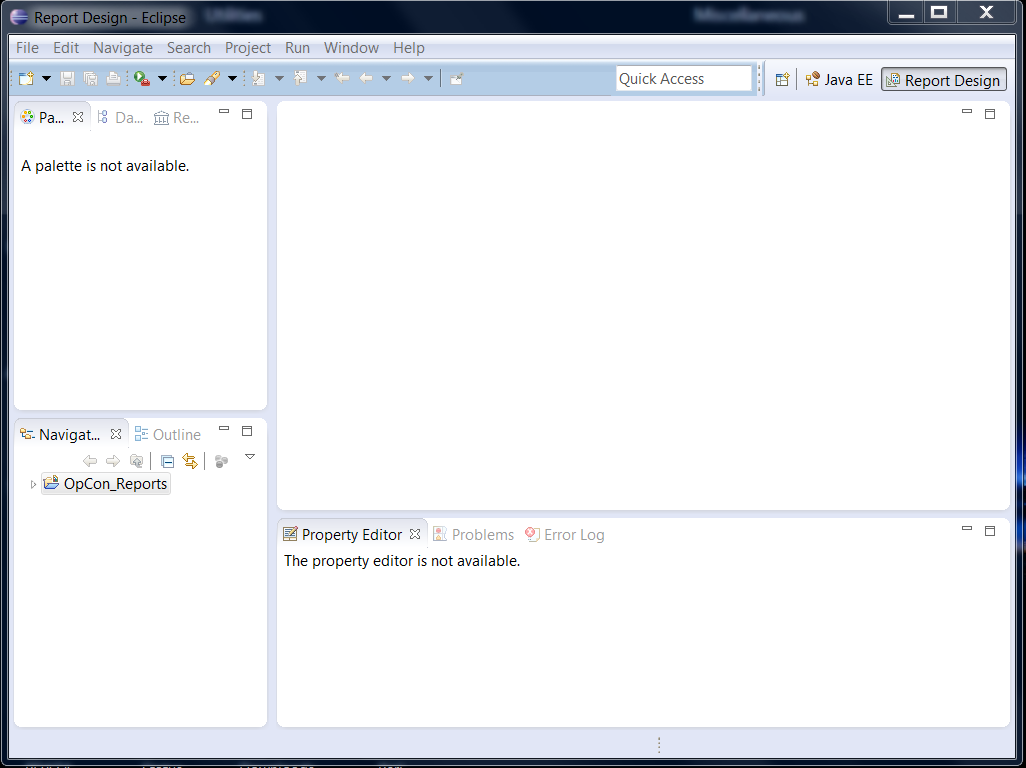
The resulting screen should look similar to the following:
Install the SMA Reports
-
Use menu path: File > Import.... The Import wizard will start. To install the SMA Reports, complete the following steps:
-
Expand the General folder
-
Select File System
-
Select Next
-
Browse to the reports sub-directory under the Enterprise Manager directory.
-
Select the reports folder to include all of the sub-directories
-
Select OK
-
Select the reports folder option
-
Enter OpCon_Reports in the Into folder field (if empty)
-
Select Finish
Now you can edit SMA Reports or create your own.
Create a New Report
To create a New Report, complete the following steps:
-
Right-click on OpConXPS_Reports
-
Use menu path: New > Report
-
Enter a file name
-
Select Finish
-
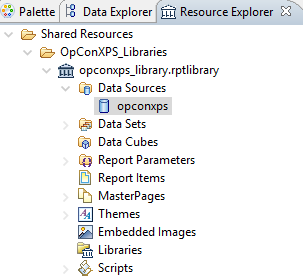
Go to the OpConXPS_Libraries folder
-
Use path: opconxps_library.rptlibrary > data sources > opconxps.
Resource Explorer
-
Right-click on opconxps and add it to the report
-
Go to the Data Explorer tab
-
Select on opconxps under Data Sources
-
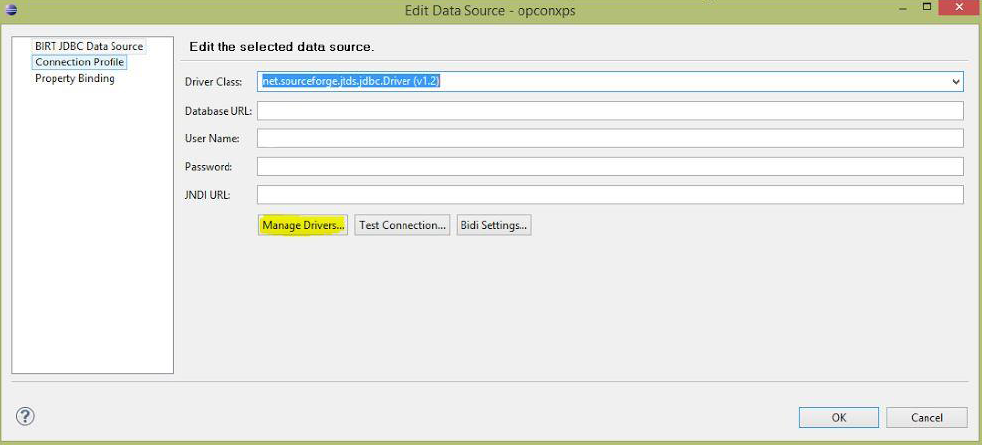
Enter net.sourceforge.jtds.jdbs.Driver(v1.2) in the Driver Class field to connect to BIRT.
Edit Data Source
-
Select Manage Drivers
-
Select the Add... button
-
Go to the BIRT directory to add the jtds-1.2.5.jar file
-
Select OK
Import the Database Connection Parameters
To connect to the database, import these two parameters:
- Parameter Group -- Data_Source_Connection: Database connection
- User_Id: Grants and filters privilege access in the report query
-
Use path: Shared Resources > OpConXPS_Libraries > opconxps_library.rptlibrary > Report Parameters. To import the Database Connection Parameters, complete the following steps:
-
Expand the Report Parameters folder
-
Right-click on Parameter Group - Data_Source_Connection and select Add to report.
-
Right-click on User-Id and select Add to report
In the workplace section, you should see the following:
Report Parameters

Modify the parameters to connect the report to your database:
Driver_Class: Always net.sourceforge.jtds.jdbc.Driver.
Driver_URL: Database URL in the format required by the driver.
The format for a MySQL database is the following:
jdbc:mysql://<host>:<port>/<database>
- Replace the server name and port in the URL to match your environment (e.g.,
jdbc:jtds:sqlserver://servername/databasename) - For a SQL instance, append
;instance=<instance name>to the URL
Database: Database name; default is opconxps.
User_Name and User_Password: Database login credentials.
After editing the report, copy the report from the OpConXPS_Reports folder, e.g., C:\BIRT\projects\OpCon_Reports\OpConXPS_Reports, to the reports sub-directory under the Enterprise Manager directory, e.g., C:\Program Files\OpConxps\EnterpriseManager x64\reports\OpConXPS_Reports.
Schedule the New Reports
To schedule the New Reports, complete the following steps:
-
Add the report(s) to the path: <OpCon Install Folder>\SAM\BIRT\ReportEngine\OpConXPS_Reports.
-
Create or use an existing Schedule in the Enterprise Manager
-
Create a Windows job with the report name as the job name
-
Select the Windows Primary Machine
-
Select Run Program in the Job Action menu
-
Select Use Service Account in the User Id menu
-
Enter [[SMAOpConPath]]\Utilities\BIRTRptGen.exe followed by the report name as -rReportName in the Command Line field.
-
(Optional) Add parameters after the report name using the following format: -pParameterName=ParameterValue.
-
Enter [[SMAOpConPath]]\Utilities\ in the Working Directory field
-
Enter a frequency
-
Build the job
Configuration Options
| Setting | What It Does | Default | Notes |
|---|---|---|---|
| Parameter Group -- Data_Source_Connection | Database connection | — | — |
| User_Id | Grants and filters privilege access in the report query | — | — |
| Driver_Class | Always net.sourceforge.jtds.jdbc.Driver | — | — |
| Driver_URL | Database URL in the format required by the driver | — | — |
| Database | Database name; default is opconxps | opconxps | — |
FAQs
Q: What tool is used to create or edit OpCon custom reports?
Custom reports are created or edited using the BIRT Report Designer (Eclipse BIRT). Download the appropriate version from the Eclipse BIRT archive and set up a standalone BIRT directory as described in the installation steps.
Q: Where must the report file reside to run it in OpCon?
The report (.rptdesign) file must reside on the SAM application server. After editing, copy the report to the reports sub-directory under the Enterprise Manager directory and to the SAM BIRT ReportEngine folder.
Q: How do you schedule a custom report to run automatically?
Create a Windows job in the Enterprise Manager that calls BIRTRptGen.exe with the report name as the -r argument. Add the job to a schedule and build it to run on the desired frequency.
Glossary
BIRT (Business Intelligence and Reporting Tools): The open-source reporting engine used by OpCon to generate predefined and custom reports. Reports are run using the BIRTRptgen.exe utility.
SAM (Schedule Activity Monitor): The logical processor for OpCon workflow automation. SAM monitors schedule and job start times, dependencies, and user commands to determine job execution timing, and processes OpCon events.
Enterprise Manager (EM): OpCon's rich client graphical user interface for Windows and Linux, used to define schedules and jobs, manage automation data, and perform operational tasks.
Frequency: A set of rules that defines when a job or schedule is eligible to run, based on calendar rules, day-of-week settings, period offsets, and other timing criteria.
OpConxps: The standard installation directory name for OpCon program files, configuration files, and output data on Windows machines.
Resource: A numeric variable in OpCon representing a finite pool. Jobs can be configured to require a set number of resource units to run, limiting concurrent executions and preventing resource contention.
Privilege: A specific permission granted through an OpCon role that controls access to a feature, function, or object type. Privileges are organized into categories such as Function Privileges, Machine Privileges, Schedule Privileges, and Access Codes.
Machine: A platform defined in the OpCon database that has an agent installed. OpCon routes job execution requests to machines via SMANetCom, and machines report job completion status back to SAM.