Viewing and Updating Expression Dependencies
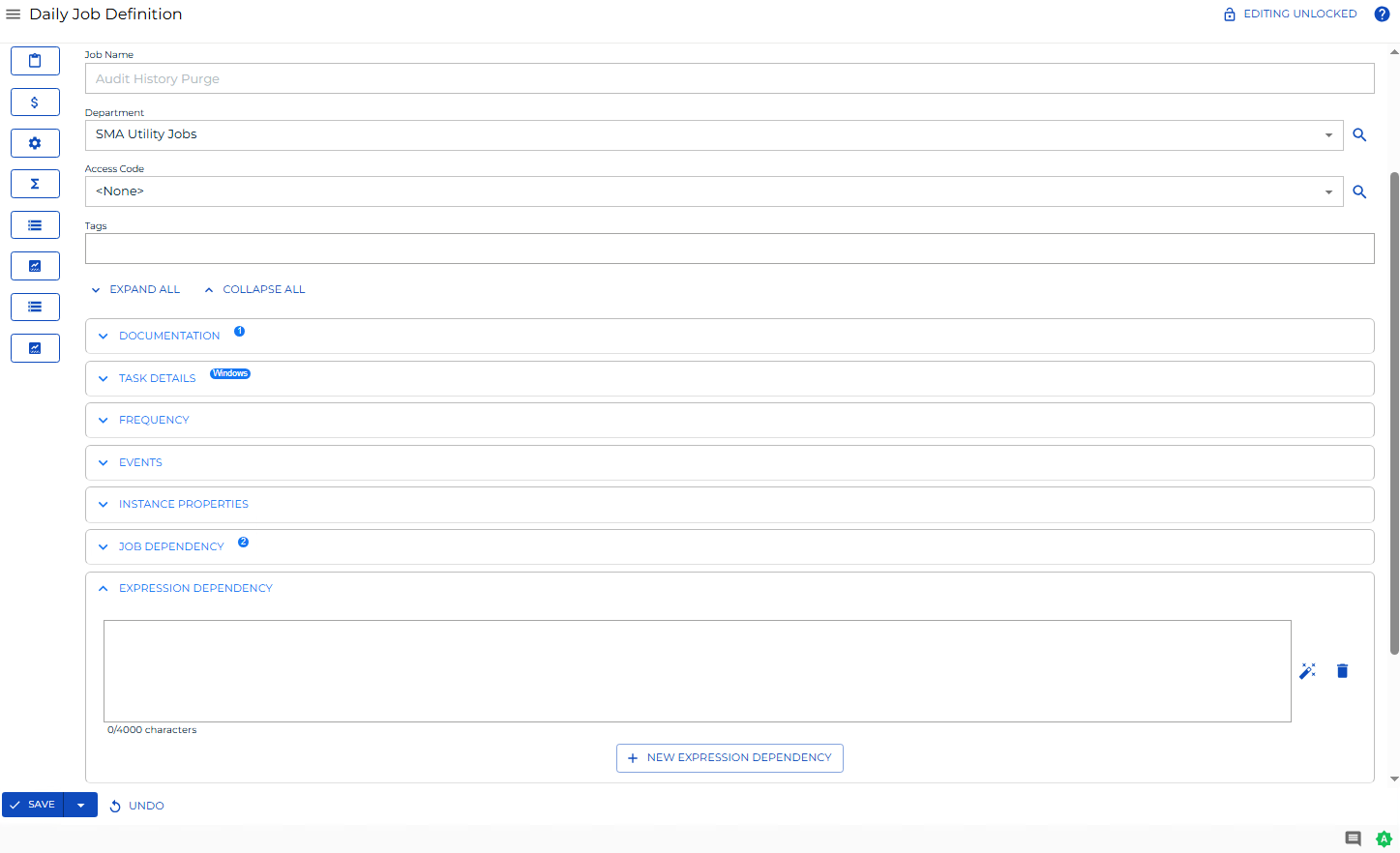
The Expression Dependency panel in Daily Job Definition displays the expression dependencies defined for the selected job. Each job supports up to two property expressions — a Job Expression and a Frequency Expression — and each field accepts up to 4,000 characters.
When the panel contains defined properties, a blue circular indicator ( ) appears to the right of the panel name showing the property count. Select the full-screen button (
 ) at the far right of the panel bar to enter or exit Full Screen mode.
For background on expression syntax, refer to Property Expressions API Syntax.
Required Privileges
To edit expression dependencies, you must be in the ocadm role or have at least all of the following privileges:
- Schedule Privilege: Your role must have access to the job's parent schedule.
- Departmental Function Privilege: Your role must include View Jobs in Daily Schedules, View Jobs in Schedule Operations, and Modify Jobs in Daily Schedules for the job's department.
- Access Code Privilege: Your role must have access to the job's access code with the Allow job updates flag enabled.
For more information, refer to Required Privileges.
Add or Update Expression Dependencies
Changes made in Daily Job Definition take effect immediately. If the job has already run, the changes apply the next time the job runs.
To add or update expression dependencies for a job, complete the following steps:
- Select the Processes button at the top-right of the Operations Summary page.
- Ensure both the Date and Schedule toggle switches are enabled.
- Select the desired date(s) to display the associated schedules.
- Select one or more schedule(s) in the list.
- Select one job in the list. Your selection appears in the status bar as a breadcrumb trail.
-
Select the job record (for example, 1 job(s)) in the status bar to open the Selection panel.
noteAlternatively, right-click the job in the list to open the Selection panel.
- Select the Daily Job Definition button at the top-left of the panel. The page opens in Read-only mode by default.
- Select the Lock button at the top-right to enter Admin mode.
The Lock button is not visible to users without the appropriate permissions.
-
Expand the Expression Dependency panel.
-
Do any of the following:
- Edit or delete an existing expression.
- Select New Expression Dependency to define a new expression. Each field accepts up to 4,000 characters. A maximum of two expressions are allowed per job: a Job Expression and a Frequency Expression. If you define a Frequency Expression, you must also provide a value for the Job Expression.
noteSelect the Undo button to discard unsaved changes.
-
Select the Save button.
Result: The expression dependencies are saved to the daily job record and take effect immediately.