Viewing and Updating Instance Properties
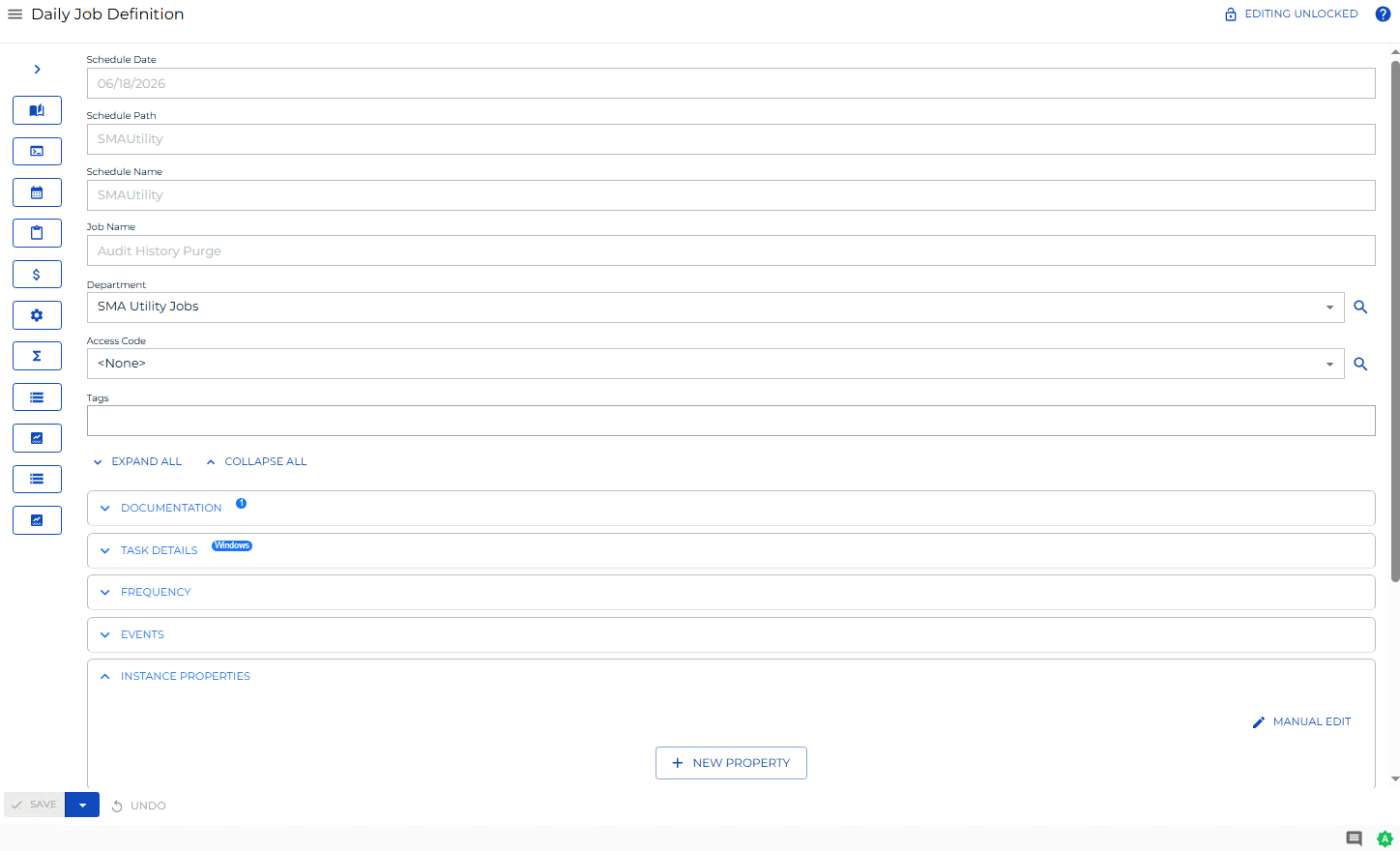
The Instance Properties panel in Daily Job Definition displays the defined properties for each instance of the job. When at least one property is defined, a blue circular indicator ( ) appears to the right of the panel name showing the count of defined properties.
Select the full-screen button at the far right of the panel bar to expand the panel to full-screen mode. Select it again to return to the standard view.
For conceptual background, refer to Instance Definition.
Changes to job properties in Daily Job Definition take effect immediately. If the job has already run, changes apply on the next run.
Required Privileges
Only users with appropriate permissions can access the Lock button and update job properties. For details, refer to Required Privileges in the Accessing Daily Job Definition topic.
Update Instance Properties
To update instance properties for a daily job, complete the following steps:
-
Open Daily Job Definition for the target job. For navigation steps, refer to Daily Job Definition Access.
-
Select the Lock button at the top-right corner to switch to Admin mode.
The Lock button is not visible to users without appropriate permissions.
- Expand the Instance Properties panel.
-
Make one or more of the following changes:
- To add a new property, select the New Property button, then enter the property name and value.
- To edit an existing property, update the name or value directly in the field.
- To delete an existing property, select the delete control next to the property.
- To add or update multiple properties at once, select the Manual Edit button and enter each definition using the format
PropertyName=PropertyValue;. Separate multiple entries with a semicolon (;).
noteSelect the Undo button to revert any unsaved changes.
-
Select the Save button.
Result: The instance properties are saved and take effect immediately for the selected daily job.