Updating SAP R3 Job Details
Theme: Configure
Who Is It For? System Administrator, Automation Engineer
What Is It?
In Admin mode, SAP BW job type properties can be updated or defined.
For conceptual information, refer to SAP R3 Job Details in the Concepts online help.
Only those with the appropriate permissions will have access to the Lock button and can update job properties. For details about privileges, refer to Required Privileges in the Accessing Daily Job Definition topic.
Without the Machine Privilege, you cannot edit the daily job definition.
Changes made in the Daily Job Definition take effect immediately. If the job has already run, changes apply the next time the job runs.
All required fields are designated by a red asterisk.
 A loading animation appears when waiting for results from the SAP Business Warehouse system.
Updating SAP R3 Job Task Details
To perform this procedure:
-
Select the Processes button at the top-right of the Operations Summary page
-
Enable both the Date and Schedule toggle switches. Each switch appears green when enabled
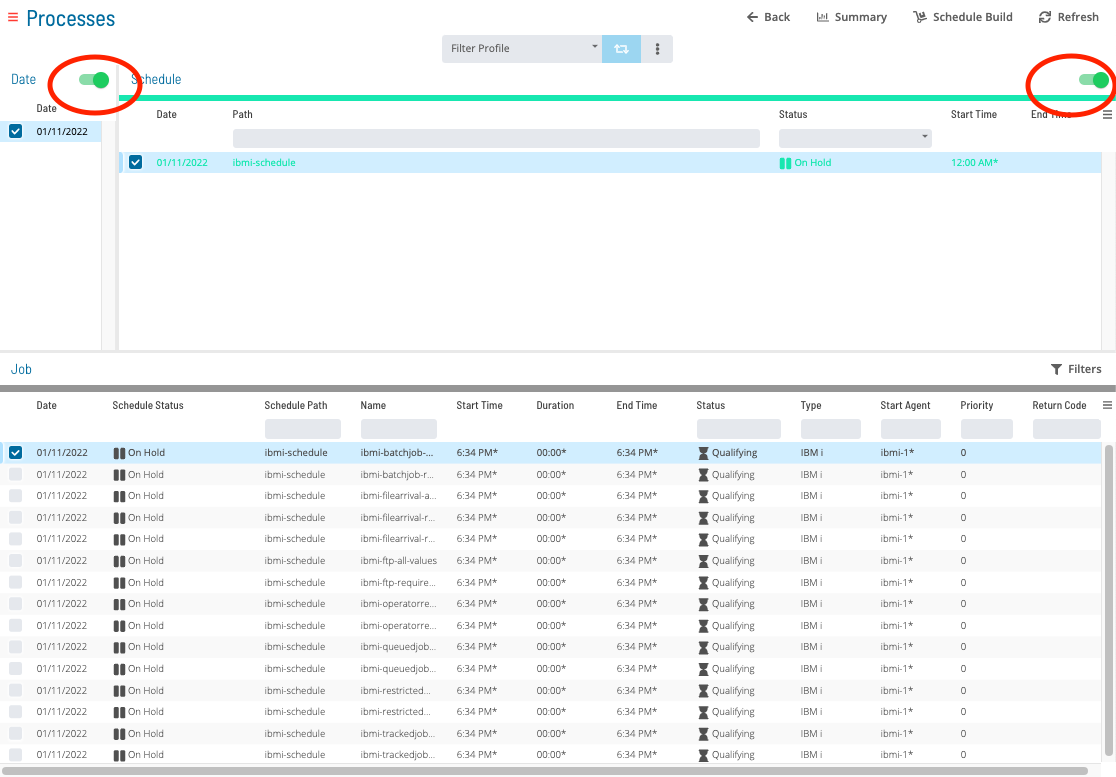
To update SAP R3 Job Task Details, complete the following steps:
-
Select the desired date(s) to display the associated schedules
-
Select one or more schedules in the list
-
Select one job in the list. Your selection appears in the status bar as a breadcrumb trail
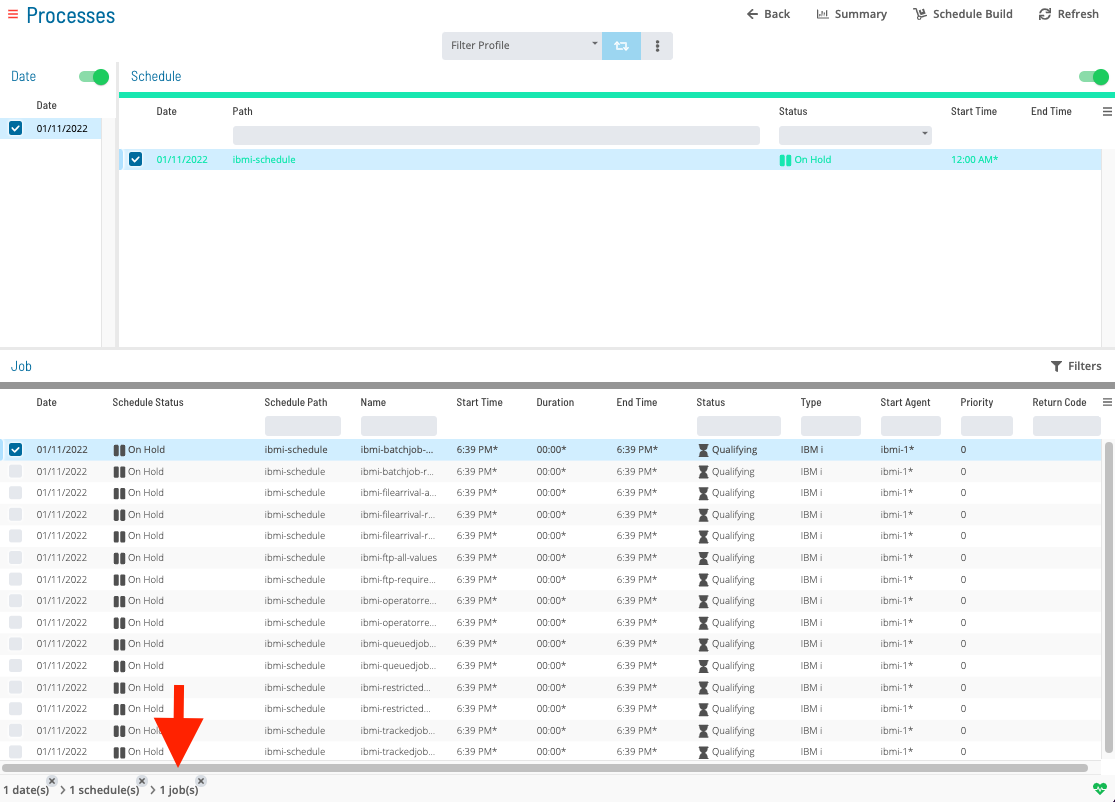
-
Select the job record (e.g., 1 job(s)) in the status bar to display the Selection panel
noteAlternatively, right-click the job in the list to display the Selection panel.
-48aeb60d47272f31681c7ac842437c7c.png "Job Summary Tab in Operations")
-
Select the Daily Job Definition button
 at the top-left corner of the panel. The page opens in Read-only mode by default
 -
Select the Lock button
 at the top-right corner to enter Admin mode. The button displays a white unlocked lock on a green background
  when enablednote
The Lock button is not visible to users without the appropriate permissions.
-
Expand the Task Details panel
-
From the Machines or Machine Group list, select the machine where the agent is installed. To specify a machine group, toggle the Machines switch to Machine Group and select a group from the list. The toggle appears green
 when enabled
In the SAP R3 Definition frame:
- Job Name: Name of the job as defined in the SAP R/3 and SAP CRM system
- Job Number: SAP R/3 and SAP CRM Job number (Job ID)
- Start SAP Job: Configures SAP start criteria
- A.S.A.P.: Starts the job as soon as a background process is available
- Immediately: Starts the job as soon as it qualifies to run in OpCon, without waiting for an available SAP background process. The job fails if all background processes are in use
- Exec. Target: Name of the SAP Application Server on which the job processes
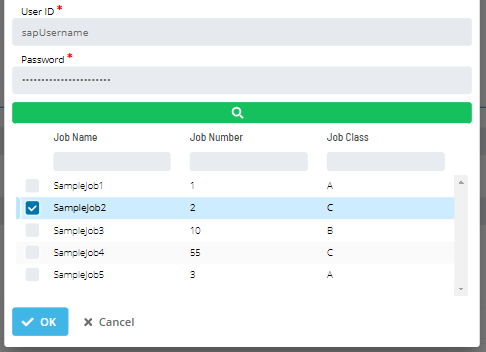
Select SAP Job
Select the search button next to Job Name to open the SAP Query dialog.

In the SAP Query dialog:
- Machine: SAP R3 agent Machine name
- Language: Two-character language abbreviation (e.g., EN for English)
- Job Name: Text matching the desired job name. Use wildcards (*) to broaden the search
- User ID: SAP Credentials username
- Password: SAP Credentials password

Enter SAP Credentials and select the search button to retrieve matching job names.

Select a job from the list and select OK to assign it to the daily job.

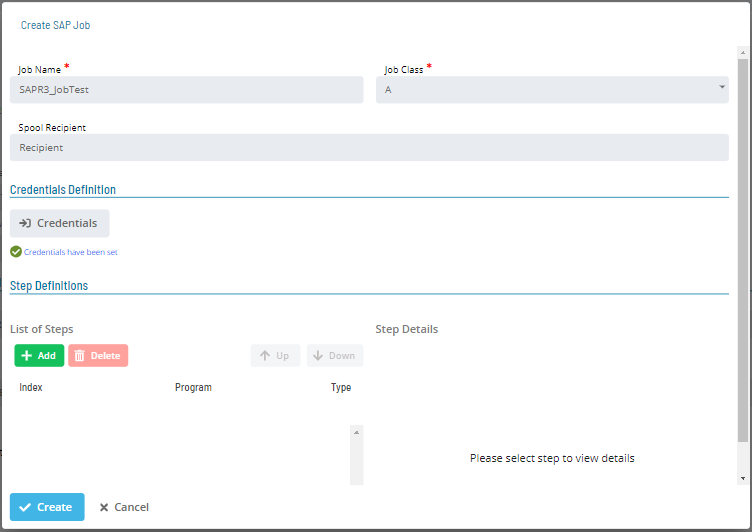
Create SAP Job
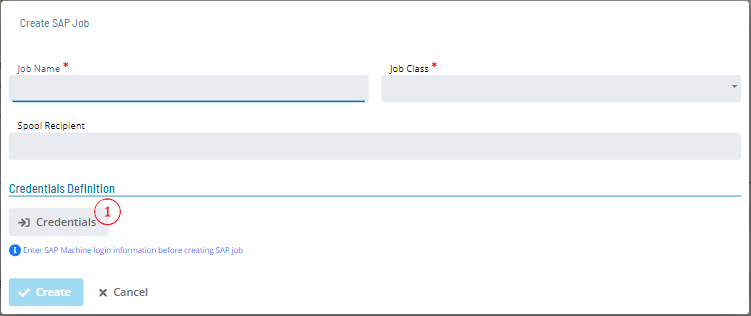
Select the Add button next to Job Name to open the Create SAP Job dialog.
In the Create SAP Job dialog:
- Job Name: Name of the job being created
- Job Class: SAP Job class: A, B, or C
- Spool Recipient: Spool recipient for the SAP job
- Credentials Button: Opens the SAP Login dialog
note
Credentials must be entered before creating an SAP Job. Credentials are used for all SAP queries.
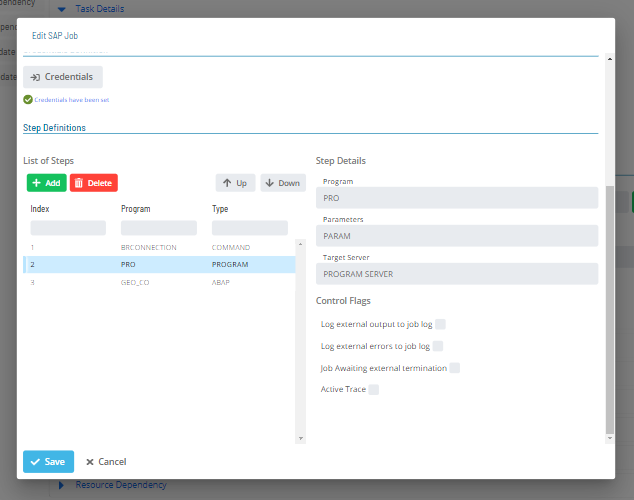
- List of Steps: Add, edit, or delete steps (Abap Program, External Command, or External Program) after entering credentials
- Step Details: Select an item from List of Steps to define its details
Enter Credentials
Select the Credentials button under Credentials Definition to open the SAP Login dialog.
In the SAP Login dialog:
- Machine: SAP R3 agent Machine name
- User ID: SAP Credentials username
- Password: SAP Credentials password
- Language: Two-character language abbreviation (e.g., EN for English)
 Create SAP Job Dialog after entering credentials.
Edit SAP Job
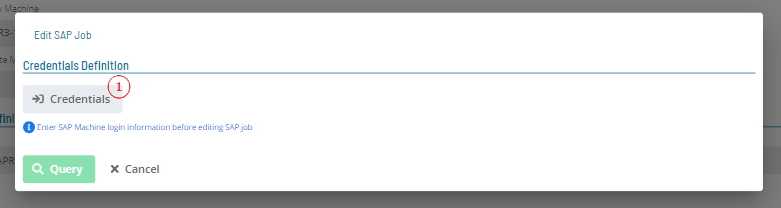
Select the edit button to open the Edit SAP Job dialog.

Open the credentials dialog and enter credentials.
Credentials are required to enable the Query Button.
In the SAP Login dialog:
- Machine: SAP R3 agent Machine name
- User ID: SAP Credentials username
- Password: SAP Credentials password
- Language: Two-character language abbreviation (e.g., EN for English)
After entering credentials, select the query button to search for the job in the SAP Business Warehouse system.
 Wait for results; job details will appear in the edit dialog.
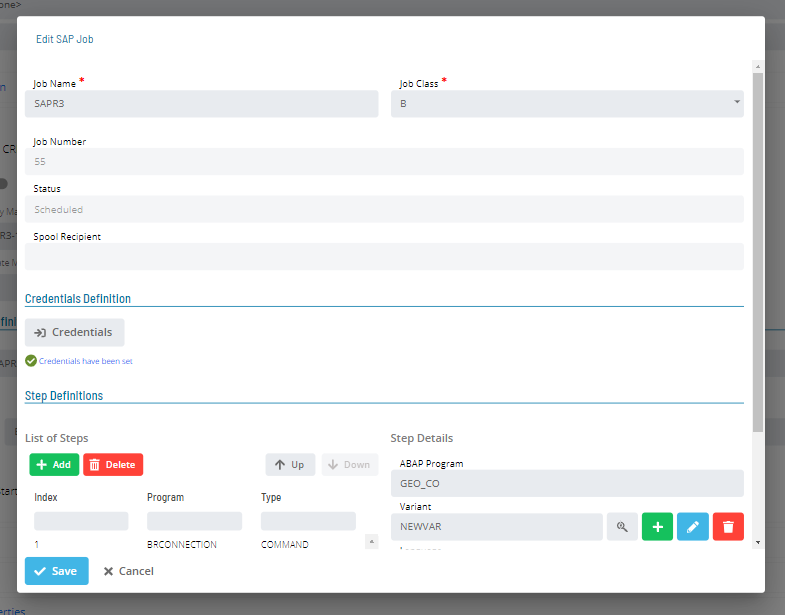 Make changes and select Save to continue.
Delete SAP Job
Select the delete button to open the Delete SAP Job dialog.

-
Machine: SAP R3 agent Machine name
-
Language: Two-character language abbreviation (e.g., EN for English)
-
User ID: SAP Credentials username
-
Password: SAP Credentials password
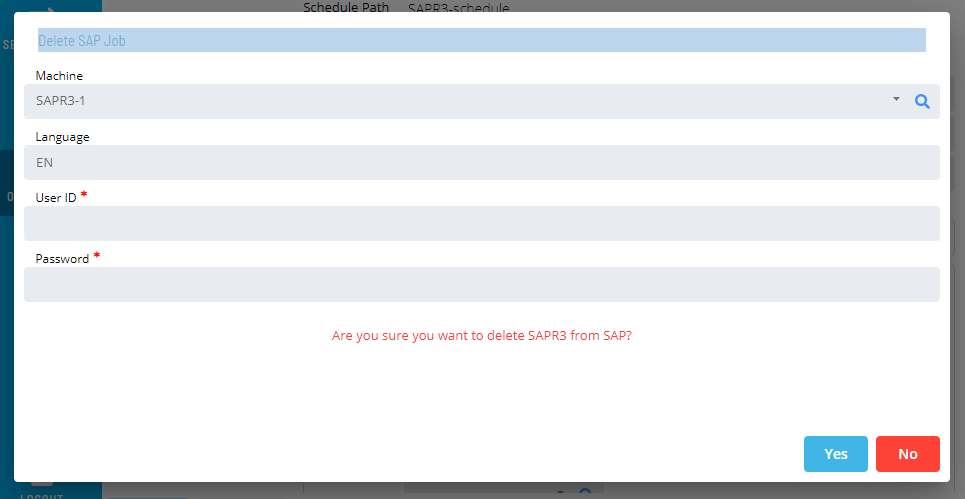
Enter credentials and select Yes to delete the job.
Add Steps to SAP Job
Select the Add button under List of Steps to open the Add SAP Step dialog.
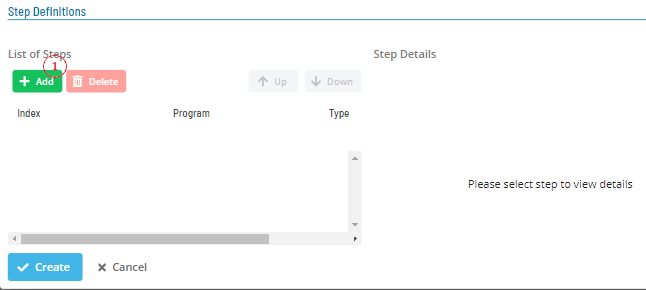
Add SAP Step Dialog
- Abap Program
- ABAP Program Selector: Text matching the desired Abap Program name. Use wildcards (*) to broaden the search

- Select the search button to retrieve matching Abap Programs
- Select an Abap Program and select OK to add it to the SAP Job
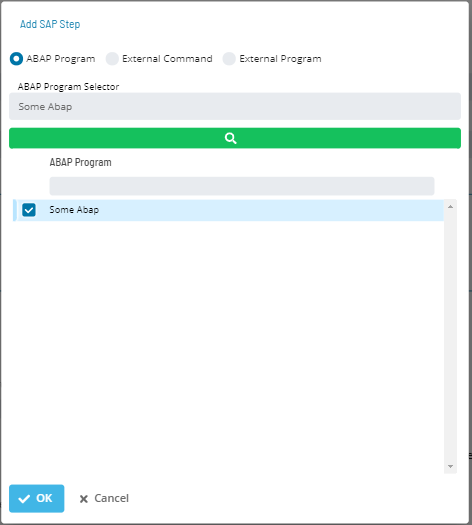

- ABAP Program Selector: Text matching the desired Abap Program name. Use wildcards (*) to broaden the search
- External Command
- External Command Selector: Text matching the desired External Command name. Use wildcards (*) to broaden the search

- Enter the External Command name or select the search button to retrieve matching commands
- Select an External Command and select OK to add it to the SAP Job


- External Command Selector: Text matching the desired External Command name. Use wildcards (*) to broaden the search
- External Program
- External Program Name: Text matching the desired External Program name

- Enter the External Program Name and select OK to add it to the SAP Job

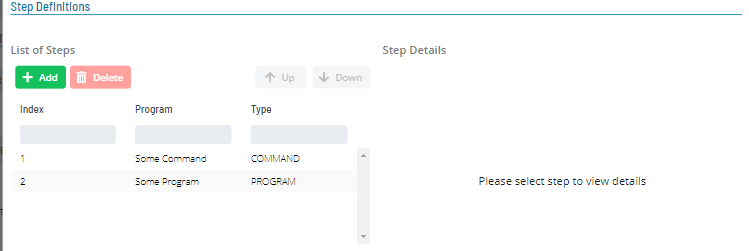
- External Program Name: Text matching the desired External Program name
 Use the up and down buttons to reorder steps.
Abap Program Details
- Select Abap Program from the list of steps
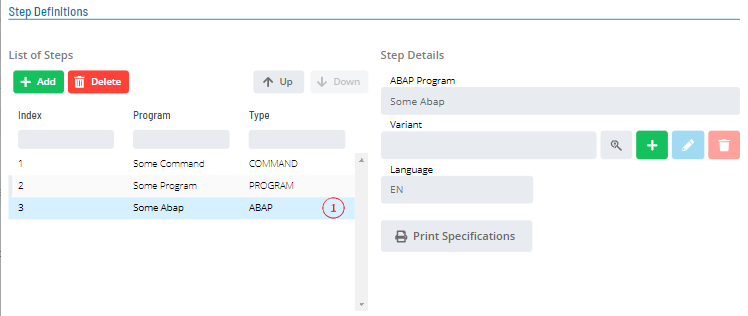
- ABAP Program: Name of the Abap Program
- Variant: Variant for the Abap step
- Search Variant Button: Retrieves all variants for the selected abap step from SAP R3

- Add Variant Button: Opens the add variant dialog to create a new variant

- Edit Variant Button: Opens the edit variant dialog. Requires a variant to be selected or created first

- Delete Variant Button: Removes the current variant from the abap step. Requires a variant to be selected or created first

- Search Variant Button: Retrieves all variants for the selected abap step from SAP R3
- Language: Two-character language abbreviation (e.g., EN for English)
- Print Specification Button: Opens the Print Specifications dialog

Abap Variants
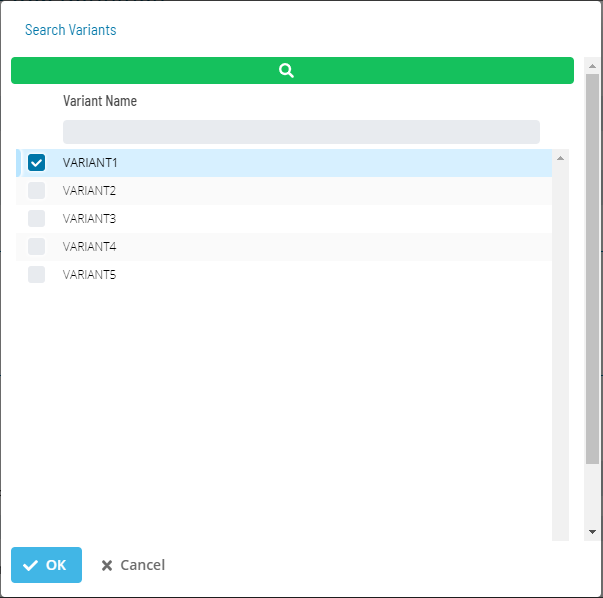
Search Variant Dialog
Select the search variant button to open the dialog, then select the search button to retrieve all variants for the selected abap step.
Select a Variant and select OK to apply it to the abap step.

Add Variant Dialog
Select the add variant button to open the dialog. Wait for the SAP Business Warehouse system to return Variant Parameters.
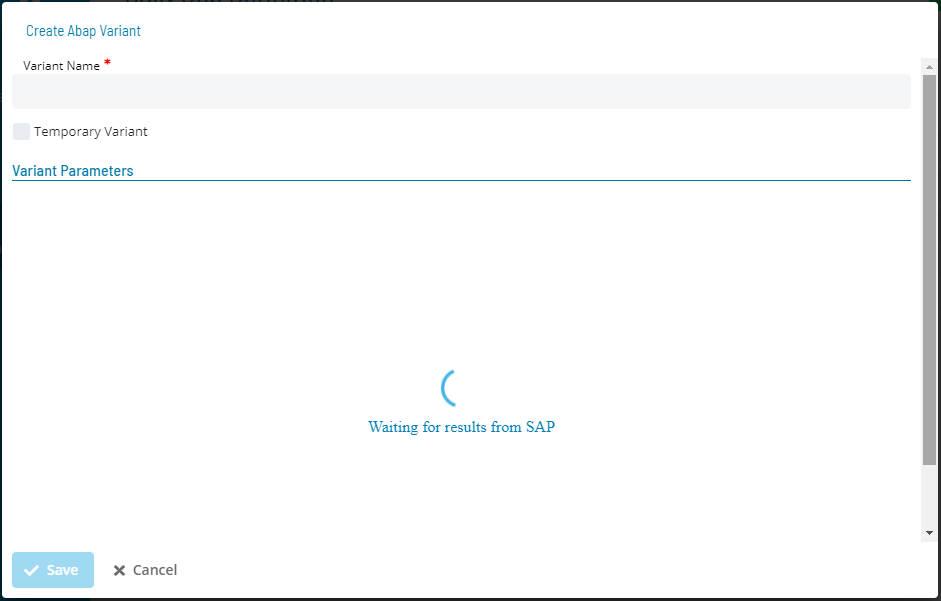
- Variant Name: Name for the variant being created
- Temporary Variant: Creates the variant in the local database. The variant is created when the daily job is saved and deleted when the daily job or SAP job is deleted
- Variant Parameters: Loaded automatically from SAP when the dialog opens
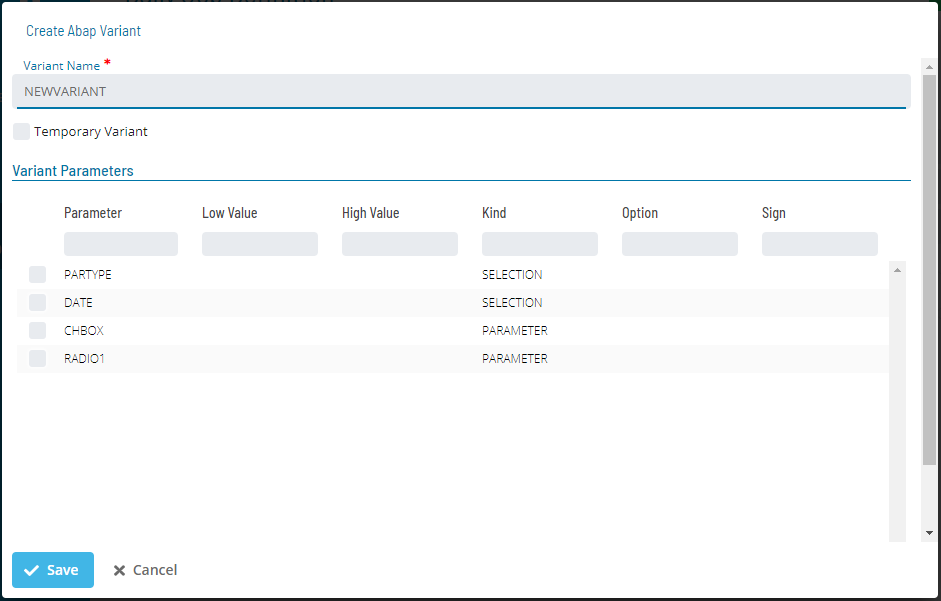
Select a variant parameter to update its values.
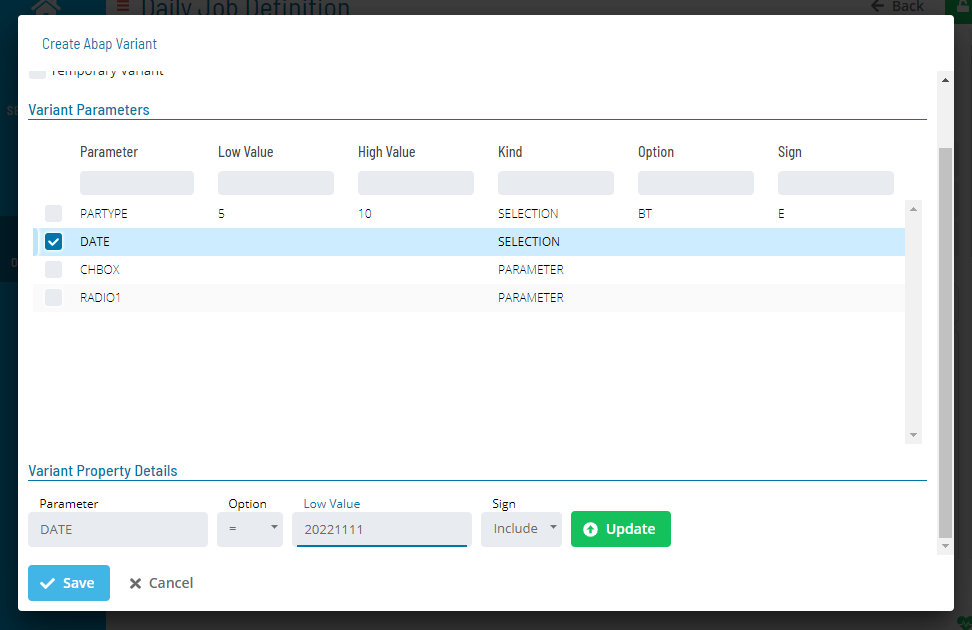 Select the update button to apply the change.

Edit Variant Dialog
Select or create a variant to enable the edit variant button, then select it to open the dialog.
Wait for Variant Parameters to load.
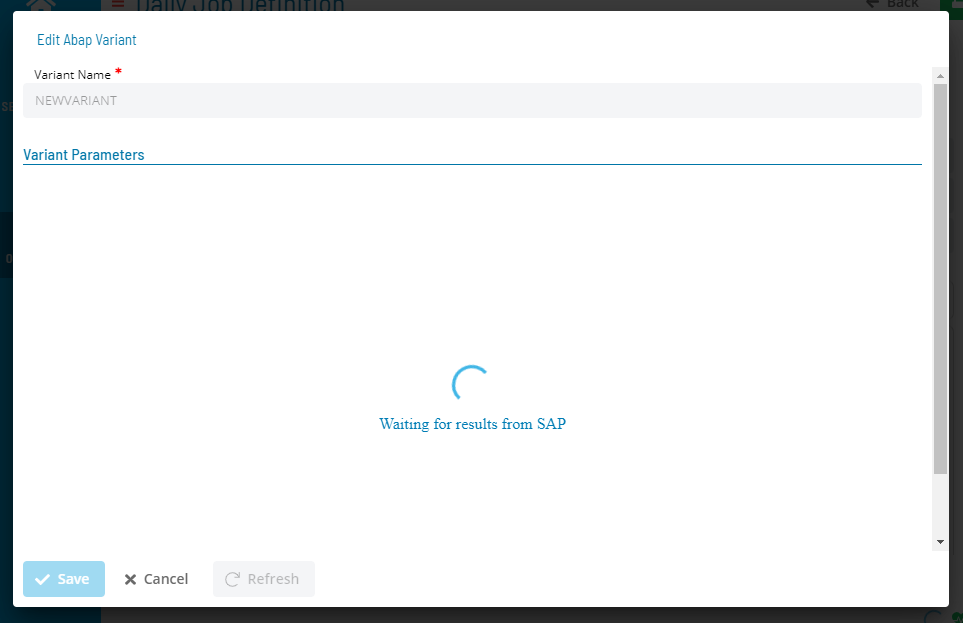
- Variant Name: Name of the variant being updated (read-only)
- Refresh Button: Reloads parameter values from SAP
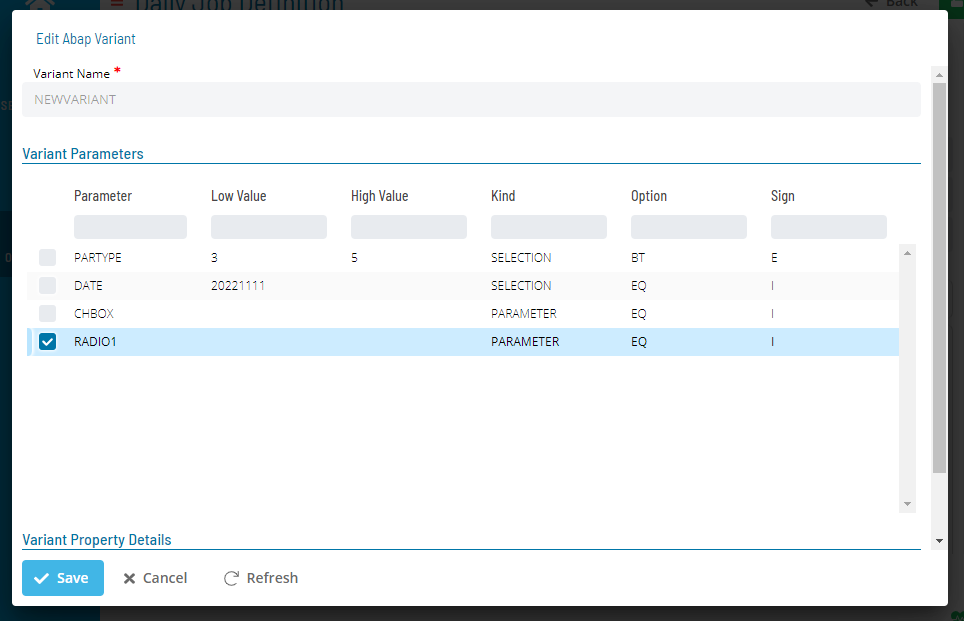
Select a variant parameter to update its values.
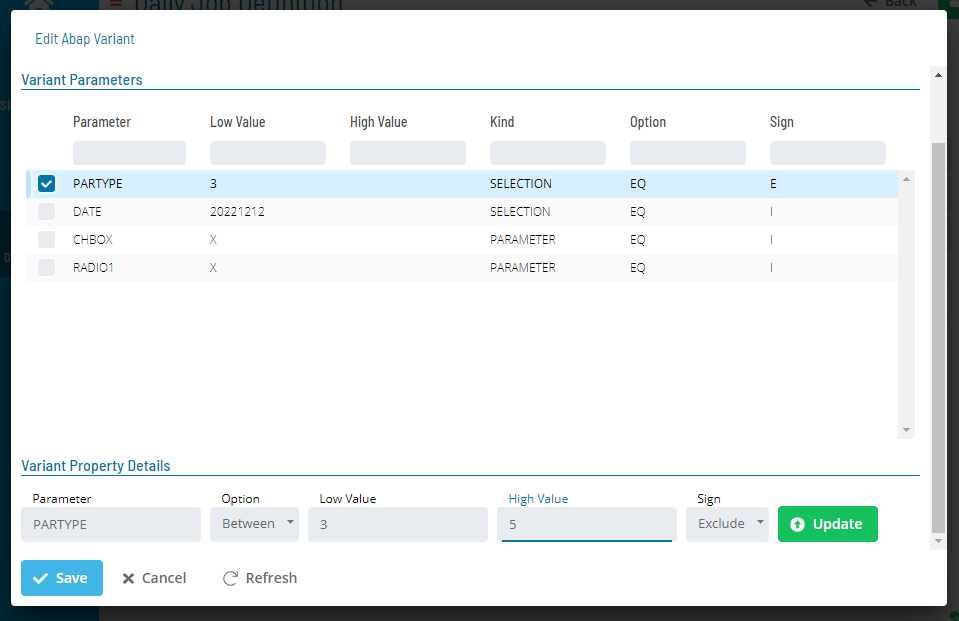 Select the update button to apply the change.
Delete Variant Dialog
Select or create a variant to enable the delete variant button, then select it to remove the variant from the Abap Program step.
This removes the variant from the abap step only. It does not permanently delete the variant from the SAP Business Warehouse system.
Abap Print Specifications
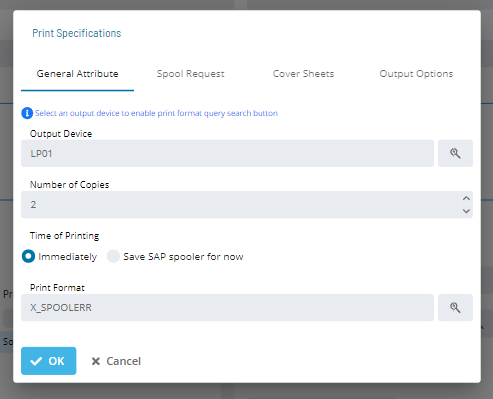
Select the Print Specifications button to open the dialog.
General Attribute Tab
- Output Device: Output device for printing. Select the search button to query SAP for available devices
 note
noteAn output device must be selected before querying for print formats.
- Number of Copies: Number of copies to print
- Time of Printing: When to print
- Print Format: Format for printing. Select the search button to query SAP for available formats

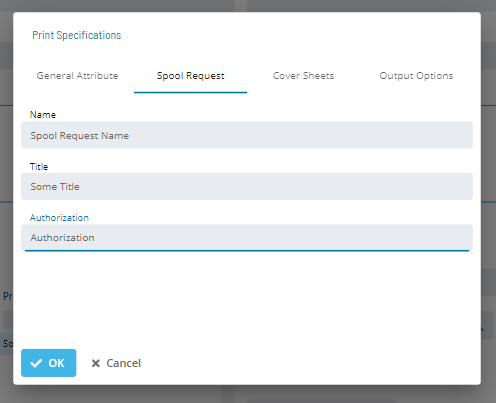
Spool Request Tab
- Name: Spool request name
- Title: Spool request title
- Authorization: Spool request authorization
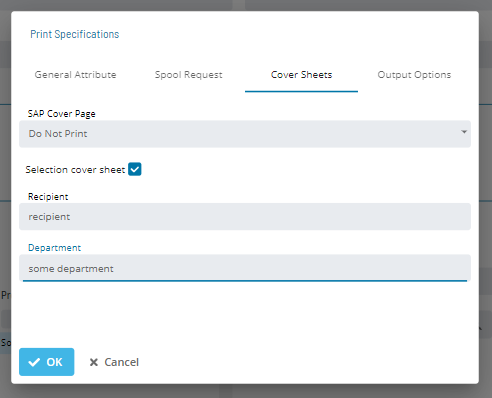
Cover Sheets Tab
- SAP Cover page: Whether to print a cover page
- Selection Cover Sheet: Selection cover sheet setting
- Recipient: Recipient field
- Department: Department field
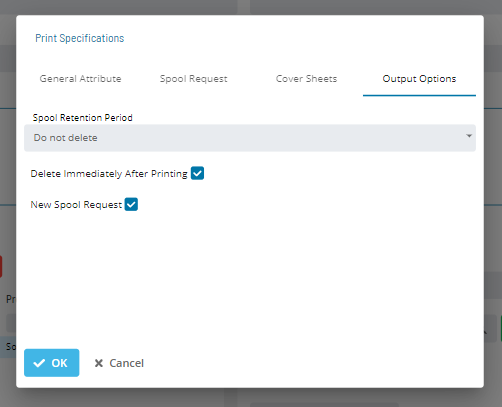
Output Options Tab
- Spool Retention Period: When to delete after printing
- Delete Immediately After Printing: Deletes the spool request immediately after printing
- New Spool Request: Creates a new spool request
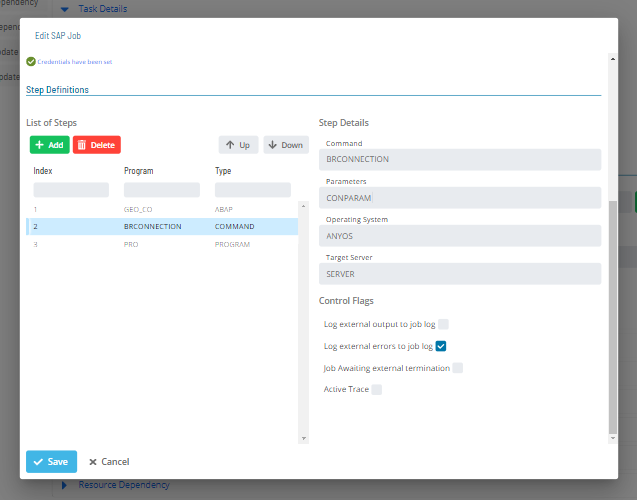
External Command Details
- Command: Name of the selected external command
- Parameters: Parameters for the external command
- Operating System: Operating system for the external command
- Target Server: Target server for the external command
- Log external output to job log: Logs external output to the job log
- Log external errors to job log: Logs external errors to the job log
- Job awaiting external termination: Waits for external termination
- Active trace: Activates trace
External Program Details
- Program: Name of the selected external program
- Parameters: Parameters for the external program
- Target Server: Target server for the external program
- Log external output to job log: Logs external output to the job log
- Log external errors to job log: Logs external errors to the job log
- Job awaiting external termination: Waits for external termination
- Active trace: Activates trace
Select Execution Target
Select the search button next to Execution Target to open the SAP Query dialog.

In the SAP Query dialog:
- Machine: SAP R3 agent Machine name
- Language: Two-character language abbreviation (e.g., EN for English)
- User ID: SAP Credentials username
- Password: SAP Credentials password
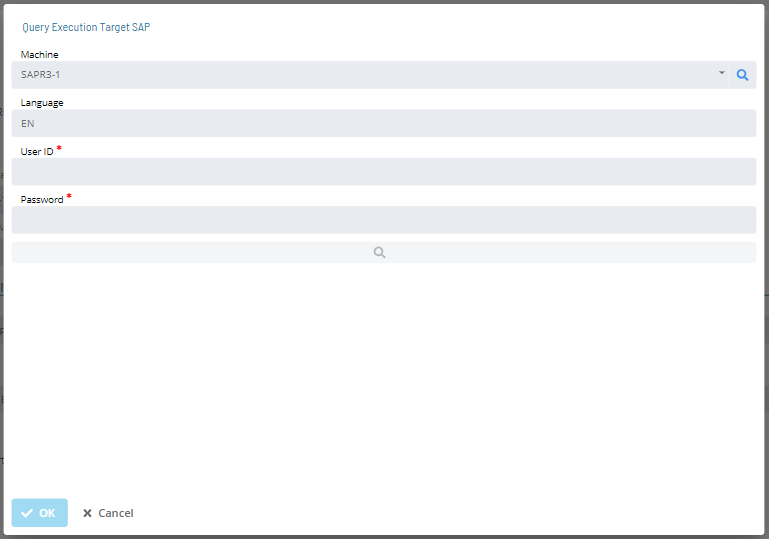
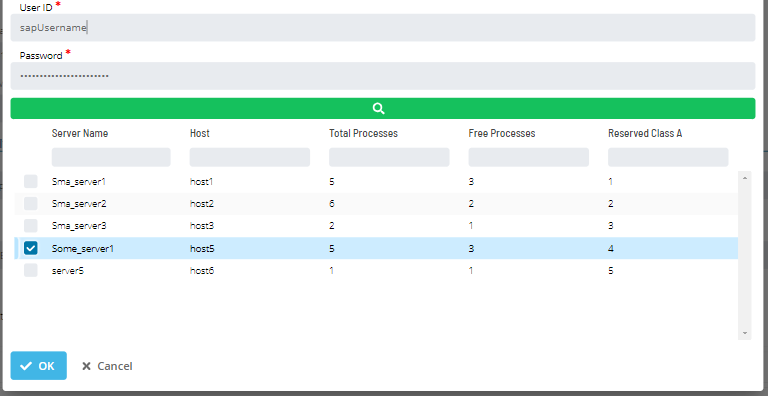
Enter SAP Credentials and select the search button to retrieve all execution targets.
Select a target from the list and select OK to assign it to Exec. Target in the SAP R3 Daily Job Definition.

Remove Execution Target
To remove the Execution Target, select the red trashcan icon.

Select Save to apply changes to the daily job, or Undo to revert them.
Configuration Options
| Setting | What It Does | Default | Notes |
|---|---|---|---|
| Job Name | Name of the job as defined in the SAP R/3 and SAP CRM system | — | — |
| Job Number | SAP R/3 and SAP CRM Job number (Job ID) | — | — |
| Start SAP Job | Configures SAP start criteria | — | — |
| Exec. Target | Name of the SAP Application Server on which the job processes | — | — |
| Language | Two-character language abbreviation (e.g., EN for English) | — | — |
| User ID | SAP Credentials username | — | — |
| Password | SAP Credentials password | — | — |
| Job Class | SAP Job class: A, B, or C | — | must be entered before creating an SAP Job. Credentials are used for all SAP queries. |
| Spool Recipient | Spool recipient for the SAP job | — | must be entered before creating an SAP Job. Credentials are used for all SAP queries. |
| Credentials Button | Opens the SAP Login dialog | — | must be entered before creating an SAP Job. Credentials are used for all SAP queries. |
| List of Steps | Add, edit, or delete steps (Abap Program, External Command, or External Program) after entering credentials | — | — |
| Step Details | Select an item from List of Steps to define its details | — | — |
| ABAP Program | Name of the Abap Program | — | — |
| Variant | Variant for the Abap step | — | — |
| Print Specification Button | Opens the Print Specifications dialog | — | — |
| Variant Name | Name for the variant being created | — | — |
| Temporary Variant | Creates the variant in the local database. | — | — |
| Variant Parameters | Loaded automatically from SAP when the dialog opens | — | — |
| Refresh Button | Reloads parameter values from SAP | — | — |
| Output Device | Output device for printing. | — | must be selected before querying for print formats. ::: - Number of Copies: Number |
| Number of Copies | Number of copies to print | — | — |
| Time of Printing | When to print | — | — |
| Print Format | Format for printing. | — | — |
| Name | Spool request name | — | — |
FAQs
Q: How many steps does the Updating SAP R3 Job Details procedure involve?
The Updating SAP R3 Job Details procedure involves 10 steps. Complete all steps in order and save your changes.
Q: What does Updating SAP R3 Job Details cover?
This page covers Updating SAP R3 Job Task Details.
Glossary
Agent: An agent installed on a target platform that runs jobs in the native language of that platform and communicates results back to SAM via SMANetCom over TCP/IP.
Department: An organizational grouping in OpCon used to assign jobs to logical divisions. User roles can be scoped to specific departments, controlling which jobs a user can manage.
Resource: A numeric variable in OpCon representing a finite pool. Jobs can be configured to require a set number of resource units to run, limiting concurrent executions and preventing resource contention.
Privilege: A specific permission granted through an OpCon role that controls access to a feature, function, or object type. Privileges are organized into categories such as Function Privileges, Machine Privileges, Schedule Privileges, and Access Codes.
Machine: A platform defined in the OpCon database that has an agent installed. OpCon routes job execution requests to machines via SMANetCom, and machines report job completion status back to SAM.
Schedule: A named container for jobs in OpCon, built for a specific date to create that day's automation. Schedules define build settings, frequencies, and the jobs that run within them.
Job: The fundamental unit of work in OpCon. A job defines what to run, on which machine, when to start, and what conditions must be met. Job results are tracked and can trigger events and notifications.
OpCon: Continuous' workflow automation platform. The OpCon server includes the database, SAM and Supporting Services (SAM-SS), and graphical user interfaces. agents installed on target platforms run jobs and report results.