Updating MCP Job Details
Theme: Configure
Who Is It For? System Administrator, Automation Engineer
What Is It?
In Admin mode, MCP job type properties can be updated or defined.
For conceptual information, refer to MCP Job Details in the Concepts online help.
- Update Job Type: START Job
- Update Job Type: RUN Job
- Update Job Type: EAE/AB Suite Job
- Update Job Type: CHANGE Job
- Update Job Type: COPY Job
- Update Job Type: REMOVE Job
Only those with the appropriate permissions will have access to the Lock button and can update job properties. For details about privileges, refer to Required Privileges in the Accessing Daily Job Definition topic.
If you do not have the Machine Privilege, you will not be able to edit the daily job definition.
Changes made to job properties in the Daily Job Definition take place immediately. If the job has already run, changes take effect the next time the job runs.
To perform this procedure, complete the following steps:
-
Select the Processes button at the top-right of the Operations Summary page
-
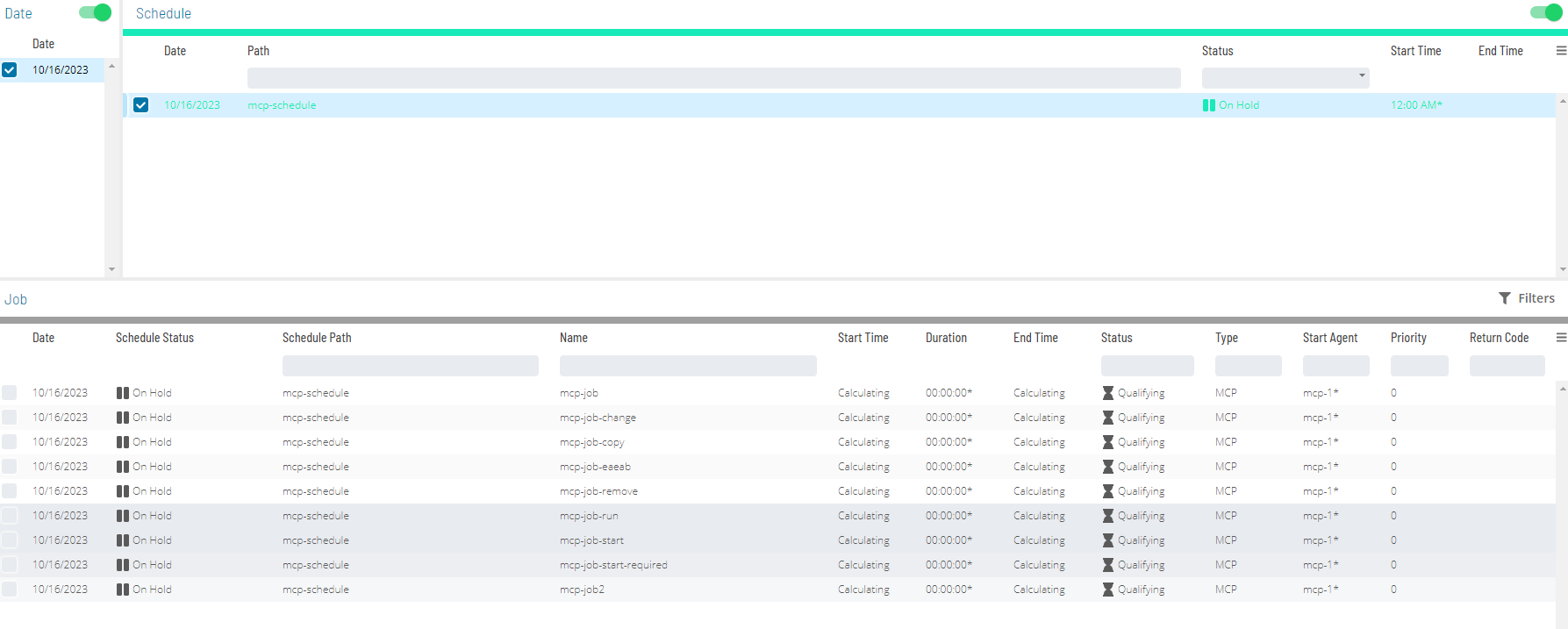
Enable both the Date and Schedule toggle switches. Each switch appears green when enabled
-
Select the desired date(s) to display the associated schedule(s)
-
Select one or more schedule(s) in the list
-
Select one job in the list. Your selection displays in the status bar at the bottom of the page as a breadcrumb trail
-
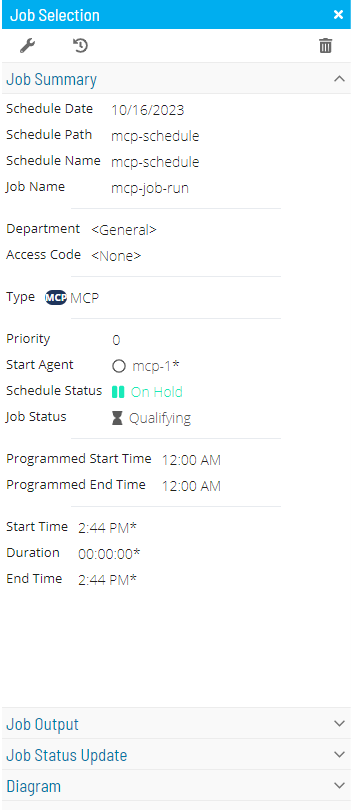
Right-click the job to display the Selection panel
-
Select the Daily Job Definition button
 at the top-left corner of the panel. The page opens in Read-only mode by default
 -
Select the Lock button
 at the top-right corner to enter Admin mode. The button switches to a white unlocked lock on a green background
  when enablednote
The Lock button is not visible to users without the appropriate permissions.
-
Expand the Task Details panel
noteAll required fields are designated by a red asterisk.
-
Select a User Id for running the job. Use the default value of "0/0" or assign an available batch user. User information must be defined as a Batch User ID in OpCon Administration
-
From the Machines or Machine Group list, select the machine where the agent is installed. To specify a machine group instead, toggle the Machines switch to Machine Group and select the group. The button appears green
 when toggled to Machine Group
Updating MCP Job Task Details
Updating Job Type START
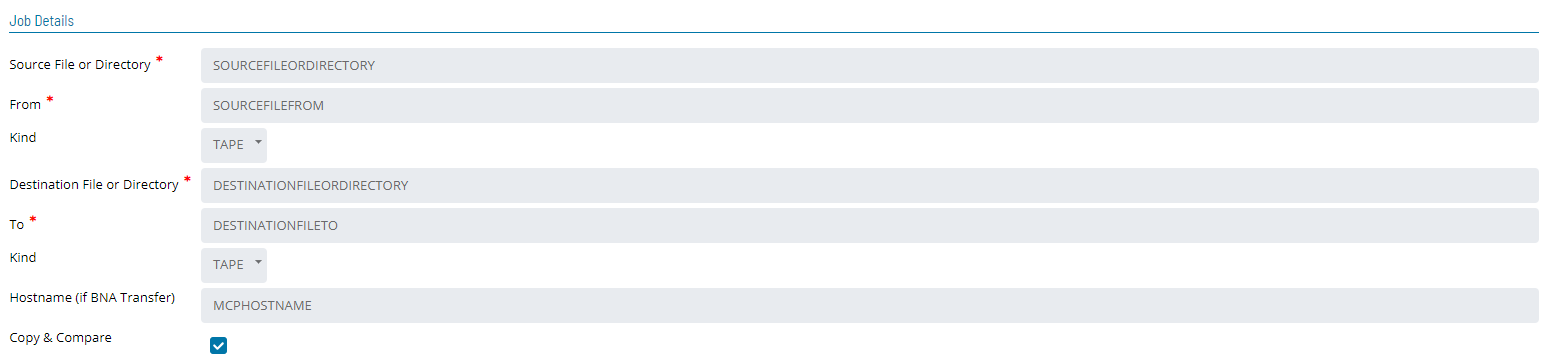
- File Title: WFL or program to run (max 96 characters)
- Do not begin with START or RUN — this causes the job to fail
- Lowercase characters are not allowed
- Arguments: Parameters and/or task attributes passed to the task (max 200 characters)
- Valid arguments: strings, numbers, and booleans
- Parentheses may wrap all arguments. Separate arguments with a comma (,)
- Template Display File: File used in lieu of a job-specific displays file. Allows a single set of definitions for multiple OpCon jobs
- EOT Notice Message: When enabled, treats each end-of-task notification as a display message, allowing an Automated Response to trigger on task completion without waiting for the job to fully complete
- Task Attributes: Modify, override, or elaborate existing task attributes for the MCP program or WFL (max 300 characters each)
- Each attribute must fit on a single line; continuation across lines is not supported
- Up to 10 task attributes allowed. To define more, append additional ones to an existing attribute using a semicolon. For example:
SW1=TRUE;SW2=TRUE

Updating Job Type RUN
- File Title: WFL or program to run (max 96 characters)
- Do not begin with START or RUN — this causes the job to fail
- Lowercase characters are not allowed
- Arguments: Parameters and/or task attributes passed to the task (max 200 characters)
- Valid arguments: strings, numbers, and booleans
- Parentheses may wrap all arguments. Separate arguments with a comma (,)
- Template Display File: File used in lieu of a job-specific displays file. Allows a single set of definitions for multiple OpCon jobs
- EOT Notice Message: When enabled, treats each end-of-task notification as a display message, allowing an Automated Response to trigger on task completion without waiting for the job to fully complete
- Task Attributes: Modify, override, or elaborate existing task attributes for the MCP program or WFL (max 300 characters each)
- Each attribute must fit on a single line
- Up to 10 task attributes allowed. Append additional ones using a semicolon. For example:
SW1=TRUE;SW2=TRUE
- File Attributes: Subset of Task Attributes used to define, enhance, or override default attributes for files used by the MCP program (max 300 characters each)
- Each attribute must fit on a single line
- Up to 10 file attributes allowed. Append additional ones using a semicolon. For example:
SW1=TRUE;SW2=TRUE

Updating Job Type EAE/AB Suite
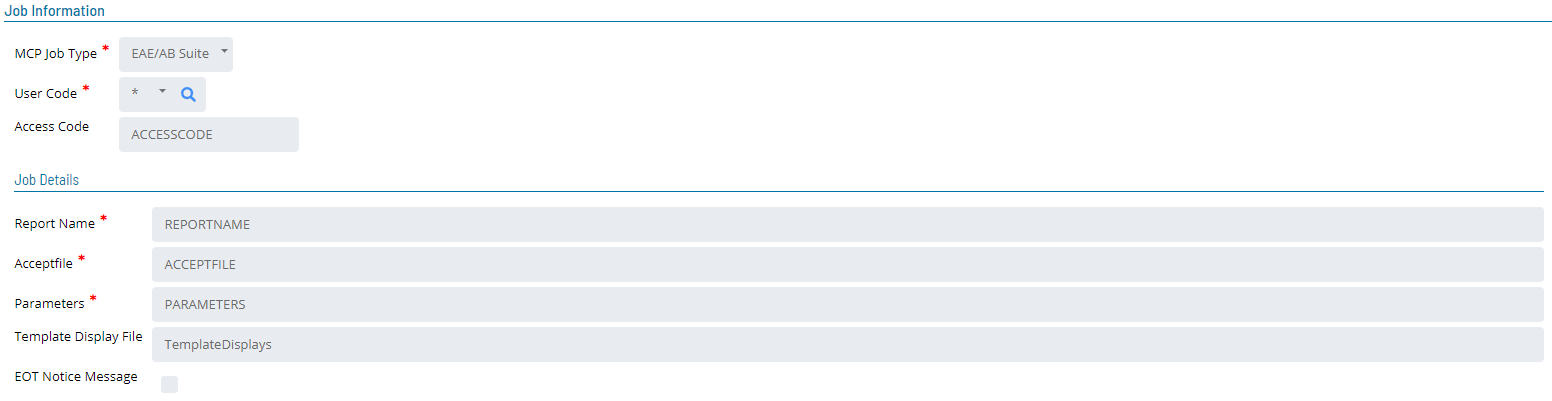
- Report Name: Name of the EAE/AB Suite report to run (max 256 characters). Tokens are supported
- Acceptfile: Filename the agent creates with the arguments from the Parameters field for the EAE/AB Suite command (max 256 characters). Tokens are supported
- After job completion or failure, the Acceptfile is saved permanently in
*SMA/LINC17/FILES/=. Clean up this directory regularly using theSMA/WFL/CLEANUP/LINC17/FILESutility included in the MCP Agent release container, which can be scheduled via OpCon
- After job completion or failure, the Acceptfile is saved permanently in
- Parameters: All parameters to run the EAE/AB Suite report (max 256 characters). Tokens are supported
- Template Display File: File used in lieu of a job-specific displays file. Allows a single set of definitions for multiple OpCon jobs. For more information, refer to Automated Response.
- EOT Notice Message: When enabled, treats each end-of-task notification as a display message, allowing an Automated Response to trigger on task completion without waiting for the job to fully complete. For more information, refer to Automated Response.
Updating Job Type COPY
- Source File or Directory (Required): Filename (e.g.,
(UC)MYUSER/FILES) or directory (e.g.,(UC)MYUSER/=) to copy (max 256 characters). Tokens are supported - From (Required): Family Disk name or tape name where the source file resides (max 40 characters). Tokens are supported
- Kind (Required): Device type for the source file — PACK or TAPE (default)
- Destination File or Directory: New filename (e.g.,
(UC)MYUSER/SAVED/FILES) or directory (e.g.,(UC)MYUSER/SAVED/=) for the copied file (max 256 characters). Tokens are supported - To (Required): Family Disk name or tape name where the destination file will be placed (max 40 characters). Tokens are supported
- Kind (Required): Device type for the destination file — PACK or TAPE (default)
- Hostname (if BNA Transfer) (Optional): Unisys MCP hostname to copy the file to (max 256 characters). If blank, the application assumes this is not a BNA Transfer copy. Tokens are supported
- Copy & Compare (Optional): When selected, uses the "COPY & COMPARE" feature when copying the file
Updating Job Type CHANGE
- Source File or Directory (Required): Filename (e.g.,
(UC)MYUSER/FILES) or directory (e.g.,(UC)MYUSER/=) to change (max 256 characters). Tokens are supported - New File or Directory (Required): New filename (e.g.,
*(UC)MYUSER/SAVED/FILES) or directory (e.g.,*(UC)MYUSER/SAVED/=) (max 256 characters). Tokens are supported - From (Required): Family Disk name or tape name where the source file resides (max 40 characters). Tokens are supported

Updating Job Type REMOVE
- Source File or Directory (Required): Filename (e.g.,
(UC)MYUSER/FILES) or directory (e.g.,*(UC)MYUSER/FILES/=) to remove (max 256 characters). Tokens are supported - From (Required): Family Disk name or tape name where the source file resides (max 40 characters). Tokens are supported
Effective with MCP Agent 16.02, *SMA/WFL/REMOVEJOB can be modified to complete OK even when no files are deleted. Security errors and locked files still cause the REMOVEJOB WFL to fail.
To enable the alternate behavior, modify a working copy of *SMA/WFL/REMOVEJOB: comment out sequence #26600 and uncomment sequence 26650. Re-apply this modification after each MCP Agent upgrade if the alternate behavior is desired.

Pre-Run Information
A Prerun tests required preconditions before job execution. If the Prerun fails, it is rescheduled at a user-defined interval and retried until it succeeds. Once the Prerun completes successfully, the job defined in the Job Description is allowed to process.

Failure Criteria
- Fail Codes: Words to compare against the MCP console display. If they match, the agent follows the configured failure logic
- The entry must begin with the first word of the MCP console display, followed by any additional words to include in the search
- End the entry with an asterisk (*) as a wildcard for remaining words
- Fail Codes are an alternative to programming a WFL to ABORT if a program
ISNT COMPLETEDOK. Fail Codes apply to WFL jobs only — not programs
- Fail Reset: Words to compare against the MCP console display. If they match, the agent follows the configured failure logic

FAQs
Q: How many steps does the Updating MCP Job Details procedure involve?
The Updating MCP Job Details procedure involves 11 steps. Complete all steps in order and save your changes.
Q: What does Updating MCP Job Details cover?
This page covers Updating MCP Job Task Details, Pre-Run Information, Failure Criteria.
Glossary
Agent: An agent installed on a target platform that runs jobs in the native language of that platform and communicates results back to SAM via SMANetCom over TCP/IP.
Notification: A message sent by the SMA Notify Handler when a Machine, Schedule, or Job changes to a specific status. Notifications can be delivered as emails, text messages, Windows Event Log entries, SNMP traps, or other formats.
Resource: A numeric variable in OpCon representing a finite pool. Jobs can be configured to require a set number of resource units to run, limiting concurrent executions and preventing resource contention.
Privilege: A specific permission granted through an OpCon role that controls access to a feature, function, or object type. Privileges are organized into categories such as Function Privileges, Machine Privileges, Schedule Privileges, and Access Codes.
Machine: A platform defined in the OpCon database that has an agent installed. OpCon routes job execution requests to machines via SMANetCom, and machines report job completion status back to SAM.
Schedule: A named container for jobs in OpCon, built for a specific date to create that day's automation. Schedules define build settings, frequencies, and the jobs that run within them.
Job: The fundamental unit of work in OpCon. A job defines what to run, on which machine, when to start, and what conditions must be met. Job results are tracked and can trigger events and notifications.
OpCon: Continuous' workflow automation platform. The OpCon server includes the database, SAM and Supporting Services (SAM-SS), and graphical user interfaces. agents installed on target platforms run jobs and report results.