Updating UNIX Job Details
Theme: Configure
Who Is It For? System Administrator, Automation Engineer
What Is It?
In Admin mode, UNIX job type properties can be updated or defined. For a UNIX job, you can:
- Update Job Action: Run Program Job Details
- Update Job Action: File Arrival Job Details
- Update Job Action: Embedded Script Job Details
For conceptual information, refer to UNIX Job Details in the Concepts online help.
Only those with the appropriate permissions will have access to the Lock button and can update job properties. For details about privileges, refer to Required Privileges in the Accessing Daily Job Definition topic.
If you do not have the Machine Privilege, you will not be able to edit the daily job definition.
Changes made to the job properties in the Daily Job Definition will take place immediately. If the job has already run, the changes will take effect the next time the job runs.
Updating Job Action: Run Program Job Details
To perform this procedure:
Select on the Processes button at the top-right of the Operations Summary page. The Processes page will display.
Ensure that both the Date and Schedule toggle switches are enabled so that you can make your date and schedule selection, respectively. Each switch will appear green when enabled.
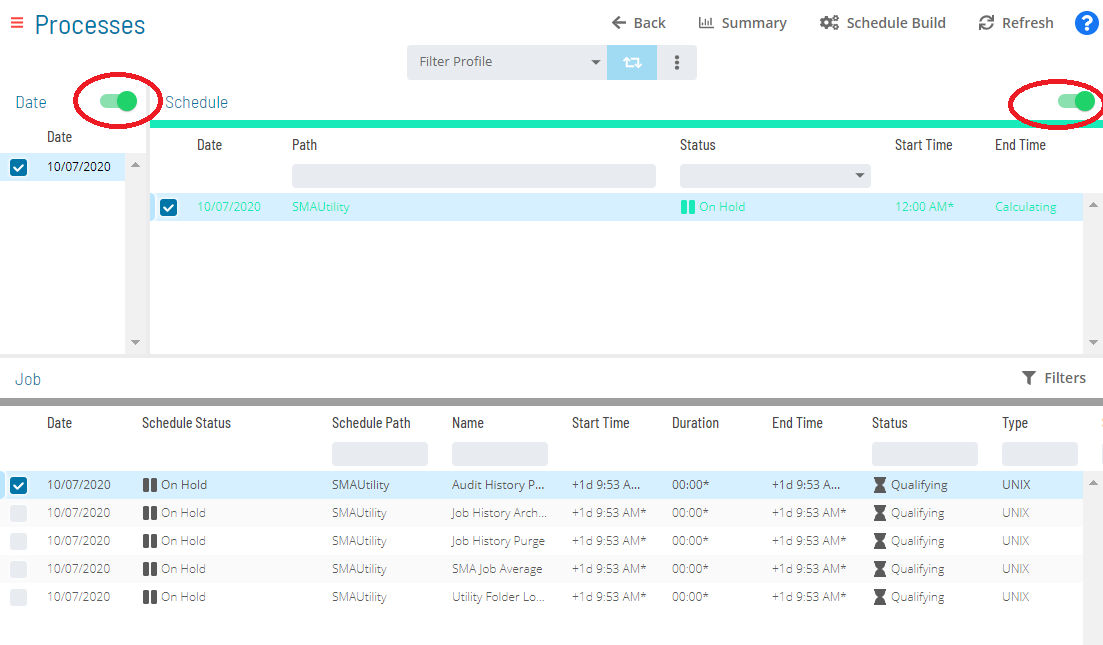
Select the desired date(s) to display the associated schedule(s).
Select one or more schedule(s) in the list.
Select one job in the list. A record of your selection will display in the status bar at the bottom of the page in the form of a breadcrumb trail.
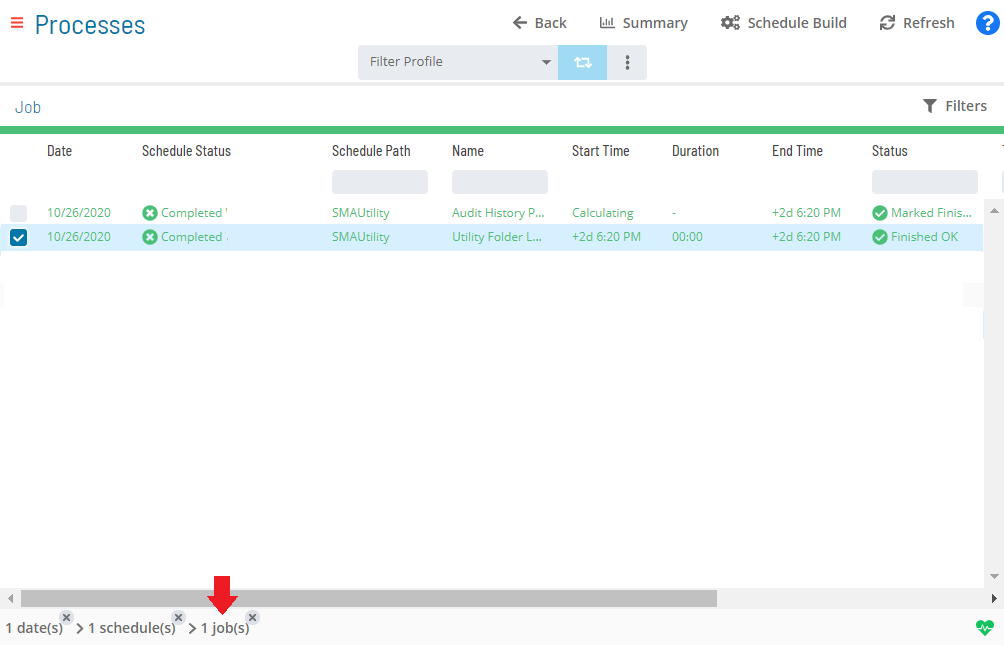
Select on the job record (e.g., 1 job(s)) in the status bar to display the Selection panel.
As an alternative, you can right-click on the job selected in the list to display the Selection panel.
-f5a1a0f534189eaf4359e46f29dacb2e.png "Job Summary Tab in Operations")
Select the Daily Job Definition button  at the top-left corner of the panel to access the Daily Job Definition page. By default, this page will be in Read-only mode.
Select the Lock button  at the top-right corner to place the page in Admin mode. The button will switch to display a white lock unlocked on a green background
  when enabled.
The Lock button will not be visible to users who do not have the appropriate permissions.
Expand the Task Details panel to expose its content.
All required fields are designated by a red asterisk.
Select a User Id to use when running the job. Either use the default value of "0/0" or assign it to an available batch user. Keep in mind that user information must be defined as a Batch User ID in OpCon Administration.
Select from the Machines or Machine Group list the machine where the agent is installed. To specify a machine group instead, toggle the Machines switch to Machine Group then select the machine group from the list. When toggled to Machine Group, the button will appear green  .
.
In the Prerun frame:
The Prerun frame defines a prerequisite process that runs immediately before the primary job.
\
Enable the Prerun switch .
Enter the command line detail for the prerun process. This should be the full path to the executable file on the agent machine to run immediately before the job specified in the Start Image. This field permits up to 4000 characters.
In the Run frame:
The Run frame defines the information for running the primary job.
\
Enter the full path and file name of the program to run in the UNIX Start Image. This field permits up to 4000 characters.
Enter any required command-line parameters. This field permits up to 4000 characters.
OpCon concatenates the Start Image and Parameters and inserts a space between them before sending the job to the UNIX Agent.
Enter the NICE Value to increase/decrease the priority of the job and prerun (if present). Valid values range from -20 to 20 with a default of zero (0).
A lower NICE Value signifies a higher priority; entering a negative number raises the priority and a positive number lowers it.
In the Job Output Parsing frame:
The Job Output Parsing frame defines search criteria for analyzing job output. Matches against the defined string result in the defined exit code.
Select the green Add button (+) to define the parsing criteria.
Select the Search Operation from the list.
Enter the String to Search. Wildcard characters are supported. This field permits up to 255 characters.
Select or enter the Exit Code.
Remove any defined parsing criteria by clicking the Delete button at the end of the row.
Enter the Custom Application Log Path. Wildcard characters are supported for specifying multiple logs.
In the Failure Criteria frame:
The Failure Criteria frame defines the criteria OpCon uses to determine the final status of the primary job.
\
Select an operator then enter or select the exit code integer.
Specify whether the defined criteria should be used to determine if the job Failed or Finished OK.
Defining Multiple Failure Criteria:
Use the and/or field to define multiple failure criteria. This field defines the way the strings are evaluated together.
You must define all "And" comparisons before the "Or" comparisons. Additionally, if the Comparison Operator on the previous group is "Equal To", then the and/or value must be set to "Or".
Use the Fail on Core Dump switch to configure how the agent reports the job status when the job does or does not create a core file.
- If the Fail on Core Dump switch is enabled and a core dump is produced, the job status returns a failed exit code
- If the Fail on Core Dump switch is enabled and a core dump is not produced, the job succeeds (assuming all other exit code processing is good)
The final exit code processing has nothing to do with whether a core dump is produced or not. It is a final determination of whether the program produced an acceptable job status.
Define up to five different signal failure criteria. If any signal failure criterion is TRUE when a job finishes, OpCon reports the job as Failed.
In the Environment Variables frame:
The Environment Variables frame defines the environment variables for the job to use.
\
Select the green Add button (+) to define the environment variables.
Enter a name in the Name field.
Enter a value in the Value field. Remove any defined environment variable by clicking the Delete button at the end of the row.
Select the OK button to add the name/value.
Select the Undo button if you wish to undo your changes for any reason.
Select the Save button.
Updating Job Action: File Arrival Job Details
Navigate to the Daily Job Definition
To navigate to the daily job definition for the File Arrival job, complete the following steps:
- Select on the Processes button at the top-right of the Operations Summary page. The Processes page will display
- Ensure that both the Date and Schedule toggle switches are enabled so that you can make your date and schedule selection, respectively. Each switch will appear green when enabled
- Select the desired date(s) to display the associated schedule(s)
- Select one or more schedule(s) in the list
- Select one job in the list. A record of your selection will display in the status bar at the bottom of the page in the form of a breadcrumb trail
- Select on the job record (e.g., 1 job(s)) in the status bar to display the Selection panel
- Select the Daily Job Definition button at the top-left corner of the panel to access the Daily Job Definition page. By default, this page will be in Read-only mode
- Select the Lock button at the top-right corner to place the page in Admin mode. The button will switch to display a white lock unlocked on a green background when enabled
- Expand the Task Details panel to expose its content
Configure File Arrival Job Settings
To configure the file arrival detection criteria and failure handling, complete the following steps:
- Select a User Id to use when running the job. Either use the default value of "0/0" or assign it to an available batch user. Keep in mind that user information must be defined as a Batch User ID in OpCon Administration
- Select from the Machines or Machine Group list the machine where the agent is installed. To specify a machine group instead, toggle the Machines switch to Machine Group then select the machine group from the list. When toggled to Machine Group, the switch will appear green
- Enter the file path and name of the file to detect in the File Name field. UNIX wildcard characters are supported (e.g., /usr/local/abc*.txt). This field permits up to 4000 characters
- Specify whether to search the sub-directory under the specified path using the Sub-directory Search toggle switch. When enabled, the switch will appear green
- Specify the time frame (Start Time and End Time) within which the file must arrive in the directory. Either manually input the time frame or use the input field selectors
- Specify the amount of time in seconds (Duration) that the file size must remain stable. Either manually input the number of seconds or use the input field selector(s)
- Select an operator then enter or select the exit code integer
- Specify whether the defined criteria should be used to determine if the job Failed or Finished OK
- Select the Save button
Updating Job Action: Embedded Script Job Details
For conceptual information, refer to Embedded Scripts in the Concepts online help.
If you do not have the Script Privilege for the script, you will not be able to see the task details or edit the daily job definition (the Lock button will be disabled).
To perform this procedure:
Select on the Processes button at the top-right of the Operations Summary page. The Processes page will display.
Ensure that both the Date and Schedule toggle switches are enabled so that you can make your date and schedule selection, respectively. Each switch will appear green when enabled.
Select the desired date(s) to display the associated schedule(s).
Select one or more schedule(s) in the list.
Select one job in the list. A record of your selection will display in the status bar at the bottom of the page in the form of a breadcrumb trail.
Select on the job record (e.g., 1 job(s)) in the status bar to display the Selection panel.
As an alternative, you can right-click on the job selected in the list to display the Selection panel.
Select the Daily Job Definition button at the top-left corner of the panel to access the Daily Job Definition page. By default, this page will be in Read-only mode.
Select the Lock button at the top-right corner to place the page in Admin mode. The button will switch to display a white lock unlocked on a green background when enabled.
The Lock button will not be visible to users who do not have the appropriate permissions.
Expand the Task Details panel to expose its content.
All required fields are designated by a red asterisk.
Select a User Id to use when running the job. Either use the default value of "0/0" or assign it to an available batch user. Keep in mind that user information must be defined as a Batch User ID in OpCon Administration.
Select from the Machines or Machine Group list the machine where the agent is installed. To specify a machine group instead, toggle the Machines switch to Machine Group then select the machine group from the list. When toggled to Machine Group, the switch will appear green.
In the Embedded Script frame:
The Embedded Script frame associates an embedded script to run with the job.
\
Select the script to associate with the job. The Type field will populate to show the type of script selected.
Select the specific version (or revision) of the script to run for this job. The Comments field will populate with any notes provided about the script.
Selecting the "Latest" version means the latest version of the script will be used just before the job runs.
Viewing Scripts:
To view the details about a script, select the Preview button ( ). The Script Viewer pop-up window will display information (e.g., name, description, type, version, version comment, author, created, updated) about and the contents of the selected script.
The Preview button is only enabled for scripts where the user is a member of a role with privileges to view the contents. A user must have All Administrative Functions, All Function Privileges, View Embedded Script Contents privilege, or must be in the ocadm role to view the contents.
If you do not have the View Embedded Script Contents privilege, you will not be able to see any of the script contents in Preview mode.
In the Runner frame:
The Runner frame configures the run definition used to run the script.
\
Select the runner (interpreter) to run the script. The Run Command Template field will populate to show the syntax for the runner.
Enter any argument(s) to pass to the script at runtime. This field permits up to 255 characters.
When defining the argument, keep in mind that the equal sign (=) is a restricted character.
In the Failure Criteria frame:
The Failure Criteria frame defines the criteria OpCon uses to determine the final status of the job.
\
Select an operator then enter or select the exit code integer.
Specify whether the defined criteria should be used to determine if the job Failed or Finished OK.
Defining Multiple Failure Criteria:
Use the and/or field to define multiple failure criteria. This field defines the way the strings are evaluated together.
You must define all "And" comparisons before the "Or" comparisons. Additionally, if the Comparison Operator on the previous group is "Equal To", then the and/or value must be set to "Or".
Use the Fail on Core Dump switch to configure how the agent reports the job status when the job does or does not create a core file.
- If the Fail on Core Dump switch is enabled and a core dump is produced, the job status returns a failed exit code
- If the Fail on Core Dump switch is enabled and a core dump is not produced, the job succeeds (assuming all other exit code processing is good)
The final exit code processing has nothing to do with whether a core dump is produced or not. It is a final determination of whether the program produced an acceptable job status.
Define up to five different signal failure criteria. If any signal failure criterion is TRUE when a job finishes, OpCon reports the job as Failed.
In the Environment Variables frame:
The Environment Variables frame defines the environment variables for the job to use.
\
Select the green Add button (+) to define the environment variables.
Enter a name in the Name field.
Enter a value in the Value field. Remove any defined environment variable by clicking the Delete button at the end of the row.
Select the OK button to add the name/value.
Select the Undo button if you wish to undo your changes for any reason.
Select the Save button.
FAQs
Q: How many steps does the Updating UNIX Job Details procedure involve?
The Updating UNIX Job Details procedure involves 18 steps. Complete all steps in order and save your changes.
Q: What does Updating UNIX Job Details cover?
This page covers Updating Job Action: Run Program Job Details, Updating Job Action: File Arrival Job Details, Updating Job Action: Embedded Script Job Details.
Glossary
Agent: An agent installed on a target platform that runs jobs in the native language of that platform and communicates results back to SAM via SMANetCom over TCP/IP.
Embedded Script: A script stored and versioned directly within the OpCon database. Embedded scripts can be assigned to Windows jobs and run at runtime without requiring the script file to exist on the target machine.
Resource: A numeric variable in OpCon representing a finite pool. Jobs can be configured to require a set number of resource units to run, limiting concurrent executions and preventing resource contention.
Role: A named security profile in OpCon that groups privileges together. Roles are assigned to user accounts to control which features, schedules, jobs, machines, and administrative functions a user can access.
Privilege: A specific permission granted through an OpCon role that controls access to a feature, function, or object type. Privileges are organized into categories such as Function Privileges, Machine Privileges, Schedule Privileges, and Access Codes.
Machine: A platform defined in the OpCon database that has an agent installed. OpCon routes job execution requests to machines via SMANetCom, and machines report job completion status back to SAM.
Schedule: A named container for jobs in OpCon, built for a specific date to create that day's automation. Schedules define build settings, frequencies, and the jobs that run within them.
Job: The fundamental unit of work in OpCon. A job defines what to run, on which machine, when to start, and what conditions must be met. Job results are tracked and can trigger events and notifications.