User Roles
The Roles tab on the Users page lists all roles defined in the system and shows which roles the selected user is currently assigned to. You can assign or remove roles by selecting or clearing each role option, then saving your changes.
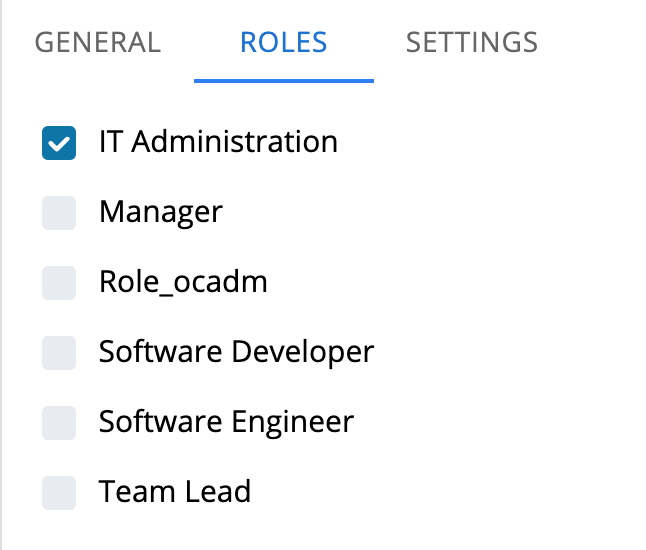
Assign or Remove Roles for a User
To assign or remove roles for a user, complete the following steps:
- Go to Library > Access Management > Users.
- Select the user you want to modify from the user list.
- Select the Roles tab.
- Select the option next to each role you want to assign, or clear the option next to each role you want to remove.
- Select Save.
Result: A confirmation message appears when the save is successful. If the Ask user to enter a recovery email upon login Server Option is enabled and the user has no email address and is not assigned to any SSO role, the Email Required dialog appears before the save completes.
Role assignments for the ocadm system administrator account cannot be modified. Additionally, a user without the Role_ocadm role cannot assign Role_ocadm to another user.
Email Required Dialog
The Email Required dialog appears when all three of the following conditions are true:
- The Ask user to enter a recovery email upon login option is enabled on the Server Options > Security page.
- The selected user does not have an email address on file.
- The selected user is not assigned to any SSO-enabled role.
The dialog prompts you to enter an email address for the user before the save proceeds.
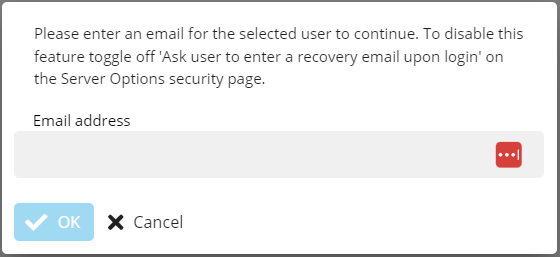
To save with a required email, complete the following steps:
- Enter a valid email address in the Email address field.
- Select Save.
Result: The user record is updated with the email address and the role changes are saved.
Selecting Cancel closes the dialog and cancels the save.
For more information, see:
For conceptual information, see: